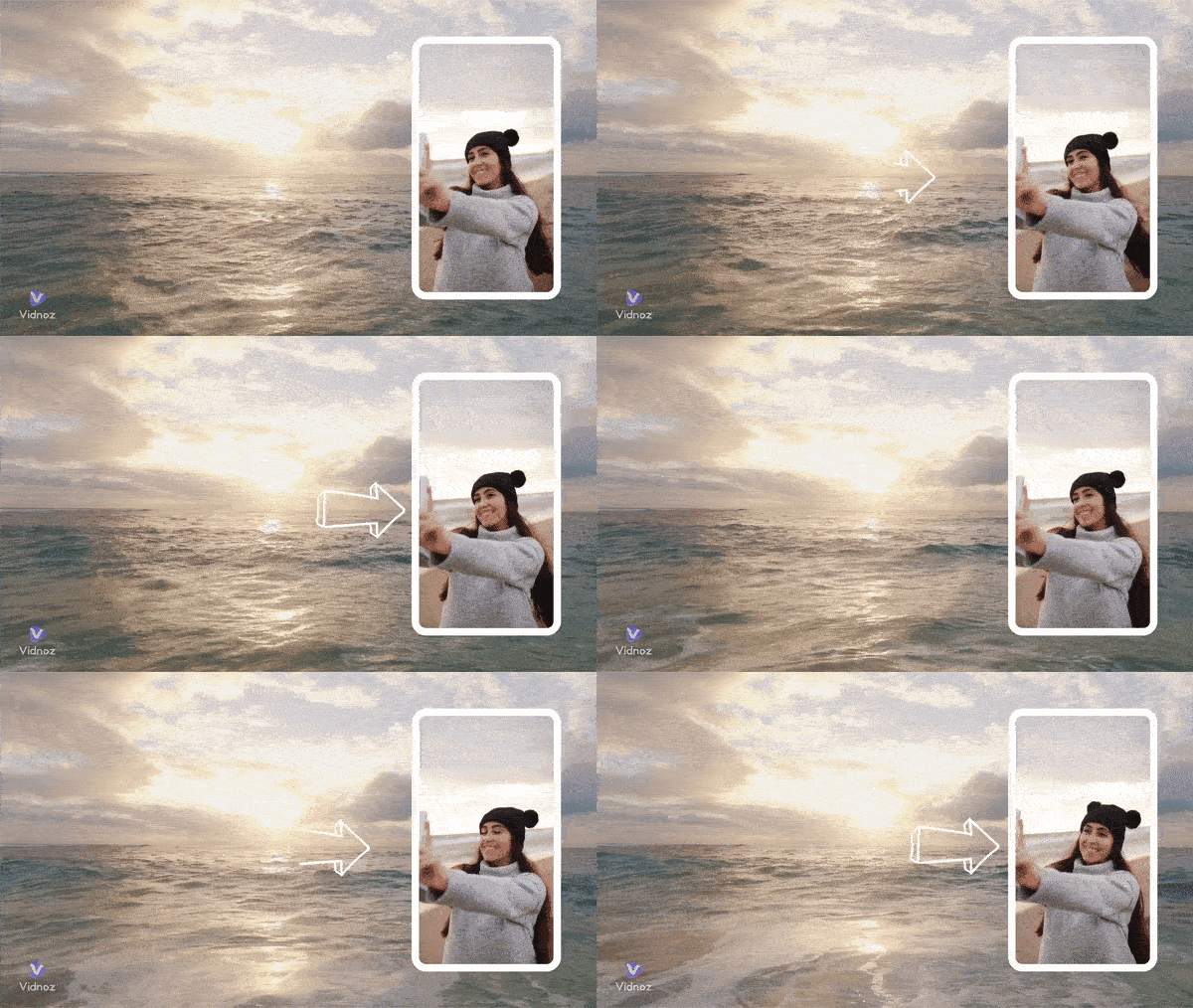
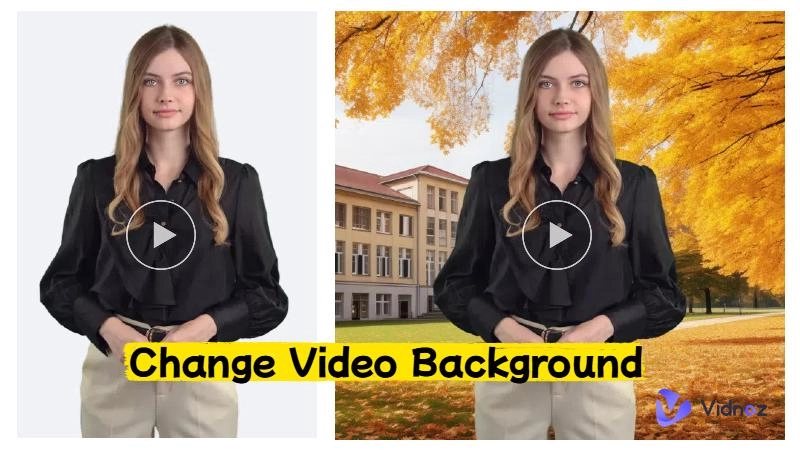
Picture in picture is a common video presentation effect where a small, independently playable video window overlays the main video during playback. The two videos run simultaneously without interfering with each other.
This effect makes videos richer and more engaging. The most popular scene is reaction videos on social media, where the main video displays gameplay footage or entertaining clips while a smaller window shows the anchor's reactions. It's also highly useful in tutorials and other scenarios, making content easier to understand while boosting its appeal. Therefore, understanding how to make a picture-in-picture video is crucial for content creators.
Today, creating picture in picture videos is no longer a complex task. You don't need professional editors or intricate techniques — advanced AI video editors have streamlined the entire process. This article will provide a detailed guide on how to create a PIP effect, making it easy for both beginners and seasoned creators to get started.
- On This Page
How to Make a Picture-in-Picture Video for Free with Vidnoz AI
Before creating picture in picture effects, choosing an optimal tool significantly reduces complexity while boosting efficiency and output quality. Vidnoz AI is a free, powerful all-in-one online video generator and editor that lets you add overlays, trim clips, and customize effects without installation. Its intuitive interface makes creating a picture-in-picture video simple, even if you’ve never edited videos before. Best of all, it supports HD export, so your final video will look crisp on any platform.
Detailed Steps for Creating a Picture in Picture Effect
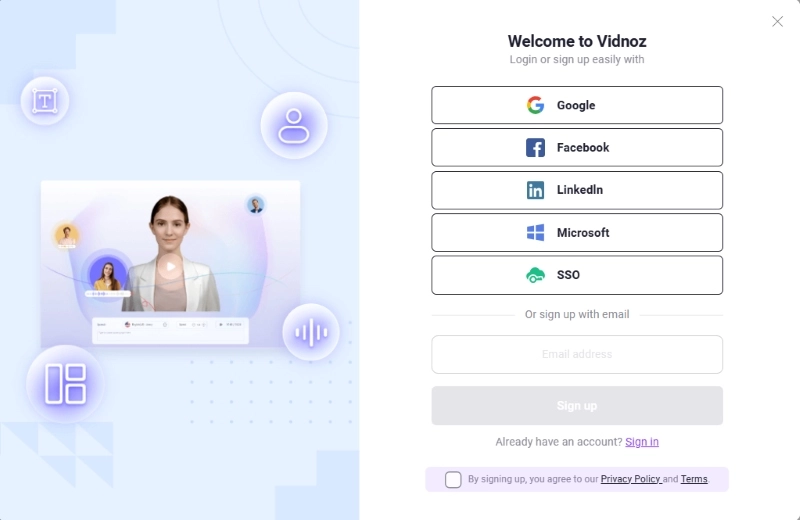
Step 1.Click the Try It Free Now button below to create a free account on the Vidnoz AI platform.
You can quickly log in with your Google , Facebook, LinkedIn, or Microsoft account — no credit card required.
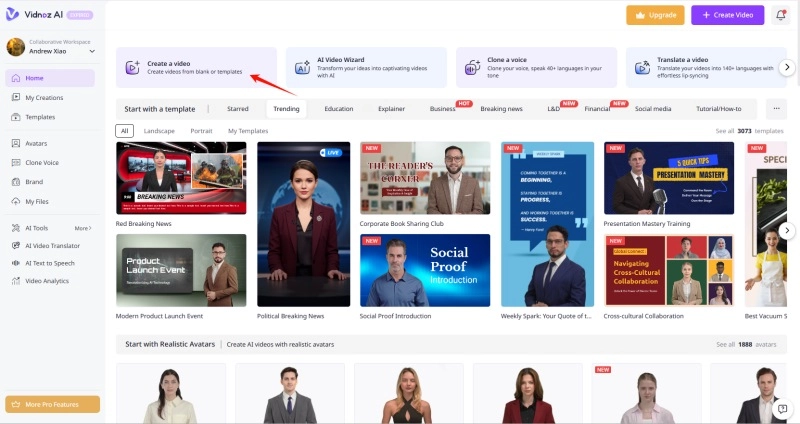
Step 2.After creating your account and logging in automatically, you'll land on the Vidnoz AI Workspace. On the Home page, locate and click the Create a video button.
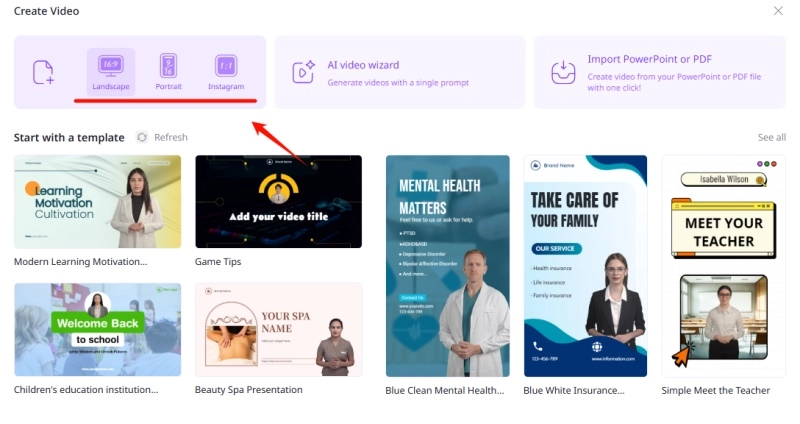
Step 3.Choose a suitable ratio of the canvas for your video in the pop-up window. Vidnoz offers the following options: 16:9 (Landscape), 9:16 (Portrait), and 1:1 (Square).
You can make your choice based on the platform where the video will be published. Click your preferred ratio to confirm the canvas.
Step 4.When you enter the editor, click the + icon in the left sidebar to create a blank scene.
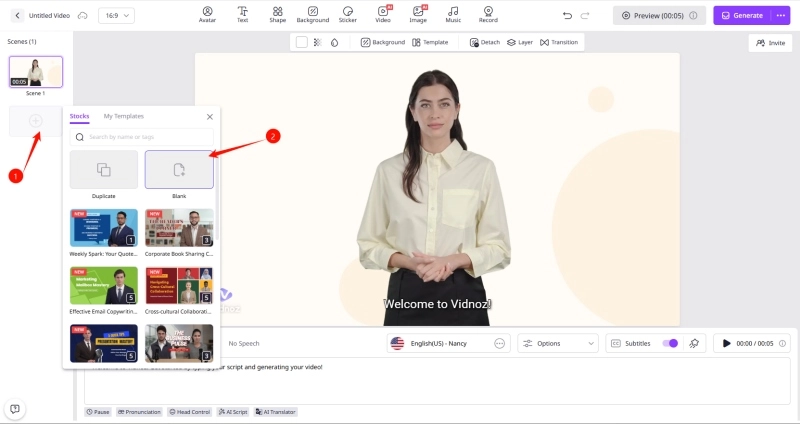
Then, delete the default scene.
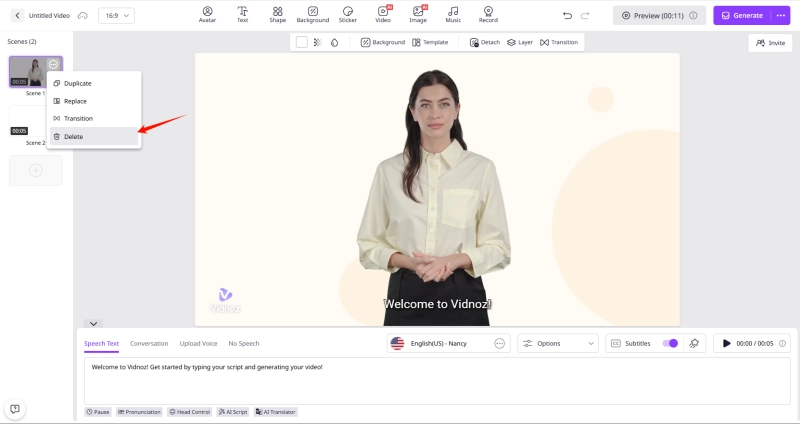
Tips: We recommend choosing a blank canvas to make a picture-in-picture video so you can fully control the main video and overlay.
Step 5.On the top toolbar, click the Video tab, then select Upload from the dropdown. Choose the main video and overlay video (e.g., a reaction clip or close-up demo) file from your computer and wait for them to upload.
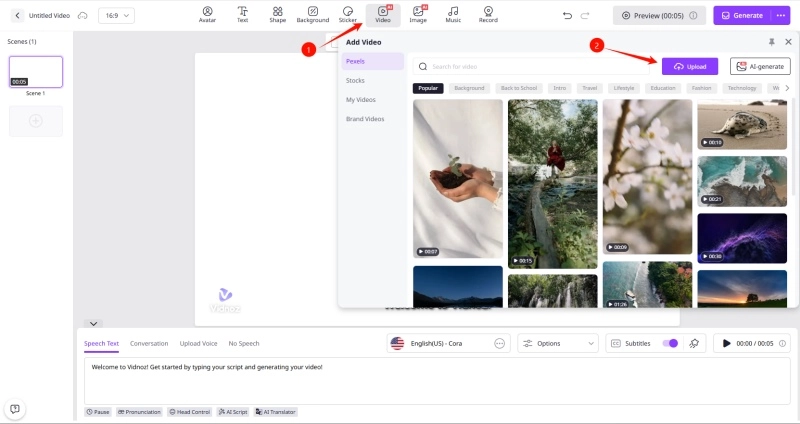
Step 6.Wait for a while, once uploaded, the videos will automatically be added to the canvas. Find the main video that will serve as the background, right-click it, and select Set as background — it will automatically fill the entire canvas.
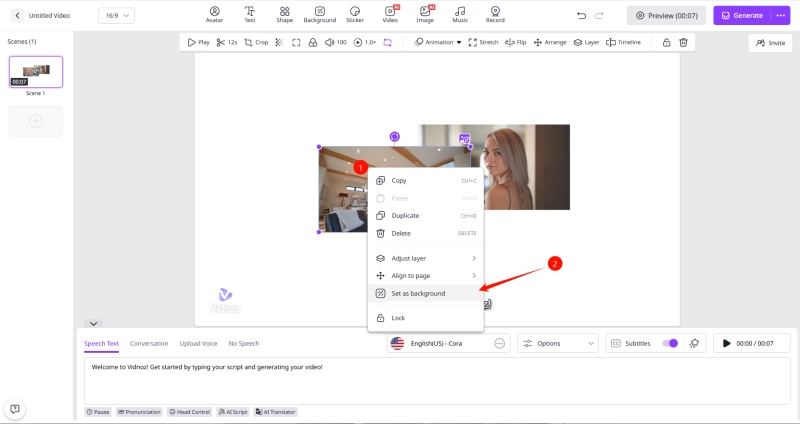
Step 7.Now, the overlay video will appear as a small window floating above the main video. Select and drag it to adjust its position on the canvas. You can place it in any corner of the canvas — this is where picture-in-picture effects are most commonly placed.
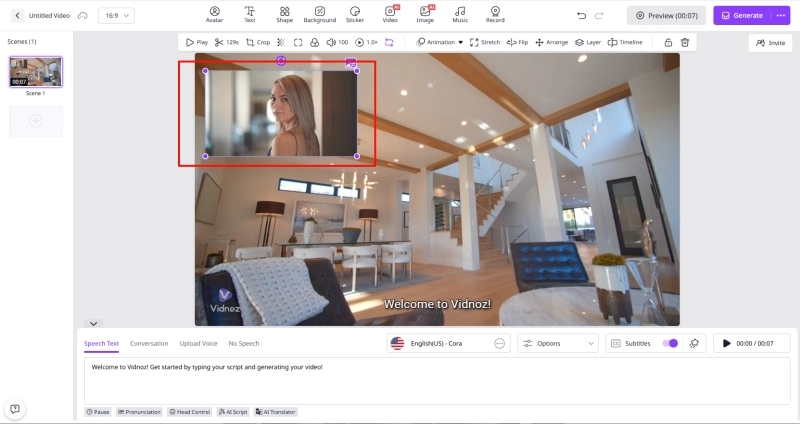
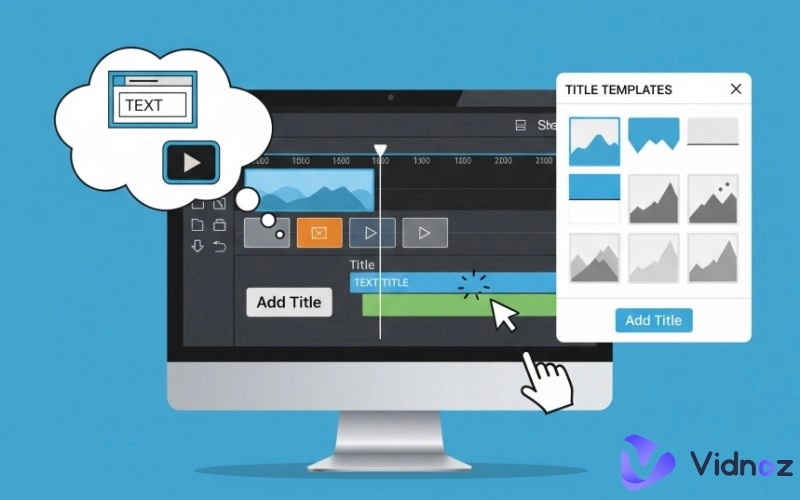
Step 8.To make the PIP effect look polished, you can use the toolbar in Vidnoz AI's editor for further adjustments.
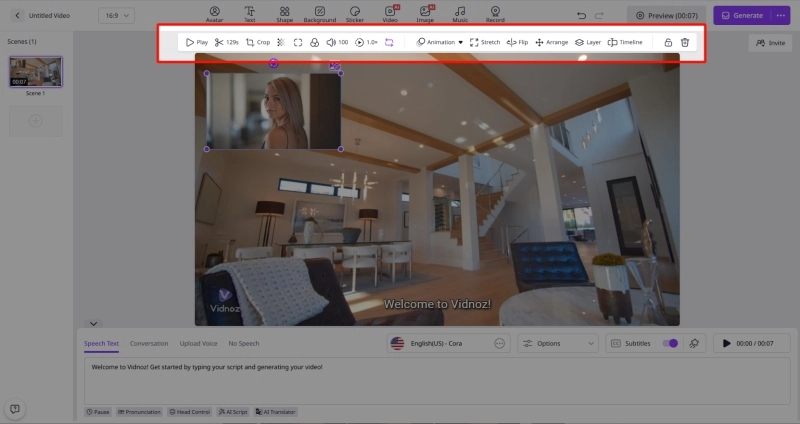
You can edit the overlay video in the common ways listed below. Explore more operations based on your actual needs:
- Adjust the size of the overlay video
- Trim the video, adjust the volume and playback speed of the video
- Crop the overlay video into different shapes, or add a round corner effect
- Adjust its opacity, add filters, and so on
- Adjust its Timeline
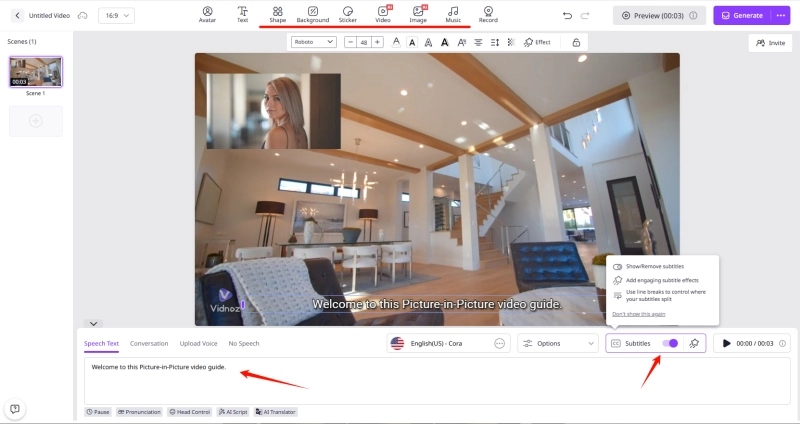
Step 9.You can also use the tools and libraries provided by Vidnoz to further enhance your entire video, such as adding automatic voiceovers and subtitles, stickers, background music, and more.
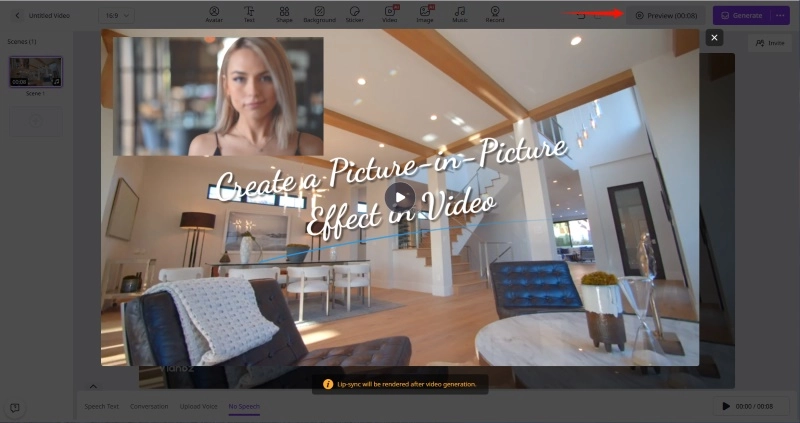
Step 10.Once you've finished editing your PIP effect, you can click the Preview button at the top-right to watch your video in advance. Check if the overlay is positioned correctly, the audio from both videos is balanced, and the playback is smooth.
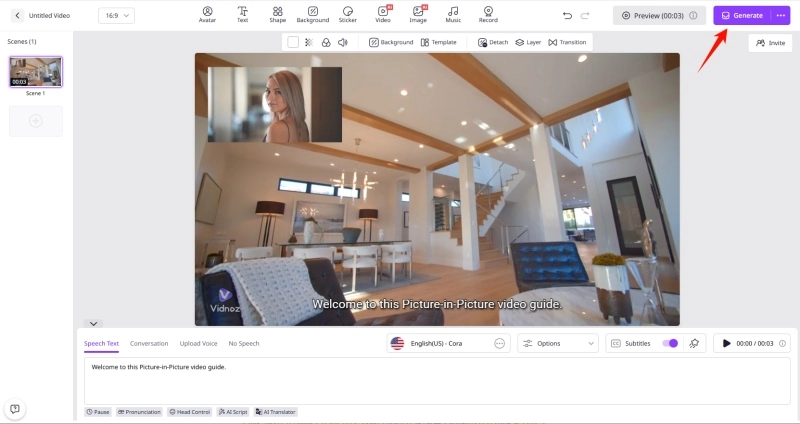
Step 11.If you need to make changes, you can return to the editor for further editing. When you're ready, click Generate — Vidnoz AI will process your video in HD quality.
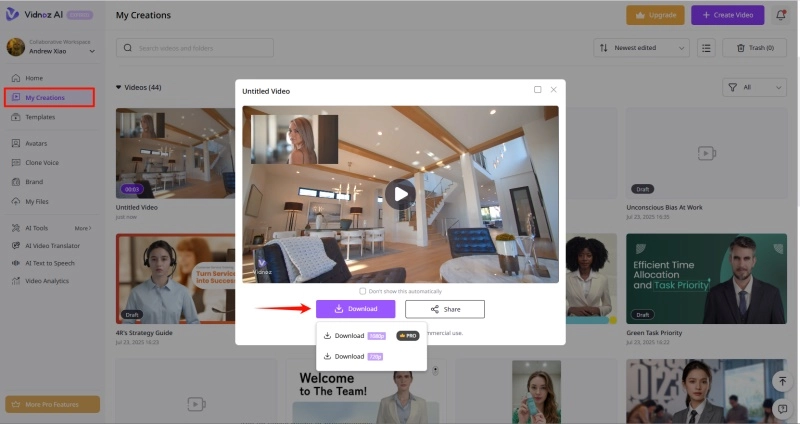
Step 12.After generation is complete, you can find your creation in My Creations. Now, you can download the picture-in-picture video to your computer in MP4 format or share it directly to social media.
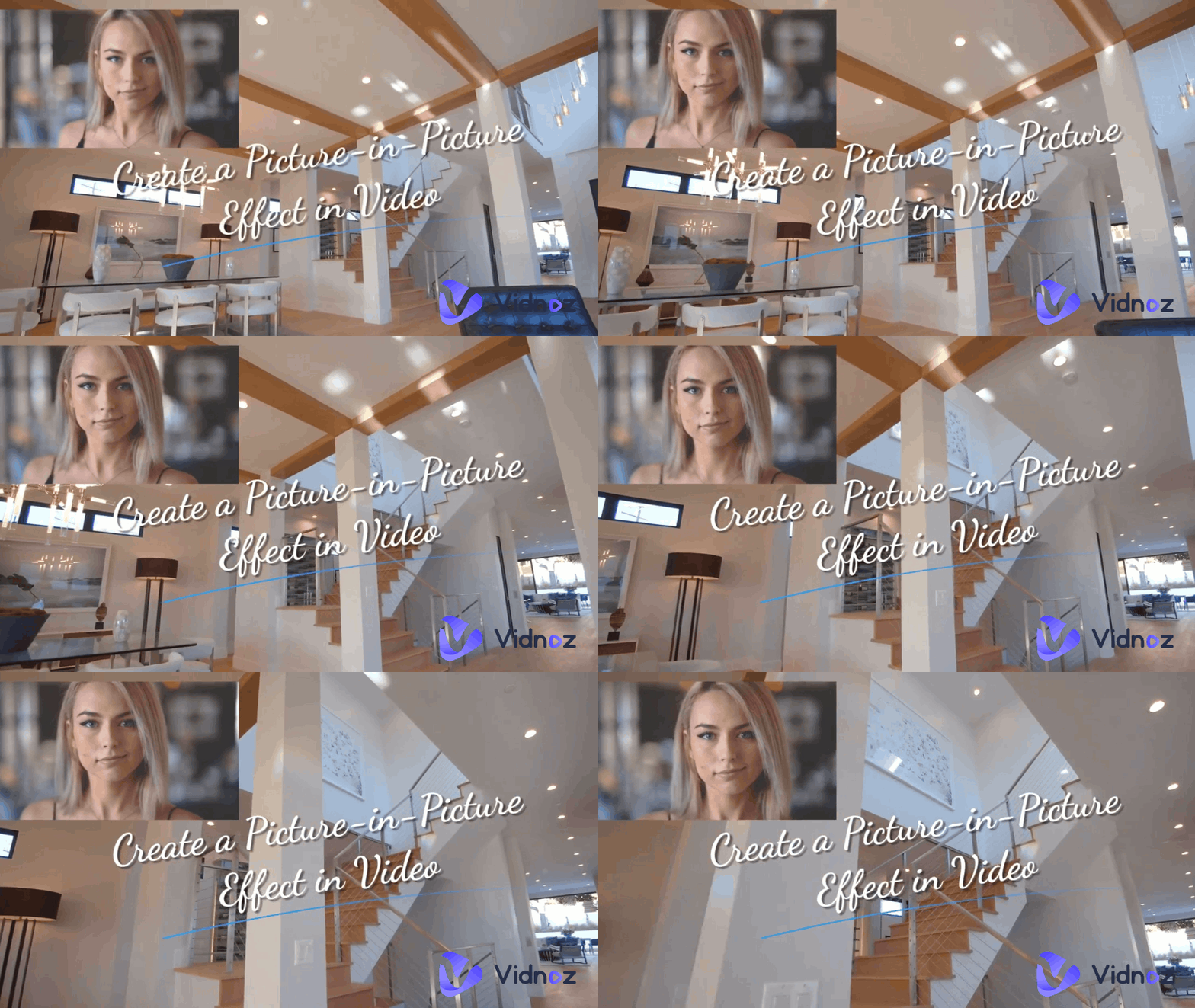
Final Video Result:
Conclusion
Learning how to make a picture-in-picture video doesn't require expensive software or technical skills. With Vidnoz's free AI video generator, you can create a PIP effect for free, customize the overlay to fit your needs, and generate HD videos in minutes. Follow the steps above, apply the pro tips, and start creating your own picture-in-picture video today. Click the "Try It Free Now" button below to get started right now!

Vidnoz AI - Create Free Engaging AI Video with Talking Avatar
- Easily create professional AI videos with realistic avatars.
- Text-to-speech lip sync voices of different languages.
- 2800+ video templates for multiple scenarios.





![How to Add Effects on a Video: Filters, BG Effects, Animations [Full Guide]](https://www.vidnoz.com/bimg/how-to-add-effects-on-a-video-online-free.webp)