Adding a B-roll to your video timeline indeed makes your video more dynamic and engaging, as it adds more details and context. All video creators do that, and no one will deny it. But do you know you can overlay the B-roll on top of the base footage, instead of only after it? Yes, you can do it, and here you come to the right place to learn how to add video to a video as an overlay in a breeze.
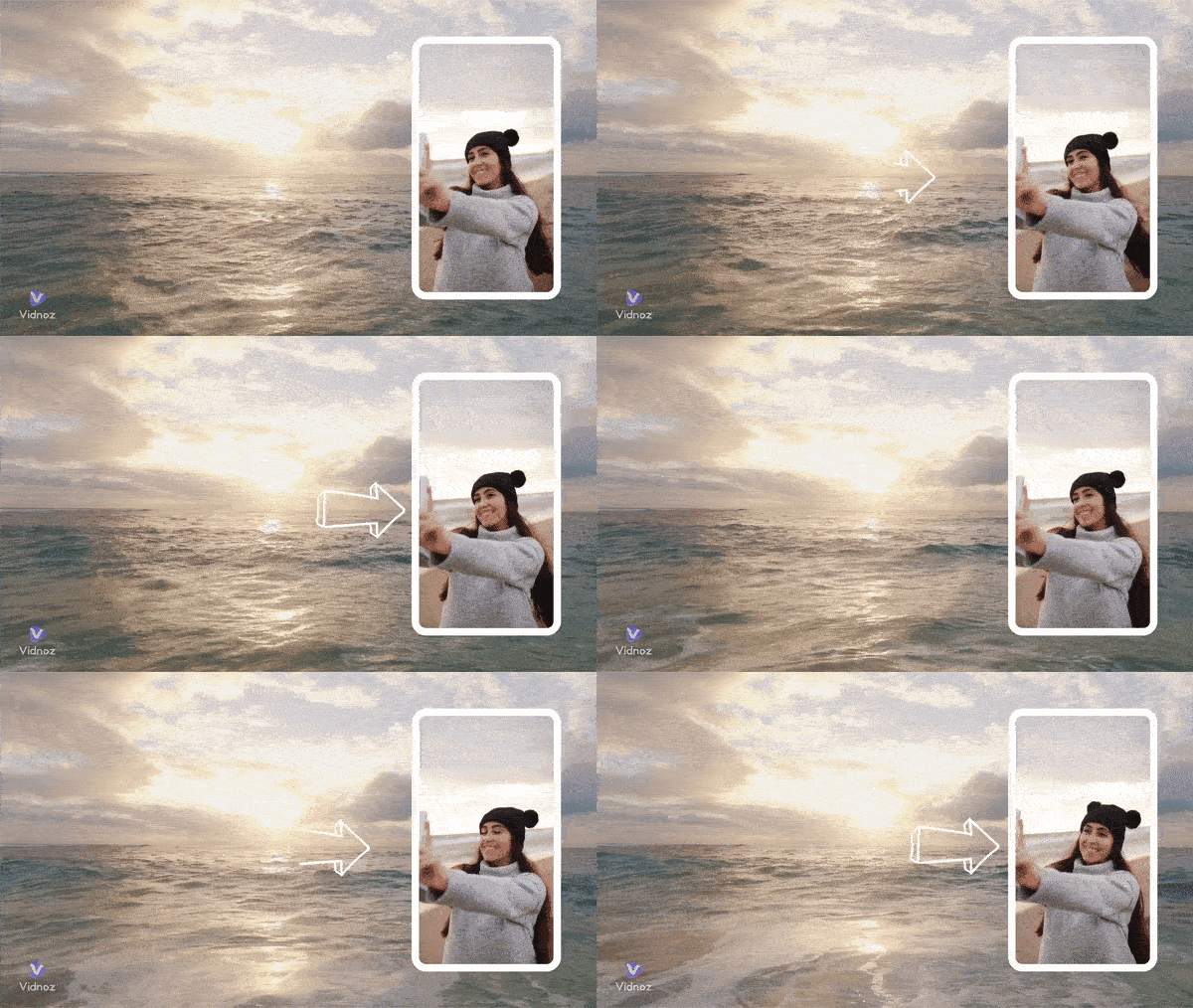
Video from pexels.com
- On This Page
How to Add Video to Another Video?
A perfect job needs a perfect tool. To make a video overlay easily, you might as well find a handy tool first. Trying Vidnoz AI will be a wise step to take. This AI tool helps generate and edit videos using super-easy editing features and abundant video footage stock.

Vidnoz AI - Create Free Engaging AI Video with Talking Avatar
- Easily create professional AI videos with realistic avatars.
- Text-to-speech lip sync voices of different languages.
- 2800+ video templates for multiple scenarios.
Plus, powered by high-end AI image-to-video tech, it generates vivid and consistent video footage, bringing more engaging visuals to your video creations.
Step-by-Step Guide: How to Add Video to Another Video
Learn how to add video to another video as an overlay, background, or your own animated watermark in detailed steps.
Step 1. Firstly, you need to sign up for an account. Click the button below to take a free try.
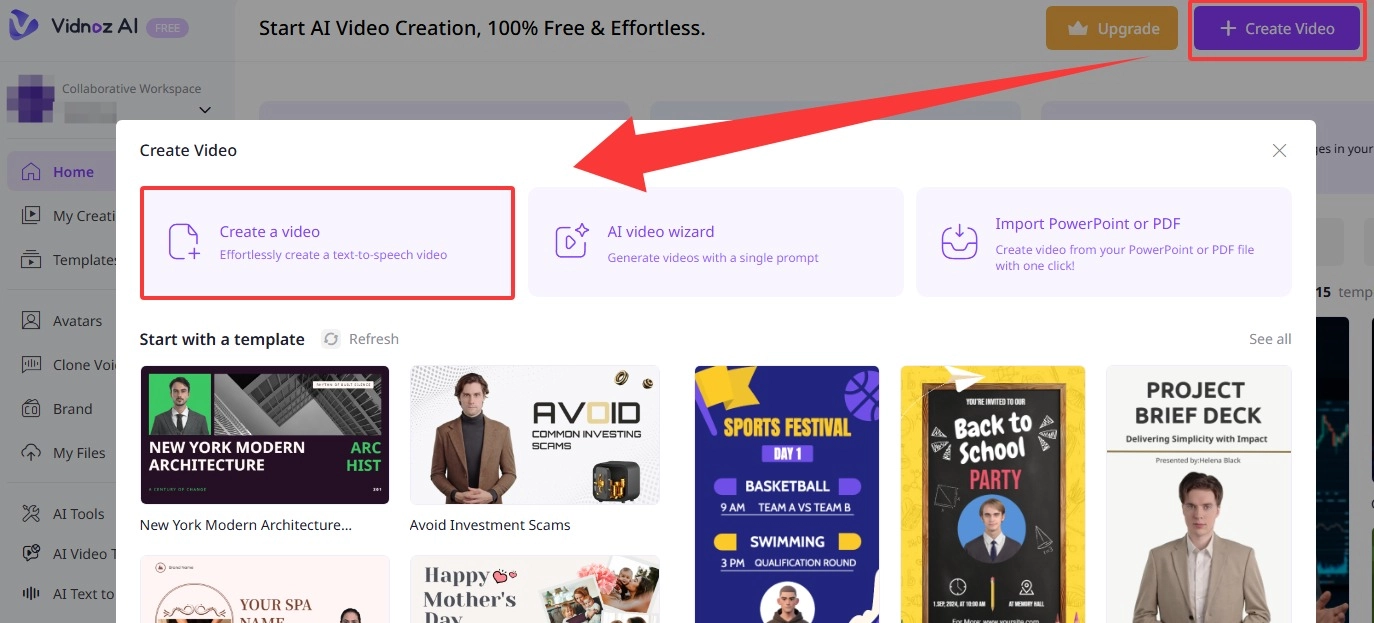
Step 2. Come to the main interface, click Create Video > Create a video > choose the aspect ratio: 16:9, 9:16, and 1:1.
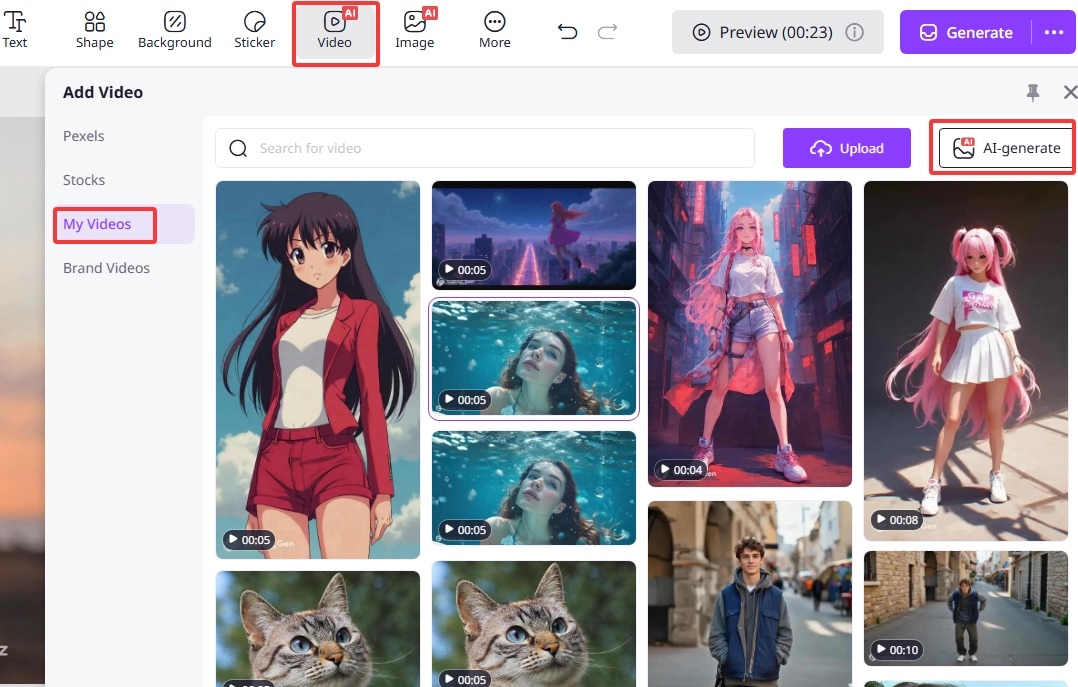
Step 3. Find Video from the operation panel. Here, you may upload your own video footage or choose from the free stock. Add it to your blank timeline.
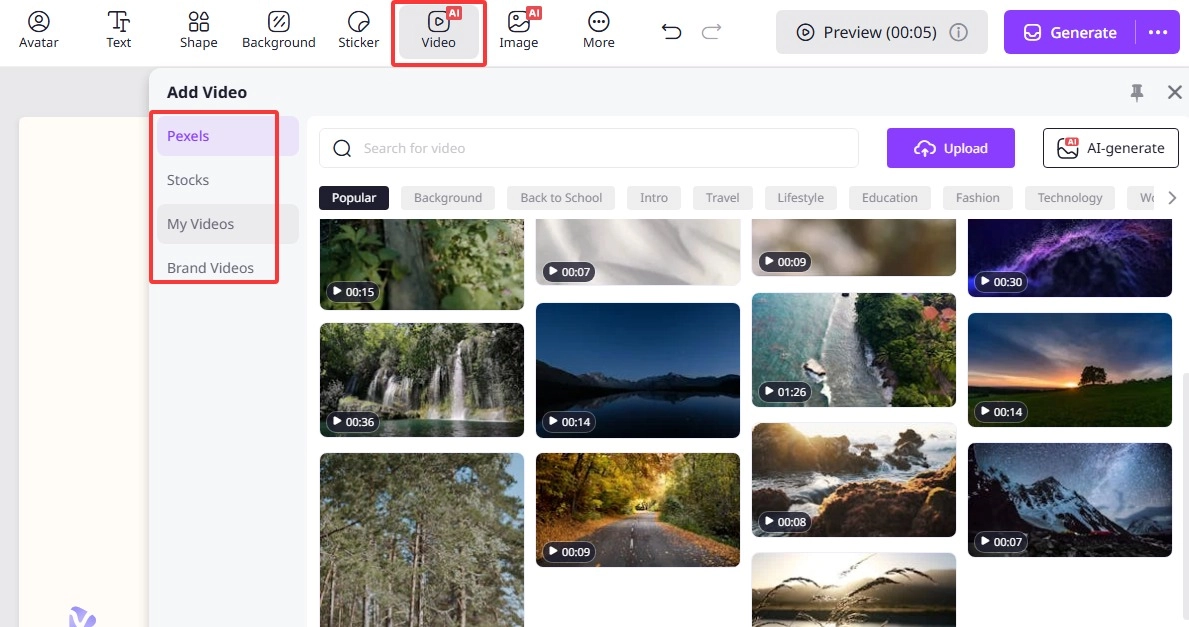

You may as well even generate a video using the built-in Image to Video AI or Text to Video AI feature.
Step 4. Make some tweaks to your base video: trim length, adjust volume, speed, etc.
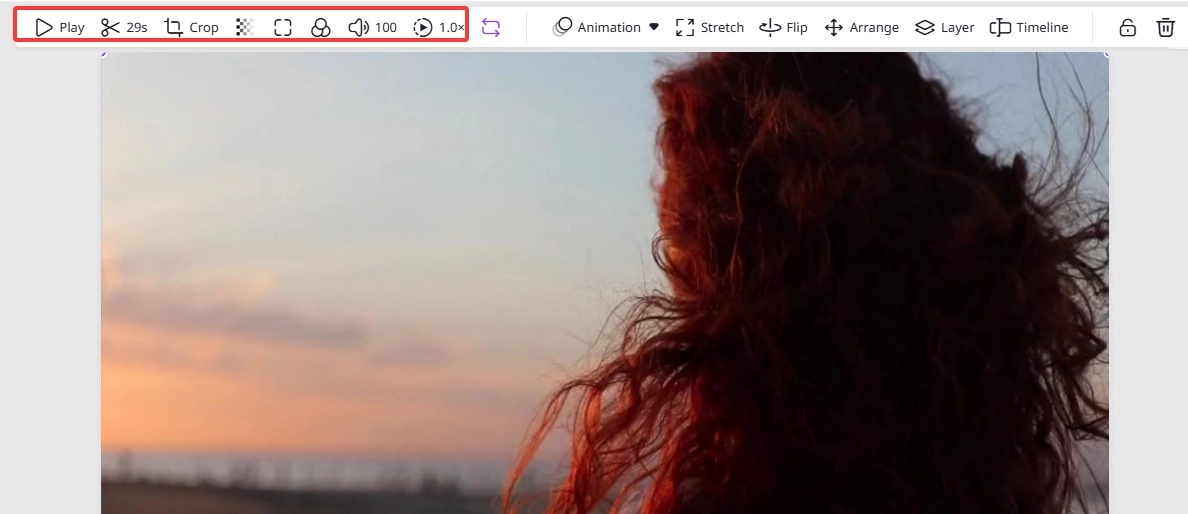
Step 5. Next, you can add a video on top of it as an overlay. Click Video again, upload/choose/generate an overlay video.
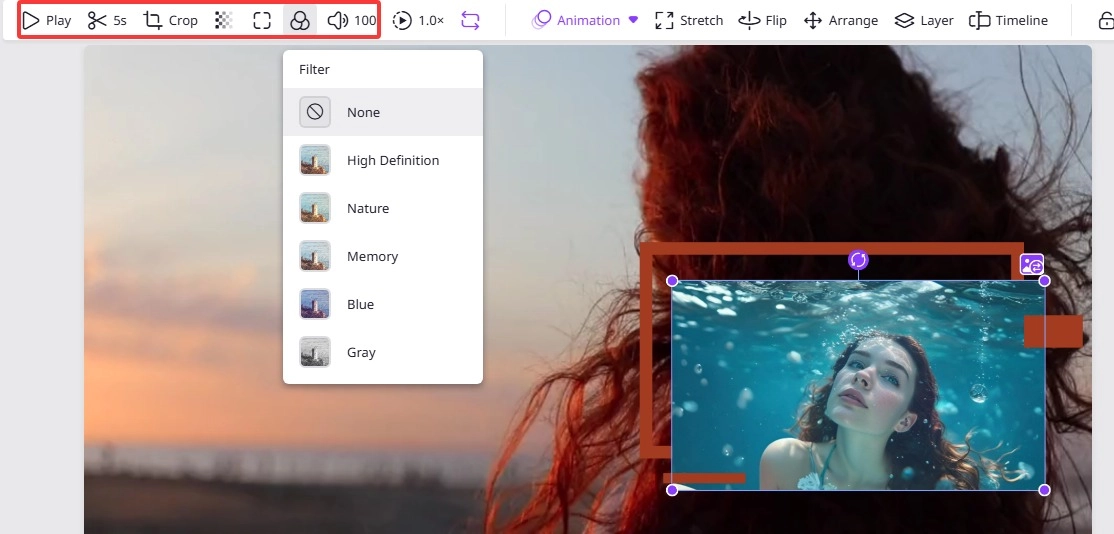
Step 6.Fine-tune the overlay video as you like: add filters, crop it to any shape, add animations and more, to bring stunning visuals.
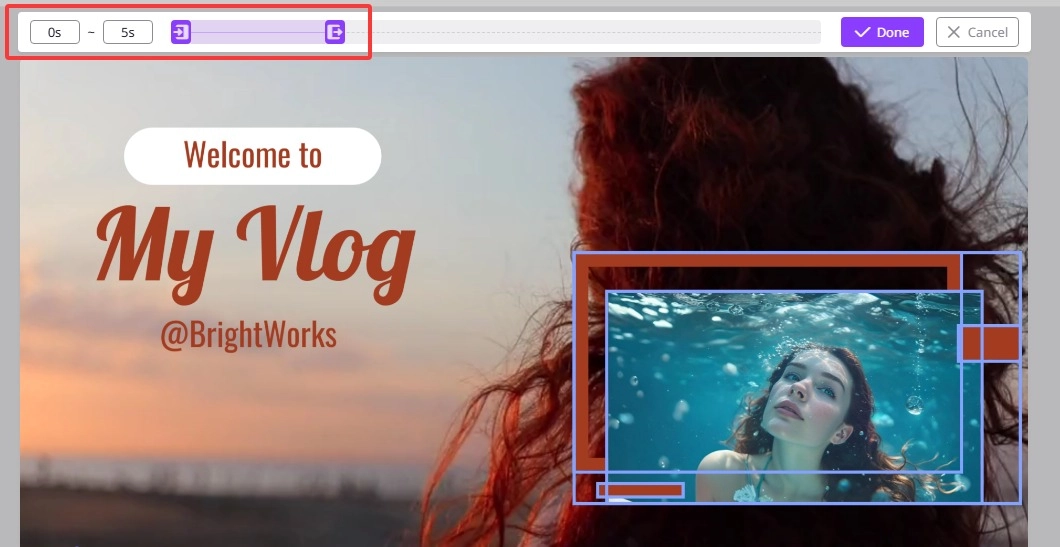
Step 7.Most importantly, you can decide where and when the overlay appears. Select the 2nd video, click Timeline > customize according to your footage > Done.
Step 8. Finally, make some further tweaks, inputting scripts with text-to-speech feature, adding elements like text, shapes, and background music, and then click Generate. This is the full operation on how to put a video on top of another video.
Final Thoughts
Learning how to add video to a video with a proper AI tool won’t let you down. Using Vidnoz, the free AI video generator, you can not only easily add video overlay, but also flexibly customize and generate stunning footage in 1 click, bringing it to the next level. So, wait no more, try now instead!








![How to Add Effects on a Video: Filters, BG Effects, Animations [Full Guide]](https://www.vidnoz.com/bimg/how-to-add-effects-on-a-video-online-free.webp)