When you're creating a video—whether it's for YouTube, Instagram, your business, or just for fun—one of the first things you’ll want to do is add a title. That title helps set the tone, introduce the subject, and grab your audience before the video even really starts. If you're wondering how to add title in video smoothly, you’re in the right place. Follow this guide to add stunning titles and effects using the best free online video editor.
- On This Page
Add Title in a Video with Best Online Video Editor – Vidnoz AI
How to add title in a video? This is not a complex task. First, you need a comprehensive video editor that offers you massive features to create stunning videos from scratch. It is highly recommended to use Vidnoz AI, a free online video editor, which boasts a user-friendly interface and offers a wealth of powerful editing features.
You can add titles, subtitles, text animations, and more to your videos in minutes, even without complex editing skills. In addition, with its vast library of stock videos and preset video templates, you can create unique videos effortlessly.
Stepwise Guide: How to Add Title in a Video
How to add beautiful titles in a video with Vidnoz AI? Follow this complete guide to easily add titles and video text effects to your video.
Step 1. First of all, click the button below to visit Vidnoz website. Click Create Free Video Now and start with your account.
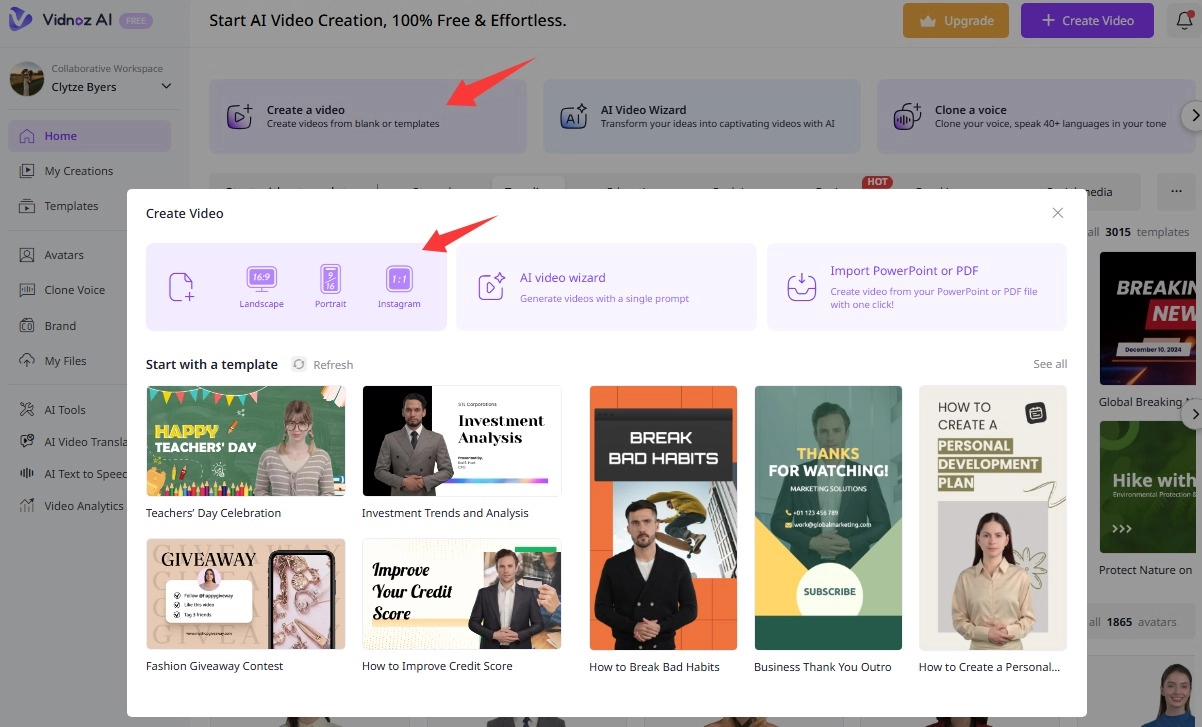
Step 2. Once enter the home page, click Create a Video and then select an aspect ratio: 16:9, 9:16, or 1:1.
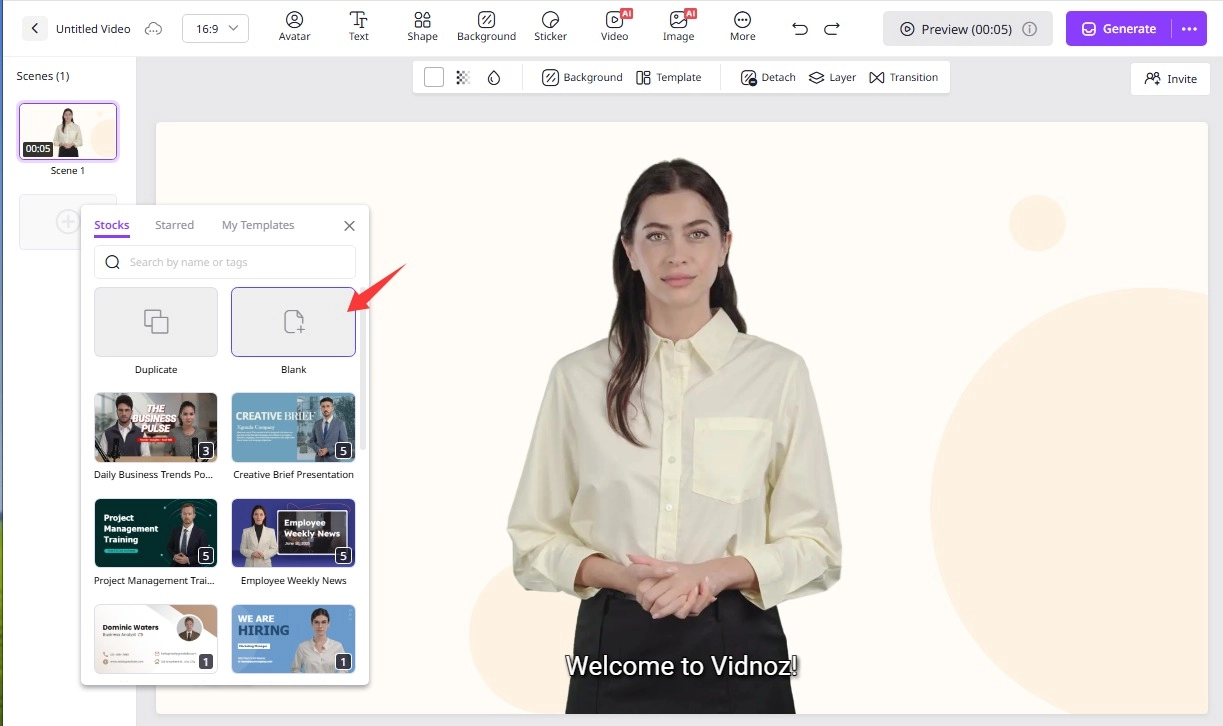
Step 3. Then create a canvas for your task. You can delete the unwanted first scene, and then create a blank one.
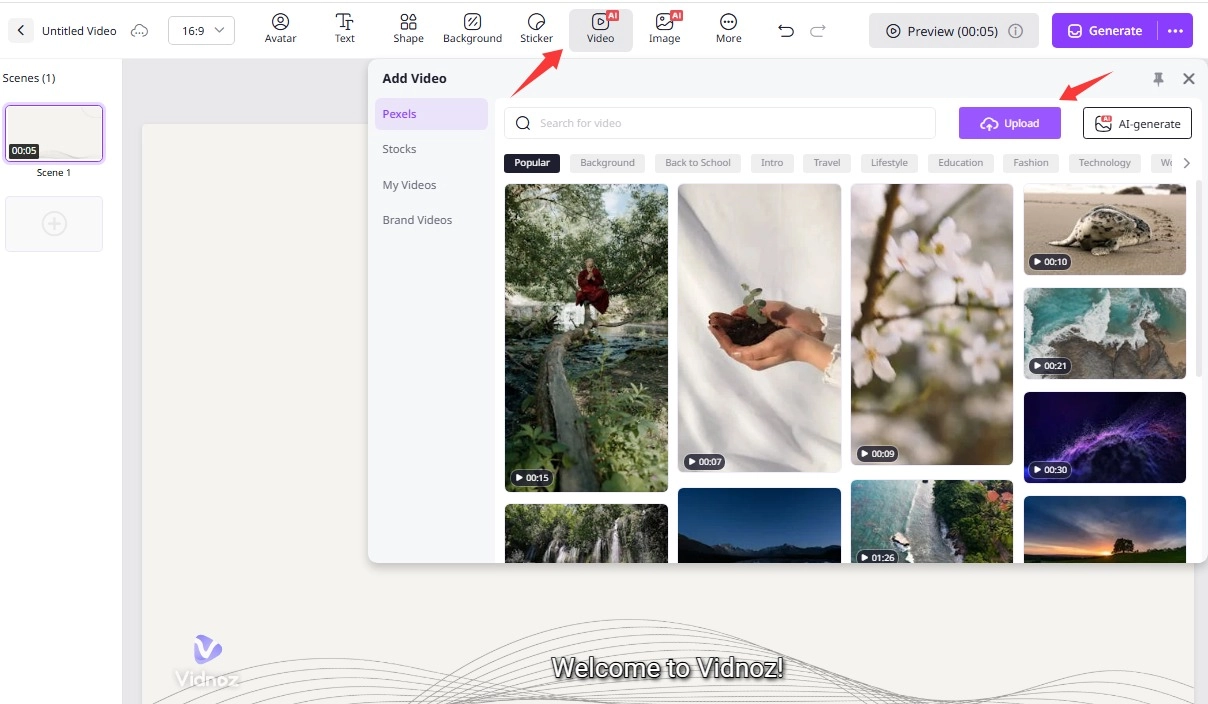
Step 4. Click Video > Upload to add the video you want to add title and make other edits. Vidnoz also offers you plenty of AI video materials to choose from.
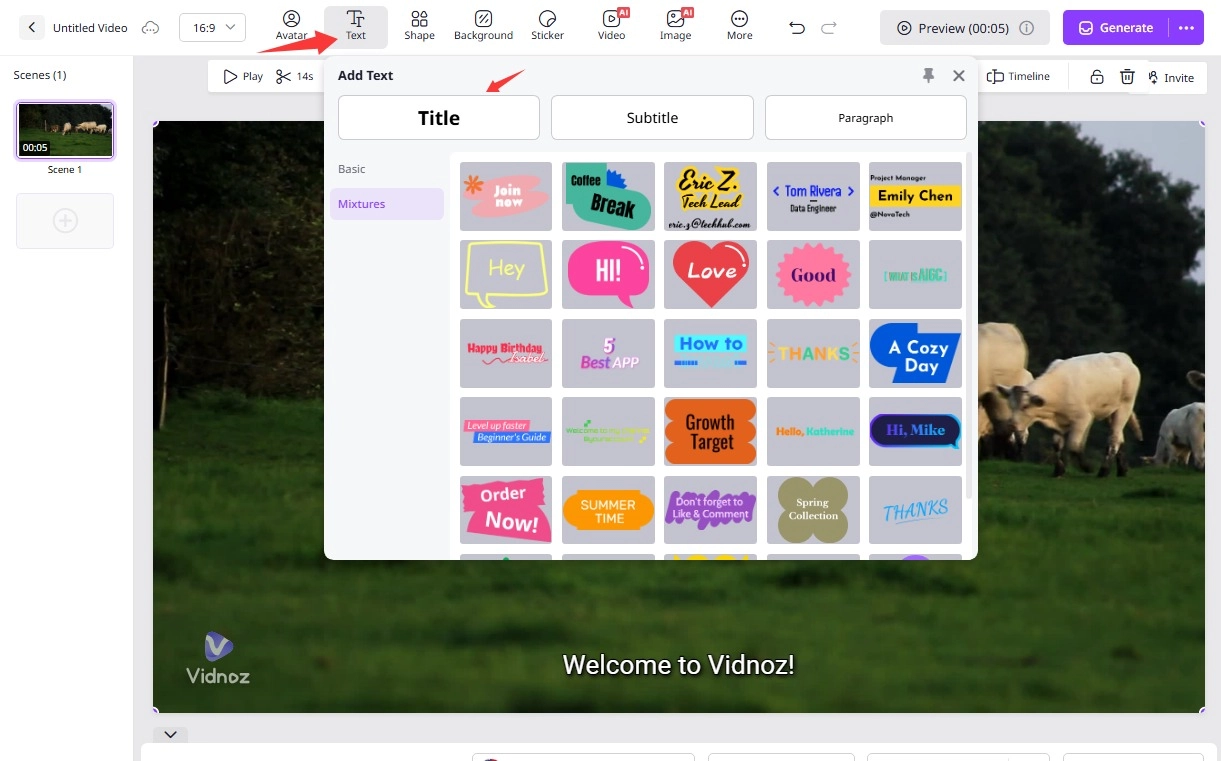
Step 5. Turn to the text tab to choose a title style. You can choose from massive text effects here. Pick one and edit the title.
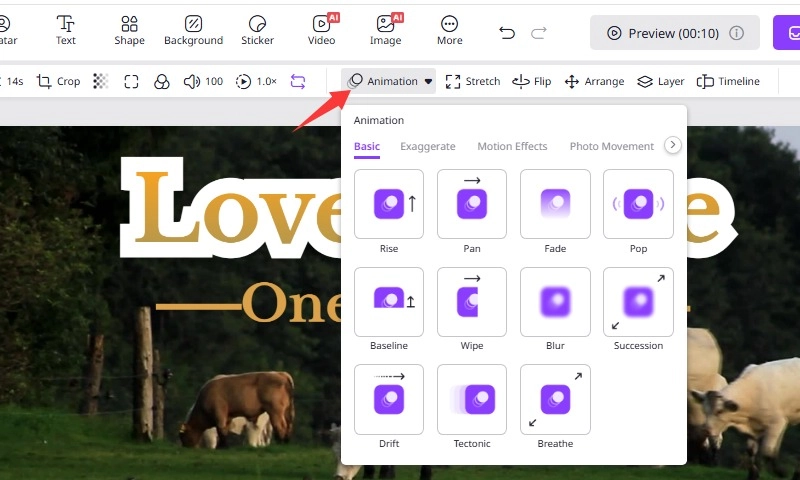
Step 6. If you want to make your title more vivid, click Animation to add dynamic video title effects.
Step 7. Besides, if you need to add voiceovers, just input the text, choose a voice and set it to be natural, coherent with your video.
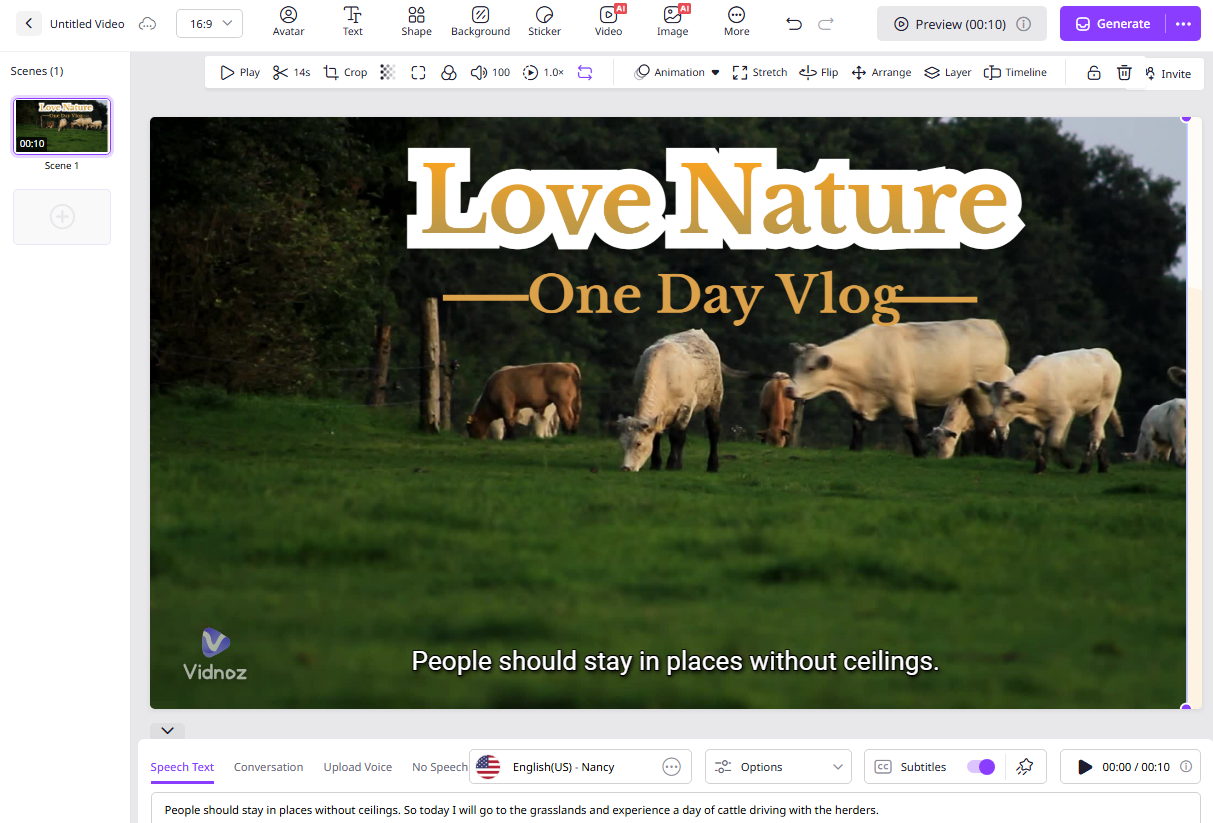
When everything is settled, click Generate to complete the video creation. Then we’ve done the task: how to add title in video.
The Bottom Line
Now you know how to add title in video from this tutorial. Adding beautiful, attractive titles or text is an effective way to hook your viewers and boost engagement. With tools like Vidnoz, it’s not hard—just a few clicks, a bit of design taste, and you’ve got something polished and professional. Using Vidnoz, the free AI video generator to boost your video channel now!

Vidnoz AI - Create Free Engaging AI Video with Talking Avatar
- Easily create professional AI videos with realistic avatars.
- Text-to-speech lip sync voices of different languages.
- 2800+ video templates for multiple scenarios.








![How to Add Effects on a Video: Filters, BG Effects, Animations [Full Guide]](https://www.vidnoz.com/bimg/how-to-add-effects-on-a-video-online-free.webp)
