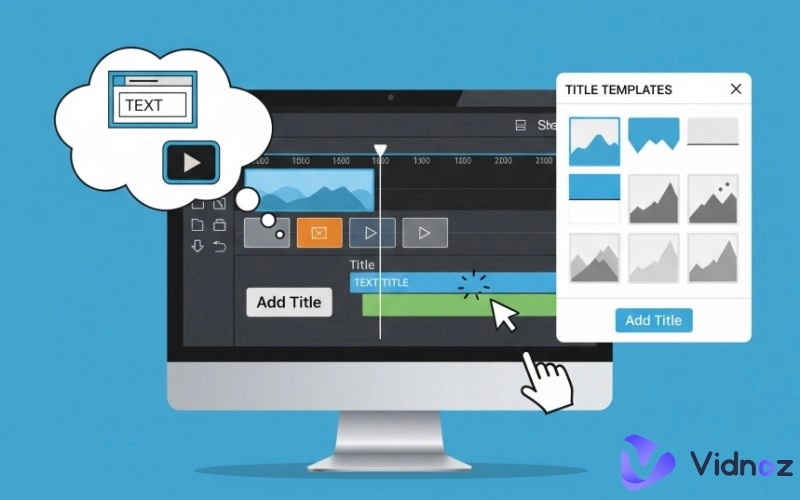
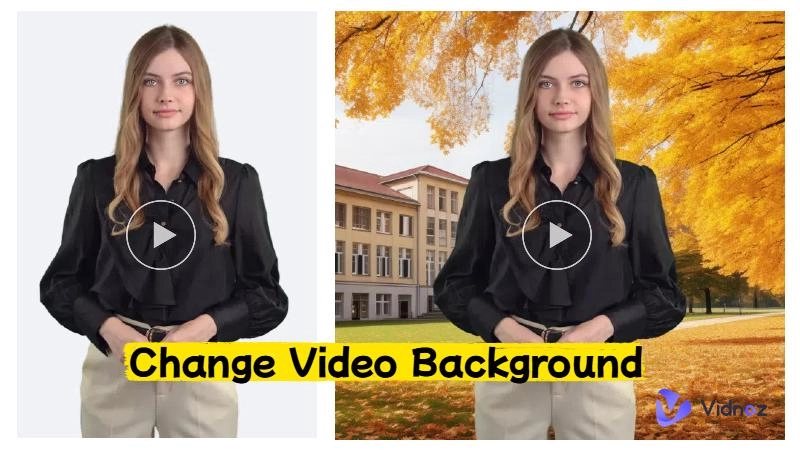
Want to instantly change video background to a professional office, a romantic beach, or any other scene you desire? Vidnoz AI can help you do it instantly. This AI video generator comes with a massive library of high-quality backgrounds, including static images and dynamic videos. It also allows you to upload custom backgrounds, allowing you to create videos with any background. No complex post-production or editing skills are required - just a simple click during video creation seamlessly blends subjects with scenes, delivering cinematic-quality content from the start. Here are the steps to change the background when creating a video using Vidnoz AI.
- On This Page
-
Step 1. Start Your AI Video with Vidnoz AI
-
Step 2. Create a Video
-
Step 3. Change the Background on a Video
-
Step 4. Edit Your Video
-
Step 5. Generate and Download
Step 1. Start Your AI Video with Vidnoz AI
Click the button below to access Vidnoz AI with your account.
Step 2. Create a Video
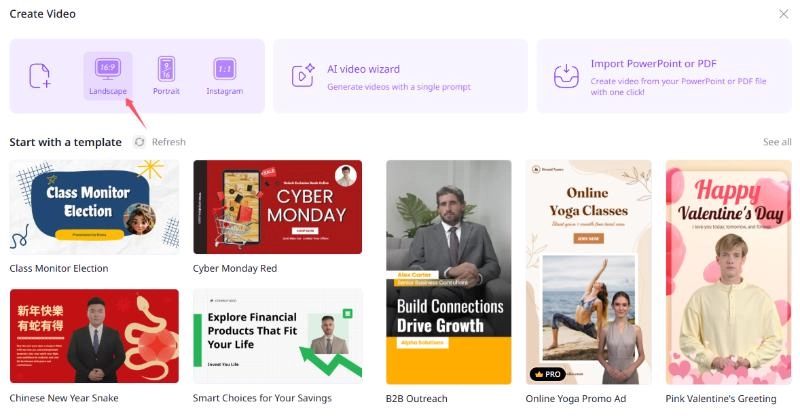
Click on "Create a Video" and choose the aspect ratio you prefer: 16:9, 9:16, or 1:1.
Step 3. Change the Background on a Video
Change your video background by clicking "Background." Vidnoz AI offers a library of pre-made static and animated video backgrounds, such as "Festiveal," "Office," and "Technology." You can also click "My Backgrounds" to use your own images or videos as your video background.
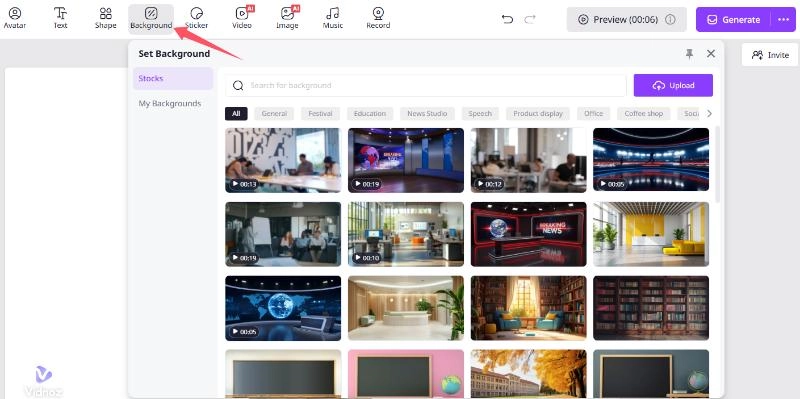

If you need to adjust your video background, you can customize it by clicking on the background color, transparency, and filter.
Step 4. Edit Your Video
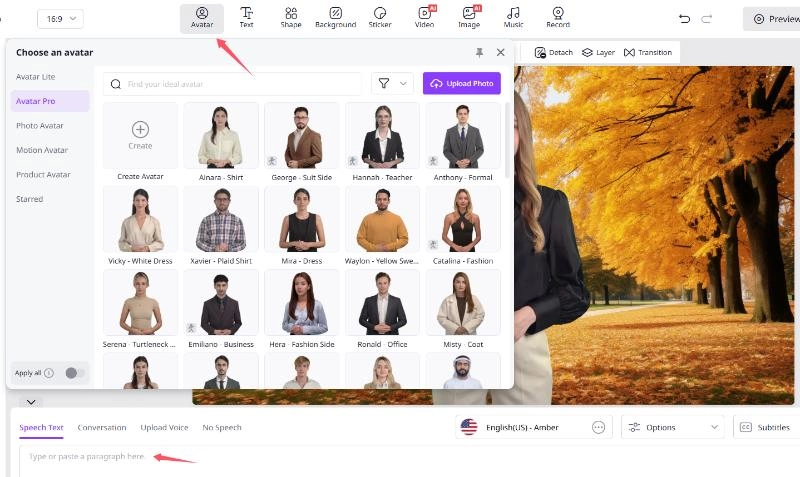
Upload your avatar or choose your preferred avatar from their library. Enter your script and choose a voice.
Step 5. Generate and Download
Click the "Generate" button to produce your video. Once generated, you can download your professional video with one click.
Conclusion
Now you know how to change the background on a video when creating a video with Vidnoz AI. With just a few clicks, you can change the video background for free. Compared to changing the background after completing a video, using this free AI video generator to change the background during the creation process is more efficient and convenient. Start using Vidnoz AI now and experience this intelligent and efficient background replacement feature for yourself, making your video creation easier and more exciting!

Vidnoz AI - Create Free Engaging AI Video with Talking Avatar
- Easily create professional AI videos with realistic avatars.
- Text-to-speech lip sync voices of different languages.
- 2800+ video templates for multiple scenarios.






![How to Add Effects on a Video: Filters, BG Effects, Animations [Full Guide]](https://www.vidnoz.com/bimg/how-to-add-effects-on-a-video-online-free.webp)