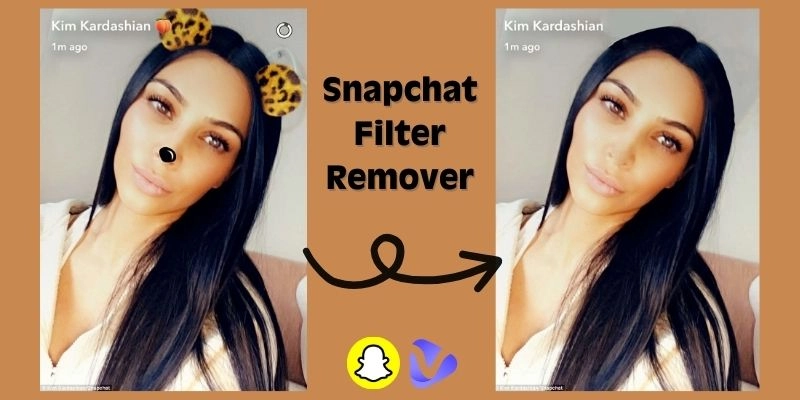
Sometimes, you take a snap and realize the filter you used isn't quite right, or you save a memory only to wish later that you had the original photo. That's when a good Snapchat filter remover becomes essential.
In this guide, you'll learn step by step how to remove a Snapchat filter before or after you click a snap, and even from saved photos. You'll also discover the top tools to use when you need a solution for how to remove Snapchat filter from saved photo, allowing you to restore your pictures and videos quickly and confidently.
- On This Page
-
How to Remove a Snapchat Filter Before Taking the Snap
-
How to Remove a Snapchat Filter After Taking the Snap (Before Sending/Saving)
-
How to Remove a Snapchat Filter on a Saved Photo from Snapchat
-
Other Snapchat Filter Removers to Remove Anything on Saved Photos
Vidnoz AI Image Remover: Best Free Snapchat Filter Remover Overall
Perfect Corp: Remove Snapchat Filters on Mobile App
Media.io: AI Remove Snapchat Filter
How to Remove a Snapchat Filter Before Taking the Snap
When you're still in the camera viewfinder, Snapchat gives you built-in ways to clear your frame. This is the fastest method for how to remove a Snapchat filter, which is to simply remove it before you lock in your choice.
While you're still in the camera view, swipe left or right on the screen. Each swipe cycles through the available filters until you return to the plain, default camera view.
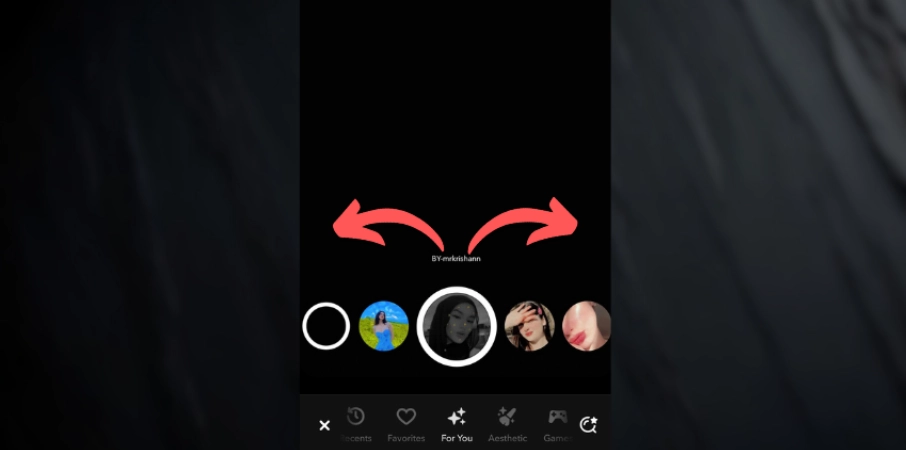
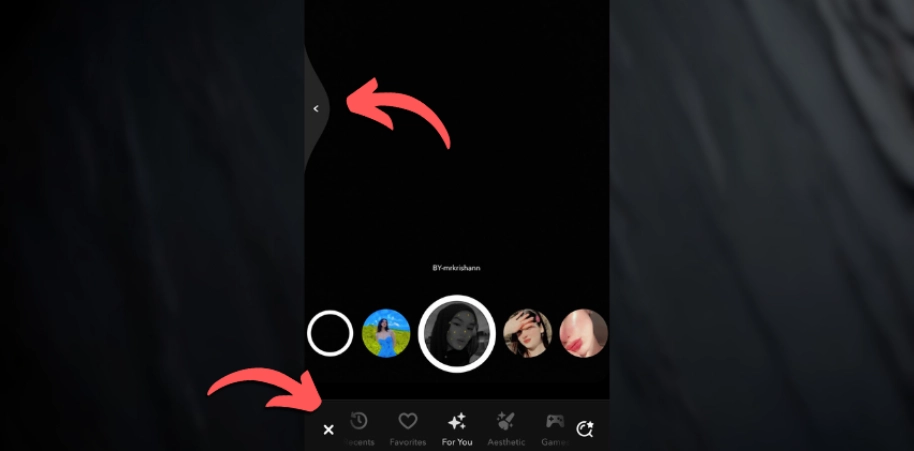
When you're using AR lenses or effects, Snapchat overlays them live on your face or scene. To remove filter from video on Snapchat, tap the ✖ icon (usually near the bottom left of the screen) to clear the active lens. You can also use your phone's own undo button or undo gesture to return to the default camera view.
How to Remove a Snapchat Filter After Taking the Snap (Before Sending/Saving)
If you've already taken the snap but haven't saved or sent it yet, you still have a chance to remove Snapchat filter.
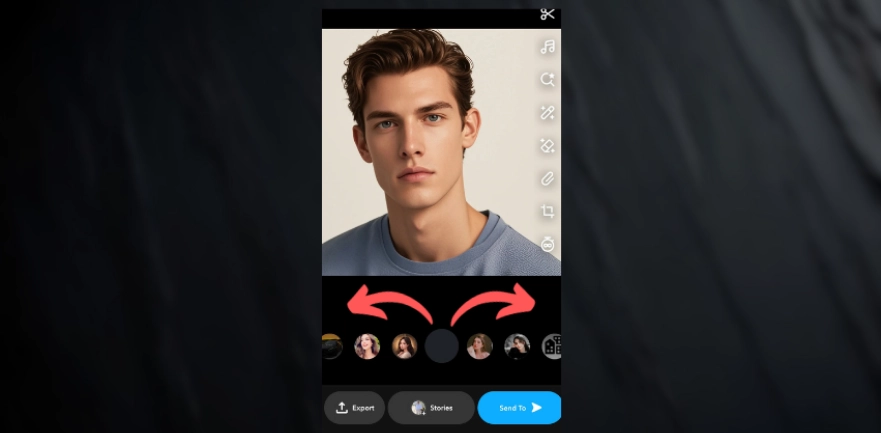
Swipe left or right across your image to cycle through the filters. Keep swiping until you return to the original, unfiltered version of the snap. You can remove most standard filters this way.
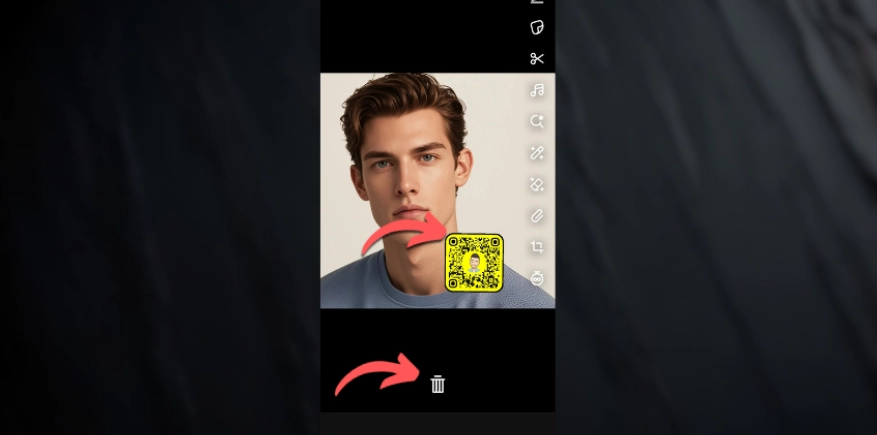
Press and hold any sticker or text box and drag it to the trash icon to remove it.
Drawings/doodles you've made with the pen tool can be undone by tapping the undo arrow at the top of the screen.
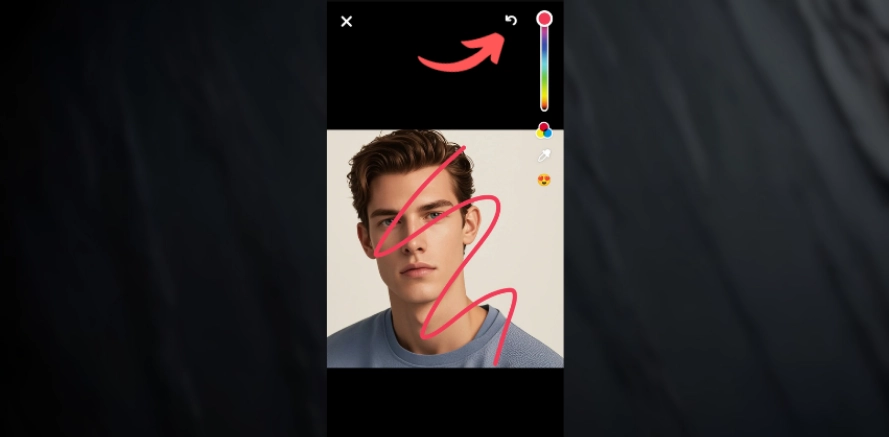
If you've applied an AR face filter, swiping won't fully restore your real face. The only true reset is tapping ✖ in the top-left corner and abandoning the snap to retake it clean.
For best results, review your snap before saving or sending, and use these quick cleanup options for how to remove a Snapchat filter once the photo is already captured.

Vidnoz AI - Create Free Engaging AI Video with Talking Avatar
- Easily create professional AI videos with realistic avatars.
- Text-to-speech lip sync voices of different languages.
- 2800+ video templates for multiple scenarios.
How to Remove a Snapchat Filter on a Saved Photo from Snapchat
In case you've already saved a filtered snap to your Camera Roll or Memories, the situation changes completely. Snapchat itself does not have any features or options that allow you to press a button to remove all effects from a saved image. This is the point where many users search for how to remove Snapchat filter from saved photo.
Within Snapchat, the only option is to try the built-in snapchat AI "Magic Eraser" tool, which is effective for specific elements. Open the photo, choose Magic Eraser, and brush over the area you want to clean. The app will attempt to blend out stickers, text, or small objects. It works for small single spots but not for entire AR lenses.
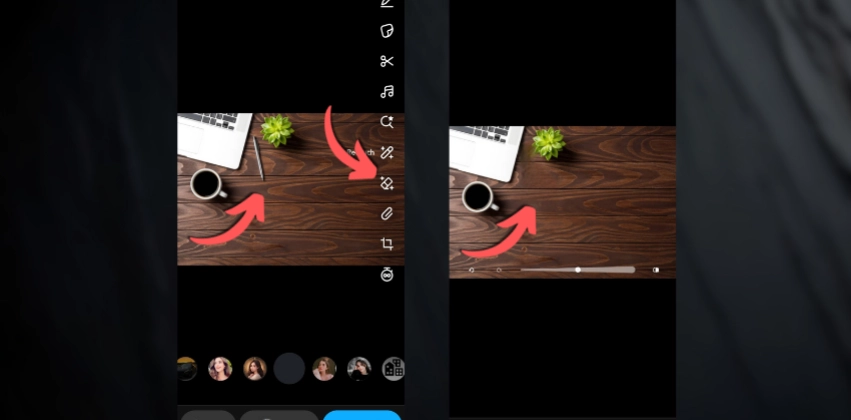
For larger jobs, such as how to remove a Snapchat filter overlay or significant objects from a photo, you'll need a dedicated Snapchat filter remover. These tools reconstruct your image beyond Snapchat's own limits. In the next section, you'll discover the top options for how to remove filter from photo from saved photo and how they differ, allowing you to select the one that best suits your situation.
Other Snapchat Filter Removers to Remove Anything on Saved Photos
When you've already saved a snap, built-in tools only go so far. That's when a specialized Snapchat filter remover is your best ally. Each option below offers a different approach on how to remove Snapchat filter from saved photo.
-
Vidnoz AI Image Remover: Best Free Snapchat Filter Remover Overall

Imagine you've saved a snap and later realize something is distracting in it, such as an unwanted watermark, stray text, or even someone walking into the background. Then, Vidnoz AI Image Remover is one of the easiest solutions on how to remove a Snapchat filter.
Instead of clunky manual retouching, you brush over the area you don't want, and Vidnoz's AI fills it in naturally to match the surroundings. That's why many people treat it as their go-to Snapchat filter remover for tidying up saved snaps.
With its web-based interface, you don't need to install heavy software or learn complicated tools. It works on people, logos, stickers, and doodles with remarkable accuracy, perfect for restoring a cleaner look before reposting.
Pros
- Free to use for standard removals.
- AI handles complex backgrounds better than basic erasers.
- No sign-up required for simple edits.
Cons
- Works best on clear, high-resolution images.
-
Perfect Corp: Remove Snapchat Filters on Mobile App
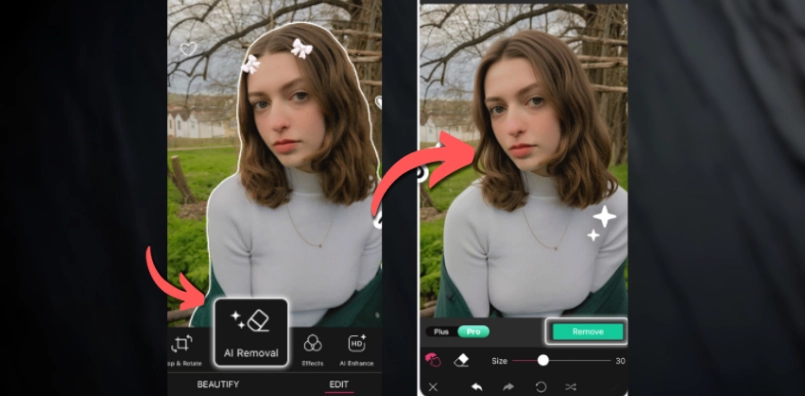
Perfect Corp is a powerful mobile app that goes far beyond some basic how to remove a Snapchat filter requirements. It's especially beneficial when you're dealing with saved snaps that have light overlays, such as vintage filters, stickers, or emojis. This Snapchat filter remover app can also handle simple AR lens effects, remove text from image, softening or removing them where possible to provide a cleaner look. This lets you clean up distractions, restore more natural colors, and even enhance image quality before reposting.
Pros
- Snapchat filter remover app for edits on the go
- Built-in face retouching enhances selfies after you remove snapchat filter.
- Interface designed for non-experts.
Cons
- Some features require in-app purchases to remove snapchat filter.
- Heavier edits can soften image quality.
-
Media.io: AI Remove Snapchat Filter
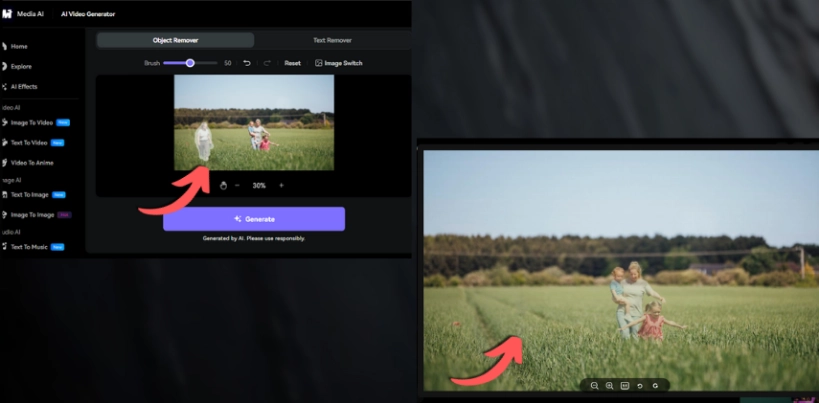
Media.io is an online AI-powered Snapchat filter remover designed for quick, targeted clean-ups. Instead of wrestling with complicated how to remove a Snapchat filter method, you upload your saved snap, paint over whatever you don't want, and let the AI rebuild the background. While it can't magically reverse heavy AR face filters, it works well with stickers, text overlays, or watermarks.
Pros
- No software downloads or sign-ups needed for quick edits.
- Brush-based control for precise object removal.
- Fast AI processing with natural background reconstruction.
Cons
- Works best on clear, high-resolution images.
- Cannot remove snapchat filter with complex AR elements.
Vidnoz AI - Create Free Engaging AI Video with Talking Avatar
- Easily create professional AI videos with realistic avatars.
- Text-to-speech lip sync voices of different languages.
- 2800+ video templates for multiple scenarios.
The Bottom Line
Cleaning up a snap doesn't have to be a frustrating experience. By acting before you save or send, and by using smart Snapchat filter remover tools afterward, you can restore a clean, natural-looking photo. No app can truly provide a solution on how to remove a Snapchat filter with complex AR lenses once they're baked into an image, but you can remove or soften vintage filters, emojis, stickers, text, watermarks, or stray objects in just a few clicks. This is where Vidnoz AI Image Remover shines. It provides a fast and free way on how to remove Snapchat filter from saved photo, allowing you to watch the AI rebuild the background naturally.