Turn still images or text into dynamic videos in any style, with leading AI models readily. Try the smart AI video generator now - stunning, free, and instant!
How to Remove Filter from Video Online | AI Video Filter Remover Online Free [Lossless]
Griffin
Updated on
SHARE THIS POST
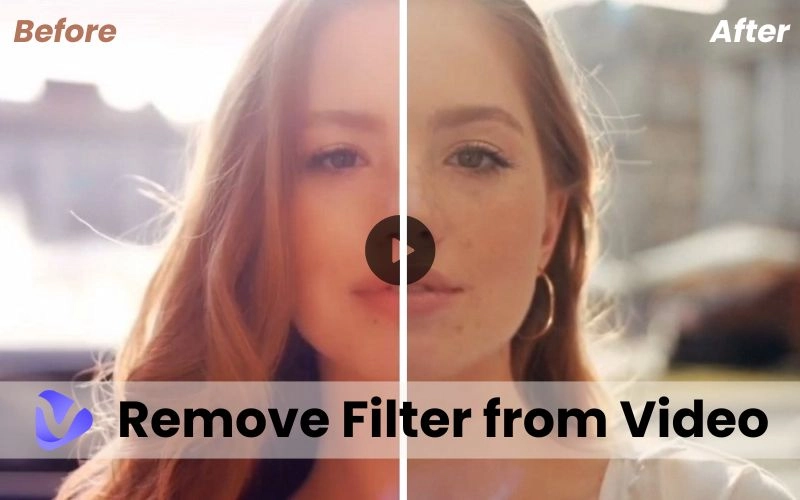
Want to remove filter from video? Use 4 proven video filter remover online free methods - AI tools, manual editing & color correction to restore video’s quality fast!
Ever applied a filter to your video, only to regret it later? Filters can enhance moments, but sometimes they hide the raw, authentic charm of your footage. Whether it’s an overdone vintage effect or an intense color grade, learning how to remove filter from video can breathe new life into your content. No fancy AI tools required—just the right techniques to strip away edits and restore your video’s natural brilliance. Ready to reclaim the original beauty of your clips? Go ahead!
On This Page
Can You Remove a Filter from a Video?
Remove Filter from Video Online Free with AI Video Enhancer
Remove Filter from Video by Manually Adjusting Parameters
Remove Filter from Video with Online Video Editor by Color Correction
How to Remove Filter from Video Online in Snapchat, TikTok, & Instagram?
#1 Remove Filter from Snapchat Video
#2 Remove Filter from TikTok
#3 Remove Filter from Instagram Video
FAQ about Removing Filter from Video
Conclusion
Can You Remove a Filter from a Video?
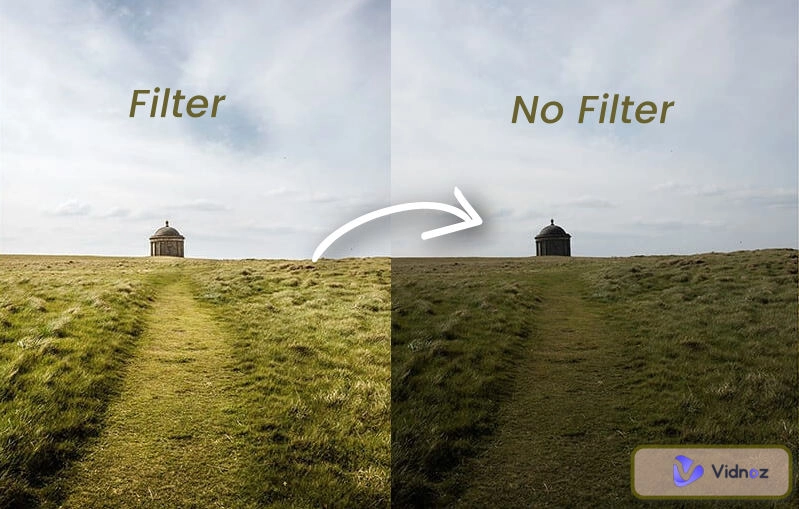
Video filters work by altering the original pixels, adjusting colors, contrast, or adding effects like grain or blur. Once you apply a filter and export the video, those changes are baked into the footage. There’s no "undo" button. The filter isn’t a separate layer anymore; it becomes the video.
So, can you remove it? Not directly. But you can tweak the video to reverse-engineer the original look. Tools like color grading software or AI enhancers help neutralize oversaturated tones, recover shadows, or sharpen softened details. It’s like repainting a wall—you won’t get the exact original, but you can cover up the old color.
I learned this the hard way after slapping a "vintage" filter on a travel vlog. The warm tones looked great—until I realized they drowned out the vibrant market scenes I’d filmed. Rebalancing the colors manually saved me, but it took hours. Moral? Filters are fun, but export with caution.
Remove Filter from Video Online Free with AI Video Enhancer
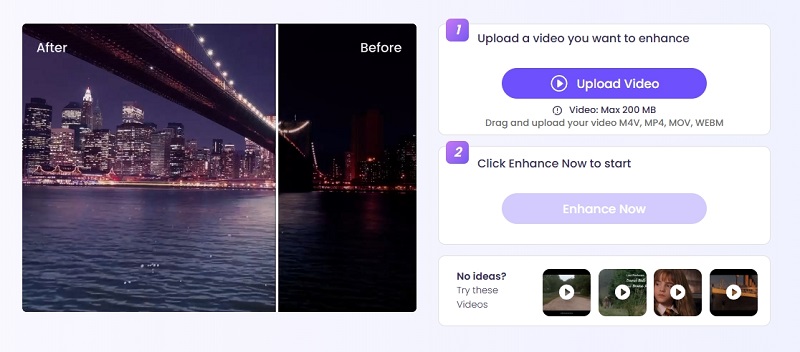
Wish you could strip away that heavy filter from your video? Vidnoz AI Video Enhancer can help. While it won’t magically "delete" the filter (since edits are permanent), it uses AI to recolor, sharpen, and enhance your footage. It is efficient at neutralizing unwanted effects. Vidnoz AI Video Enhancer acts as a filter remover from video online as it fixes overprocessed clips, restores natural tones, and improves clarity—all for free.
How to Remove Filter from a video Using Vidnoz AI:
Here's how to remove filter from video online with AI:
Step 1 Upload Your Video – Go to Vidnoz AI Video Enhancer and drag your filtered clip into the tool.
Step 2 Enhance Now – Click the “Enhance Now” option to let the AI analyze and enhance your video.
Step 3 Download and Share – View the enhanced version now. You can also download and share your updated video for free.
That's how to remove filter from video AI.If the result of the video filter remover online freeisn’t perfect, try adjusting parameters manually to remove filter from the video.
Remove Filter from Video by Manually Adjusting Parameters
Did you know your phone’s built-in Photos or Gallery app can be a video filter remover that helps neutralize unwanted video filters? While you can’t fully "remove" a saved filter (since it becomes part of the video data), you can significantly improve its appearance through manual adjustments.
For example, for iPhone users:
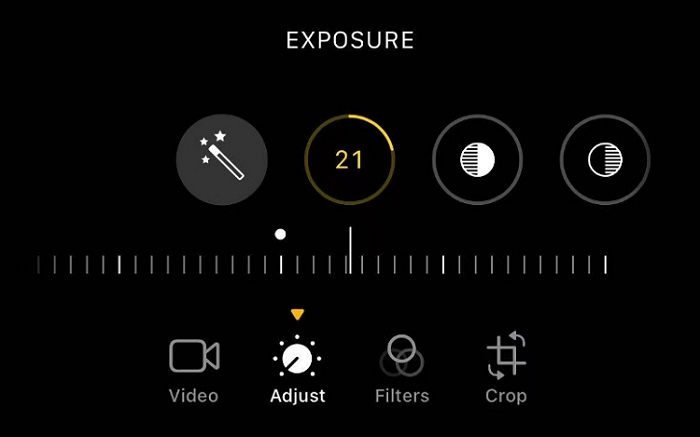
Step 1 Open your video in the Photos app and tap Edit.
Step 2 Try the Auto button first - it intelligently balances exposure, contrast, and colors.
Step 3 For finer control, manually adjust:
Exposure to fix overall brightness
Highlights/Shadows to recover lost details
Saturation to tone down oversaturated colors
Temperature/Tint to correct color casts
Pro Tip:
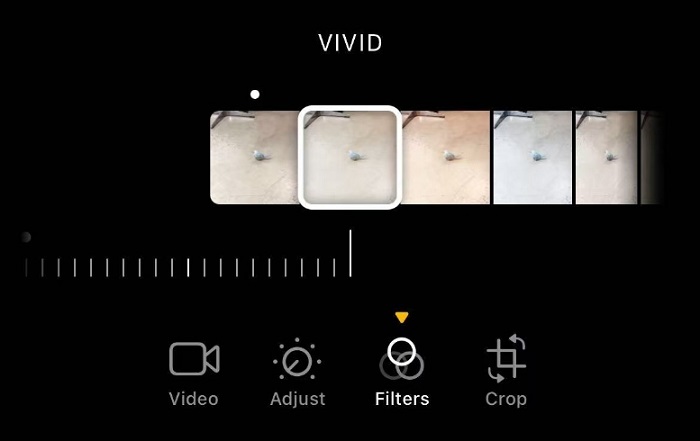
If the original filter is too strong, try applying a new filter to counteract its effect. For example:
Use "Vivid Cool" to counter an orange-toned filter
Try "Dramatic" to add contrast back to a washed-out video
Test "Mono" to completely reset the color scheme
The key is experimenting - cycle through different filters while watching the preview. Sometimes, layering a mild 5-10% intensity filter can effectively "cancel out" the previous one. While not perfect, these techniques can salvage many over-filtered videos right from your phone!
Remove Filter from Video with Online Video Editor by Color Correction
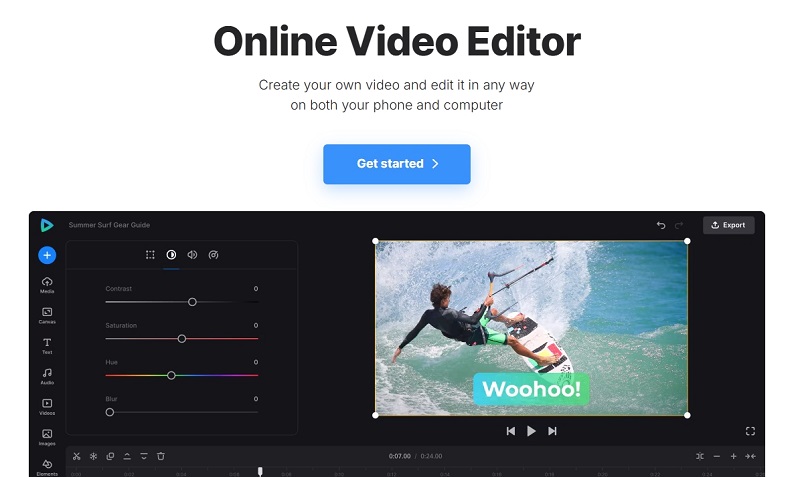
Here comes our third filter remover from video. If your phone's editing tools aren't enough, Clideo online video editor gives you pro-level control to fix over-filtered videos. Perfect for when you need precise adjustments or are working on a computer.
Why Clideo Works Best:
Fine-tune every parameter: Opacity, brightness, contrast, saturation, hue.
Real-time preview: See changes instantly.
One-click presets: Quick fixes for common filter issues.
How to Remove Filters with Clideo (3 Steps):
Step 1Upload Your Video - Go to Clideo Online Video Editor and drag your video into the editor.
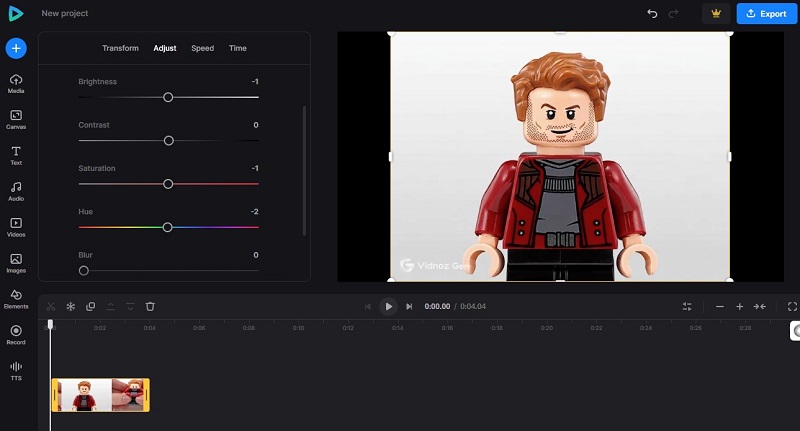
Step 2Adjust Color Settings
Use sliders to:
Lower Saturation if colors look unnatural
Balance Hue to fix orange/blue tints
Raise Brightness to recover dark areas
Step 3Export Your Cleaned Video - Hit the "Export" botton to download your restored video.
For best results, make small adjustments and check frequently. Even heavily filtered videos can look natural again with the right tweaks.
How to Remove Filter from Video Online in Snapchat, TikTok, & Instagram?
While editing your video post on social media video platforms, you might also need to get rid of those filters and catch up with the “original beauty” and “no filter” trend, and here are the specific fixes for different platforms.
#1 Remove Filter from Snapchat Video
Snapchat features vibrant and colorful filters for video shooting, bring extra fun and visuals for users. Generally, it does not offer an individual “Remove” button, but you have workarounds.
Way 1. Re-Edit and Save
Head over to the snap, click the 3-dot menu button > Edit Snap.
Swipe to find the original look.
Save as a new Snap.
Way 2. Use Snapchat Video Filter Remover
If the video is not yours, or the original snap footage was lost, you might need to turn to an AI Snapchat filter remover from video tool, a video enhancer, or any apps.
E.g., try using the AI video enhancer from Vidnoz as well for your Snapchat videos, uploading the footage, simply clicking Enhance Now, and it will process your snap and make it clear and original-looking.
#2 Remove Filter from TikTok
Unlike Snapchat, TikTok does not support removing filters from TikTok shoots after posting it. If you want to remove TikTok video filter, then there is no luck. But while making your own TikTok edits, you can add and remove filters as you like.
Go to your edits, click Effects.
Choose the effect you added > just toggle it off to remove.
#3 Remove Filter from Instagram Video
Things are similar for Instagram. No Instagram filter remover video tool can perfectly undo filters from downloaded videos since effects are permanently applied.
Also, you might try:
>> Adjust colors: Use tools like Clideo or CapCut to neutralize tones.
>> Remove objects: Try AI tools like Runway ML for object removal.
Results vary depending on how heavy the filter is.
FAQ about Removing Filter from Video
On video editors like Vidnoz Video Editor, simply find the Filter button on the toolbar/sidebar, choose any filter you like, like Nature, Memory, Blur, Gray, etc., and tap to apply. Re-tap it to remove.
The easiest way to remove filter from video free is by using an AI video enhancer like Vidnoz AI, the best video filter remover online free. It automatically corrects colors, sharpens details, and reduces filter effects—ideal for quick fixes without manual editing.
To remove filters from Capcut video, you need go to your project, find the added filter track on the panel, select it, and press the Blackspace/Delete button, or right click it > Delete. In an other way, you might also press Ctrl Z to undo the filter applying.
Conclusion
While you can’t fully remove filter from video once it’s saved, there are smart ways to minimize its impact. Use AI tools like Vidnoz for quick enhancement for filter remover AI video, tweak settings manually in your phone’s editor, or fine-tune colors with professional software like Clideo. For TikTok/Instagram, always remove filters before posting. The key takeaway? Filters are fun, but they’re permanent—so edit carefully or keep an original copy. Remove filter from video online to bring back your video’s authentic vibe and undo overdone effects. Now go fix those clips and let their true beauty shine!
Griffin, a former software engineer and technology enthusiast, has over 5 years of writing experience about technology. He is always looking for and sharing tools that promote creativity, productivity, and teamwork.