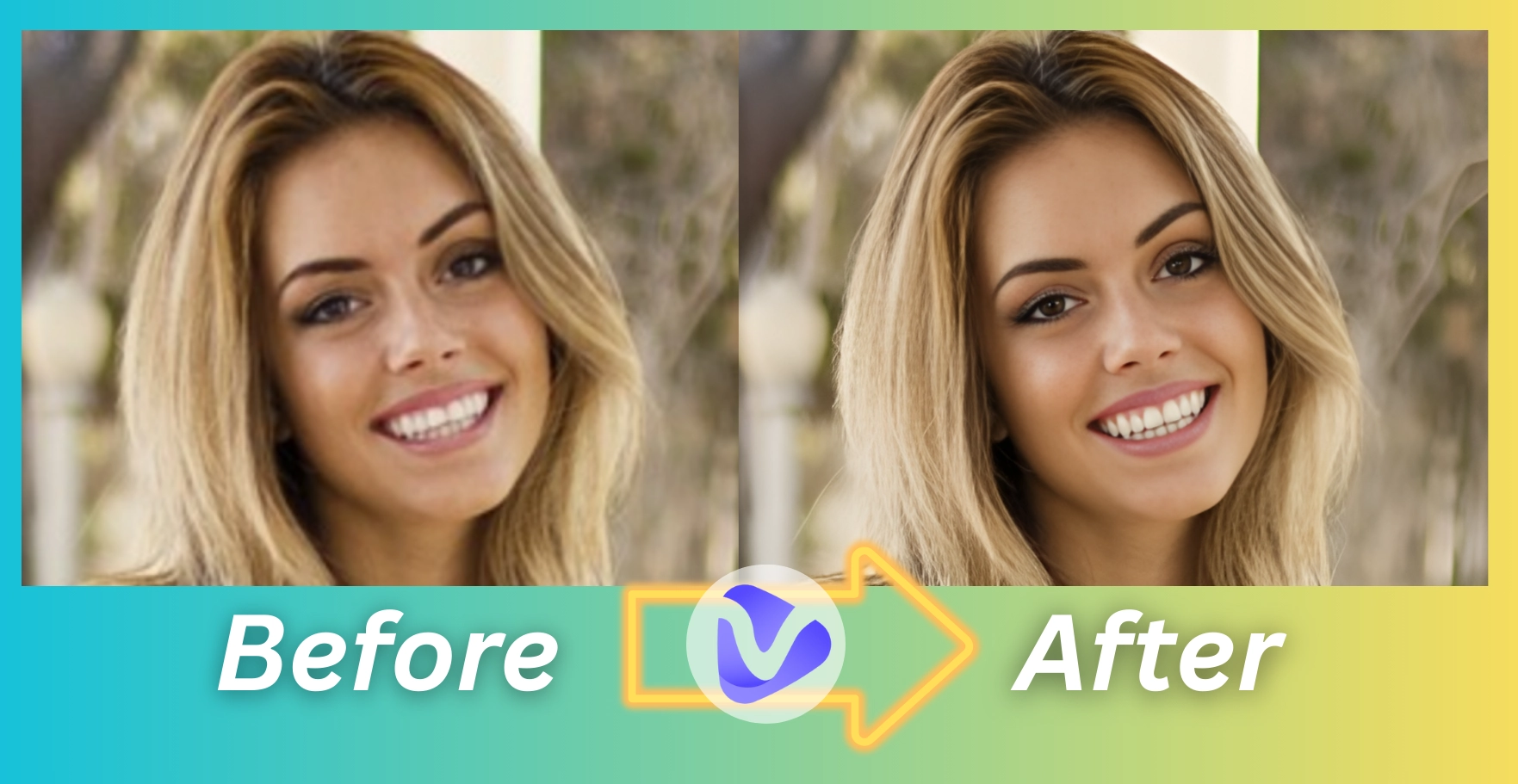
Have you ever tried to magnify an image, and yet it felt blurry and pixelated? What once looked perfect is now distorted. Well, you aren’t the only one that finds it annoying and wants to find out how to fix pixelated images. Before, fixing pixelated images could only be done by experts who use professional tools and have the skills to back it up, but not anymore. In this article, we’ll show you 2 ways to unpixelate images easily.
- On This Page
-
How to Fix Pixelated Images [2 Effective Methods with Steps]
Method 1: Fix Pixelated Images Using Adobe Photoshop
Method 2: Fix Pixelated Images Using AI-Powered Image Enhancers
Adobe Photoshop VS. AI Pixelated Image Fixers
-
3 Popular AI Tools to Fix Pixelated Images
1. Pixelcut: Unpixelate Images by Removing Blocks
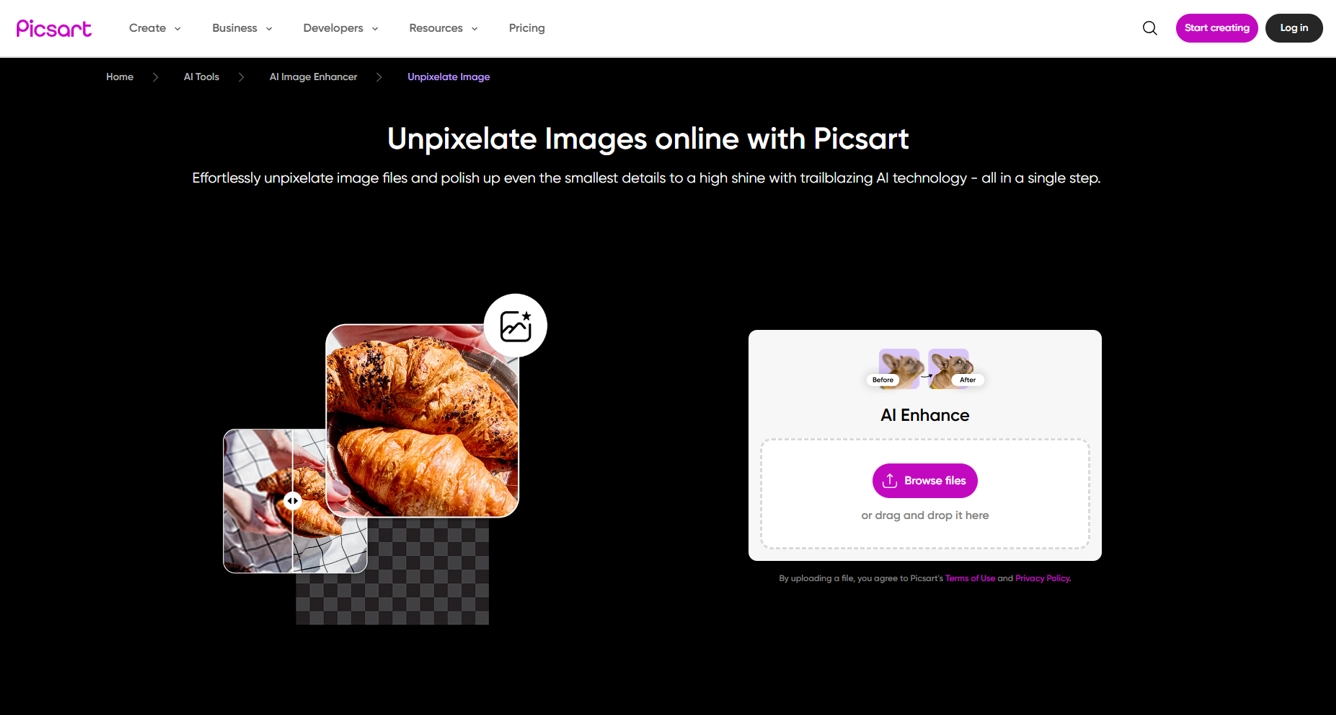
2. Picsart: Depixelate Images with Soften Features
3. YouCam Enhancer: Naturally Unpixelate Portraits in Details
-
Bonus: How to Fix Pixelated Videos? Let AI Make It in Secs!
-
Tips to Avoid Pixelation of Images
How to Fix Pixelated Images [2 Effective Methods with Steps]
Method 1: Fix Pixelated Images Using Adobe Photoshop
The Lightroom Super Resolution Feature can fix issues like low-resolution or pixelated images by doubling the resolution using Adobe’s advanced AI tech. It improves image clarity and is useful for cropping or printing large-format photos
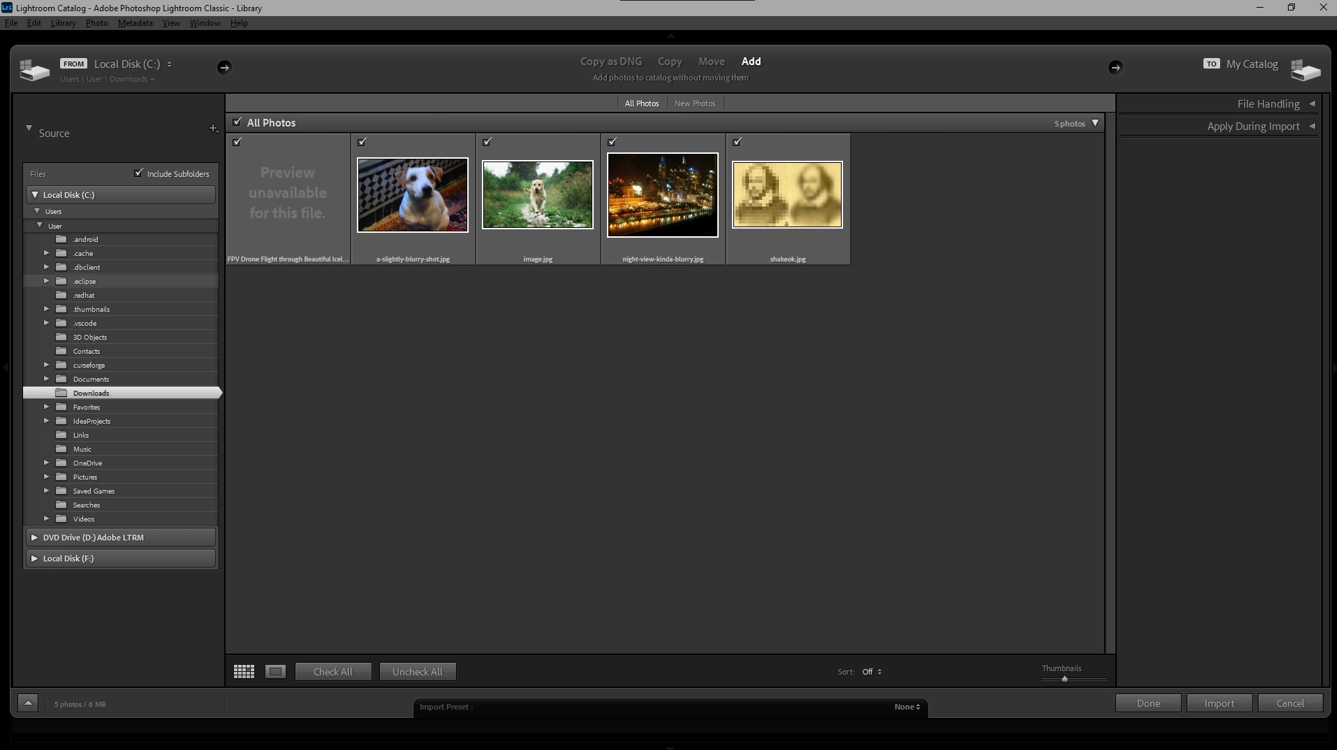
Step 1.Import Image
Open your Adobe Lightroom and select a pixelated image of your choice:
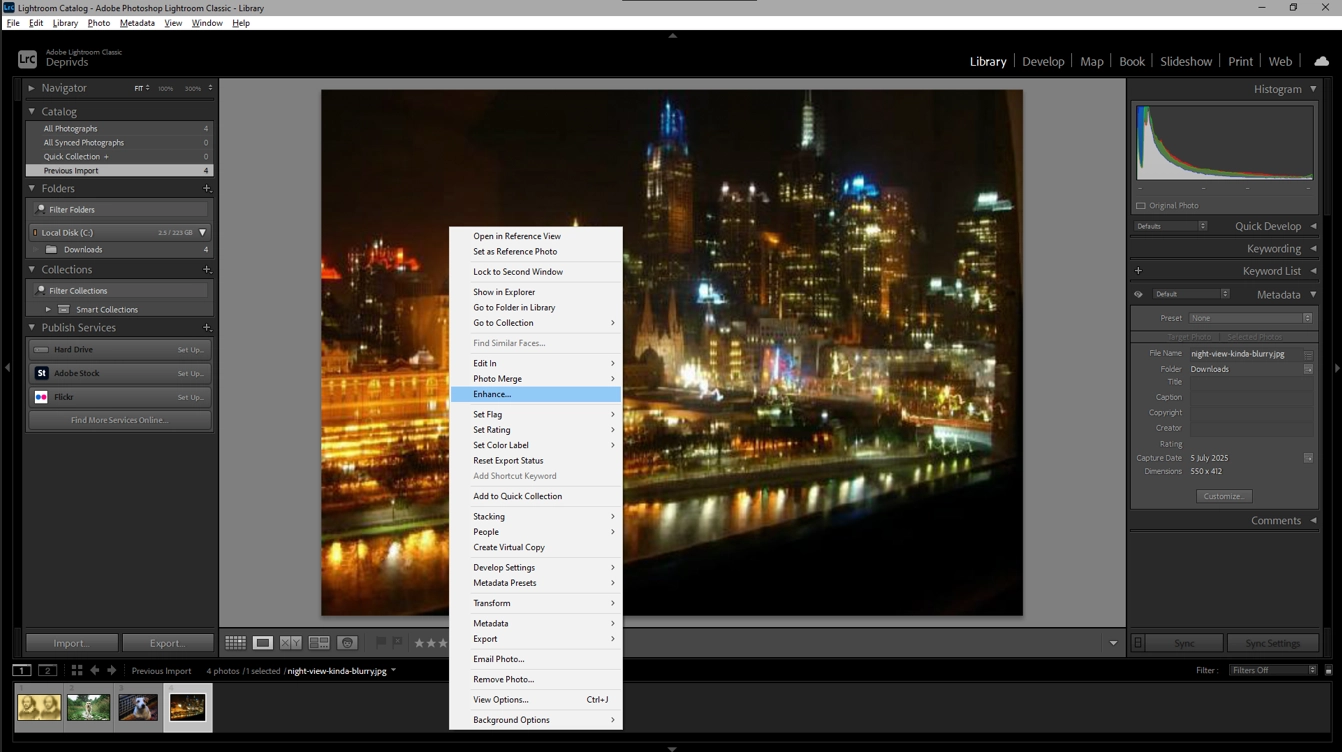
Step 2.Super Resolution
Right-click and choose the option to “enhance,” then choose super resolution. Now adjust the sharpness as you desire:
Step 3.Export Image
This is the unpixelated image:
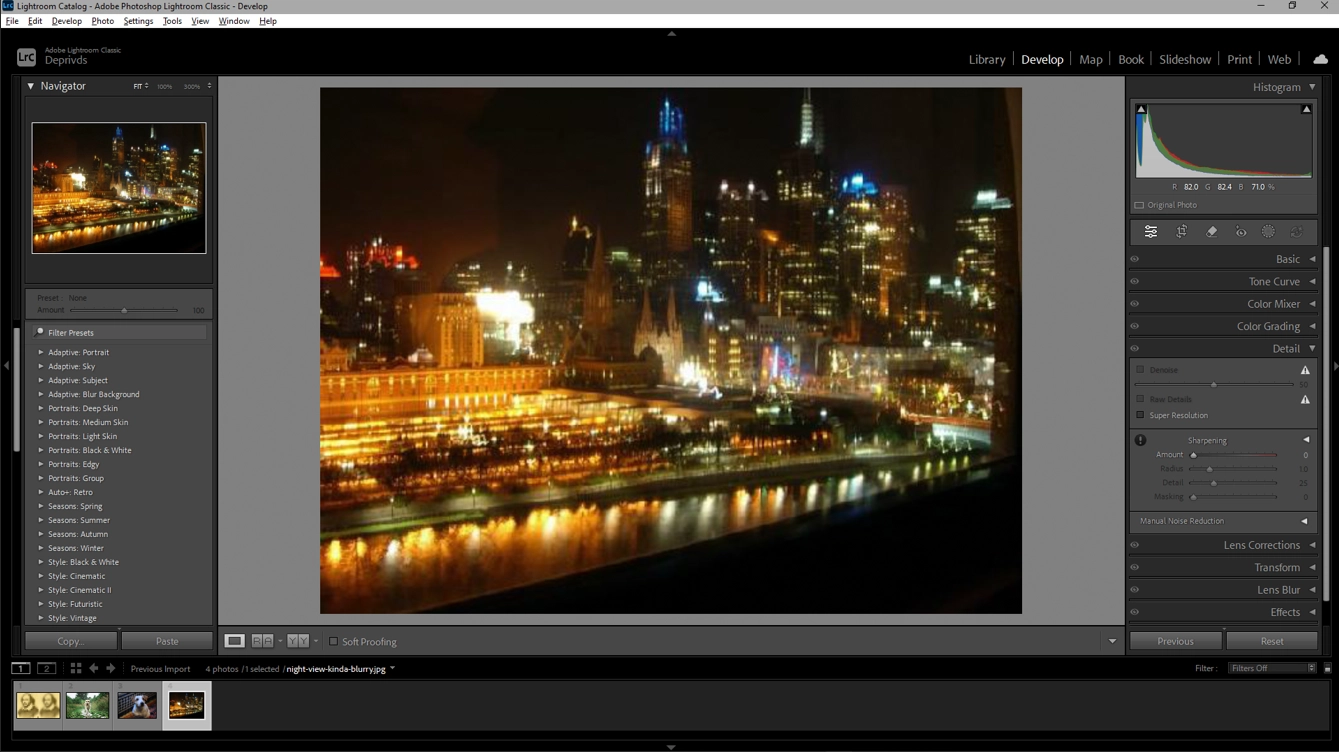
After you have finished editing your image, go to files and choose “export,” or you could also use the shortcut key “Ctrl+Shift+E” to export.
Method 2: Fix Pixelated Images Using AI-Powered Image Enhancers
Believe it or not, using AI to fix pixelated images isn’t that complicated. There are AI tools that can depixelate images online with just a few clicks! Here, let’s take an overview:
Step 1.Upload Image
Visit a proper AI tool’s website and upload a pixelated image of your choice:
Step 2.Download Finish
Wait as the AI smooths the image. After the AI finishes processing, just download the result—it's a fast and easy way to fix pixelated images online.

Adobe Photoshop VS. AI Pixelated Image Fixers
| |
Adobe Photoshop Lightroom |
AI Pixelated Image Fixers |
| Accessibility |
Complex install, desktop software |
Online, ready anytime in a browser |
| Required Skills |
Advanced photo-editing skills |
No skills needed, click and go |
| Time Needed |
Slower processing and adjustments |
Enhanced in seconds |
| Cost |
Expensive subscription required |
Freemium or generally cheaper |
| Results |
Precise and accurate |
Slightly fewer details |
Briefly, if you need a more precise and accurate fix, Adobe Photoshop is worth it; But if you want quick, efficient results with minimal hassle, AI depixelate image tools would do that perfectly.
3 Popular AI Tools to Fix Pixelated Images
These AI-powered platforms do all the hard work by analyzing your images and restoring lost detail, giving you results that look clean, sharp, and natural, in minutes! Some even offer unpixelate image free services, let’s explore now:
1. Pixelcut: Unpixelate Images by Removing Blocks
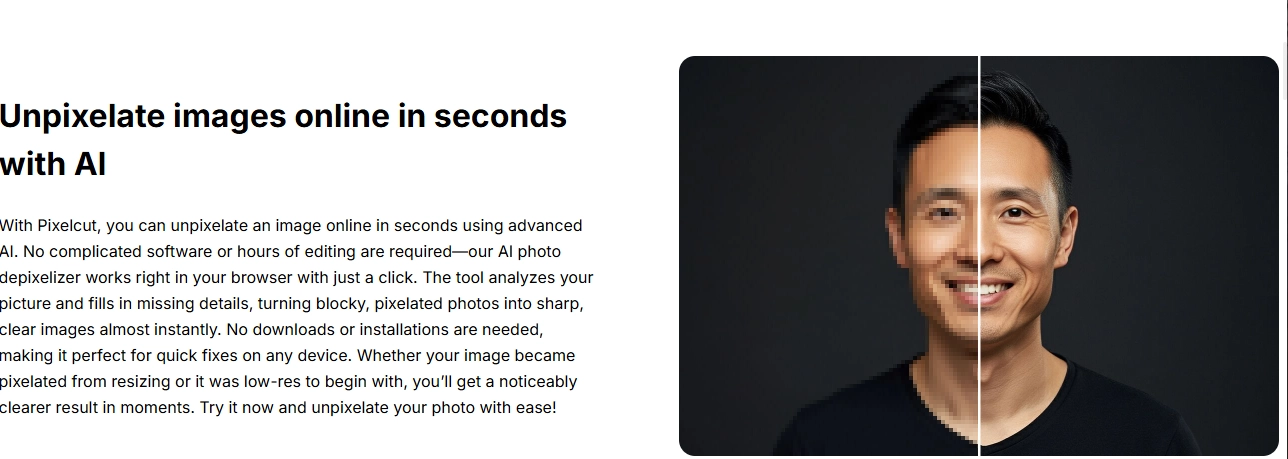
Pixelcut is a perfect choice if you want to clean up compressed visuals or low-res photos that look too jagged to use. Not only that, it's amazing at making the visuals better, pixelation reduction, and smoothing edges.
This is also ideal for beginners learning how to fix blurry pictures quickly. However, it's not good at large-scale images pixelation or professional restorations.
Pros
- Removes large pixel blocks;
- Beginner-friendly interface;
- Fast and free to try.
Cons
- Limited to 3 downloads per day;
- Watermark on free download;
- The image loses fine details on large-scale backgrounds.
2. Picsart: Depixelate Images with Soften Features

If you're a content creator, Picsart makes it easy to enhance low-quality product shots, helping you produce cleaner and professional results. It also smooths out pixelated edges and sharpens contrast.
It’s handy for all kinds of visual content, as it comes with a full suite of editing tools and has mobile support.
Pros
- Enhance image clarity and contrast;
- Supports mobile and desktop;
- Great for product and branding visuals.
Cons
- An account is required to export in HD;
- Features locked behind a paywall;
- Can oversoften textures.
3. YouCam Enhancer: Naturally Unpixelate Portraits in Details
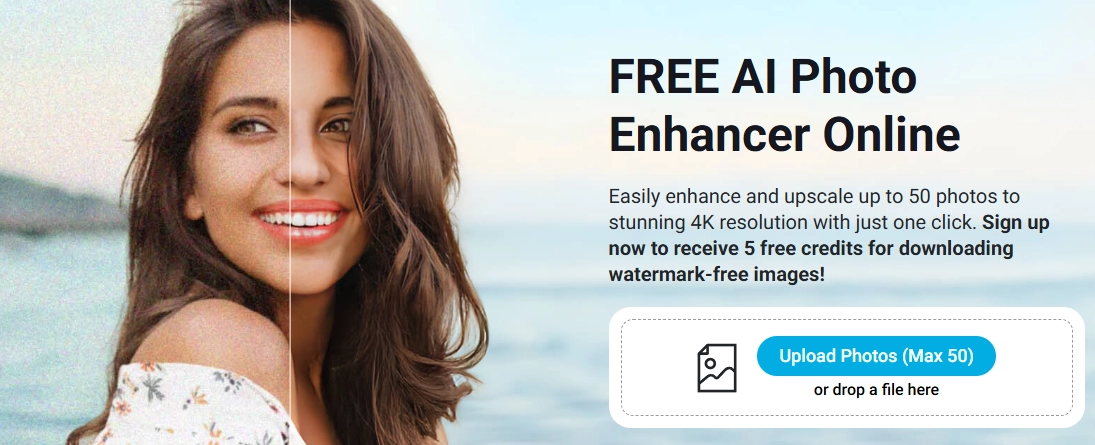
YouCam specializes in improving pixelated portraits and removing scratches. This type of AI recognizes facial features that enhance realistic texture, filling in missing details and smoothing edges.
For those specifically trying to figure out how to fix pixelated images of portraits or selfies, YouCam does an amazing job. It's perfect for profile pictures that have lost their quality due to resizing.
Pros
- Sharpens facial details;
- One-click enhancement;
- Great for profile pictures.
Cons
- Paid to remove the watermark;
- Less effective on group photos;
- Result change in lighting.
Bonus: How to Fix Pixelated Videos? Let AI Make It in Secs!
AI-assisted tools are easy to use and efficient on depixelating images. So what about pixelated videos? Are there any effective AI tools to upscale videos? Then looking no further than Vidnoz AI video enhancer.
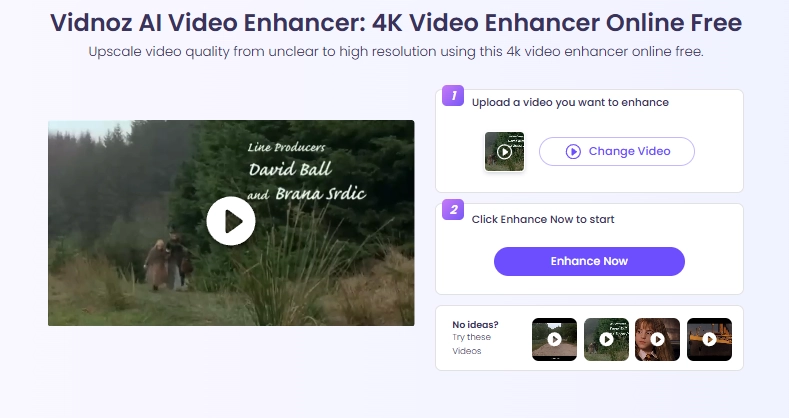
Vidnoz is the best choice for editors that want to fix low resolution videos and social media influencers who want to have clearer clips. It's very beginner-friendly as it works on any device with a browser, so you can access it quickly whenever you need it.
Key Feature
- 4K Upscaling: Whether it's old memories or pixelated footage, this tool transforms low-resolution videos into stunning 4K clarity with just one click.
- Stabilizing Shaky Footage: Got bumpy clips? This AI-powered enhancer smooths out shaky camera movements, giving your footage that cinematic, steady finish.
- Automatic Brightness: Shooting in low light? This tool detects dark scenes and intelligently brightens them, so every detail shines through effortlessly.
2 Steps to Unpixelating Videos:
Step 1.Upload Video: Upload a pixelated video you want to polish.
Step 2.Click to Enhance: After clicking “Enhance Now,” just wait for seconds as the AI makes improvements. After that, it’s free to download!
Tips to Avoid Pixelation of Images
#1. Capture Images in High-Resolution Always
Always set your camera, phone, or scanner to use the highest resolution available when taking pictures. Higher-quality images contain finer details and are less likely to pixelate when enlarged.
#2. Use Right Image Formats
JPEG/GIF are made of pixels, so they will pixelate if enlarged too much, and repeatedly saving them can also lead to pixelation, so you’d better to save images in lossless formats, like PNG/TIFF/RAW.
Besides, for some images of logo, icon, or illustration, you can convert them into vector graphics, which can avoid pixelations as well.
#3. Resize Images Properly
Always try to avoid dragging corners, as stretching or shrinking without an editing tool can distort the quality of the image. In addition, vector files scale without losing any quality, so they never pixelate, no matter the size.
#4. Lower ISO Settings
High ISO increases the risk of pixelation in dark environments. Use the lowest ISO that still gives you proper exposure.
#5. Check Before Saving/Uploading
Before you finalize an edit or upload an image, always look at the different sizes. This can help you catch some signs of pixelation, giving you the chance to fix them before sharing or printing.
Conclusion
Knowing how to fix pixelated images can be a real lifesaver as it saves you time and makes your photos look so much better, whether it’s for work or just something personal. Whether you want to restore a cherished memory or improve product photos.
Adobe Photoshop gives you professional-grade results ideal for in-depth editing, or if you want to depixelate images online, try different kinds of AI tools like Pixelcut, Picsart, or YouCam. Even videos aren’t left behind, with tools like Vidnoz free AI video generator transforming low-quality clips into high-resolution footage. Don’t settle for low-quality images, bring back old photos and videos in a click!






.webp)
![How to Remove Filter from Video Online | AI Video Filter Remover Online Free [Lossless]](https://www.vidnoz.com/bimg/remove-filter-from-video.webp)
