How to add caption to a YouTube video? Actually, you can add subtitles to your YouTube videos whilst uploading your videos, YouTube offers a default function to auto-recognize the speeches and narrations in your videos and convert them into captions. Yet this method is not accurate enough, and grammar mistakes occur frequently. This blog introduces this primary caption method as well as other 2 AI methods that help you generate fancy subtitles with stunning effects for free. Some tools offer precise services to automatically create accurate subtitles that make good considerations on your speech velocity, emotions (add proper punctuations) and interpauses. Please read on.
- On This Page
-
How to Add Caption to A YouTube Video With YouTue Default Feature?
How to Add Caption to A YouTube Video Without Redirect?
-
How to Add Caption to A YouTube Video? Vidnoz Online Video Editor
Let’s read on to see how to leverage this online tool
-
Download a Third-Party Caption App to Add Caption to A YouTube Video
Here is how you can add caption to a YouTube video via Captions App
How to Add Caption to A YouTube Video With YouTue Default Feature?
Now the first section is about YouTube’s default caption tool. You can add auto subtitles to your videos during the process of publishing your video. Yet the steps are not as easy as you presume. And adding subtitles to your videos requires a very lengthy navigation. If you hate the manula set up, please jump to the next several parts for instant methods to add subtitles to your videos, accurate and fast methods powered by AI. If you don’t mind the searching and set-ups, please read on.
How to Add Caption to A YouTube Video Without Redirect?
YouTube’s default subtitles function is built inside the Publish interface.
Step 1. Navigate to YouTube Studio, where you can arrange all the settings for your content.
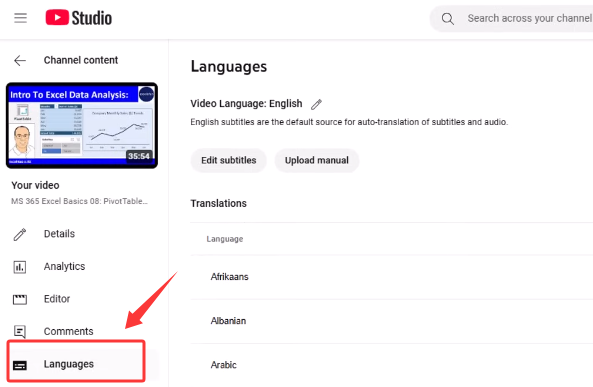
Step 2. Find the ‘Language’ Tab, which is the most important premise if you want to add auto subtitles for your videos.
Step 3. Enter one of your video and find the ‘Subtitles’ option just like the image shown below.
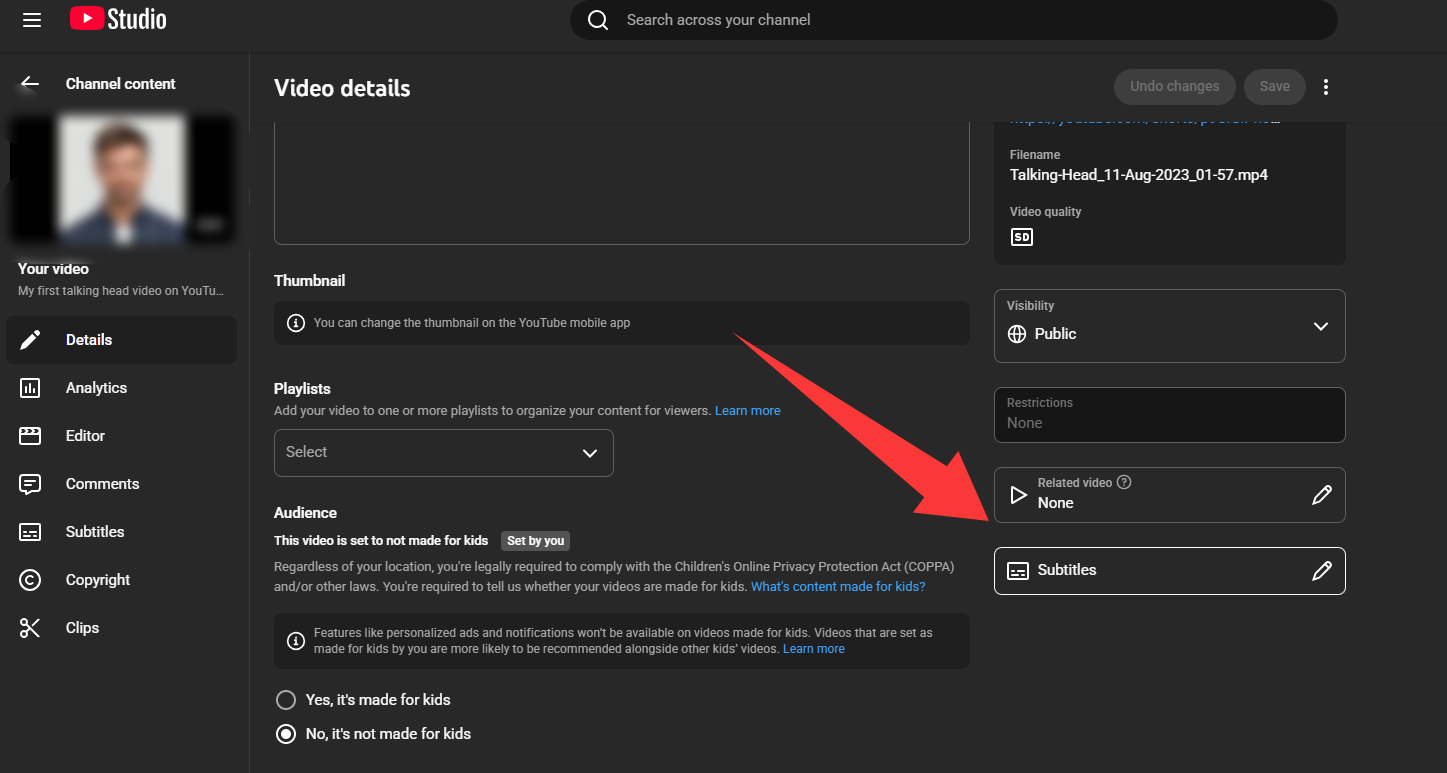
Step 4. Here you can preview the overview of your subtitles set up already. You are allowed to manually edit the texts or upload another subtitle package to replace the existing captions.
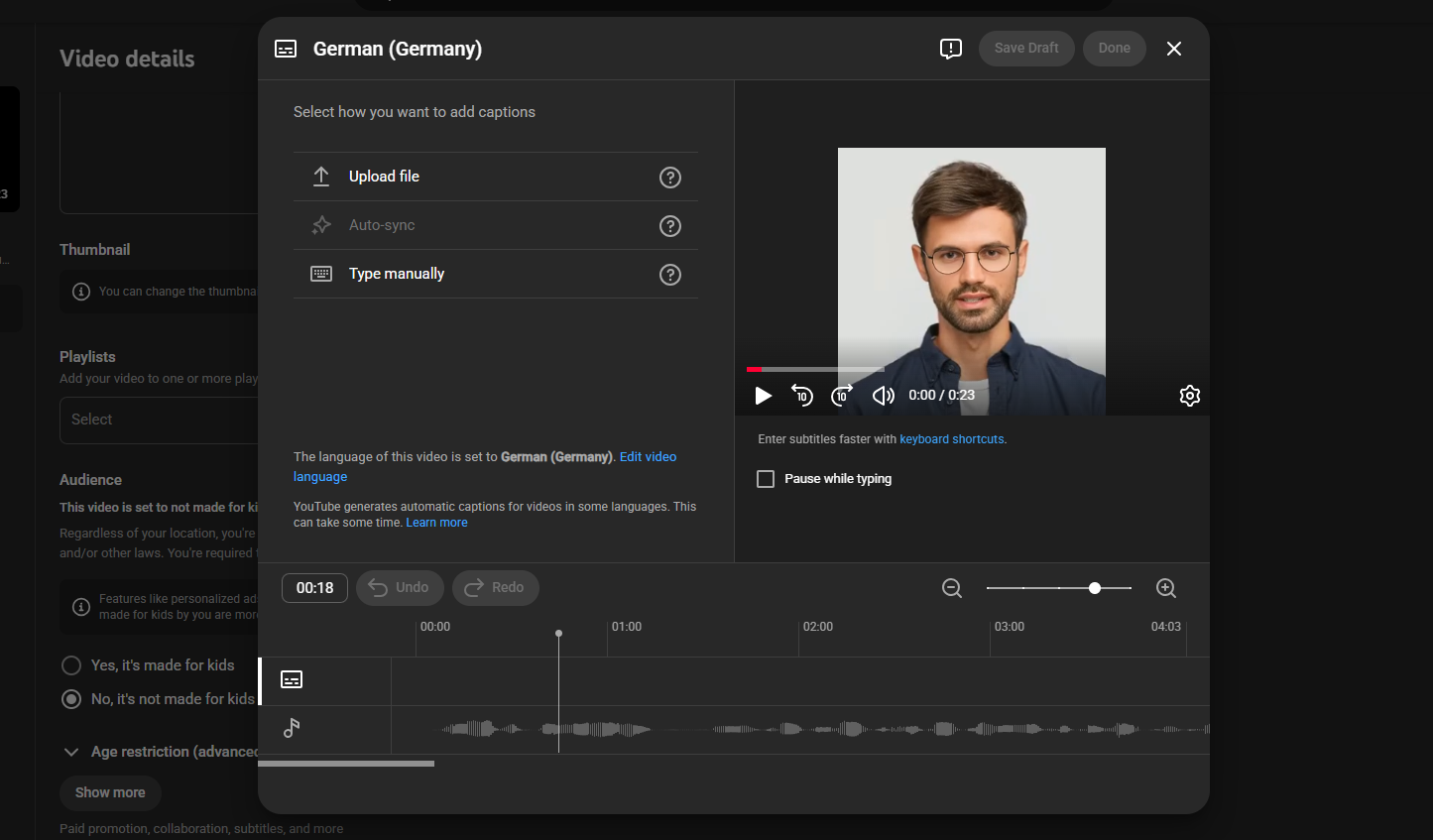
This is the basic method to add caption to a YouTube video. You don’t need to pay anything to unlock this feature since this function is opened for every content creator. The only thing is that you need to find the ‘Language’ tab, activate it, or the auto subtitle function will be inactive. Last but not least, the quality of captions can be disappointing. If you are seeking accuracy and relevancy, then the primary caption function built into YouTube may not be a good choice. Fret not, you can find 2 upper free options to alternate this feature.
How to Add Caption to A YouTube Video? Vidnoz Online Video Editor
Vidnoz Online Video Editor is an AI video material management tool. You can add effects, elements, and stickers to your videos via this online tool or crop, resize, and of course add captions to your video and upload to YouTube for free.
The main reason behind its popularity among users is the accuracy. AI knows how to make speech to text, and the details like pause, exclamation, slangs and murmuring can all be detected without trouble. If you are looking for a one-click solution to add high-quality subtitles to your YouTube video, an AI solution like Vindoz is a must-try.
Let’s read on to see how to leverage this online tool
Step 1. Navigate to https://www.vidnoz.com/online-video-editor.html and upload your YouTube video.
Step 2. On the left side of the interface, you can notice a tab named ‘Subtitles’, which is where you can edit your captions.
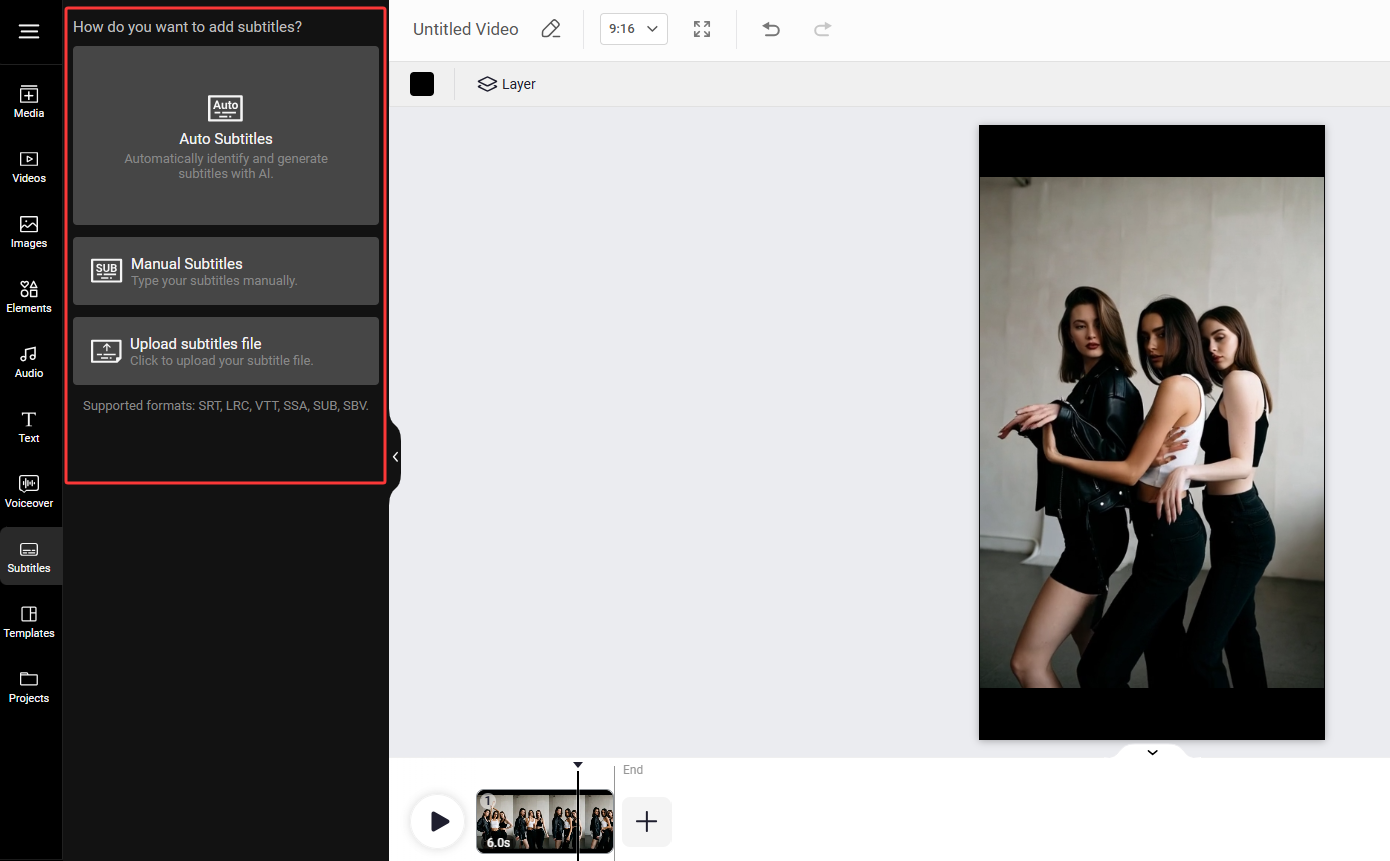
Step 3. Click on the first area where you can fine-tune the languages and detect modes of AI captions.
One thing worth mentioning is that Vidnoz can analyze videos either by audio or by scene, toggle the right mode if you need both modes to go along.
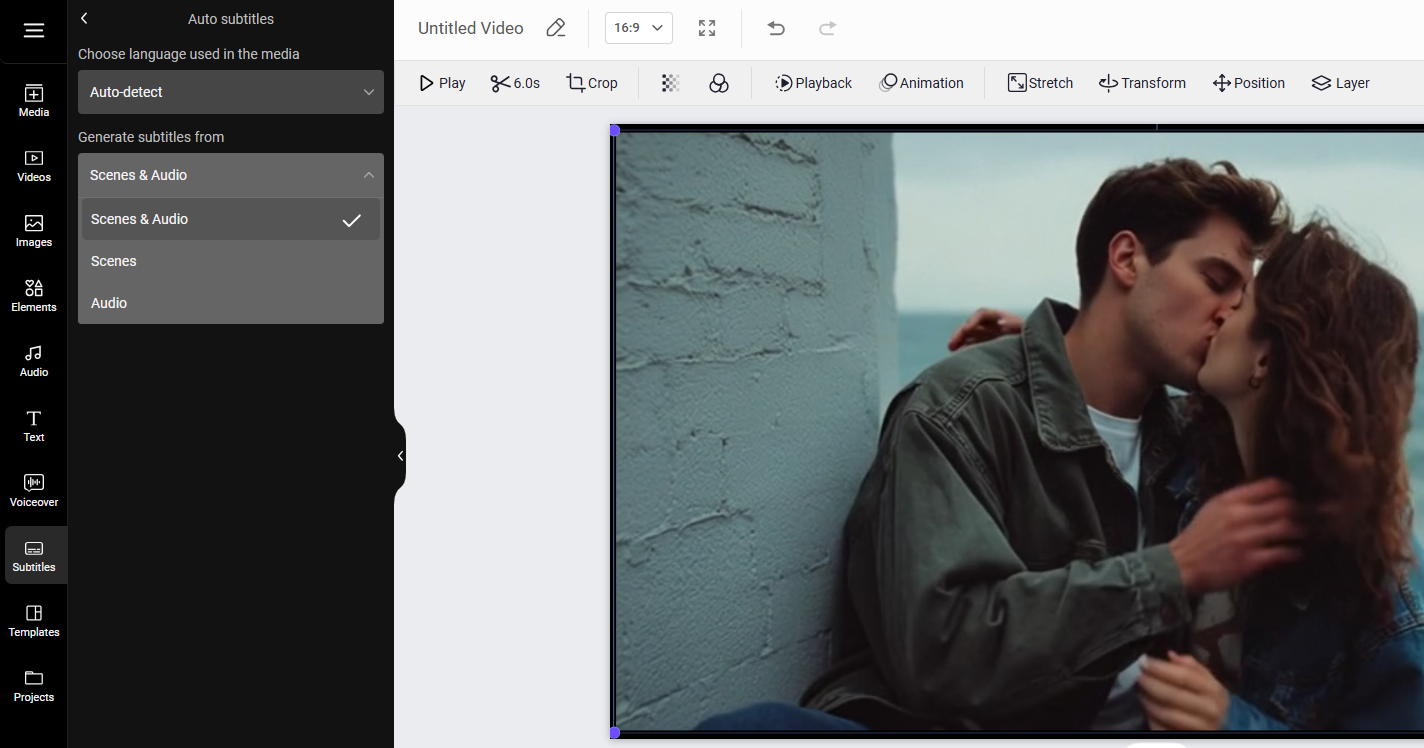
Step 4. Generate subtitles, and you can later edit the textual content frame by frame.
Vidnoz AI Video Editor is an online-based 100% free website that allows anyone to add captions for their videos. The accuracy is a lit but due to the restrictions of the online platform, it may fall back compared with caption app, when the latter one is backed up with more stable functions and a smoother user experience. If you happen to be one of the advanced users who have requirements for smoothness and speed, you should try the next caption tool.
Convert Image to Video AI Online - Free
- Create a video from an image quickly for free.
- Use various AI models to turn photos into videos.
- Download and share the AI-generated video at no cost.
Convert Image to Video
Download a Third-Party Caption App to Add Caption to A YouTube Video
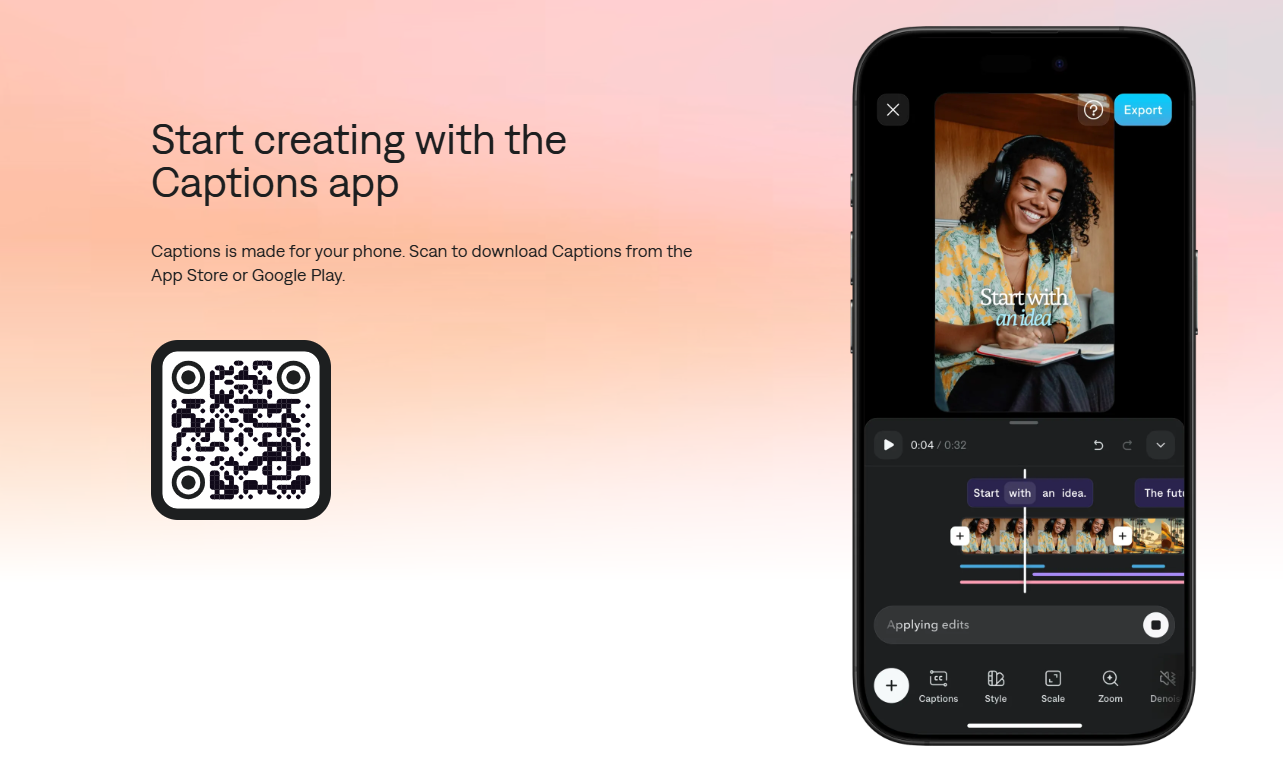
Captions is an auto-subtitle app serving both iOS and Android operating systems. This fast and tiny app allows you to upload videos and then extract subtitles from your videos. The whole process is smooth and streamlined, no need to edit frame by frame or check for grammar mistakes.
https://mirage.app/captions/download
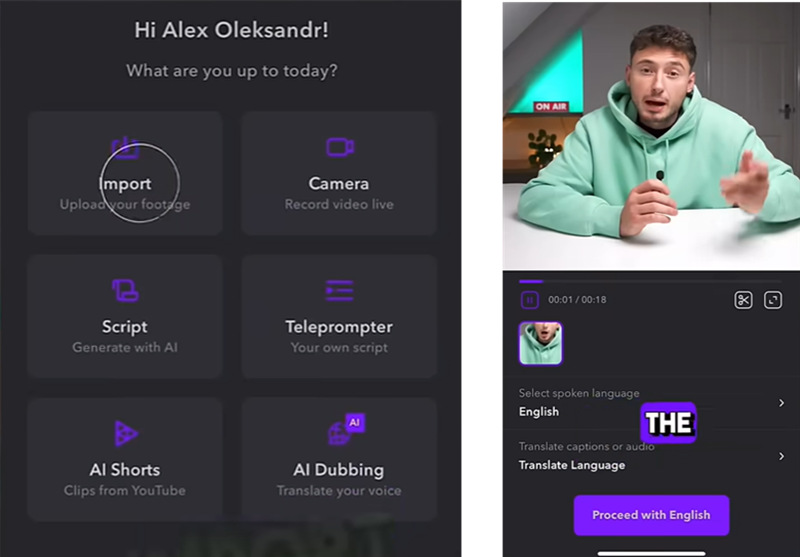
This app is pretty much a content creator’s right-hand assistant, not only offering subtitle function, but also other practical scripts/video resource generation functions. This app has basic functions that every caption tool processes, the frame-by-frame content matching, but also, it manages to offer other stunning features that only AI tools can deliver: the language translation function. You can make a multi-language version of your videos and transfer them to the local audience for more views and followers on YouTube.
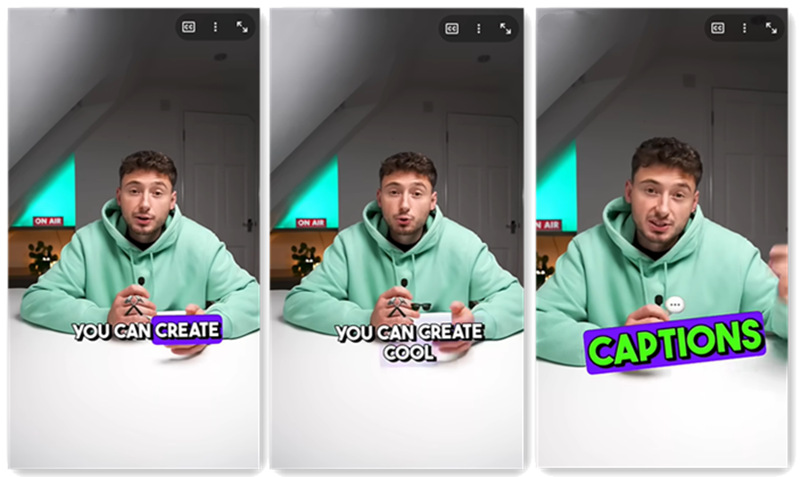
Here is how you can add caption to a YouTube video via Captions App
Step 1. Scan the image to download this app.
Step 2. Import your footage and add subtitles to it in one click.
Step 3. Share the clips to YouTube.
Captions App works on mobile and does not charge unreasonably. If you need to create batches of YouTube videos but you cannot always sit in front of your desktop, then this portable app is a lifesaver for your workflow.
Conclusion
This blog shares some inspirational tools to address the question:‘How to add caption to a YouTube video?’ Precisely speaking, YouTube’s default caption function is outdated since it cannot deliver super accurate content according to the audio and scenes in your uploaded videos. Luckily, this market provides two other convenient tools to generate accurate captions using AI. Vidnoz can analyze both audio and scenes, and Captions App can do the same thing and even convert the captions to other languages. Please feel free to try the tools.

Vidnoz AI - Create Free Engaging AI Video with Talking Avatar
- Easily create professional AI videos with realistic avatars.
- Text-to-speech lip sync voices of different languages.
- 2800+ video templates for multiple scenarios.