Many creators on TikTok, Instagram, YouTube, and other platforms like to incorporate borders on their videos. Borders are not just a style choice; they help frame your content, represent your brand, create a more professional look, and address cropping issues when sharing videos on various apps. Adding a border to your video can create a more polished look, whether you are a seasoned video editor or are new to video editing. The best part is that there is a video editing trick that anyone can use easily!
In this article, we will show you how to add border to video, whether you are using Windows, Mac, Mobile, or Online. We'll recommend some easy online tools to powerful video editing software, so you can choose the method that works best for you.
So, let's get started.

- On This Page
-
How to Easily Add Border to Video Online?
How to Add a Border to Video with Vidnoz?
Brief Introduction to Vidnoz AI Free Video Generator
-
How to Add Frame to Video on Windows?
-
How to Add Border to Video on a Mac?
-
How to Add Border to Video on Mobile?
How to Easily Add Border to Video Online?
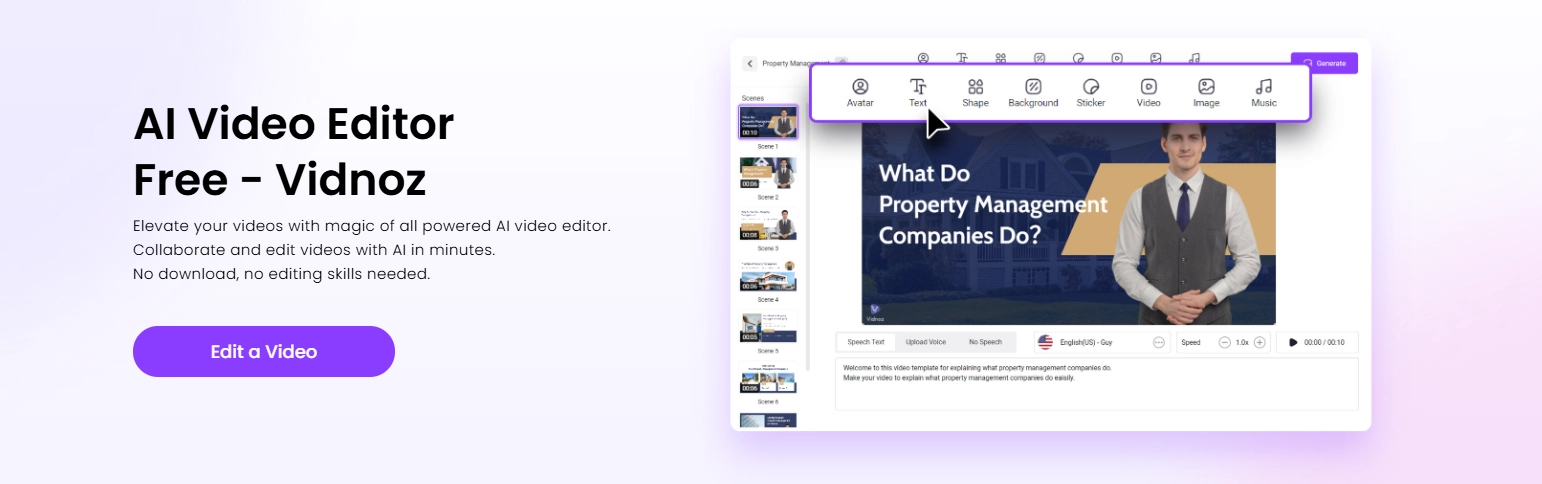
Adding a border to a video can instantly improve its appearance, making the content pop on social media, presentations, and promotional materials in general. Traditionally, to get this effect, it required complicated software and downloads. With Vidnoz AI Video Editor, you can add customizable borders online, without any installation or technical skills.
Vidnoz AI Video Editor is a free, online video editor specialized in easily creating high-quality videos. Vidnoz offers numerous templates and a comprehensive media library, enabling users to AI-augment each video, eliminating the need for editing experience. Vidnoz is fast and easy for creating anything from YouTube video clips, TikTok shorts, product demonstration videos, or promos, without editing background or formal training. Adding video borders in Vidnoz is simple and accessible. Vidnoz provides all the controls you need, media for resources, and with the AI technology, borders in every new video you create are feasible with little effort.
Why Vidnoz for adding video borders?
- Add borders to videos online for free and without watermarks or catch or hidden costs.
- Get highly customizable options to adjust border thickness, color, and type of animation.
- Add borders to videos with a couple of clicks to improve aesthetics in no time.
- Add animated borders that will bring movement and other dynamics to the videos.
- Enjoy a massive library of shapes, stickers, and border images suitable for any style.
- You can also enjoy many other AI editing features, such as smart transcription, voice cloning, background blur, and multi-platform export.
How to Add a Border to Video with Vidnoz?
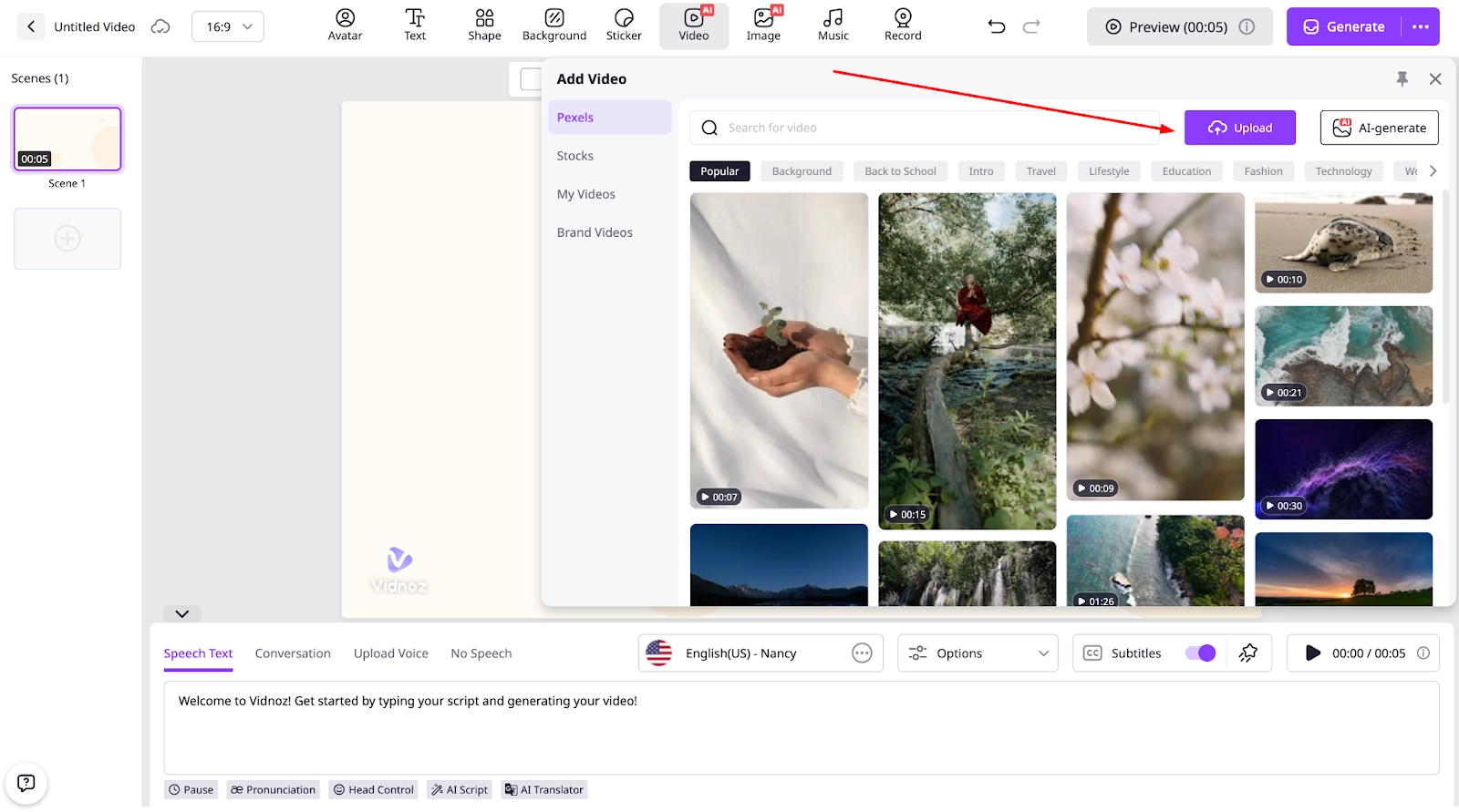
Step 1. Open Vidnoz and Upload Your Video
Visit Vidnoz Video Editor. Click on "Upload" and select your video file or drag it onto the canvas.
Step 2. Add a Border Using Shapes
1. On the top menu, select Shapes.
2. Choose a rectangle shape.
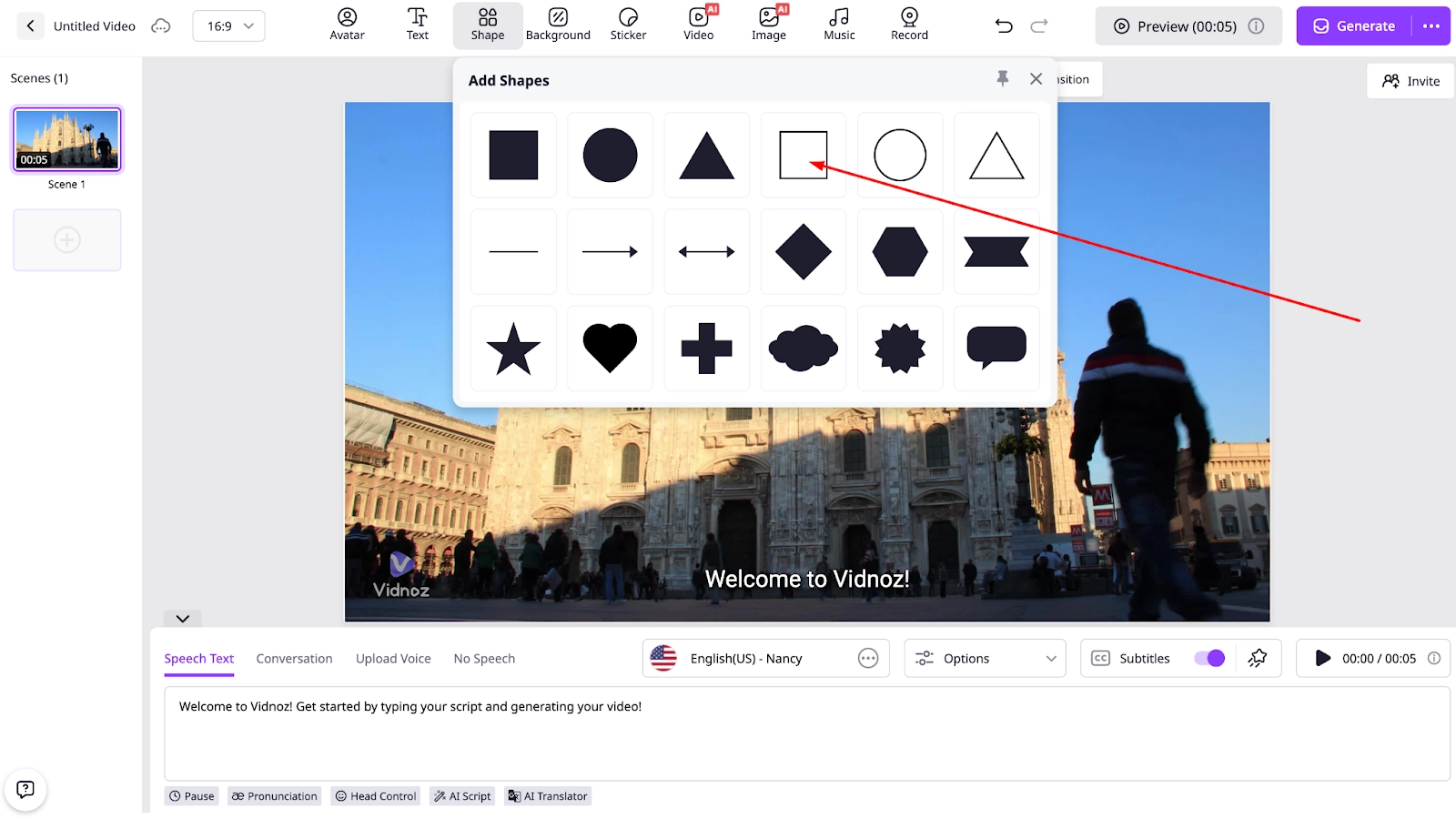
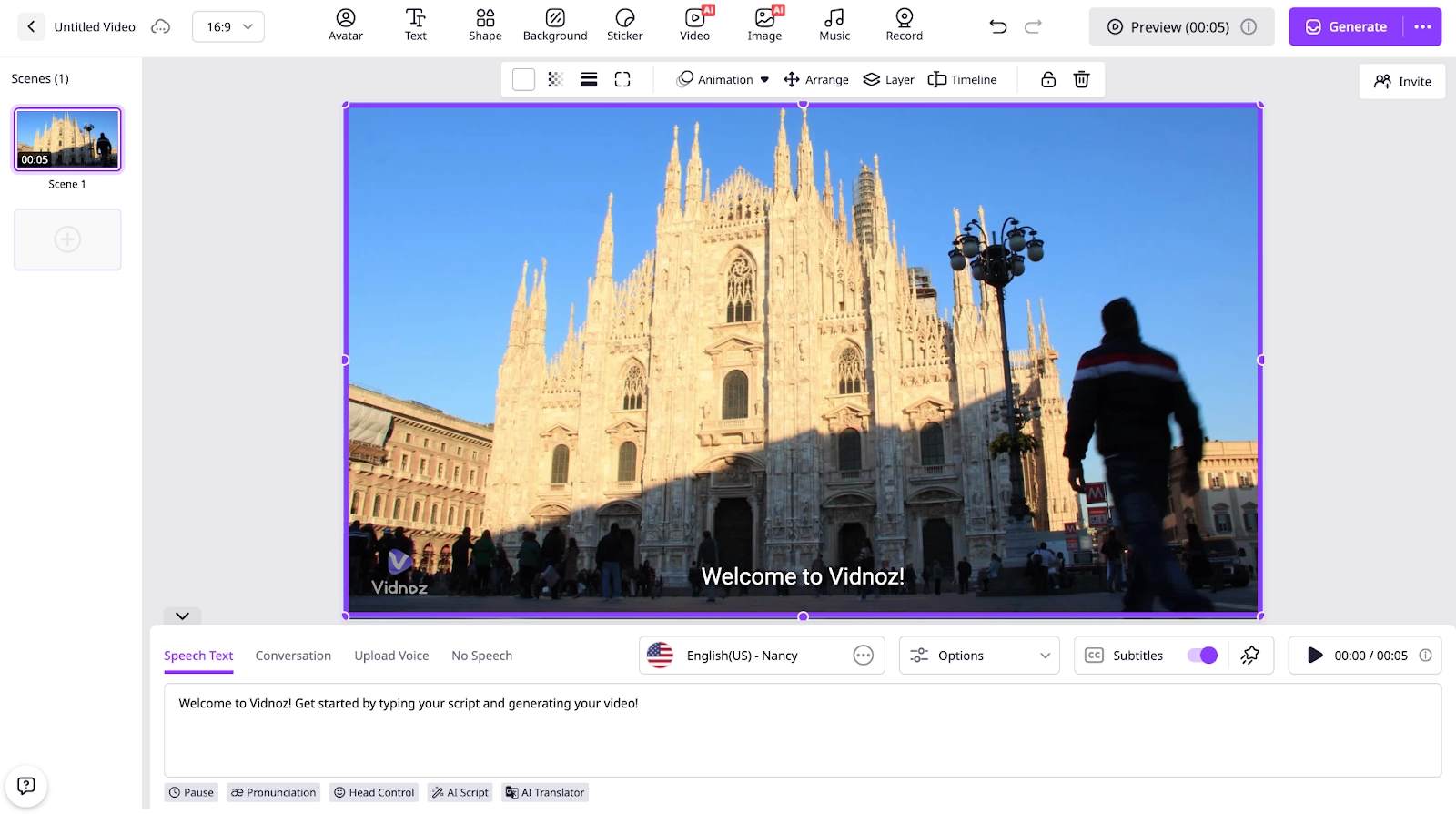
3. Resize it to frame your video.
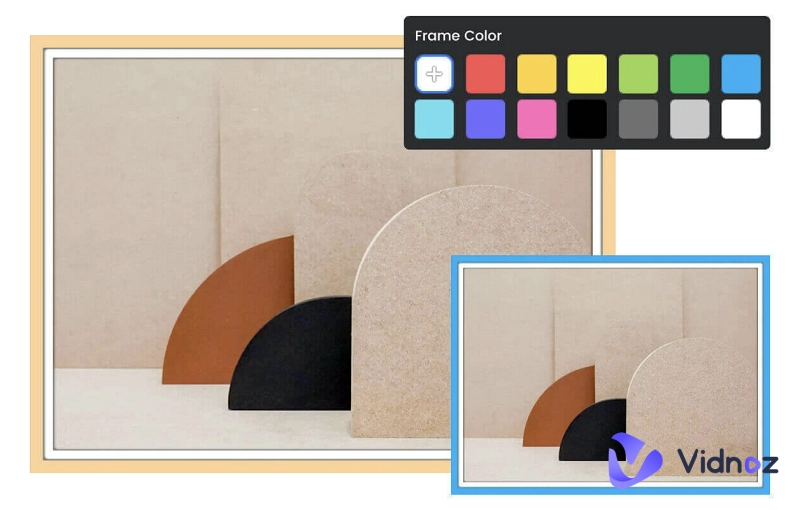
4. Now adjust its thickness and color according to your needs.
Step 3. Add a Border Using Images
1. Go to the Images tab.
2. Use the Freepik search field and enter "border".
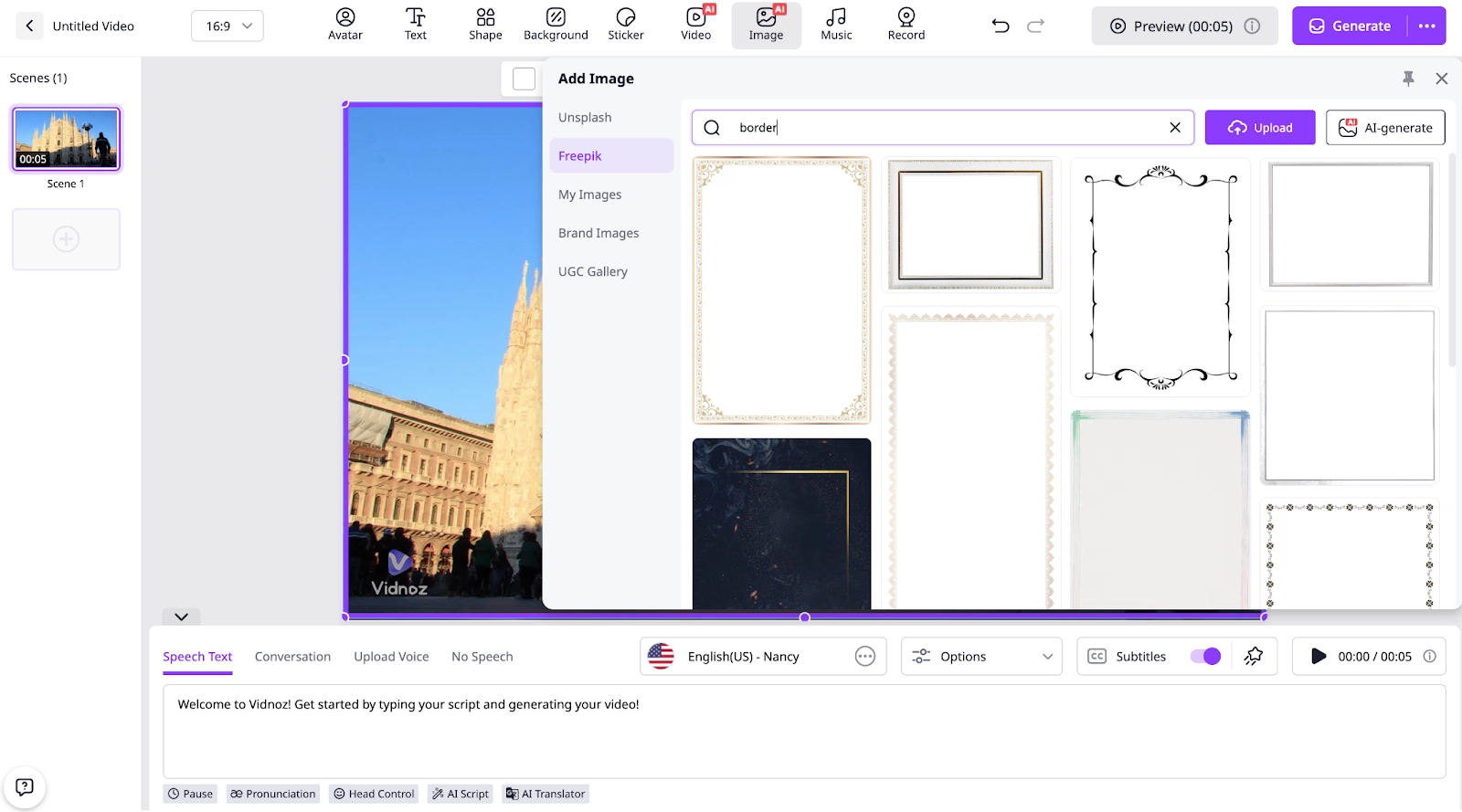
3. Select a decorative border image you like.
4. Drag it over your video and resize to fit. This method adds a styled or animated border effortlessly.
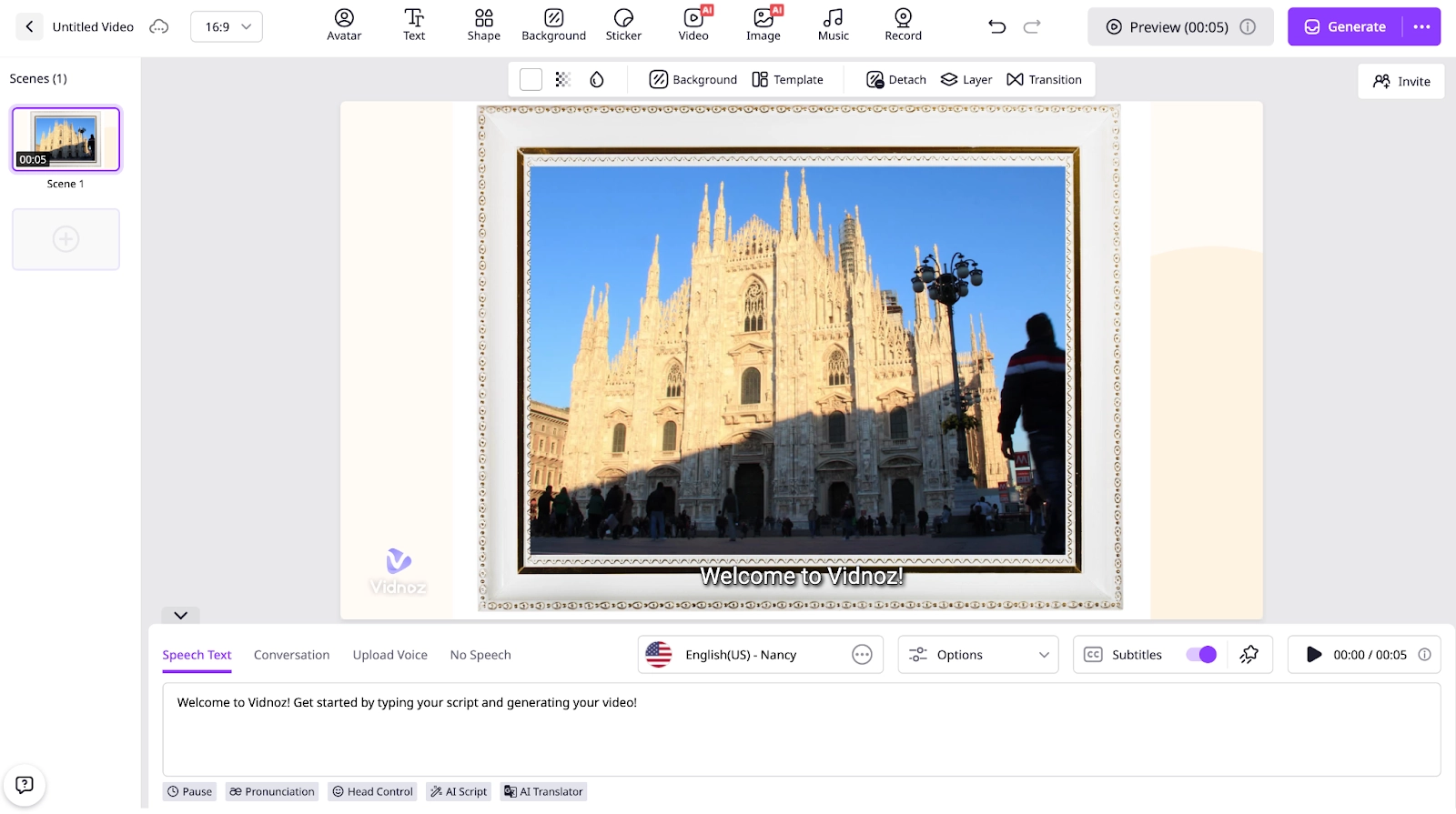
Step 4. Customize and Export
1. Hit the generate button and let the AI do its job.
2. Preview your video to ensure the border looks perfect.
3. Click Export to save your video with the new border effect.
Brief Introduction to Vidnoz AI Free Video Generator
Vidnoz is a powerful next-gen video creation and editing platform for users to create engaging and personalized experiences that are easily made visually appealing. With a library of media assets, pre-designed templates, and powerful AI features, this free AI video generator can help you edit and personalize your video with animated borders, avatars, transitions, and more. It also offers a user-friendly interface that allows creators at all levels to create professional-grade content quickly with little-to-no time spent learning how to use the software.

Vidnoz AI - Create Free Engaging AI Video with Talking Avatar
- Easily create professional AI videos with realistic avatars.
- Text-to-speech lip sync voices of different languages.
- 2800+ video templates for multiple scenarios.
How to Add Frame to Video on Windows?
If you have tried those online tools and want to have more control to add frame to video, you should try Adobe Premiere Pro. It is robust, professional video editing software that people all over the world use to create. You could position your borders, animation, and effects precisely how and where you want them, and you can download Premiere Pro for Windows through Adobe Creative Cloud.
Steps to Add a Border in Premiere Pro:
1. Import the Video
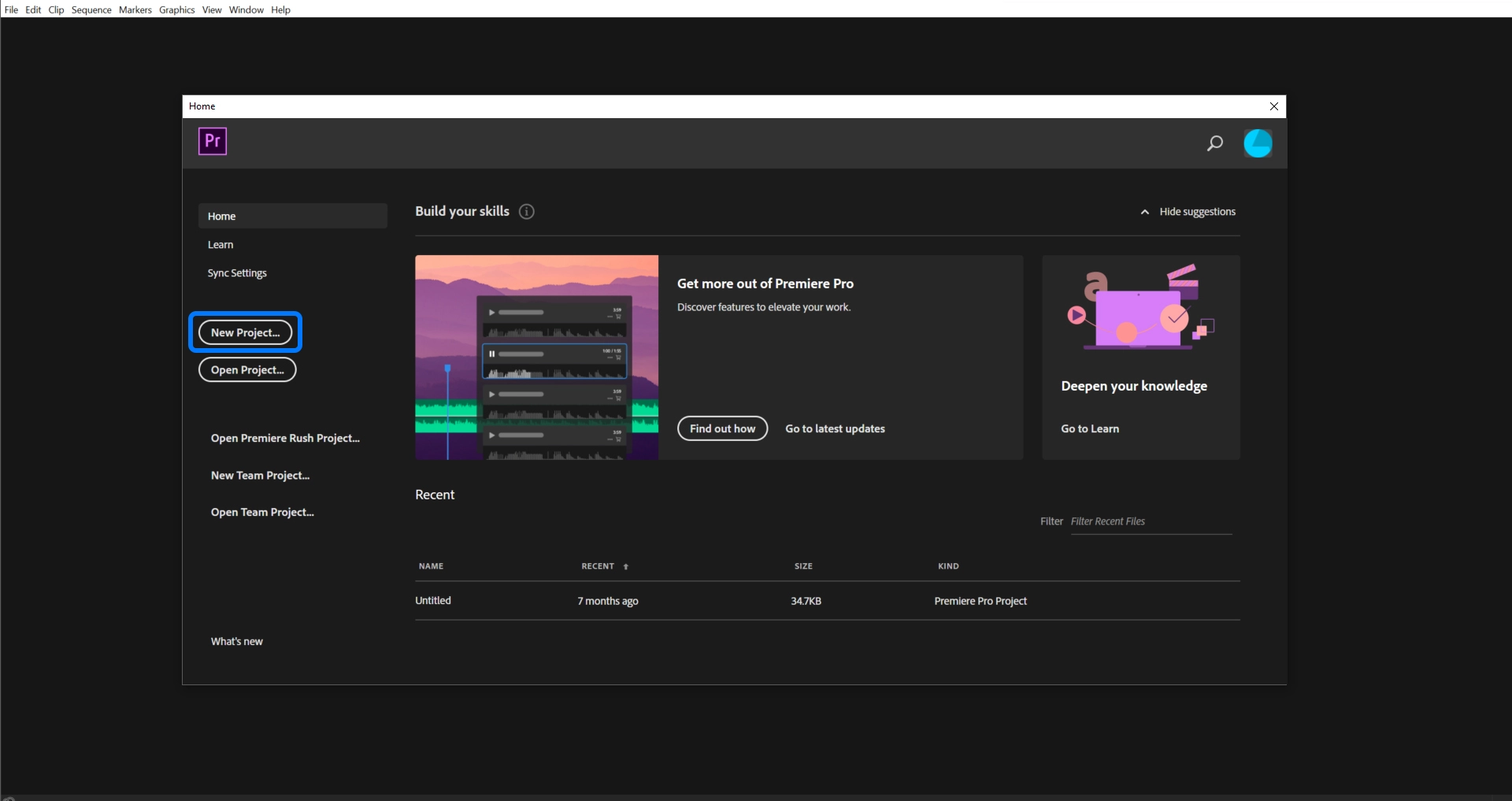
Open Premiere Pro, create a new project, and drag your video into the timeline.
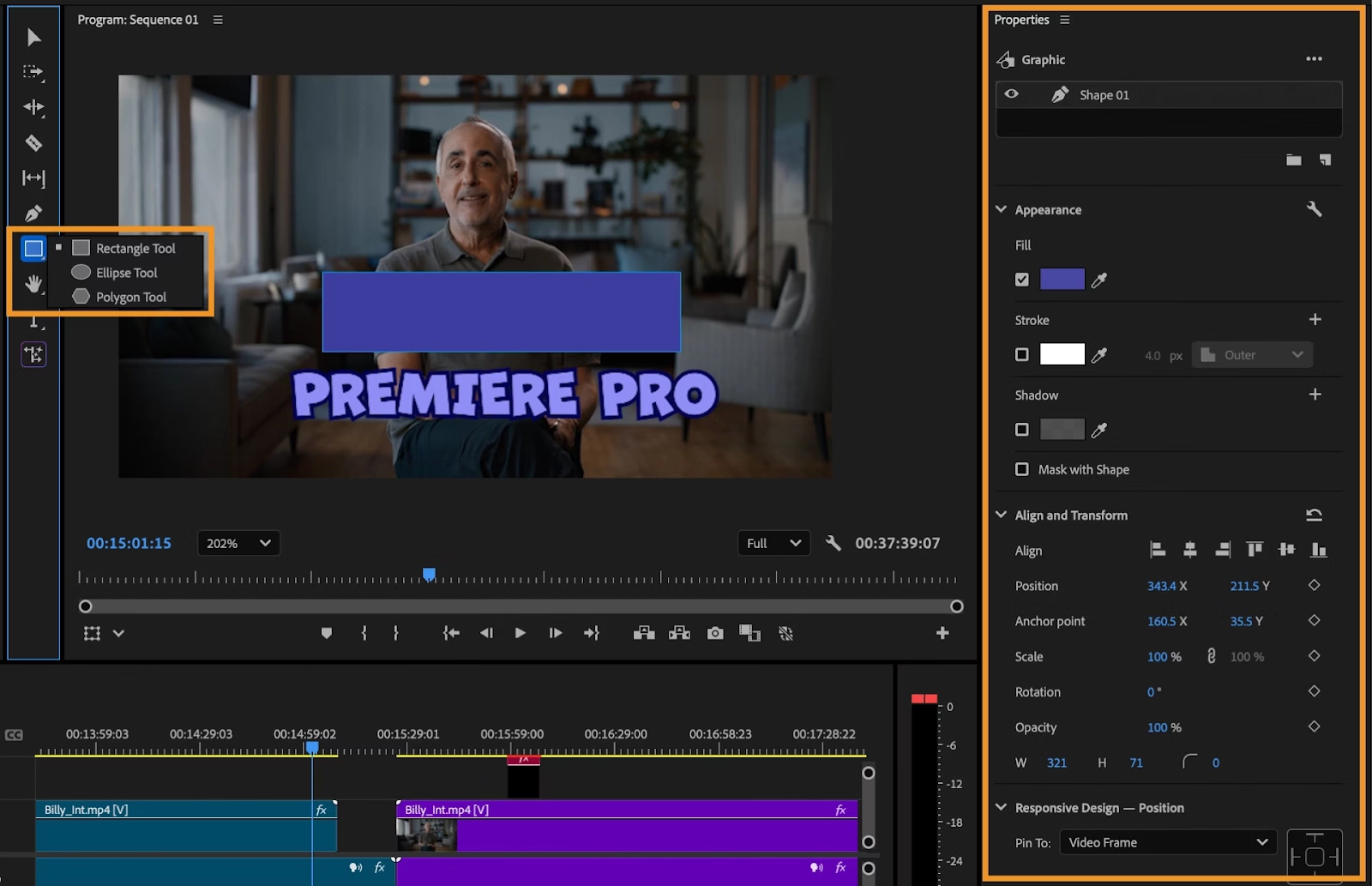
2. Use a Shape Layer
Go to Graphics > New Layer > Rectangle. Draw the shape around your video in the Program Monitor, and use Fill = None, Stroke = your preferred color and width.
3. Resize & Nest (Optional)
If needed, nest your clip and adjust its Scale slightly so the border is visible. You can also add a second shape behind the clip for a layered effect.
4. Fine-Tune the Border
Select the shape in the timeline, open the Effect Controls, and adjust stroke color, thickness, or add a subtle animation.
5. Export Your Video
Once satisfied, export your project in the desired format.
How to Add Border to Video on a Mac?
Shifting from the professional-grade Windows tools, let's consider the free, easy-to-use Mac video editor, iMovie. It comes pre-loaded on all Mac devices and isn't overly complicated. While it does not have a "border" tool, you can create the appearance of a framed look using backgrounds and the Picture-in-Picture effect.
Here’s how to add frame to video iMovie:
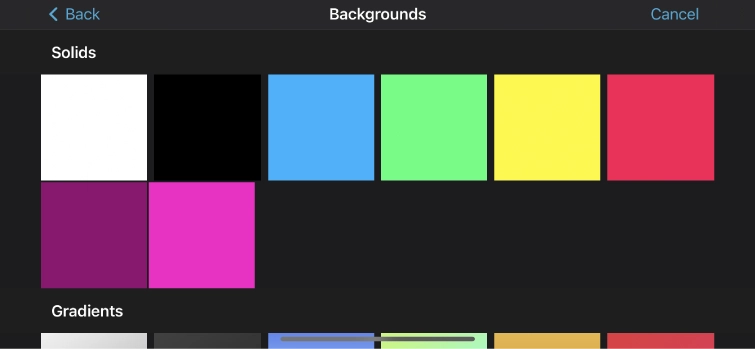
1. Launch iMovie and Add Background
Open iMovie, start a new project, and under the Backgrounds tab, drag a solid-color background, like black or white, onto the timeline. Extend it to match your video's length.
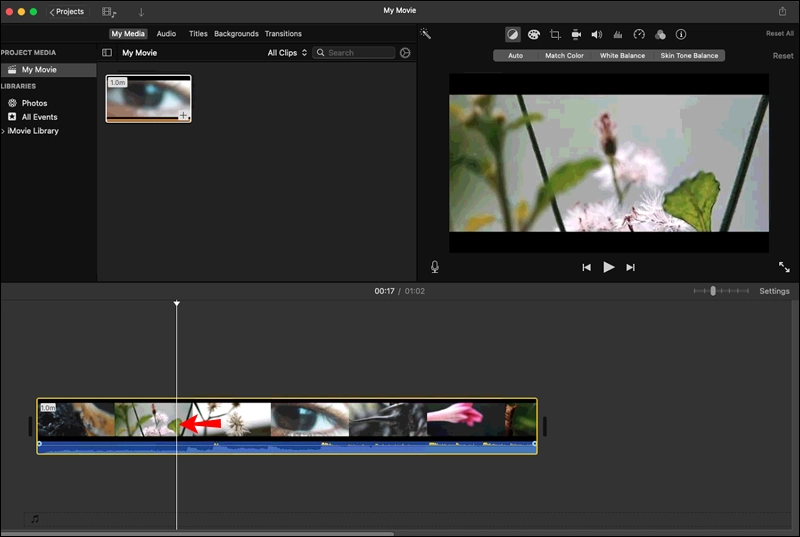
2. Overlay Your Video
Go to My Media and drag your video clip onto the timeline above the background layer.
3. Apply Picture-in-Picture with Border
Select the video layer, click the Video Overlay Settings button, then choose Picture in Picture. This adds a visible border automatically. Use the color picker to change the border color and resize the video within the frame.
4. Adjust & Export
Tweak the video size to get the perfect border thickness. When you're happy with the result, export your final video.
How to Add Border to Video on Mobile?
Switching to mobile editing? CapCut is a free, easy-to-use app available on iOS, Android, and even web platforms, known for its clean interface and powerful editing tools, including overlays, effects, and canvas features.
Here's a simple step-by-step guide to add border to video on mobile using CapCut:
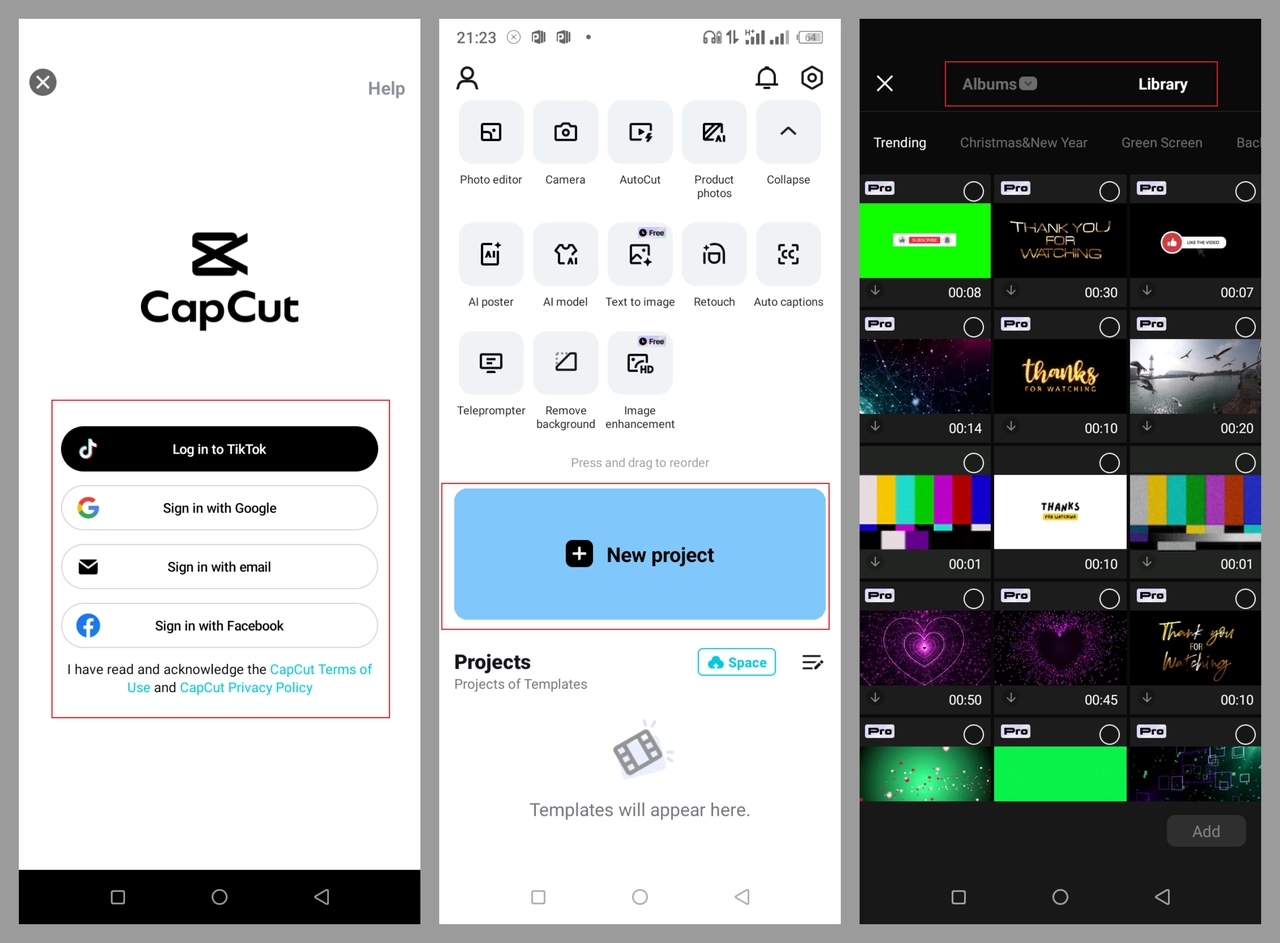
1. Import Your Video
Open CapCut on your mobile device and tap "+ New Project" to import your video clip into the timeline.
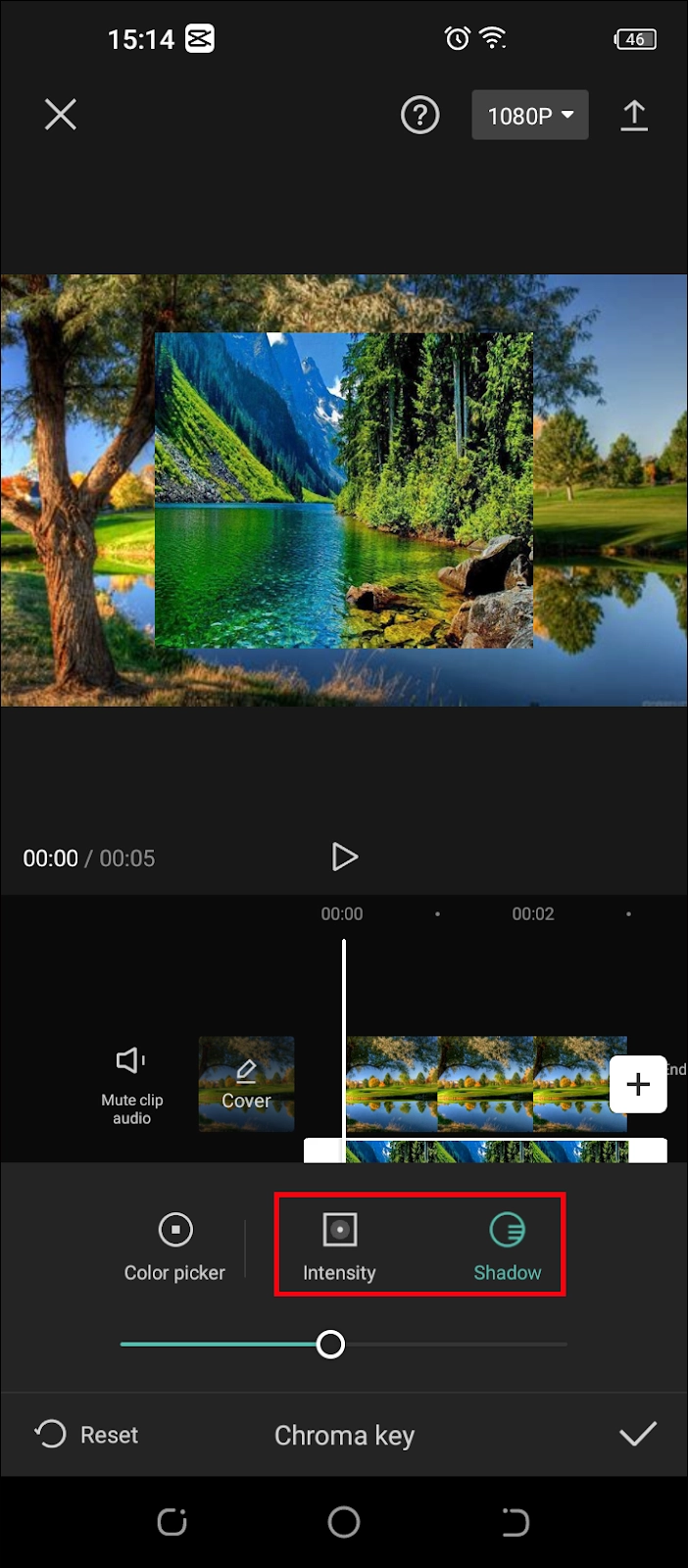
2. Create the Border Effect
Go to the Background or Canvas tool. Choose a color or gradient as your background. Then scale down your video slightly so the background shows around it, forming a visible border.
3. Adjust Border Style
Change the background color, white for a minimalist look or any hue to match your brand. Make sure the video is centered and that the border thickness is balanced.
4. Export Your Video
Once everything looks good, tap Export to save your bordered video to your device or directly share it to social media.
CapCut's border trick is simple but effective, giving your videos a polished, framed appearance in just a few taps.
Conclusion
In conclusion, adding a stylish border is one of the easiest ways to make your videos look neat and professional. You can follow the steps on Windows, Mac, mobile, or online without advanced skills. Now that you know how to add border to video, you can also take advantage of Vidnoz AI, a smart, all-in-one creative video editing tool to elevate your content.
Vidnoz AI - Create Free Engaging AI Video with Talking Avatar
- Easily create professional AI videos with realistic avatars.
- Text-to-speech lip sync voices of different languages.
- 2800+ video templates for multiple scenarios.






![How to Add Effects on a Video: Filters, BG Effects, Animations [Full Guide]](https://www.vidnoz.com/bimg/how-to-add-effects-on-a-video-online-free.webp)
