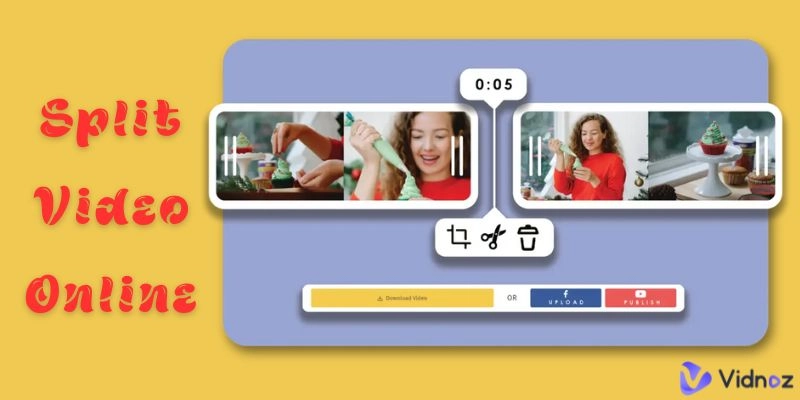
Ever seen those split screen videos with two different videos in a single frame? If you ever wish to display multiple videos on the same screen, we’ve got you the top 4 split screen video editor tools that you can use to create dynamic and engaging effects to your videos.
- On This Page
-
Part 1. Vidnoz Split Screen Video Editor AI Free
How to Make Split Screen Video with Vidnoz
-
Part 2. Clipchamp Split Screen Video Editor Online Free
-
Part 3. Echowave Split Screen Video Editor Free
-
Part 4. Split Screen Video Editor CapCut
-
Part 5. In Case You Need Inspiration: Popular Types of Split Screen Video
Part 1. Vidnoz Split Screen Video Editor AI Free
Vidnoz offers a user-friendly and intelligent solution with its online split screen video editor. It provides a smart arrangement mode so you can effortlessly organize your split videos. You can customize layers, adjust layouts, and align your footage for perfect balance on the screen.
With Vidnoz Online Video Editor, you can do more than just make a split screen video. It also allows you to edit video online, add professional effects, work with an editable video template, and even use it as an automatic video editor. You can merge two distinctive videos together into one canvas and let them automatically play in the same time. Furthermore, Vidnoz Online Video Editor provides a fresh and smooth user experience that only exsists on destktop software, a hugely preferred pro for those who want to batch create split screen video free of watermarks.
Here are some of the key features of Vidnoz that you can use to create a stunning video.
Key Feature
- Editing options like trim, crop, reframe, add logos, texts, images and more.
- 100+ avatars & 140+ languages for worldwide audiences.
- AI Voice Cloning to create some fun.
- Auto-subtitles and translations in 130+ languages.
- Convert up to 2000 characters into speech at once.
How to Make Split Screen Video with Vidnoz
Here’s a simple tutorial on how to create a split screen video using Vidnoz Online Video Editor:
Step 1. Go to the Vidnoz Online Video Editor and login with your account.
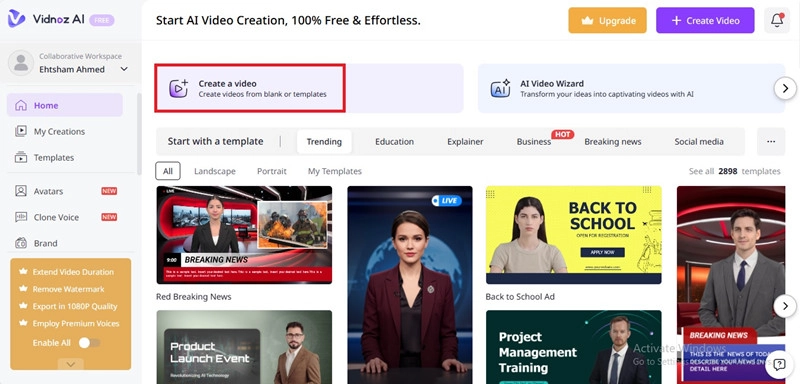
Step 2. Click on Create a video, and choose your preferred template, import the media content, or generate a video with a prompt.
Step 3. Once you’re ready with the videos, click on Layer to adjust the layers and align videos exactly how you want.
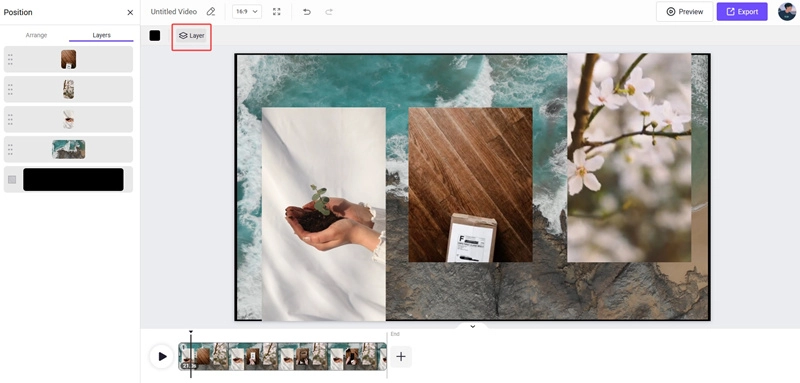
Step 4. Add video effects, text, or transitions. Once satisfied, export your video without a watermark by clicking on the Export button from the top-right corner of the window.
The Friendly AI Tools for Creating Stunning Split Screen Video
One great advantage of Vidnoz is that you can directly integrate creations from your Vidnoz account into your split screen project. Here are four Vidnoz AI video generation tools that can take your split screen videos to the next level:
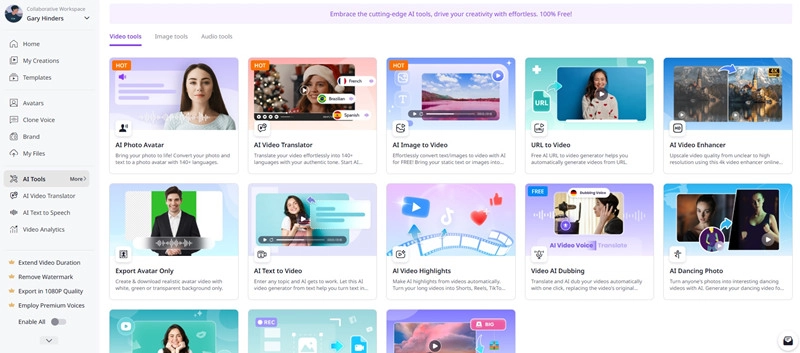
●AI Photo Avatar: Transform your photo into a lifelike talking avatar that can speak in over 140 languages. Perfect for adding a human touch to your split screen videos.
●AI Video Translator: Effortlessly translate your video into 140+ languages while preserving the original voice tone and lip sync for a seamless viewing experience.
●AI Image to Video: Bring static images or text prompts to life by converting them into captivating motion videos using advanced AI animation technology.
●AI Video Enhancer: Upscale your video quality from low resolution to stunning 4K clarity, ensuring every frame of your split screen video looks sharp and professional.
By combining these AI tools with the split screen video editor, you can produce high-quality, engaging multi-screen content faster than ever.
Part 2. Clipchamp Split Screen Video Editor Online Free
Clipchamp is another reliable split screen video editor online free option. It offers a clean interface and beginner-friendly tools, making it simple to merge two or more videos into one screen. While it may not have the AI-powered smart arrangement of Vidnoz, it provides a straightforward way to overlay and resize video clips.
This makes it a viable split screen video editor free option for users who prefer a more manual approach. Clipchamp allows you to merge two or more videos onto one screen by placing them on different layers in their editor.
Here’s a basic tutorial on how to create a split screen video using Clipchamp:
Step 1. Visit Clipchamp and click on the Create a video button. Register to create an account.
Step 2. Upload or select your video clips (or stock footage) via the Your media or Content library tab.
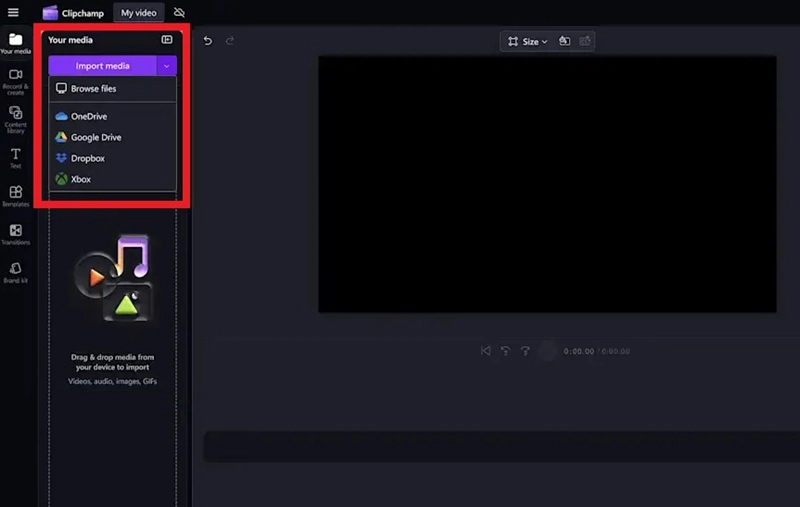
Step 3. Drag and drop each video onto the timeline, stacking them on separate tracks above one another.
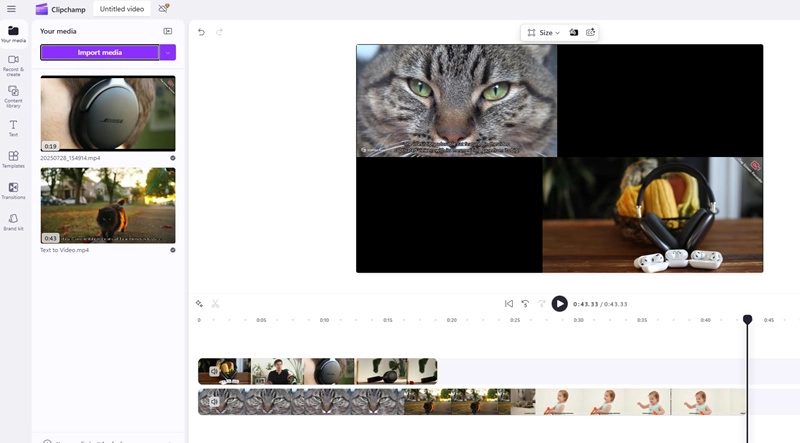
Step 4. Click a clip, then use the preview window to resize and reposition it (e.g., side-by-side or top-and-bottom layout).
Step 5. Add text, stickers, or music if desired. Preview your layout, then click Export to save your split screen video.
Part 3. Echowave Split Screen Video Editor Free
Echowave offers a simple and direct online tool specifically for creating split screen videos. It’s a more basic split screen video editor free that focuses solely on combining multiple video files into a single frame. You don’t need to create an account for this one.
Here’s how to use Echoware split screen video editor:
Step 1. Visit Echoware and click on the Create Split Screen Video button.
Step 2. Upload your media files into the timeline.
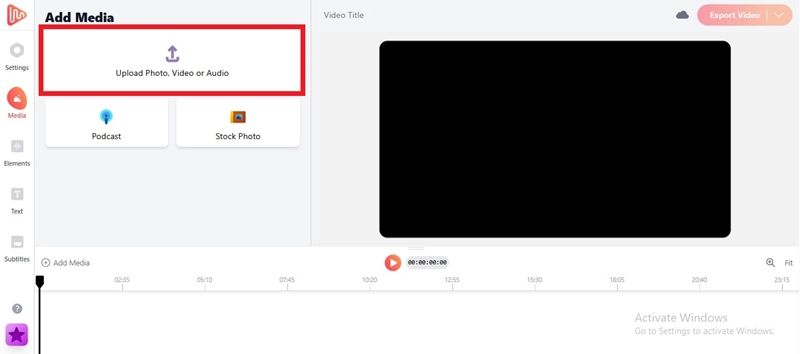
Step 3. Once you upload media files, adjust the position and size of each video clip according to your need. Finally, export the video.
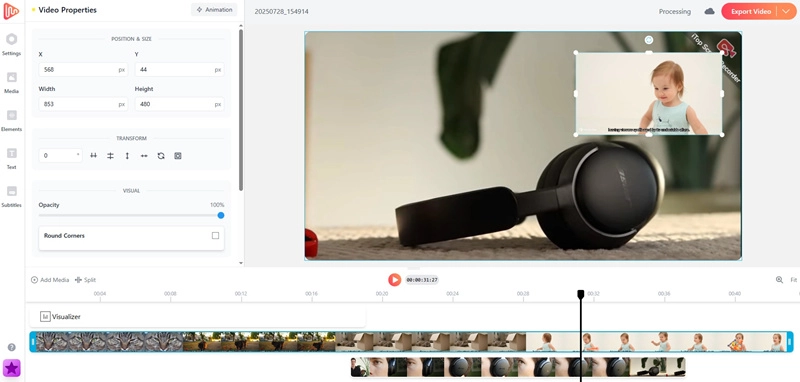
It’s a simple, no-frills option for creators who want a functional split screen video editor without complex features.
Part 4. Split Screen Video Editor CapCut
CapCut is one of the most popular free video editing tools, and it offers robust features for creating split screen effects. Many TikTok and Instagram creators use it to merge reaction videos, side-by-side comparisons, and creative storytelling.
With Split Screen Video CapCut, you can choose from pre-made layouts, apply trendy filters, and even add music directly from its built-in library. Here’s how to use CapCut to split video online.
Here’s how to use the CapCut split screen video editor tool:
Step 1. Open CapCut on your browser or app and create a new project. Import the videos you want to combine.
Step 2. After dragging and stacking your videos on the timeline, you can trim the clips, resize and position each one to create a split-screen effect, and add transitions or filters for a refined look.
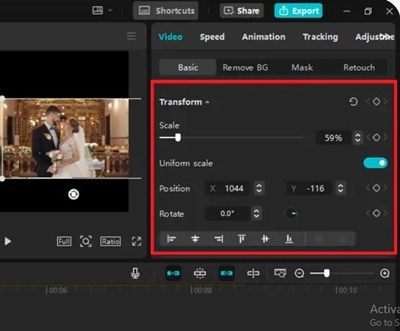
Step 3. Once your video is edited, click "Export," adjust the settings like resolution and frame rate, and then save the file to your device or share it directly to platforms like YouTube and TikTok.
Read Also: Capcut Alternative >>>
Part 5. In Case You Need Inspiration: Popular Types of Split Screen Video
If you’re unsure how to use your split screen video editor, here are some trending ideas to inspire your next project:
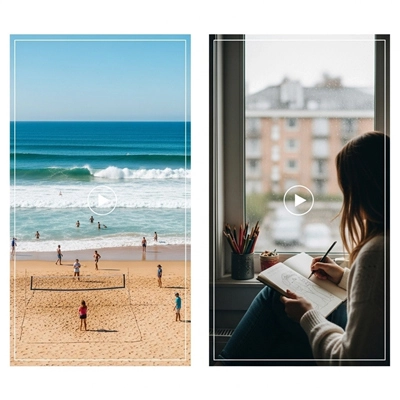
1. Before-and-After Transformations: Show progress over time, such as fitness results, home makeovers, or art creation.
2. Reaction Videos: Feature the original clip on one side and your live reaction on the other.
3. Comparison Videos: Compare products, gameplays, or different approaches to the same task.
4. Multiview Storytelling: Tell a story from different angles simultaneously for a cinematic feel.
Conclusion
A split screen video editor allows you to merge multiple videos into one frame. It is perfect for creative storytelling, social media, professional projects, and countless other scenarios. In this blog, we discovered the top 4 split screen video editor tools.
Among all of them, we recommend using Vidnoz Online Video Editor to make the process a little easier and convenient. Vidnoz AI is free and creates high-quality results without any watermarks. Try Vidnoz AI Video Editor today and enjoy the split screen video editor online free!

Vidnoz AI - Create Free Engaging AI Video with Talking Avatar
- Easily create professional AI videos with realistic avatars.
- Text-to-speech lip sync voices of different languages.
- 2800+ video templates for multiple scenarios.





![6 Best Video Editors to Edit Video Online Free, Fast & Easy [with How-Tos]](https://www.vidnoz.com/bimg/edit-video-online-1.webp)