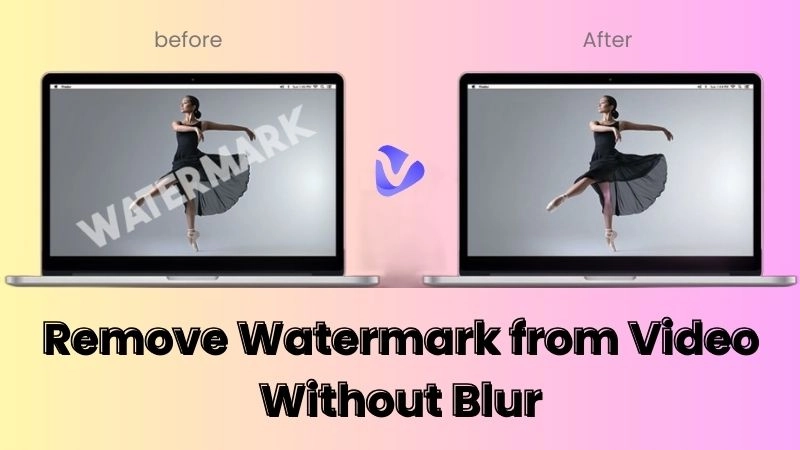
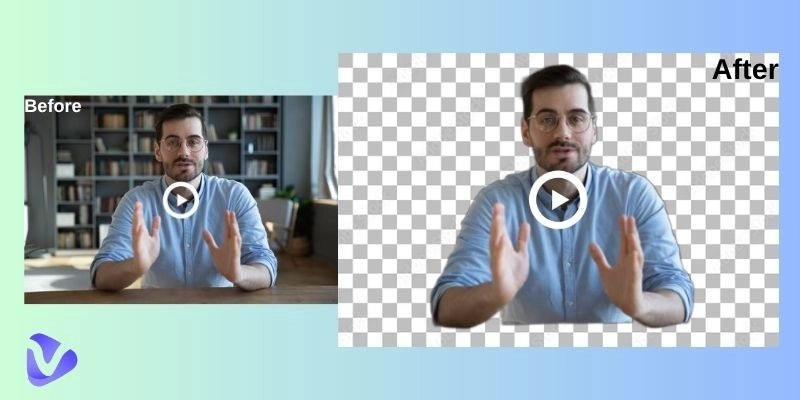
Do you want to create videos that showcase a background of your choice or create transparent videos that seamlessly integrate into any project? Then you need to understand a video format with transparent background! You can use this content format to market your product, create compelling content, or even design an instructional video. Nowadays, you can not only remove any unwanted background from a video but also replace it with your desired one. So, let’s delve into this ultimate guide to understand what a transparent background video is and how to achieve it with multiple handy online tools.
- On This Page
-
What is a Transparent Background Video?
-
List of Video Formats with Transparent Background
-
Best Tool to Make Videos with Transparent Background
How to Make a Video with Transparent Background?
-
Best Tools That Allow You to Remove Background from Videos
#CapCut Video Background Remover
-
How to Make the Background of a Video Transparent?
-
Bonus: Preset AI Transparent Avatars for Video Creation!
What is a Transparent Background Video?
Transparent background videos are those that allow you to change the opacity of a video's pixels with the support of Alpha Layers, also known as Alpha Channel. These Alpha layers define areas of transparency in a video. Users commonly use this technique in professional video editing to add visual effects without obscuring the main footage. Professional-quality transparent videos enhance the appeal of generated content by creating a type of video where the background is invisible, so only the main object appears prominently.
A video format with a transparent background is different from a green screen video. Here, the background is actually green and is filmed while taking care of proper lighting. The green background later gets removed using editing software. Mostly, it is used to add special effects to a video, such as in Hollywood movies. (Learn to remove green screen from video>>)

List of Video Formats with Transparent Background
Before delving into how to make a video transparent, let’s list a few of the video formats that support a transparent background. Each video format has been described in fine detail regarding multiple key elements:
|
File Format/
Codec
|
Maximum Alpha
Bit-Depth
|
Browser Support
|
Media Type
|
Pros & Cons/
Notes
|
|
Apple Pro res 4444
|
16-bit
|
None
|
Video /.mov
|
Massive, uncompressed videos. Generally used for storing masters.
|
|
HEVC / h.265
|
10-bit
|
Limited to Safari
|
video /.HEVC
|
Meant to be the successor to h.264
|
|
WebM (VP8 or VP9 video codecs)
|
12-bit
|
Pretty decent
|
Video /.WebM
|
Only Chrome will display alpha
|
|
OpenEXR
|
32-bit
|
None
|
Image /.exr
|
Has largest HDR spread
|
Best Tool to Make Videos with Transparent Background
If you are looking to create a video format with transparent background, Adobe After Effects is an amazing tool for it. You are also allowed to export a video with a transparent background. It is an impressively feature-rich tool from Adobe that is packed with industry-standard visual effects, suitable for professionals and semi-experts. Beginners may find it a bit trickier to understand at first. However, with practice and following instructional tutorials on YouTube, one can navigate the hidden challenges posed by Adobe Effects.
How to Make a Video with Transparent Background?
In After Effects, the process of creating a video format with transparent background isn't straightforward. You need to select a few hidden options to ensure your video has a transparent background. Let’s explore the detailed steps below:
Step 1 You can either create a new After Effects Project or open an existing one you would like to edit to export as a transparent video. To open an existing project, click on the ‘Open Project’ button on the left side. Your project will open up with all its layers.
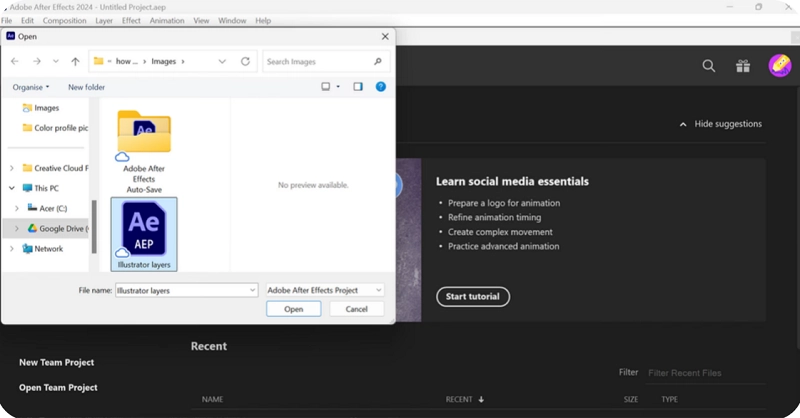
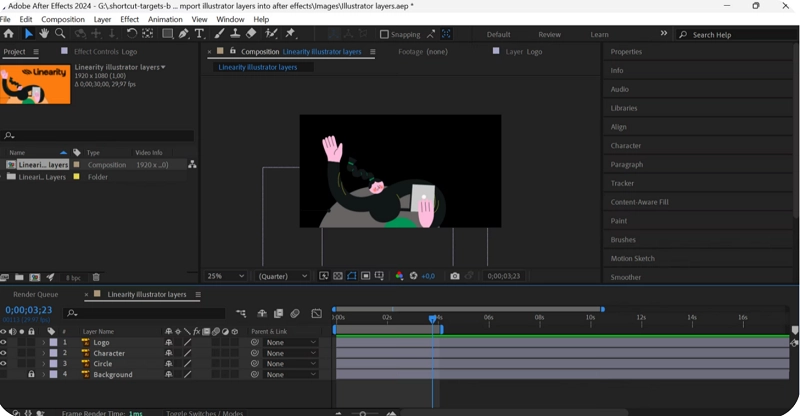
Step 2 Remove any unwanted background or shape by turning off the Eye icon on the left corner of the timeline. You will get a solid black background.
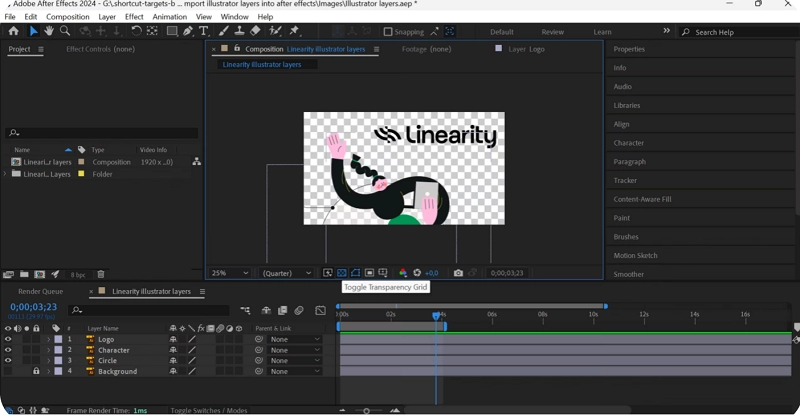
Step 3 Find the small Transparency Grid icon underneath your Composition area. This will turn on the background transparency.
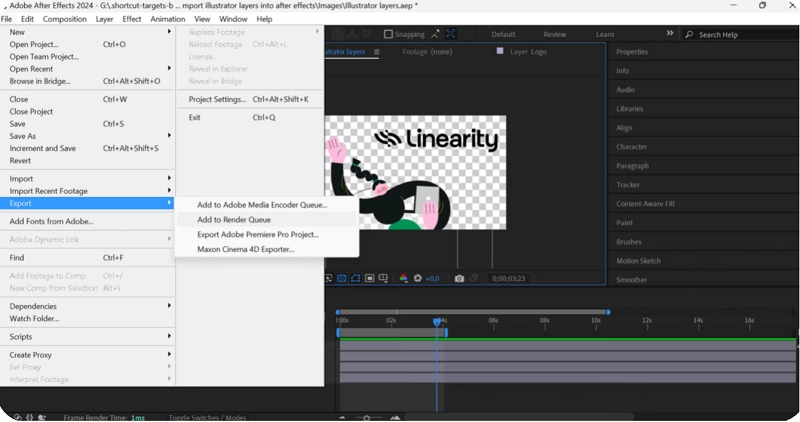
Step 4 You can now export your video with a transparent background. Just follow the pattern of Go to File > Export > Add to Render Queue in the main menu. It will open a Render Queue panel at your screen bottom. Make sure to select the correct output to preserve the transparency in your exported file.
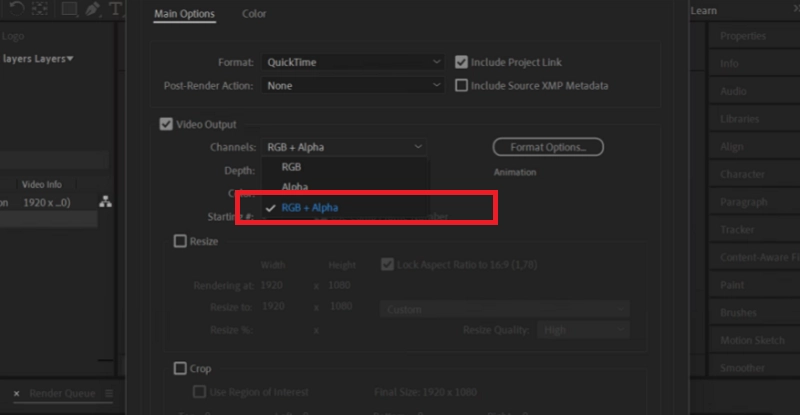
Step 5 Click the ‘Blue’ text next to the Output Module dropdown. It will open the Output Module Settings. Ensure you choose a video format that supports transparency, such as MOV (QuickTime) or AVI. Select the Channels option in the Video Output section and further choose RGB + Alpha channel setting. This will give your video colors and alpha transparency. Now export it. The above RGB + Alpha channel setting must be changed to Apple Pro Res 4444 if you want to use this transparent file on a MAC device.
Best Tools That Allow You to Remove Background from Videos
Considering how to make video with transparent background? Think no more with the latest online tools at hand that can remove the background from existing videos. Two such great tools are mentioned below. Although these tools offer a background removal function, you can only use it to change the background of your intended video. You are not allowed to export videos with a transparent background.
#CapCut Video Background Remover
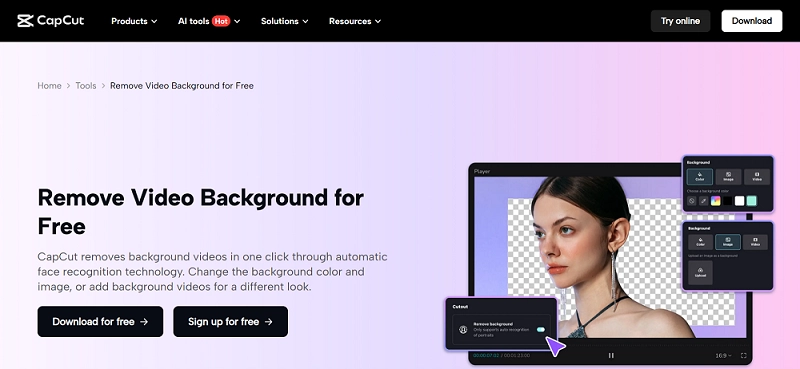
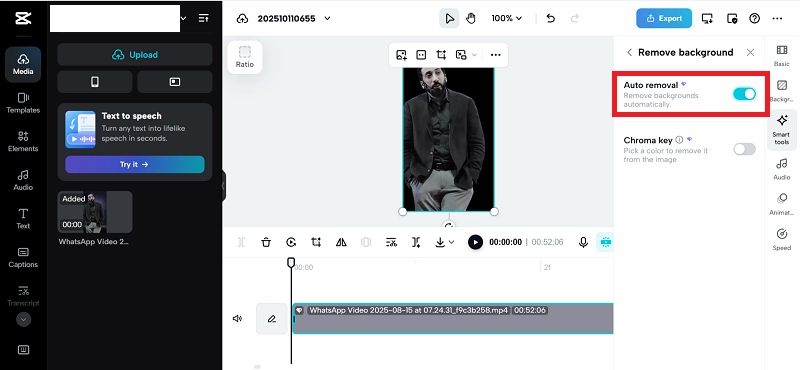
Capcut AI Video Background Remover offers a highly user-friendly interface, with an auto background removal feature in its smart tools menu on the right. You only need to sign up with an email address. You get to remove the background, blur or change it and even get a transparent background video. Just click the ‘Cutout’ option and further click the ‘Auto Cutout’ option on a Mac to remove the video’s background. The term used in Windows is ‘Auto Removal.’
However, you are not allowed to freely export, share or download the changed video. Such an action requires signing up for a free 7-day trial with full payment details for a monthly or yearly package. Thus, it is an easy-to-use tool but doesn’t offer a free video export option.
#Adobe Express
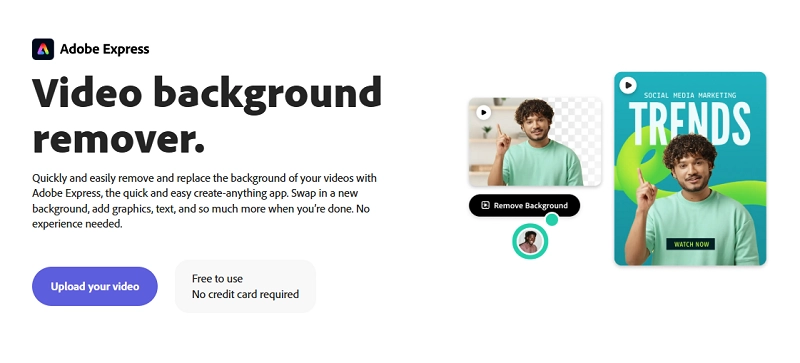
Adobe Express seems like an advanced video editing tool for generating a video with transparent background. However, the offered features seem quite complex for an average user who just needs a simple background change for a video. So, this tool is best for those who have a bit of technical know-how or are willing to sign up for a 30-day free trial, with future payment details required to register. You can only export or download the altered background video if you offer payment details.
How to Make the Background of a Video Transparent?
Now you can make video with transparent background using the mentioned tools and even change the video background to a new one of your choice. The process is quite simple if you follow the exact steps. Let’s take Capcut as an example:
Step 1 Sign up for Free with your Email ID or Social media ID to use Capcut. Click on the ‘Create New Video’ option from the main page. You will arrive at this landing page. Upload your intended video whose background you wish to remove.
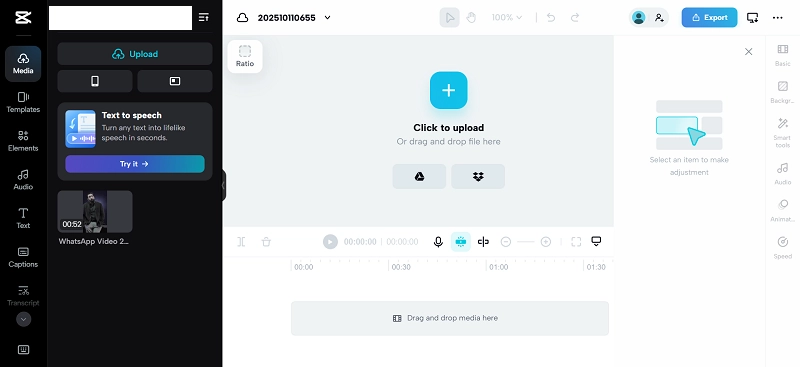
Step 2 Click on the ‘Smart Tools’ option on the right side. It will give you a ‘Remove Background’ choice. Click on it.
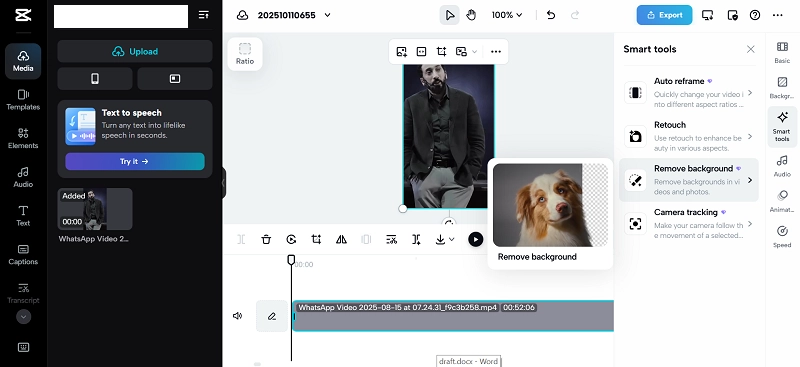
Step 3 You get the Auto Removal option. Turn it on and the video’s background gets removed.
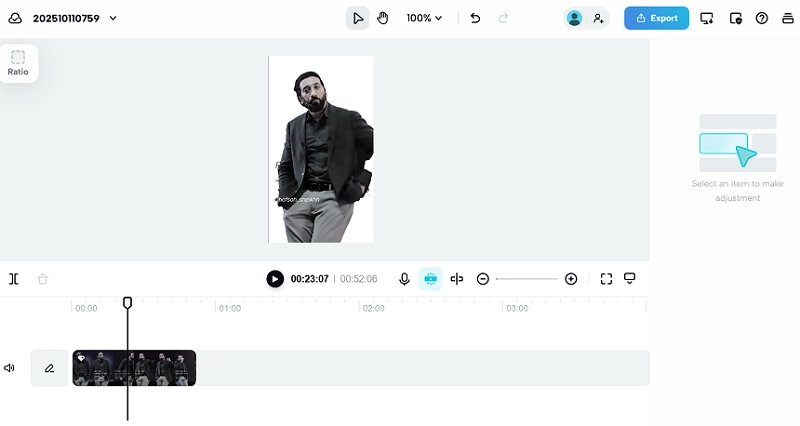
Step 4 You can click the ‘Background’ option above ‘Smart tools.’ It allows you to change the color of your video background, even allowing for a transparent video background. You can add another video background to your original video by uploading one from your device or importing one from free online video resource. Just overlay it on the originally removed background and you will get your desired video content. You need to upgrade your account to export or download this generated video.
Bonus: Preset AI Transparent Avatars for Video Creation!
What if, instead of thinking about how to make a video with a transparent background, you could create a video with a talking avatar with a transparent background? Yes. We are discussing not using the tools mentioned above to remove the background from actual, talking people. Now, you can directly create an AI-talking avatar with a transparent background in the Vidnoz AI free online tool. Later on, you can add this avatar to any new image or video background.
Some advanced features of this AI avatar include gender, age, outfit choice, diverse ethnicities, posture changes for a natural look, more than 1000 AI voices, and language selection with more than 100 options. You also get a transparent background AI avatar with realistic mouth movements, powered by the latest Vidnoz lip-sync technology.

Vidnoz AI - Create Free Engaging AI Video with Talking Avatar
- Easily create professional AI videos with realistic avatars.
- Text-to-speech lip sync voices of different languages.
- 2800+ video templates for multiple scenarios.
Conclusion
Generating an engaging video with transparent background was never that easy before. Just work with an online tool that feels like the perfect one for you from the above-mentioned ones, namely Adobe Effects, Adobe Express and Capcut. You can work with a free trial, but for an effective video creation process, you should upgrade to a premium package. Only then can you download or export the generated transparent background video.
By the way, Vidnoz AI stands out by offering its vast collection of free studio-quality AI avatars, each unique in its individual aspects.