CapCut has quickly earned a mainstream position in the video-editing world by perfectly bridging the gap between casual social media creators and professional editors. Its clean interface, ready-made templates, and powerful AI features make it a favorite for TikTok, Reels, and YouTube Shorts.
However, that versatility comes with a small catch: watermarks. Whether you are using a flashy template or just finishing a quick edit, you might find an unwanted logo at the end of your clip or a stamp in the corner. This guide explains how to remove CapCut watermark in multiple situations, from default endings to templates and imported videos, using both built-in options and free online tools.
- On This Page
-
One-for-All Solution to Remove CapCut Watermark
1. MagicEraser – Remove Watermark from CapCut Free Online
2. Media.io Online Watermark Remover
3. Pixelbin.io Online Watermark Remover
-
How to Remove CapCut Watermark in the End
-
How to Remove CapCut Watermark from Template
-
How to Remove CapCut Watermark from Video
-
Bonus: Free Online Video Editor without Watermark
One-for-All Solution to Remove CapCut Watermark
If you have already exported a video and realized the logo is still there, don't worry. You don't need to re-edit the entire project. The fastest way to handle any watermark situation, whether it’s in the middle of the frame or at the end, is using an online AI watermark remover for CapCut.
These tools use "Inpainting" technology to analyze surrounding pixels and fill in the watermark area seamlessly.
1. MagicEraser – Remove Watermark from CapCut Free Online
MagicEraser is one of the most reliable online tools designed specifically for video watermark removal. It uses AI-powered detection to automatically identify logos, text, and overlays in videos.

Key Features:
- AI Detection: Automatically identifies static logos.
- No Quality Loss: Maintains the original resolution of your footage.
- Ease of Use: Just brush over the area and click "Erase."
To get the best results on MagicEraser, use a small brush size to cover only the watermark itself, preventing the AI from blurring unnecessary parts of your background.
2. Media.io Online Watermark Remover
Another powerful online tool is Media.io. It offers a dedicated "video watermark remover" that allows you to select multiple areas at once. It supports both manual selection and AI-assisted removal, allowing users to erase logos, text, or static overlays from videos.
Key Features:
- User-friendly.
- Supports common export resolutions for social media platforms.
- Its Smooth Filling method keeps the texture of the video consistent after the watermark removal.
3. Pixelbin.io Online Watermark Remover
Pixelbin is a robust AI platform that excels at high-definition video processing. If you are working with 4K footage, Pixelbin is your best bet.

Key Features:
- Removes watermarks while preserving frame integrity.
- Supports various formats like MP4, MOV, and WebM.
- Versatile one-for-all solution for desktop and mobile users alike.
While online video watermark remover tools cover most needs, some watermarks can be removed directly inside CapCut depending on how they are added. The following sections explain those specific situations step by step.
How to Remove CapCut Watermark in the End
Most users encounter a watermark simply because CapCut adds a "Default Ending" to every new project. This is a 2-second clip featuring the CapCut logo. While it’s intended to build brand awareness, it can be annoying for professional creators.
If you are using the PC version and want to know how to remove CapCut watermark in the end, follow these steps:
Method 1 to trim CapCut video in the end:
Step 1: Open your project in CapCut for PC.
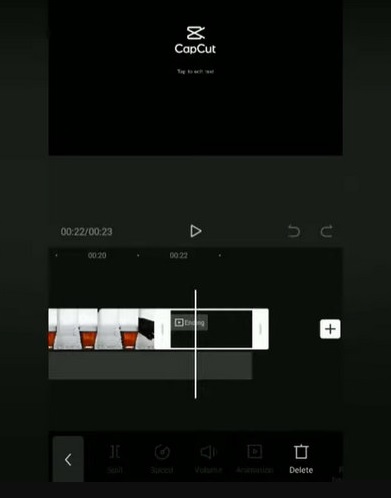
Step 2: Scroll to the very end of your timeline. You will see a separate black clip titled "Ending."
Step 3: Click on that specific clip to highlight it.
Step 4: Press the Delete key on your keyboard (or click the trash can icon).
If this doesn’t work, you can also export your video and crop its dimensions from the sides, or if the CapCut watermark appears at the end of the video, you can simply trim the video from the end.
Method 2 to turn off default ending setting:
Step 1: Go to CapCut Settings.
Step 2: Turn off “Add default ending.”
Step 3: Save settings and export future videos watermark-free.
How to Remove CapCut Watermark from Template
Some CapCut templates include a built-in watermark because they are created by third-party designers or promoted as premium assets. This watermark cannot always be toggled off.
Here is how to remove CapCut watermark from template on PC:
Method: Replace the Watermarked Layer
Step 1: Locate the Watermark: In the editing interface, look for the CapCut logo in the top left corner of your video preview.
Step 2: Toggle the Visibility: Tap on the watermark logo and select the "Hidden" option to hide it from your project.
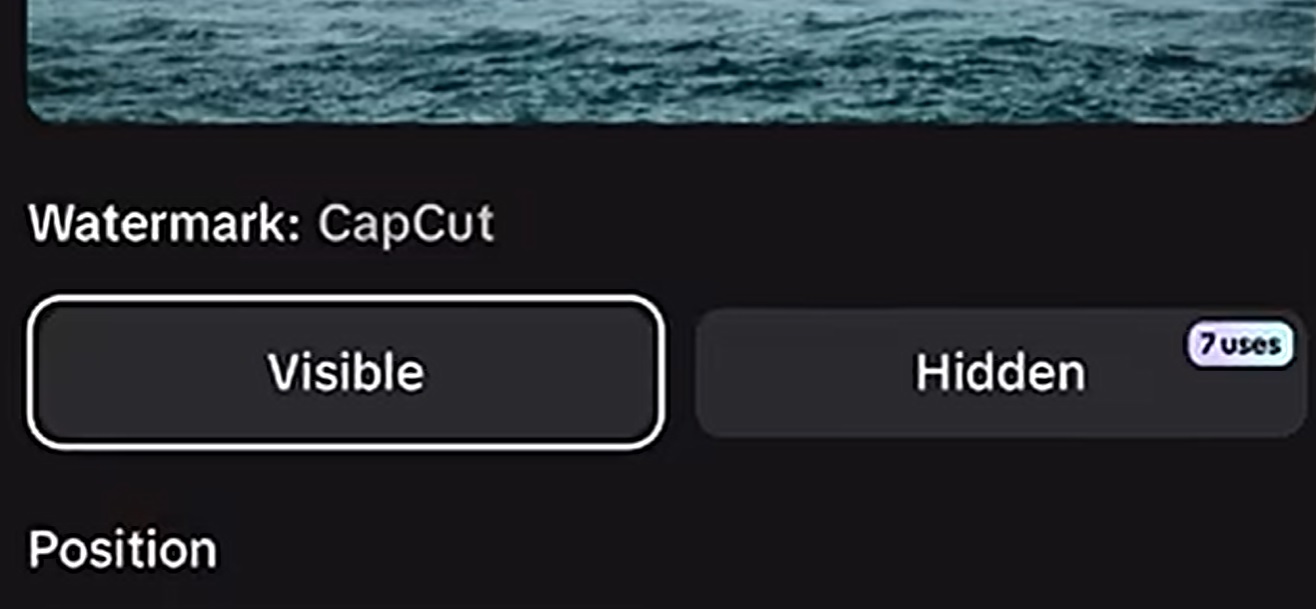
Step 3: Use Free Monthly Allotment: Note that this method utilizes your free monthly uses (typically 7 per month) to export your video without the watermark.
If removal isn’t possible inside CapCut, using an online remover remains the safest workaround when users search for how to remove CapCut watermark from templates.
How to Remove CapCut Watermark from Video
Sometimes the watermark doesn’t come from CapCut at all, it’s already embedded in an imported video. In this case, CapCut’s AI tools can help. In this case, removing the "Ending" won't help. You need to use CapCut’s internal AI tools to mask the logo.
Here’s how to remove CapCut watermark from video:
Step 1: Open your project in CapCut for PC.
Step 2: Right-click on your video in the timeline, select Copy, and then paste it. Drag the pasted clip above the original to create an overlay.
Step 3: Select the overlay video and go to the Mask option in the top right panel. Choose the Circle mask, as it often looks the most natural.
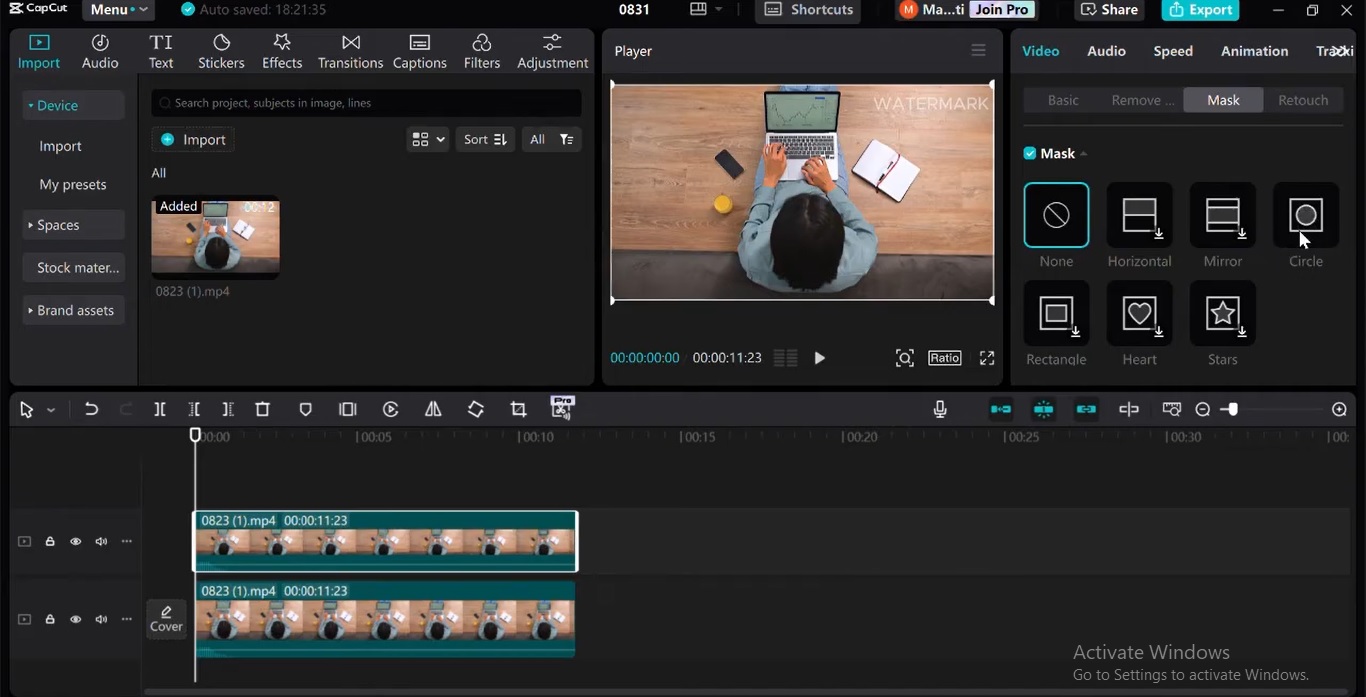
Step 4: Adjust the size of the circle mask to match the size of the watermark. Move the mask to a part of the video that has a similar background or texture to where the watermark is located.
Step 5. Go to the Basic video settings and drag the masked area over the watermark. This effectively hides the watermark behind a "patch" of clean footage from your own video.
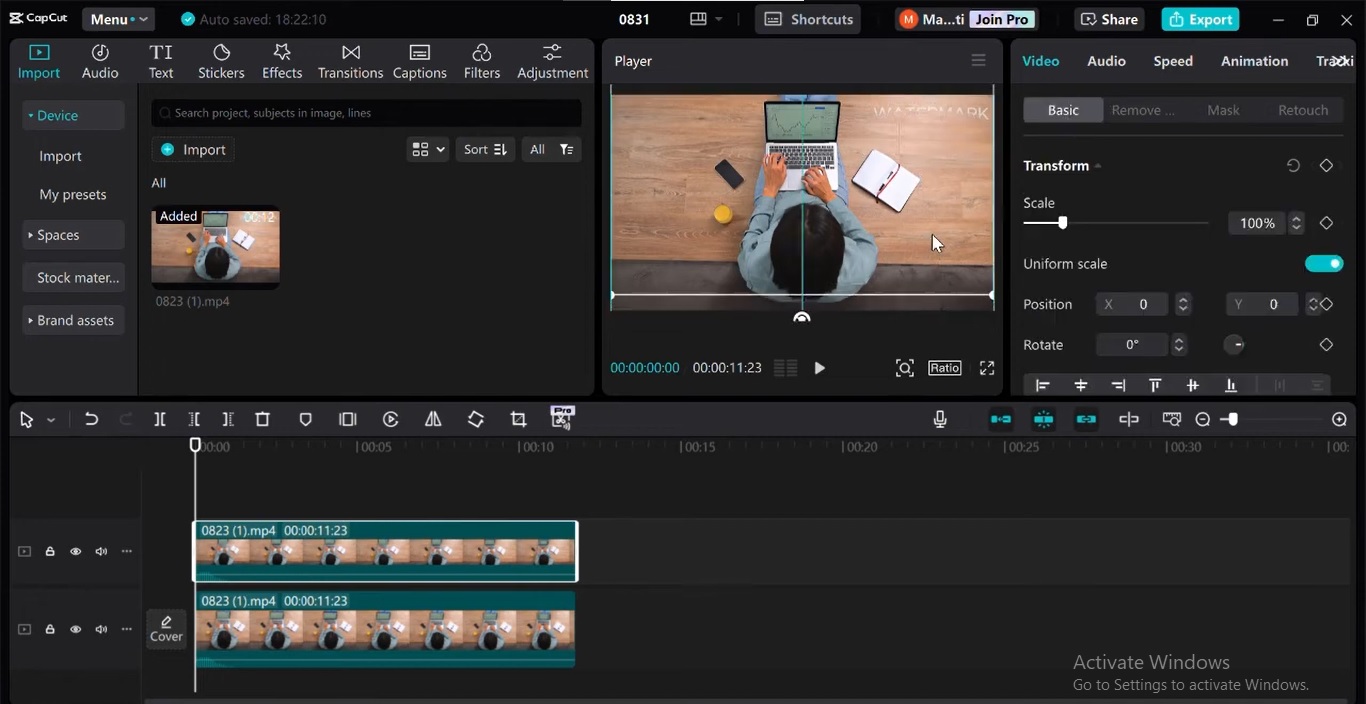
Step 6. If necessary, zoom in or out or adjust the position until the patch blends perfectly with the surrounding background.
Also Read: Best CapCut Alternatives >>
Bonus: Free Online Video Editor without Watermark
If you find the constant manual removal exhausting, you might want to switch to a platform that doesn't force a logo on you in the first place. The online video editor by Vidnoz AI is a game-changer, as well as for AI video generator.
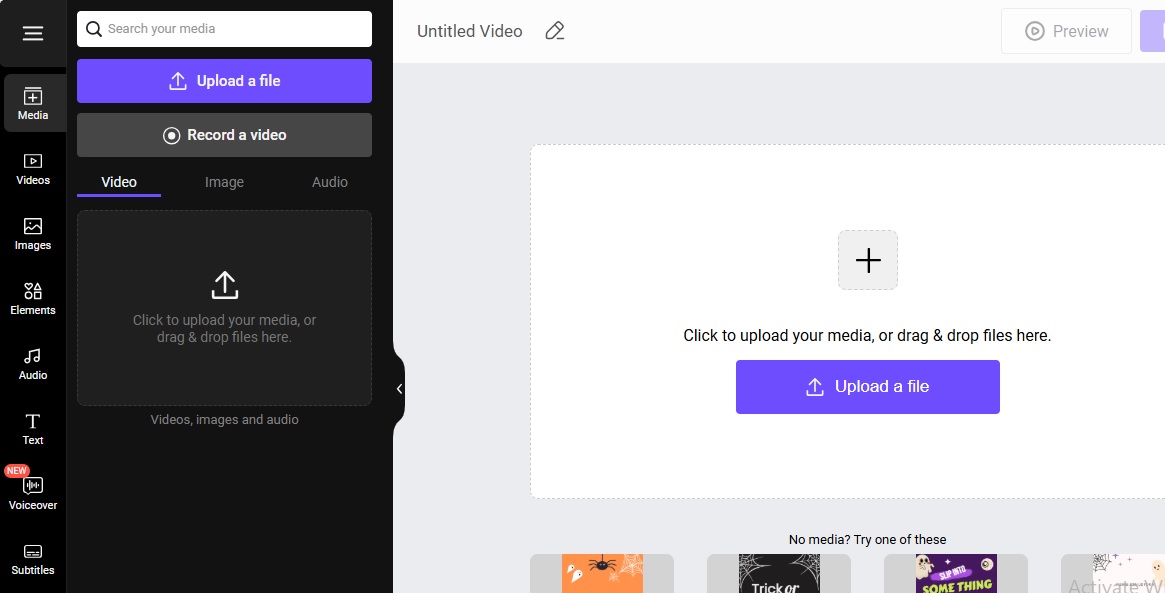
If you want to avoid watermark issues entirely, Vidnoz AI’s online video editor is a strong alternative. Unlike other platforms, Vidnoz allows you to use professional templates, edit your timeline, and export in high definition without any watermark.
Why choose Vidnoz online video editor?
- Templates for Every Ratio: Access a massive library of landscape (YouTube) and portrait (TikTok/Reels) templates.
- Advanced AI Features: It includes auto-subtitles, AI voiceovers, and even lifelike avatars to narrate your content.
- No Hidden Fees: You can export your creations without the dreaded "pay-to-remove-logo" wall.
Beyond editing, Vidnoz AI also provides more advanced AI tools for content creators that give your video a whole new vibe. Here we list some for reference.
Image to video AI: Convert still images into dynamic videos with high output video quality. Upload a single photo or upload the start frame and end frame images. Popular AI video models, Kling, Hailuo, Google Veo, Vidu, Wan, and more, are included.
Convert Image to Video AI Online - Free
- Create a video from an image quickly for free.
- Use various AI models to turn photos into videos.
- Download and share the AI-generated video at no cost.
Convert Image to Video
AI music video generator: Highly customization to make a music video in seconds. Blues, pop, hip-hop, rock, jazz, country, and more styles are available.
AI Video translator: Translate videos automatically with AI, 140+ languages (including authentic London accent or local dialect). Lip-sync, auto subtitles and multi-voice options can be toggled on or off.
Conclusion
This guide covered every practical scenario, from built-in endings to templates and imported clips, explaining how to remove CapCut watermark efficiently. Whether you use online removers or switch to watermark-free editors like Vidnoz AI, you now have multiple free and reliable options to create clean, professional videos.
For a truly seamless experience on how to remove CapCut watermark without TikTok, I highly recommend trying the Vidnoz AI video editor for your next project.