Turn still images or text into dynamic videos in any style, with leading AI models readily. Try the smart AI video generator now - stunning, free, and instant!
How to Erase Someone from a Photo on iPhone [100% Effective]
Griffin
Updated on
SHARE THIS POST
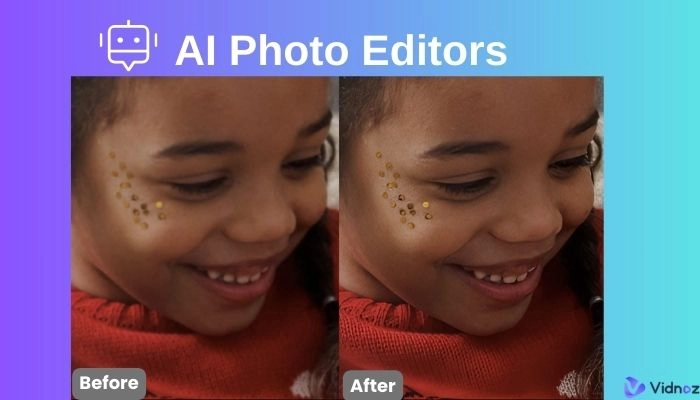
How to remove a person from an iPhone photo? Try tools like Vidnoz AI Image Remove. Faster, free, and perfect results for everyone!
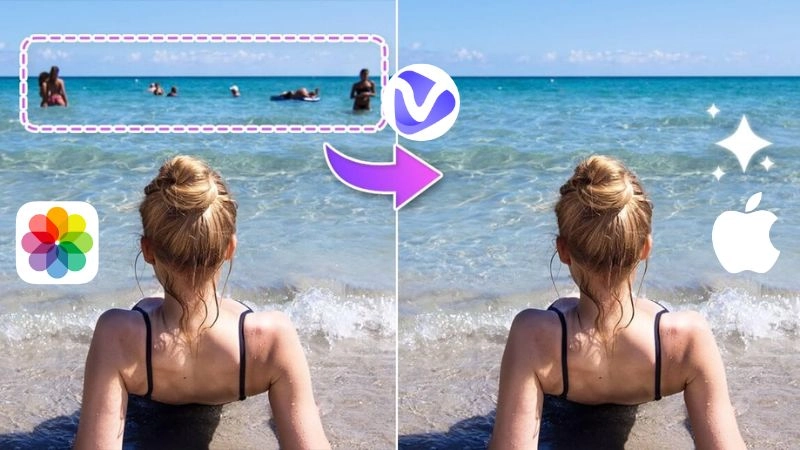
Has it ever happened to you that just as you are taking the best photo with your iPhone, you get an unwanted face in the background? Whether it’s a photobomber or a distracting figure, learning how to erase someone from a photo on iPhone can transform your images into flawless keepsakes. Nowadays, with the help of more sophisticated tools, you can erase people who are in your photos by using your iPhone alone, and without any professional editing experience.
This guide explains how to erase a person from photo on your iPhone, whether using the default Apple tool (Clean Up) or an external app or web-based tools, it presents three viable options capable of professional outcomes. You are about to take your photos to the next level!
On This Page
How to Erase Someone from a Photo on iPhone? Quick View
Erase Someone from a Photo on iPhone Using Clean Up Feature
Erase a Person from an iPhone Photo with Free Online Tool [Available to Everyone]
Edit Someone Out of a Picture on iPhone with TouchRetouch [Third-Party App]
Bonus: Turn Your Retouched Photos into Vibrant Live Pictures!
Conclusion
How to Erase Someone from a Photo on iPhone? Quick View
Are you all set to learn how to delete undesirable faces in your iPhone album? Be it a high-tech iPhone or an outdated one, some tools can help you obtain clean and professional results.
We show three practical ways to remove someone from a picture on an iPhone, Vs accessibility, ease, and price. All approaches have their benefits, such as the native AI-driven feature in the Apple app or the more general web-based or apps-based ones.
Erase Someone from a Photo on iPhone Using Clean Up Feature
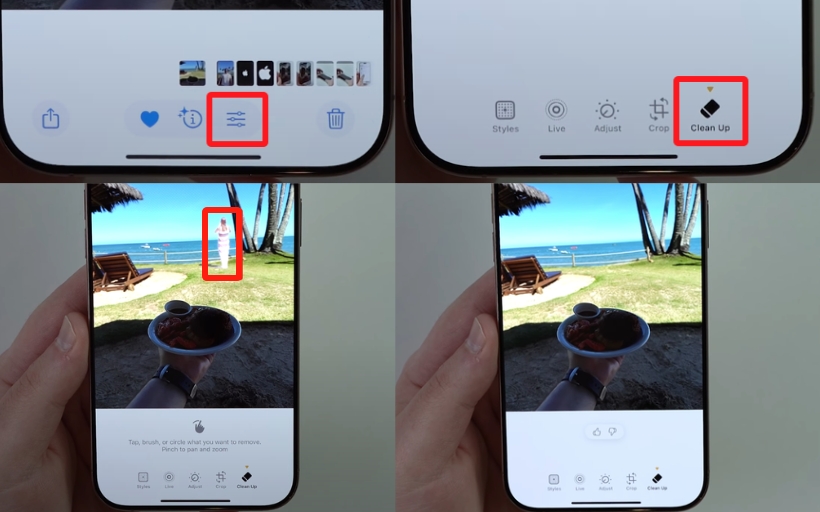
Apple’s Clean Up feature, powered by Apple Intelligence, makes it effortless to erase someone from a photo on an iPhone. It is an AI-powered tool that identifies people or objects and removes them before recreating backgrounds smoothly.
However it works only on iPhone 15 Pro, 15 Pro Max, or iPhone 16 series on iOS 18.1+, which is specific. If you can't find Clean Up, you should check out the following sections of solutions that will help all iPhone users.
Steps to use the Clean Up Feature:
Step 1 Open Photos App: Click on the Photos app and open the picture you want to edit.
Step 2 Enter Edit Mode: Tap Edit Mode in the corner.
Step 3 Access Tap Clean Up: (three sliders icon). If it is the first time, the tool might be downloaded.
Step 4 Delete individual: Touch and drag the individual you wish to delete on the screen. The object detected by the AI is highlighted in fluorescent color to assess accuracy.
Step 5 Click on Save: Tap on “Done” to save changes. To revert to the original, select the option of “Revert to Original.”
Effectiveness: Clean Up is very effective when dealing with simple backgrounds, and people can be cleaned up in a few seconds with few artifacts. Blurry pictures will not appear in complex scenes, but may feature minor flaws that cannot be pictured as blotchy pictures. It is a quick method of removing a human figure from an image with AI on the iPhone, which can be used with similar devices. Make sure that in the settings, it enables Apple Intelligence & Siri.
Erase a Person from an iPhone Photo with Free Online Tool [Available to Everyone]
For those without access to Apple’s Clean Up feature, Vidnoz AI Image Remover offers a fantastic web-based solution to remove people from photos on an iPhone. This is a non-paid app that does not need downloading or registration, which is why any device with a browser can access it. Its artificial intelligence technology enables it to precisely and selectively remove individuals or items, and unobtrusively render natural surroundings to give it the desired professional quality.
Key Features
No Installation Required: Access via any browser, no app needed.
AI-Powered Removal: Precisely identifies and removes people with natural background reconstruction.
Fast Processing: Edits completed in seconds.
Free to Use: No sign-up or watermarks, ideal for quick edits.
Steps to Use Vidnoz AI Image Remover
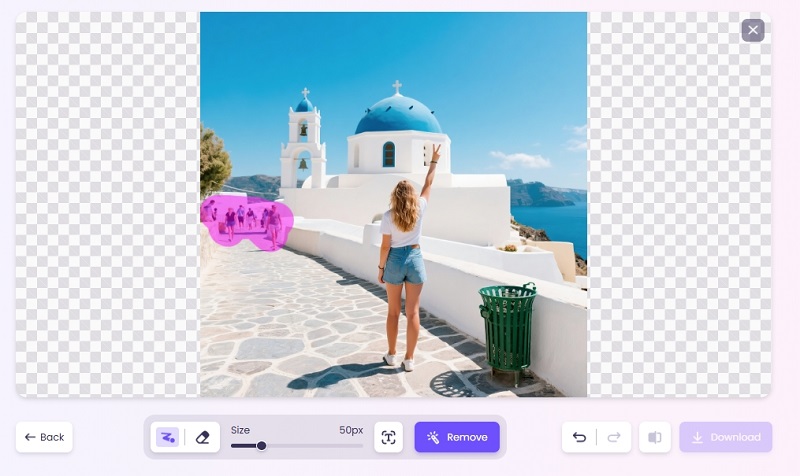
Step 1 Upload Photo: Tap “Upload Image” and select your photo from the Photos app.
Step 2 Select Person: Use the brush tool to paint over the person you want to remove. Adjust brush size for precision.
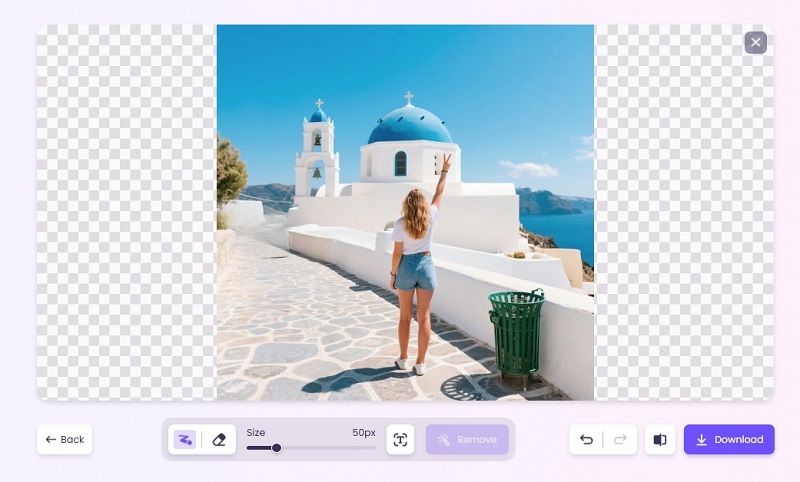
Step 3 Process and Download: Click “Remove” to process the edit, then download the edited photo.
Vidnoz is very effective in terms of the quality of the result, particularly in the case of simple backgrounds, and its availability is the chief advantage of the application across the board.
Edit Someone Out of a Picture on iPhone with TouchRetouch [Third-Party App]
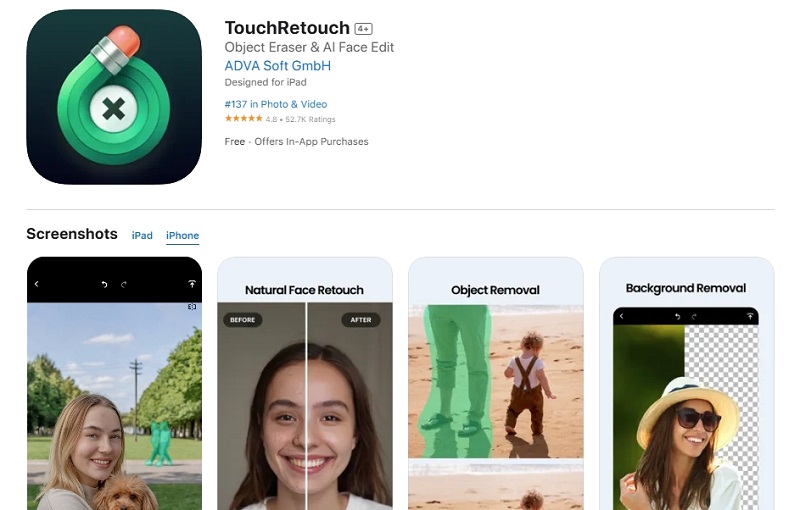
TouchRetouch is a powerful iOS app designed to edit someone out of a picture on iPhone with precision. Available on the App Store, it’s perfect for any iOS user seeking advanced AI photo retouching tools. While the app offers free limited features, a one-time purchase unlocks its full potential. Its object removal feature stands out, allowing users to erase people, objects, or imperfections with ease.
Key Features
Advanced Object Removal: Uses smart algorithms for seamless removals.
Multiple Tools: Includes Quick Repair, Object Removal, and Line Removal for versatile editing.
Precision Editing: Adjustable brush sizes and zoom for detailed work.
Clone Stamp: Fixes artifacts for polished results.
Steps to Use TouchRetouch:
Step 1 Select Photo: Open the app, tap “Albums,” and choose your photo.
Step 2 Choose Tool: Select “Object Removal” or “Quick Repair” and adjust the brush size.
Step 3 Paint Over Person: Swipe over the person to remove them. Use the eraser for precision.
Step 4 Save Edits: Tap “Export” to save the edited photo to your library.
TouchRetouch is phenomenal when it comes to intricate backgrounds, but free functionalities are very minimal.
Bonus: Turn Your Retouched Photos into Vibrant Live Pictures!
Once you have learned how to remove a person in a picture on the iPhone, why not shoot your pictures a step further? Vidnoz AI Image to Video is a tool that turns inanimate pictures into moving, animated ones. It is a web-based and free tool that brings your edited photos to life with fully customizable video templates, meaning that you can create visually engaging social media content or wonderful mementos.
Convert Image to Video AI Online - Free
Create a video from an image quickly for free.
Use various AI models to turn photos into videos.
Download and share the AI-generated video at no cost.
Step 1 Upload Your Photo: Visit the webpage and upload your edited photo.
Step 2 Choose Video Effect: Enter a video description or select a template (e.g., “zoom-in effect” or “panoramic motion”).
Step 3 Generate Video: Click “Generate Video” to process. Preview the result.
Step 4 Convert to Live Photo: Download the video and use an app like intoLive to turn it into a Live Photo for your iPhone.
This aspect can make your photographs come to life with some creativity, movement and enthusiasm.
Conclusion
It has never been simpler to learn how to remove someone in a photo on an iPhone with the help of such tools as the Clean Up online tool developed by Apple, Vidnoz AI Image Remover, and TouchRetouch. Add a layer of creativity to your edited photos with the help of the AI tool by Vidnoz free AI video generator to make it a vibrant Live Photo. Apply the one you need and start producing distraction-free professional quality images today!
Griffin, a former software engineer and technology enthusiast, has over 5 years of writing experience about technology. He is always looking for and sharing tools that promote creativity, productivity, and teamwork.