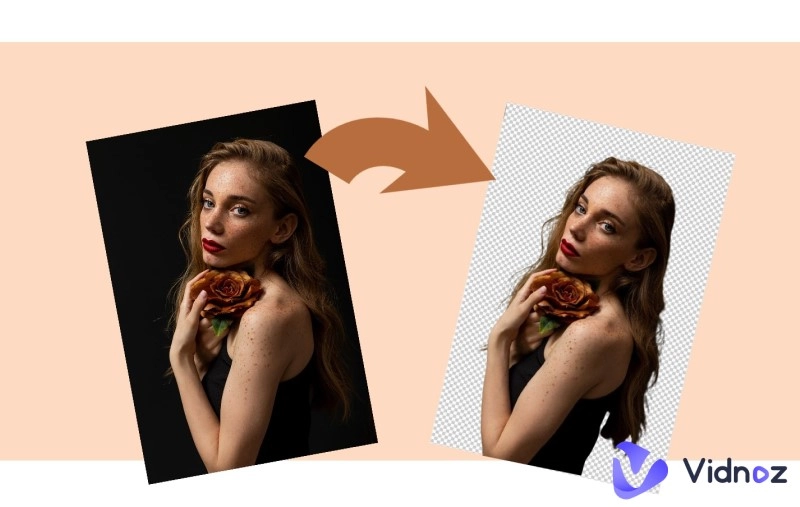
Transforming a photo into timeless black and white has never been easier, thanks to today’s grayscale converter tools. Doesn’t matter if you’re preparing content for class, clients, or your personal feed, these digital editors help streamline your photos, sharpen composition, and deliver a sleek finish. A grayscale image converter makes the contrast of the picture prominent and strips away color, creating impactful black-and-white visuals ready for portfolios or social media campaigns.
With so many options available, finding the best grayscale picture converter can be tricky, but don’t worry, we’ve got you covered. In this guide, you’ll explore the top online tools to convert a JPG to grayscale, along with bonus ways to animate your photos using Vidnoz AI.
- On This Page
-
What is a Grayscale Converter? Why Grayscale an Image?
-
5 Best Grayscale Image Converters Online [+ Steps]
-
[Bonus] Breathe New Life Into Your Grayscale Image
Turn Static Grayscale Images into Dynamic Videos
Make Grayscale Portraits Talk Online Free
What is a Grayscale Converter? Why Grayscale an Image?
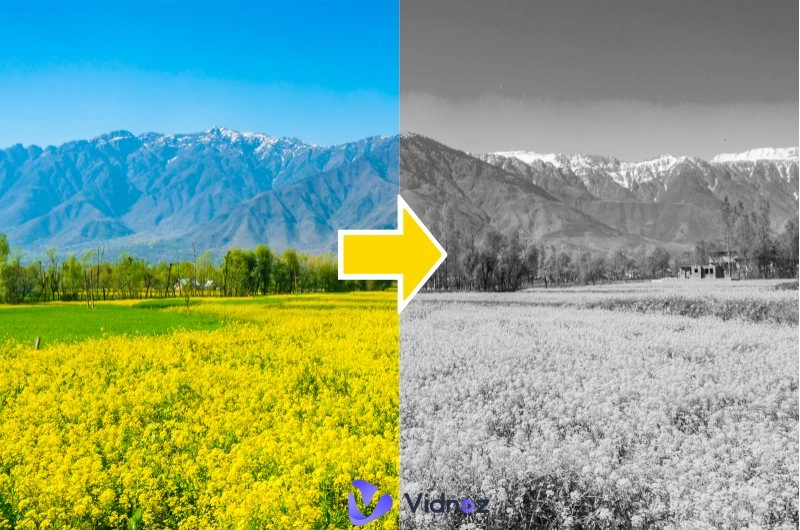
Let’s look into what a grayscale converter actually does. In simple terms, a grayscale image converter is a software program or online algorithm that strips away all color from a picture and replaces it with varying shades of gray, preserving the structure and contrast of the photo while removing the distraction of color. Whether you’re using a grayscale picture converter or a built-in grayscale maker, you get a result that is a sharper and more focused version of your image.
So, why grayscale an image in the first place? There are several compelling reasons for doing so:
- Enhance Mood And Emotion: Black-and-white tones often add intensity and drama.
- Evoke a Sense of Classic Artistry: Monochrome photos exude a timeless and elegant feel.
- Load Faster Than Colored Images: Smaller file sizes improve web and app performance.
- Simplify and Improve Composition: Grayscaling highlights form, texture, and contrast of the image.
5 Best Grayscale Image Converters Online [+ Steps]
With so many options available, the question isn’t whether you should use a grayscale converter, but rather which one fits your needs best. Here, we have gathered the 5 best online solutions. Each grayscale image converter in this list is free to access, easy to use, and delivers high-quality results.
1. Pinetools
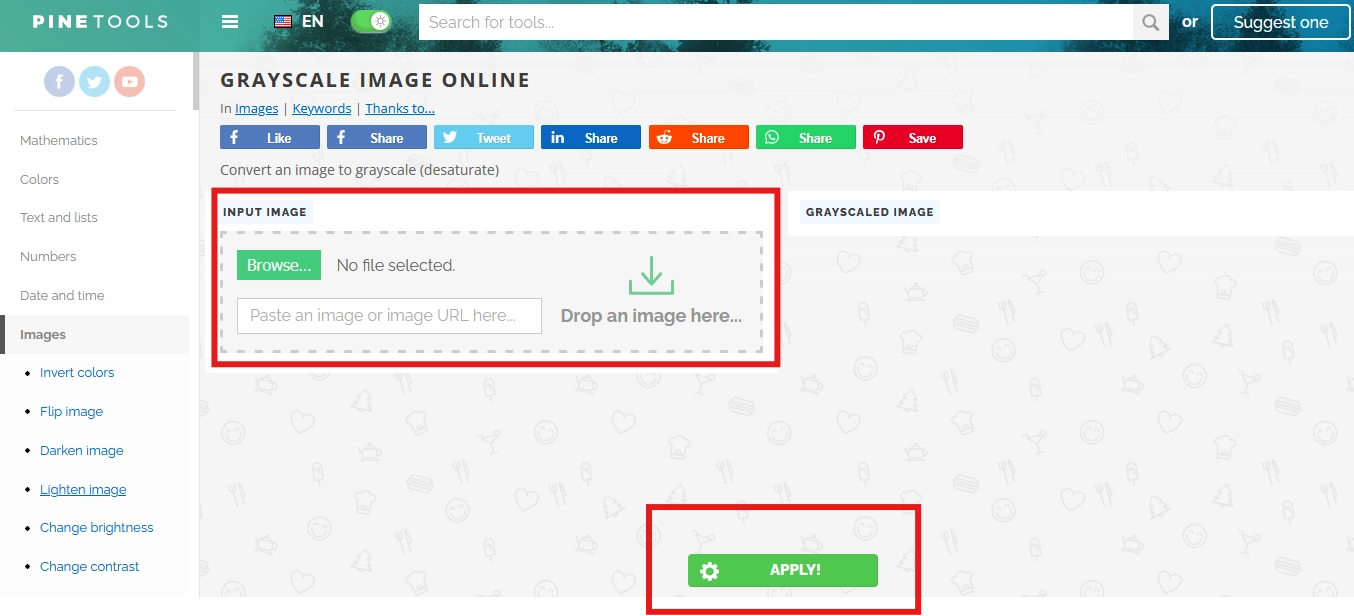
If you want a dependable grayscale converter that delivers what it promises with minimal fuss, Pinetools is a solid choice. There are no additional filters or advanced edits—just straightforward performance that’s ideal for quick conversions. It’s a go-to option when you need to quickly and cleanly grayscale an image.
How to Use This Grayscale Image Converter?
Step 1: Go to the Pinetools Grayscale image online page. You'll spot an Input image box labeled Drop an image here…
Step 2: Drag and drop—or click to upload—the color image you want to convert using this grayscale picture converter.
Step 3: Click Apply! button and let the tool process the image into shades of gray.
Step 4: Once processed, the grayscaled version appears in the Grayscaled image panel. You can then right-click (or use provided controls) to download your new black-and-white version.
2. Grayscale Image
For those who want more than just a basic desaturation, Grayscale Image lets you add retro flair through tone adjustments. This grayscale image converter is designed for quick, free, and versatile use—just drag and drop, adjust the intensity, and download.

How to Convert a JPG to Grayscale?
Step 1: Navigate to the Grayscale image and locate the tool titled "Make Grayscale Images Online In Seconds For Free."
Step 2: Click Upload Your Images or drag your JPG into the upload area.
Step 3: You can also adjust the tone slider to fine-tune exposure and shades of gray until you're satisfied.
Step 4: Hit the Download button once the progress reaches 100%.
3. Canva
Ready to go beyond a basic grayscale converter? Canva offers a powerful, visually intuitive grayscale image converter built right into its drag-and-drop free AI video generator and AI photo editor—making it perfect for turning your images black and white without ever leaving your workflow.
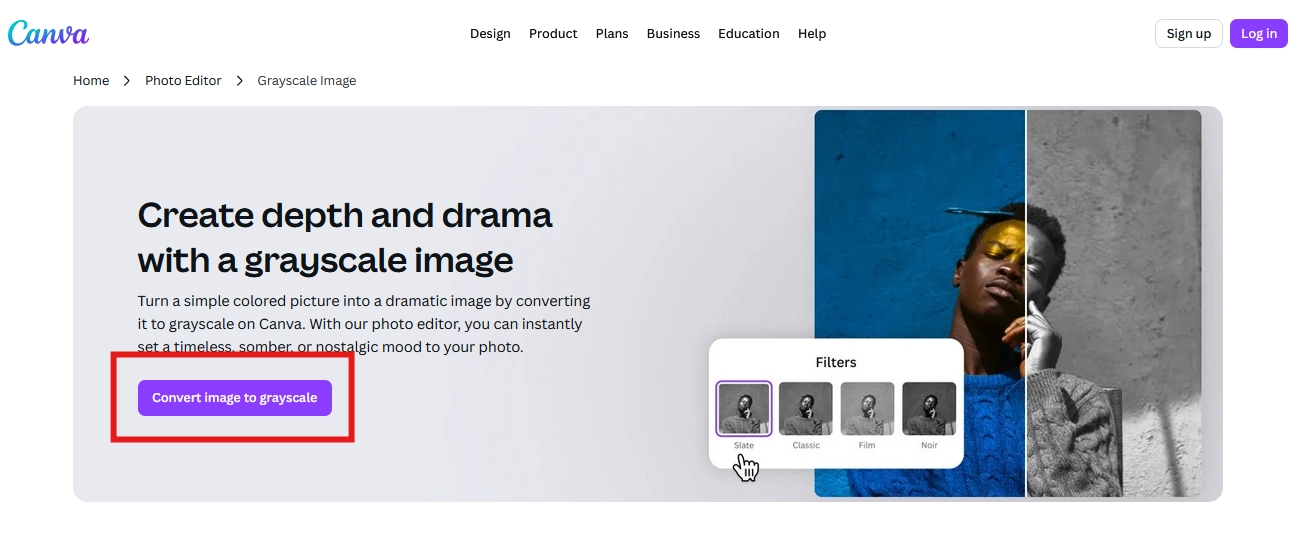
How to Use This Grayscale Picture Converter?
Step 1: Open Canva and upload your image—or choose from Canva’s stock library and click on the image to select it.
Step 2: Click Edit Image in the toolbar, then navigate to the Filters section. Choose the Grayscale or Mono filter to turn your image black and white.
Step 3: For precise control, adjust the Saturation slider to 0.
Step 4: Click Apply, then continue designing or export your grayscaled image and use it in projects like a talking photo online free tool or as part of an AI cartoon character generator workflow. You can also AI colorize photo later.
4. Fotor
Fotor’s grayscale image converter offers a suite of preset gray filters with adjustable intensity, without any watermark or clumsy interface. It is a good choice for quickly turning color images into retro-style, high-contrast visuals.
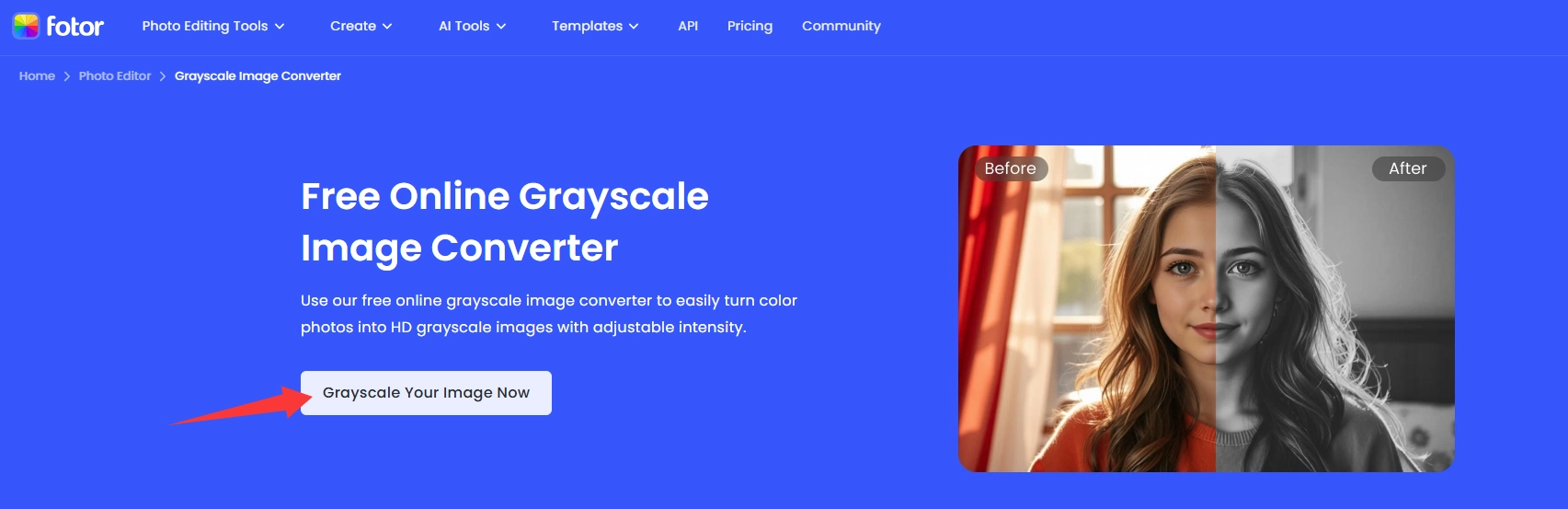
How to Use This Grayscale Image Converter?
Step 1: Visit Fotor’s Free Online Grayscale Image Converter and click Try It Now to enter the editing interface.
Step 2: Upload your photo by clicking Open Image. It works with most image types (JPG, PNG, HEIF, WebP, etc.).
Step 3: Select any of the preset grayscale filters, and adjust the intensity using the slider to dial in the perfect tone.
Step 4: Use the editor’s extra controls—like contrast, brightness, sharpness, and saturation—to refine your image further.
Step 5: When you're satisfied, click Apply, then Download to save your image in either JPG or PNG format.
5. Pixelied
Pixelied offers a slick and efficient grayscale converter that is perfect for swift vintage-style edits with minimal effort. It is ideal when you want to image color remover effects or later apply AI color grading to bring new life to your photo.
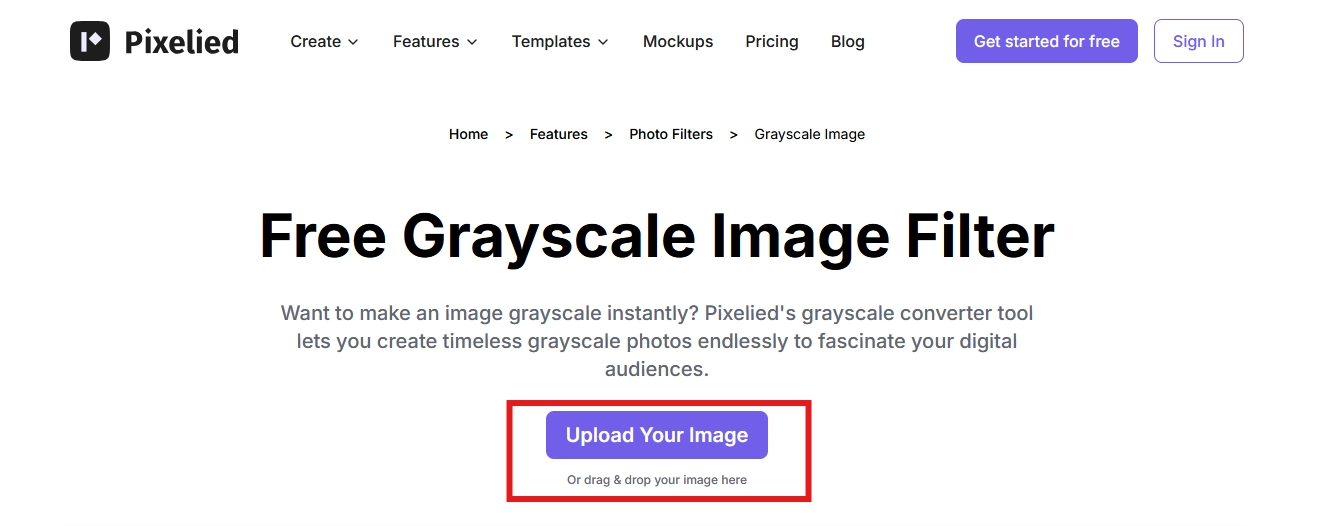
How to Grayscale an Image with Pixelied?
Step 1. Upload your JPG or PNG image via drag-and-drop into Pixelied’s editor interface.
Step 2. Click on Image Effects & Filters, then select Grayscale and use the slider to adjust the tone.
Step 3. Click Download to save your final output as JPG, PNG, SVG, or PDF.
[Bonus] Breathe New Life Into Your Grayscale Image
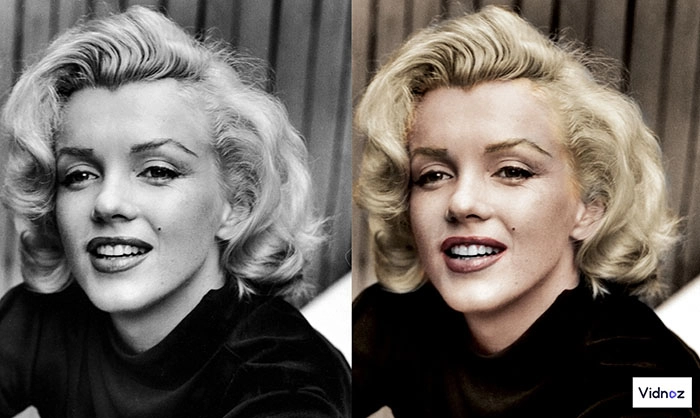
Grayscale photos don’t have to remain static; they can be transformed into dynamic, engaging content with AI tools. From creating a talking photo online for free to applying AI color grading or even restoring a black and white photo to color, the possibilities extend far beyond simple editing.
Turn Static Grayscale Images into Dynamic Videos
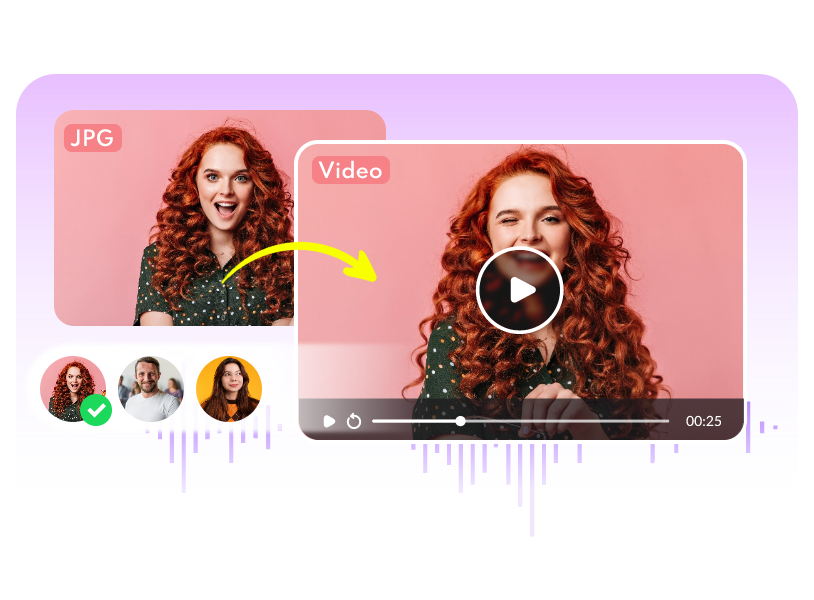
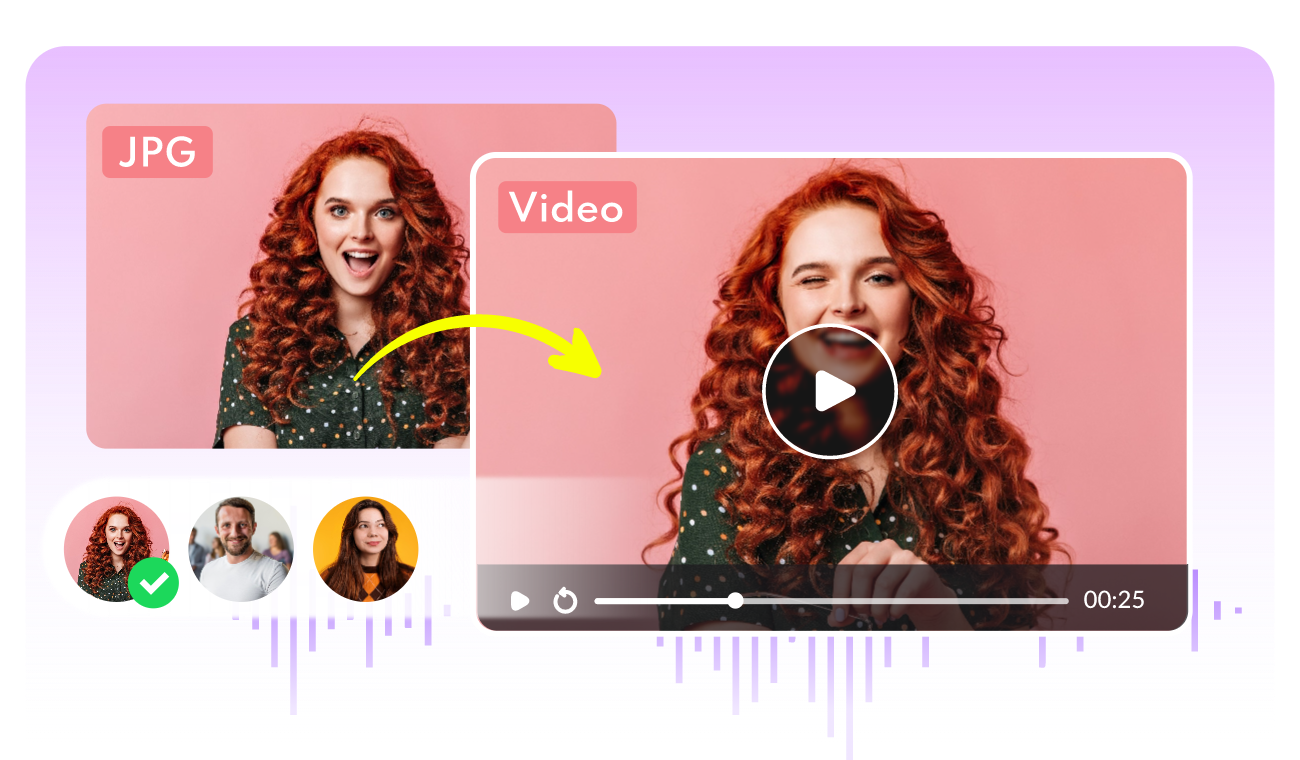
Grayscale photos don’t need to stay still forever. With Vidnoz’s Image to Video AI, your black-and-white creations can be brought to life—complete with motion, style, and even subtle effects like recolor image transitions or replace color in image online free AI overlays.
Convert Image to Video AI Online - Free
- Create a video from an image quickly for free.
- Use various AI models to turn photos into videos.
- Download and share the AI-generated video at no cost.
Convert Image to Video
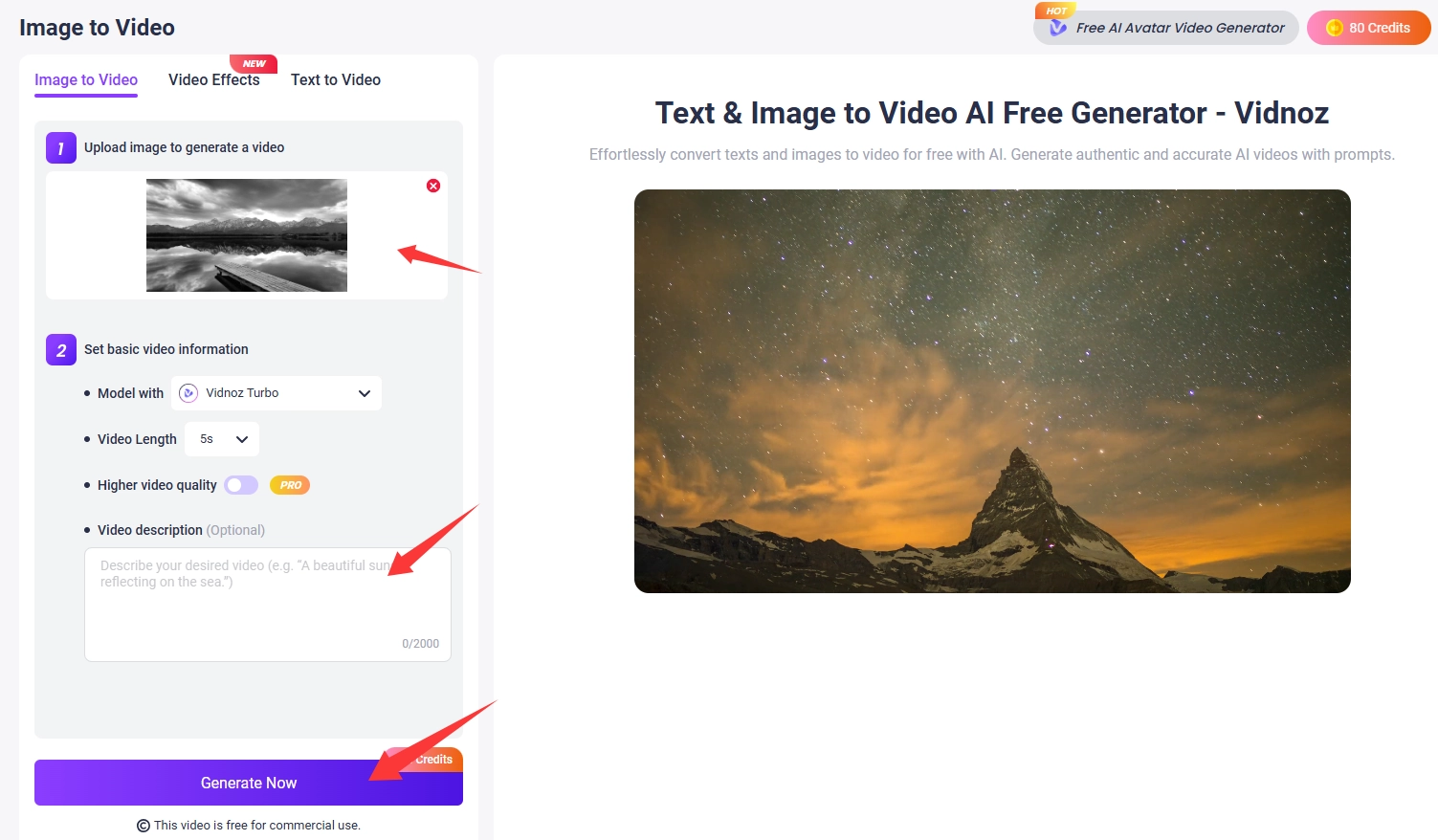
How to Animate a Grayscale Photo with Vidnoz AI Image to Video?
Step 1: Head over to Vidnoz Image to Video AI and sign up or log in if needed.
Step 2: Upload your static grayscale image (supports JPG, PNG, WEBP, etc.) using the drag-and-drop interface.
Step 3: Select video length and describe how you want your image to move. You can even write a video description.
Step 4: Click Generate to let Vidnoz’s AI turn your grayscale photo into a short video—no watermark! Once it’s ready, preview and download your animated video.
Make Grayscale Portraits Talk Online Free
Static grayscale portraits don’t have to stay silent; they can speak. With Vidnoz AI Talking Photo, you can turn any still image into a captivating talking head animation—for free.
How to Make Picture Talk with Vidnoz AI Talking Head?
Step 1: Visit the Vidnoz AI Talking Photo tool and log in or create a free account.
Step 2: Upload a clear portrait image—ideally a front-facing photo for best lip-sync accuracy.
Step 3: Enter your script in the text box, then choose the voice, language, accent, and emotion you’d like.
Step 4: Click Generate Video (or Preview first), and Vidnoz will animate the image into a talking photo—complete with natural expressions and lip-sync.
Step 5: Preview your talking photo, then download the MP4 to use in your projects or share across platforms.

Conclusion
Grayscale tools make it easy to strip away distractions and highlight the heart of your photos. Whether you use a quick grayscale converter, an advanced grayscale image converter, or creative AI tools, each option helps transform your images into timeless and striking images.
And if you want to go further—animate, translate, or even re-color your photos, Vidnoz AI has you covered. Try it now to turn your static pictures into dynamic, unforgettable stories.

Vidnoz AI - Create Free Engaging AI Video with Talking Avatar
- Easily create professional AI videos with realistic avatars.
- Text-to-speech lip sync voices of different languages.
- 2800+ video templates for multiple scenarios.





![What is AI Color Grading and How-to Tutorials [Detailed Steps]](https://www.vidnoz.com/bimg/ai-color-grading.webp)