Personalizing your online look is both fun and creative. Whether for games, streaming, or branding, a great personalized avatar makes you stand out. An avatar can improve your user engagement and help you express yourself across multiple platforms in a unique way.
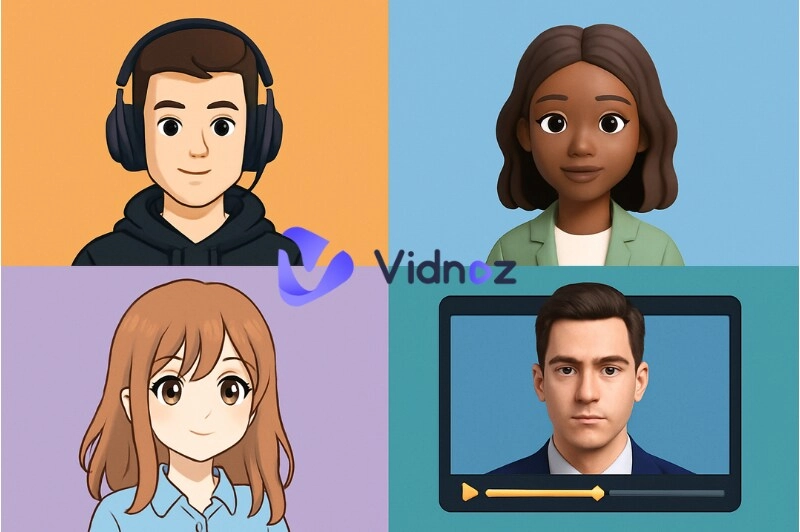
This article introduces the best avatar editor tools that help you easily customize your avatar for free. We cover everything from the in-game avatar editors and anime avatar editors to tools that combine avatar editing with video editing. Let’s begin!
- On This Page
-
What is an Avatar Editor?
-
In-Game Avatar Editor Roblox: Customize Your Avatar by Choices
How to Edit Avatar in Roblox Step-by-Step?
-
Anime Avatar Editor Canva: Personalize Your Online PFP
How to edit an anime avatar in Canva?
-
Video Avatar Editor Vidnoz AI: Animate Your Photo to Talk
How to Edit an Avatar in Vidnoz AI Free Video Generator?
Bonus Tip: Make an Animated Avatar as Your Social Profile Picture
-
Questions About Avatar Editor
Q: Where can I create my own avatar for free?
Q: Which video editor supports animated avatars?
Q: Can I use an in‑game avatar in my videos?
Q: How do I access the Roblox avatar editor on mobile?
-
Excellent Examples Customized by AI Avatar Editor
What is an Avatar Editor?
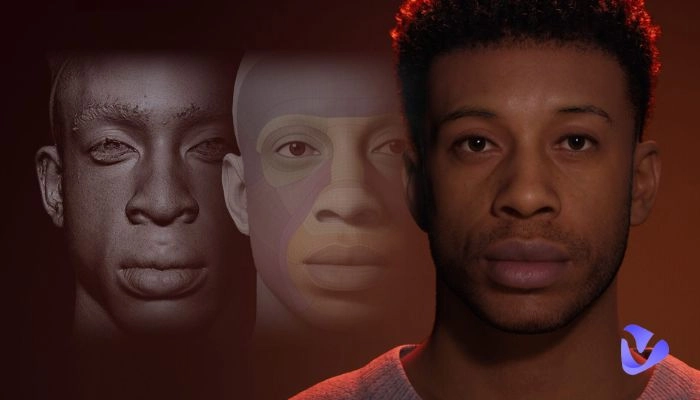
An avatar editor is a tool that allows you to design and personalize a custom character as your online image for various platforms. Generally, you can use it to personalize the facial features, skin tone, outfits, hairstyles, accessories, body types, and even gestures, motions, and facial expressions to make the virtual character appear lifelike.
The avatar editors vary in complexity and type. From the spatial dimensions, they can be:
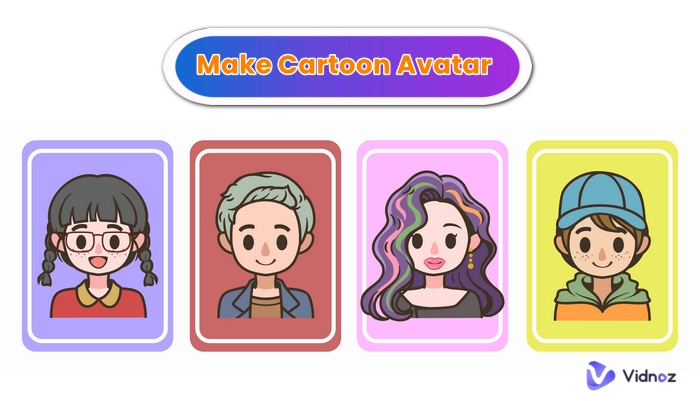
- 2D avatar editors: 2D editors offer simple, flat-style avatars, like anime or cartoon avatars.
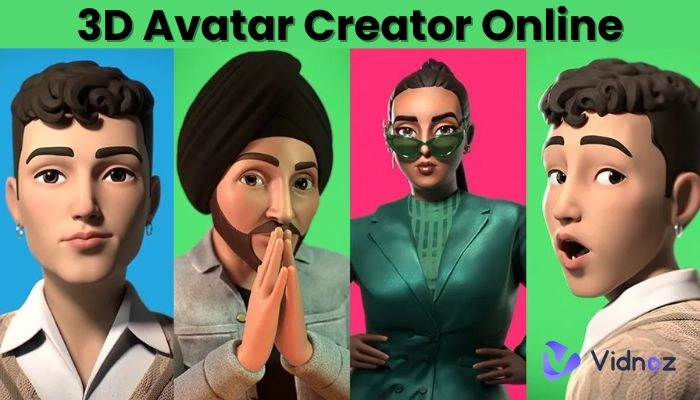
- 3D avatar editors: These editors offer full three‑dimensional avatars for games.
- Animated avatar editors: These tools enable avatars to move and speak in videos.
From the use scenarios, they can be:
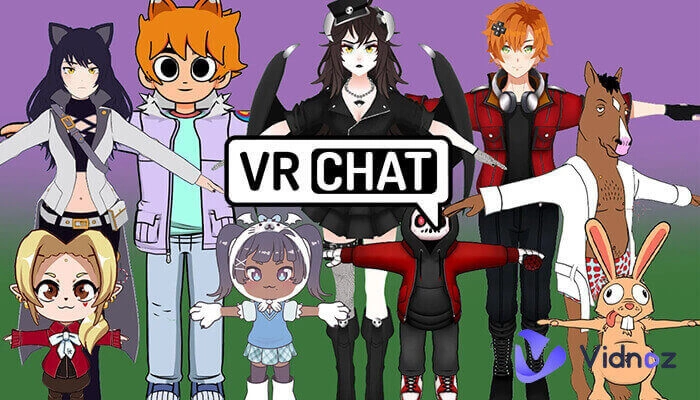
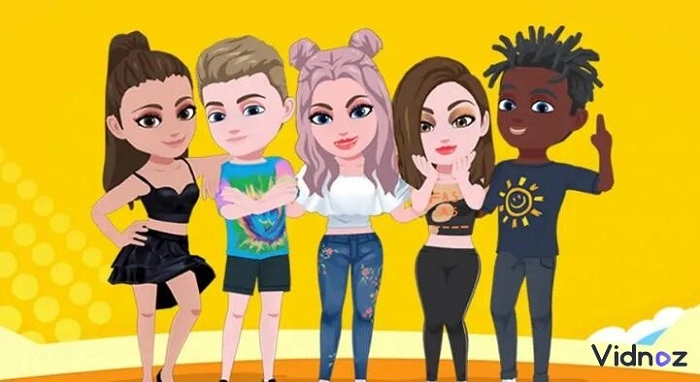
- In-game avatar editor: You can use gaming avatars like Roblox or Fortnite to represent yourself in games, streaming, or virtual worlds.
- Anime/cartoon-style avatar editor: Anime or cartoon avatars are perfect for social media profiles or personal branding.
- Video avatar editor: Video avatar editor tools can be used to make talking avatars for virtual meetings and video reporting.
In-Game Avatar Editor Roblox: Customize Your Avatar by Choices
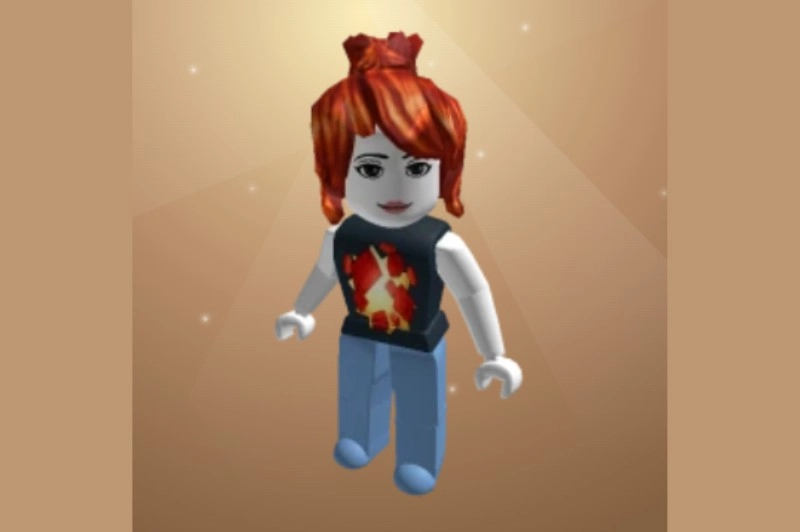
Now, let’s talk about the in‑game avatar editor on Roblox. Users on Roblox want unique looks. The Roblox avatar editor allows you to customize your Roblox avatar according to your preferences. With one click, you can change avatar body type, head shape, skin color, hairstyle, face, and animations. You can edit a scary Roblox avatar by customizing outfits with hats, shirts, accessories, and cosmetics that persist across experiences. In the in-game avatar editor Roblox, you can even purchase an avatar. bodies, accessories, and apparel from Roblox’s Marketplace. This game avatar editor is powerful and easy to use.
How to Edit Avatar in Roblox Step-by-Step?
Step 1.
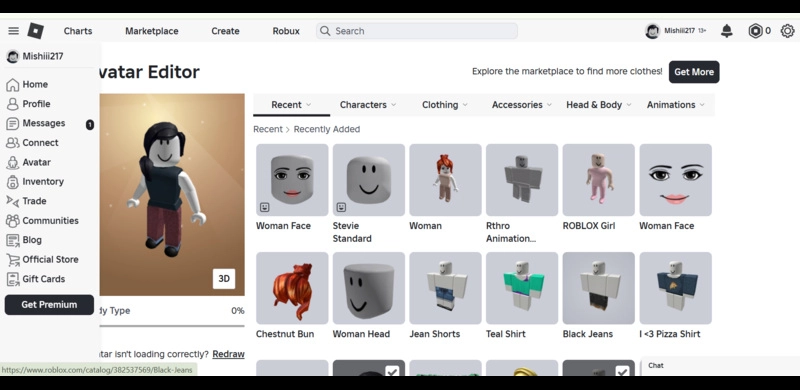
Log in to your Roblox account and select ‘Avatar’ from the drop-down menu to go to the Avatar Editor.
Step 2.
Pick a category and click on the item icon you want to add to your character. To remove an item, simply deselect it.
Step 3.
Refresh the avatar editor page. You will see all changes saved automatically. Here you are, good to go.
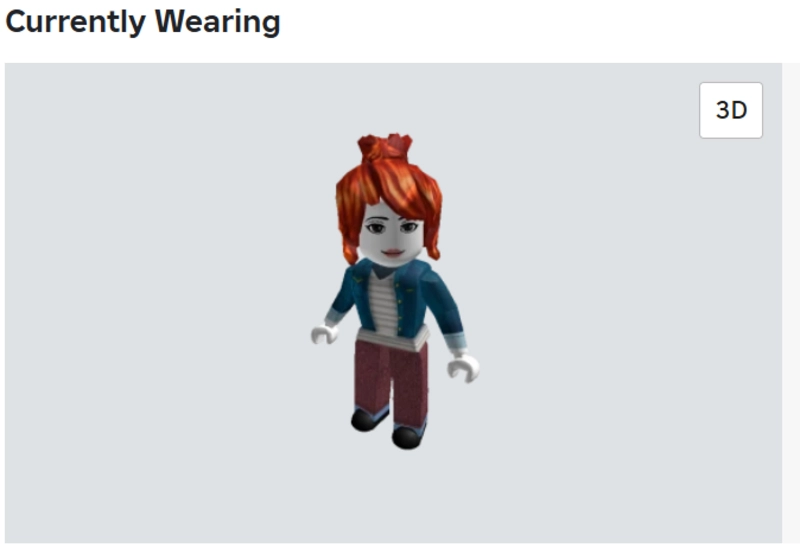
Pro tips to create standout personalized avatars on Avatar Editor Roblox.
- Mix rare accessories with common outfits.
- Use color contrast for your avatar.
- Animate poses to add flair to make a cool Y2K Roblox avatar.
Other games with in‑game avatar editor services like Roblox:
Anime Avatar Editor Canva: Personalize Your Online PFP
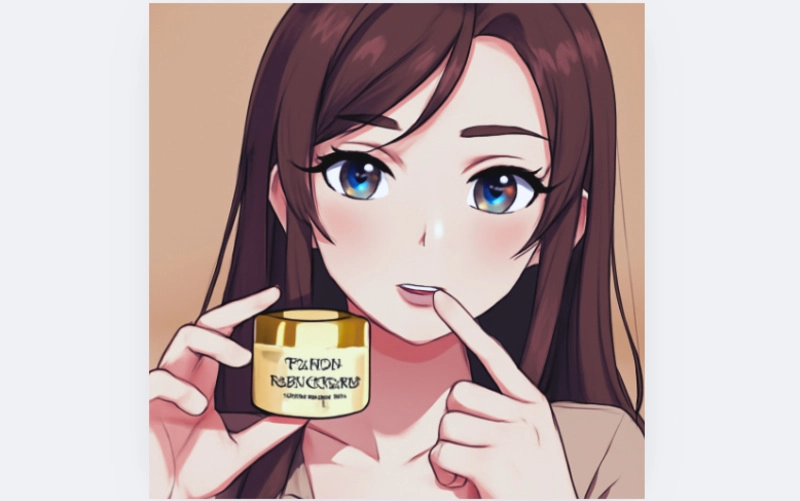
Next up is the anime avatar editor on Canva. This online tool offers cartoon and anime-style avatars. It has free templates and AI features. You can choose from over 20 different avatar styles. This AI-based anime avatar maker lets you craft character avatar photographs in three aspect ratios, including square, landscape, and portrait. Using this cartoon avatar editor, you can change your character’s appearance for free. You can apply different effects and filters to your anime-style avatar. The anime avatar editor is super easy to use. You can quickly design an outstanding profile picture online in seconds.
How to edit an anime avatar in Canva?
Step 1.
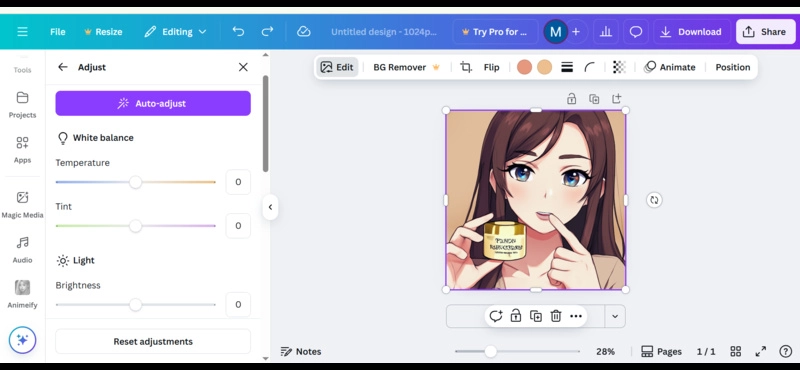
Open Canva’s ‘anime avatar maker’ and choose a template or start with your photo.
Step 2.
Use Animeify to transform photos into anime. Customize features such as face, hair, clothes, and background.
Step 3.
Download your avatar in your preferred format.
Pro tips to create your stunning digital avatar to establish an online personality
- Match the outfit style to your brand or theme.
- Add unique accessories or poses.
- Use pastel or bold color fills for charm.
Other cartoon avatar editors:
- Picrew
- Vidnoz AI Avatar Generator (anime style)
- Avatoon
- Zmoji
Video Avatar Editor Vidnoz AI: Animate Your Photo to Talk
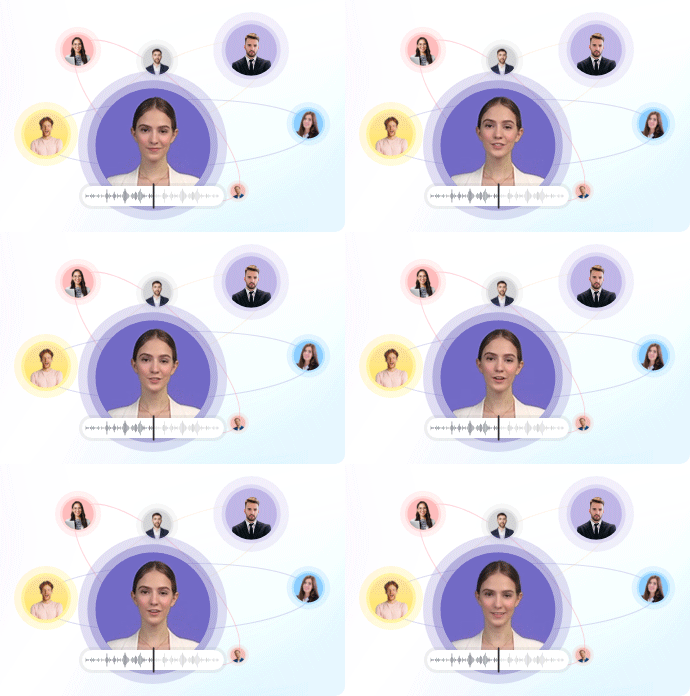
Many creators now prefer a video avatar editor to enhance their video reporting or online meeting image. Vidnoz AI is a free AI video generator that stands out for its AI-powered features and ease of use. It offers a video avatar editor with templates, AI voices, and lip-sync features, which allows you to customize the avatar style, body, and expression motions handily. You can tweak your avatar in the video, animating its speaking more naturally. There is complicated parameter adjustment, and every feature is just one click away.

Vidnoz AI - Create Free Engaging AI Video with Talking Avatar
- Easily create professional AI videos with realistic avatars.
- Text-to-speech lip sync voices of different languages.
- 2800+ video templates for multiple scenarios.
Key Feature
- Daily free-to-edit avatar for any videos online that let you produce personalized videos for branding, social content, or storytelling without any cost.
- 32K+ 2D and 3D avatar templates designed for various industries like gaming, marketing, education, and entertainment.
- Quickly screen out your wanted avatar template with smart filters that sort by style, character type, animation, theme, and more.
- AI-generated voiceovers and lip-sync enable your avatar to speak naturally in different tones and languages.
- Edit video avatars from AI, static photos, and templates to match your content’s tone, platform, or audience needs.
- Customize avatars with motions, views, AI voice matching, background controls, flexible viewing angles, and a perfect aspect ratio for any platform.
How to Edit an Avatar in Vidnoz AI Free Video Generator?
Step 1.
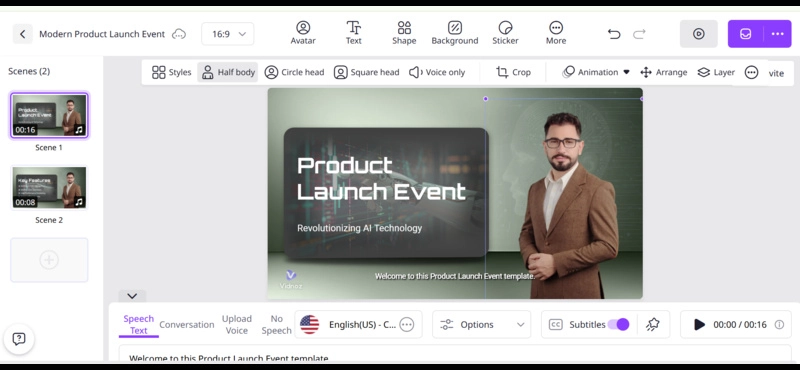
Visit Vidnoz AI Free Video Generator and choose a template to create a video.
Step 2.
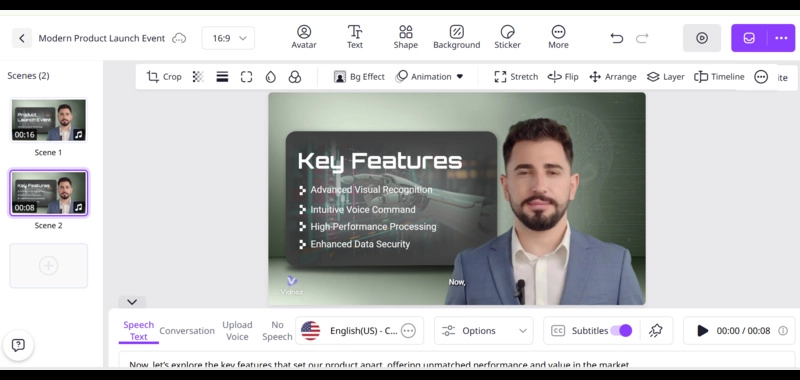
To customize the avatar’s appearance, select the avatar. Change avatar style, body, face, and other features from the submenu.
Step 3.
Once you have done, save your changes.
Bonus Tip: Make an Animated Avatar as Your Social Profile Picture
If you're looking for a fast and simple way to animate a single photo, Vidnoz AI offers a powerful free online tool called AI Talking Photo. This easy-to-use animated avatar editor lets you change the avatar into a different look, add motions, add simple text information, customize the background color, and crop its aspect ratio. With just a few steps, you can transform your static photo into a lively, talking avatar video. This Image to Video AI tool lets you export it as an MP4 video. Then just convert to GIF for platforms like Discord, Skype, Slack, Xbox, and TikTok.
Create Your AI Talking Avatar - FREE
- 1900+ realistic AI avatars of different races
- Vivid lip-syncing AI voices & gestures
- Support 140+ languages with multiple accents
Guide to use:
Step 1.
Go to Vidnoz AI Talking Photo, and upload your photo to make an animated avatar.
Step 2.
Enter your script, which you want the animated avatar to speak, and set other parameters like language (match the text), accent, voice gender, tone, and mood.
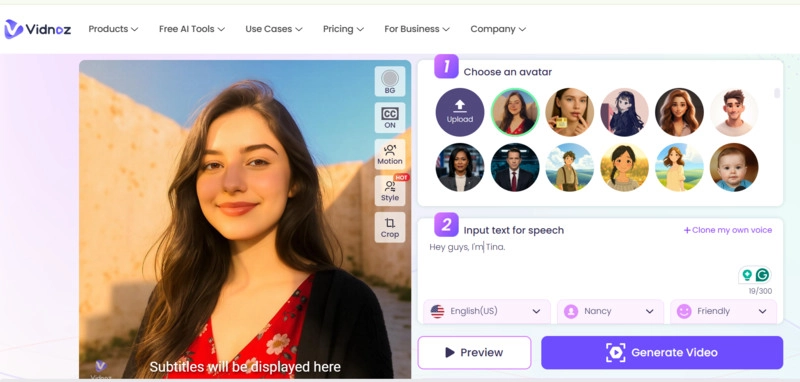
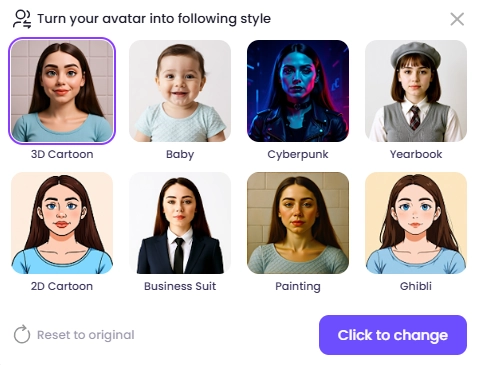
More than that, you can turn your avatar to different styles like 3D cartoon, baby, cyberpunk, yearbook, 2D cartoon, business suit, painting, and Ghibli.
Step 3.
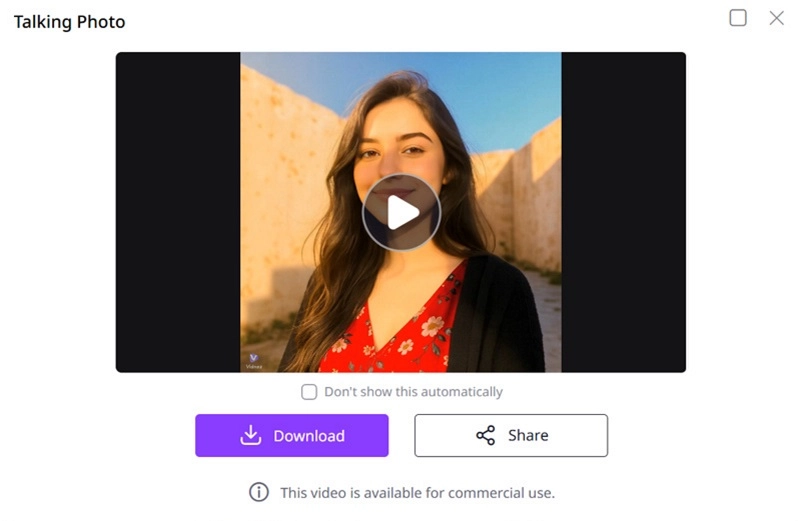
Hit the ‘Generate Video’ button and save your talking head avatar once generated.
Questions About Avatar Editor
Q: Where can I create my own avatar for free?
A: Use Roblox's in‑game avatar editor or Canva’s anime avatar editor. Vidnoz AI also offers a free avatar video maker you can use for free.
Q: Which video editor supports animated avatars?
A: Vidnoz AI video avatar editor supports creating avatars that speak in video.
Q: Can I use an in‑game avatar in my videos?
A: Yes, you can take a screenshot or screen record your Roblox avatar and import it into video tools like Vidnoz to use it in your videos.
Q: How do I access the Roblox avatar editor on mobile?
A: If you are looking for how to edit avatar on iPhone using the Roblox avatar editor, open the Roblox app, go to the Avatar tab, and use the same feature as on desktop to edit your avatar.
Excellent Examples Customized by AI Avatar Editor
Here are real examples created by different AI avatar editors:
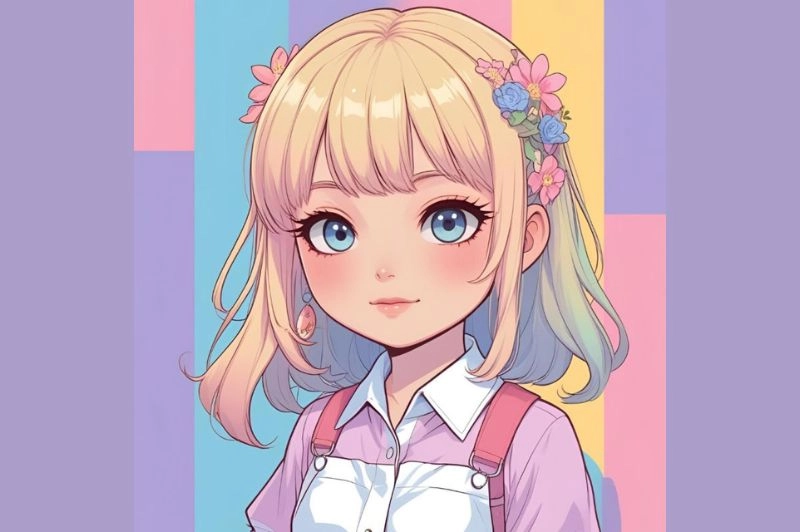
Example 1: A pastel chibi-style PFP anime avatar created with Canva, perfect to use for a social account.
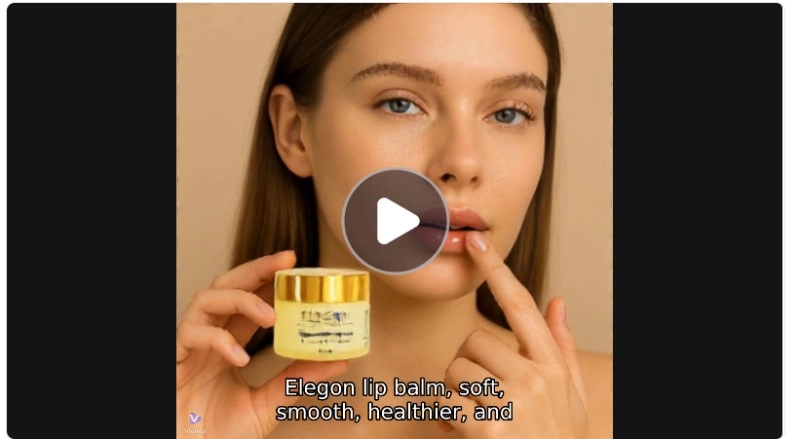
Example 2: A photo turned into an animated spokesperson for a product tip video using Talking Avatar by Vidnoz
Example 3: A woman's in-game avatar designed using the Xbox avatar editor. It can be used perfectly in a livestream screenshot.
Conclusion
A great avatar editor can help you express your identity in games, on social media, or in video content. Whether you pick Roblox for your in-game avatar, Canva for an anime avatar editor, or Vidnoz for a video avatar editor and talking photos, each tool offers creative freedom. Try Vidnoz AI video generator and the AI Talking Photo tool to animate your profile and bring your avatar to life. Start creating your unique persona now!
Vidnoz AI - Create Free Engaging AI Video with Talking Avatar
- Easily create professional AI videos with realistic avatars.
- Text-to-speech lip sync voices of different languages.
- 2800+ video templates for multiple scenarios.