Have you ever captured a perfect moment, only to have the mood ruined by blurry footage, flickering grainy noise, and unpleasant pixelation? Whether it's a treasured family DV tape or footage shot on an early, low-resolution cell phone, these video issues are relentlessly eroding our precious memories.
Don't worry, there are perfect solutions to these problems. This ultimate 2026 guide is for video repair, from professional manual methods to fully automatic AI-powered techniques. Let's restore the sparkle of those precious moments together!
- On This Page
-
Video Types That You Can Repair
-
Method 1: Video Repair Online with Adobe Premiere Pro | Manual
-
Method 2: Video Repair with AI-Powered Video Enhancers | Auto
-
3 Popular AI Video Enhancers to Repair Video to Next Level
1. Vidnoz AI Video Enhancer
2. Topaz Video Auto Repair
-
Bonus: Make High Quality Videos from Images with AI Free
Video Types That You Can Repair
Before jumping into tools and techniques to repair videos, it’s essential to understand the types of video problems you can fix — and which ones may be beyond recovery.
You Can Repair:
- Blurry videos (due to focus issues or low resolution)
- Grainy or noisy videos (especially in low-light)
- Pixelated or compressed videos (from bad rendering or over-compression)
- Flickering or jittery frames
- Color distortion or poor lighting
- Stretched or skewed aspect ratios
You Cannot Easily Repair:
- Severely corrupted files (e.g., broken headers or missing codec data)
- Videos with missing frames or deleted content
- Completely blacked-out or blank footage
- Physical damage to storage media (e.g., broken SD cards)

Video repair isn't magic, and it can't 100% restore details that never existed. However, modern technology can significantly improve the issues above, elevating your video's visual quality to a whole new level.
Method 1: Video Repair Online with Adobe Premiere Pro | Manual
Suppose you want to have full control over the video repair process and already have some video editing experience. In that case, using professional software such as Adobe Premiere Pro to manually repair video is your best choice. Adobe gives you professional-grade results, perfect for in-depth editing.
Follow the step-by-step guide for video repair online:
Step 1. Launch Premiere Pro, import your video file into the Project panel, and drag it onto the timeline to create a new sequence.
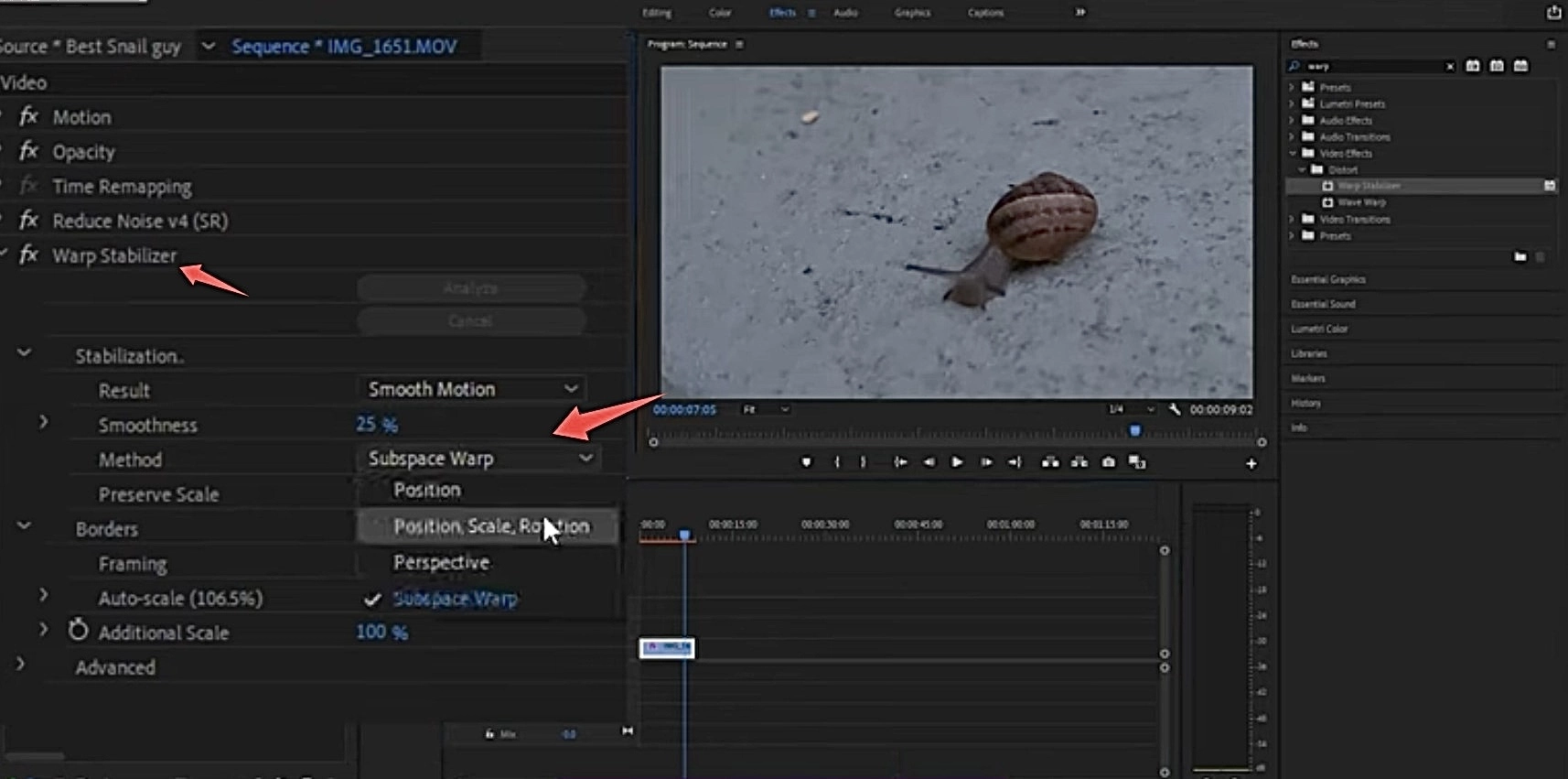
Step 2. Use Warp Stabilizer to Eliminate Shakiness
Search for Warp Stabilizer in the Effects panel and apply it to the video clip. The software will automatically analyze and stabilize the footage. You can adjust parameters like Smoothness in the effect controls to find the optimal balance between stabilization and cropping.
Step 3. Use the Noise Reduction Effect to Eliminate Graininess
Search for the Noise Reduction effect in the Effects panel and apply it. Adjust the Noise Reduction and Sharpening parameters.
Step 4. Use Sharpen and Lumetri Color to Combat Blur and Pixelation
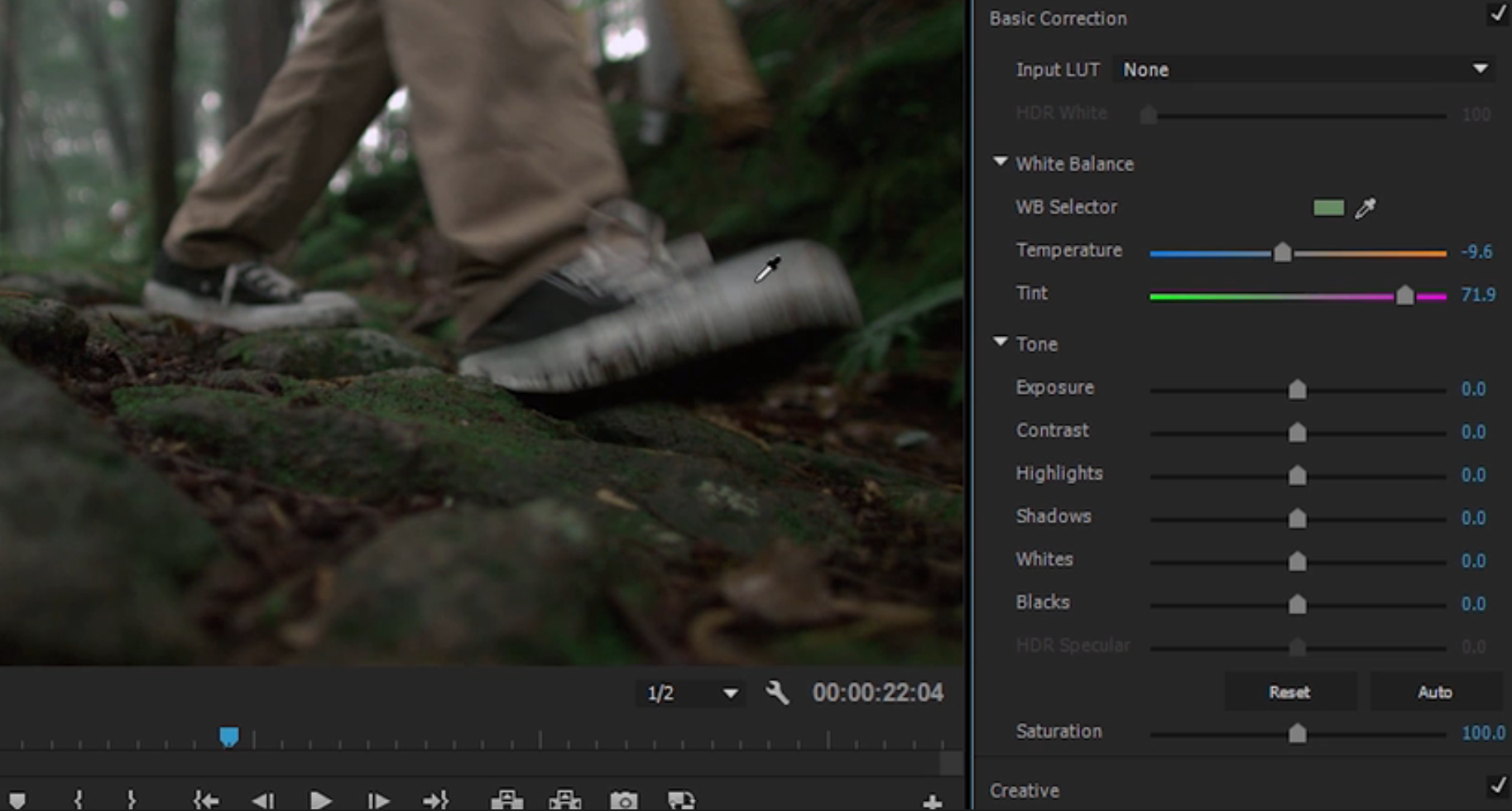
Search for the Sharpen effect and apply it, increasing the value to enhance edge detail and reduce blur. Switch to the Lumetri Color panel and adjust the contrast, highlights, shadows, and saturation in the Basic Correction section to restore vitality to the video, indirectly improving the visual quality and making the image clearer and more transparent.
Step 5. Exporting a High-Quality Video
After completing all adjustments, go to File > Export > Media. Select "H.264" in the format and "Match Source - High Bitrate" as the preset to ensure high-quality output and avoid pixelation caused by secondary compression.
Pros and cons of using Adobe video repair tool:
Pros
- High level of control
- Professional-grade video repair
- Great for editors and filmmakers
Cons
- Time-consuming
- Requires a learning curve
- Not suitable for beginners or quick fixes
Method 2: Video Repair with AI-Powered Video Enhancers | Auto
Manual video restoration is too complex for most of us. Fortunately, AI technology has made video repair online free easier than ever before. Don’t want to deal with timelines, layers, and filters? You're in luck — AI-powered video repair tools can analyze and fix your videos automatically with one click. Vidnoz AI video enhancer is one of the powerful helpers.
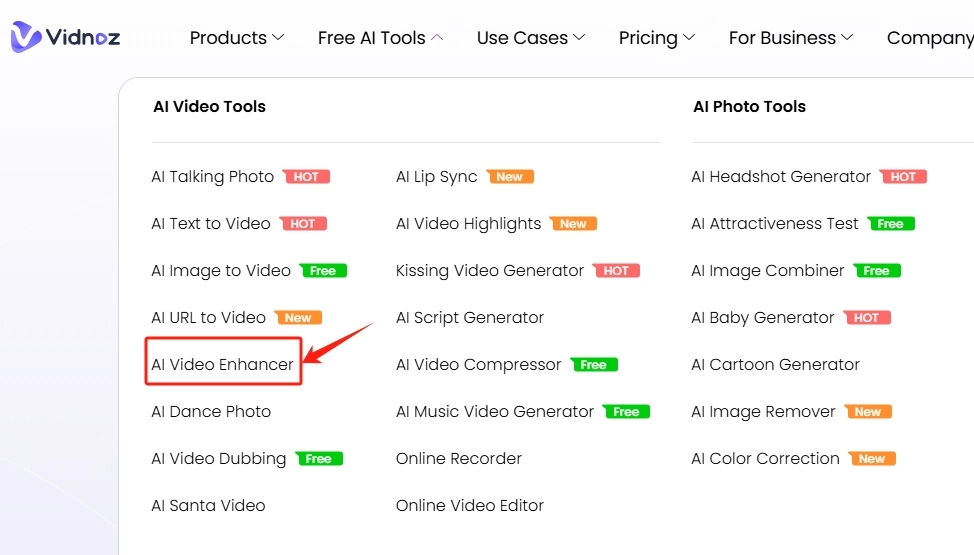
Step 1. Go to the Vidnoz AI interface, find the AI Video Enhancer tool in the Free AI Tools tab. This video repair online free tool can fix your videos for free and instantly.
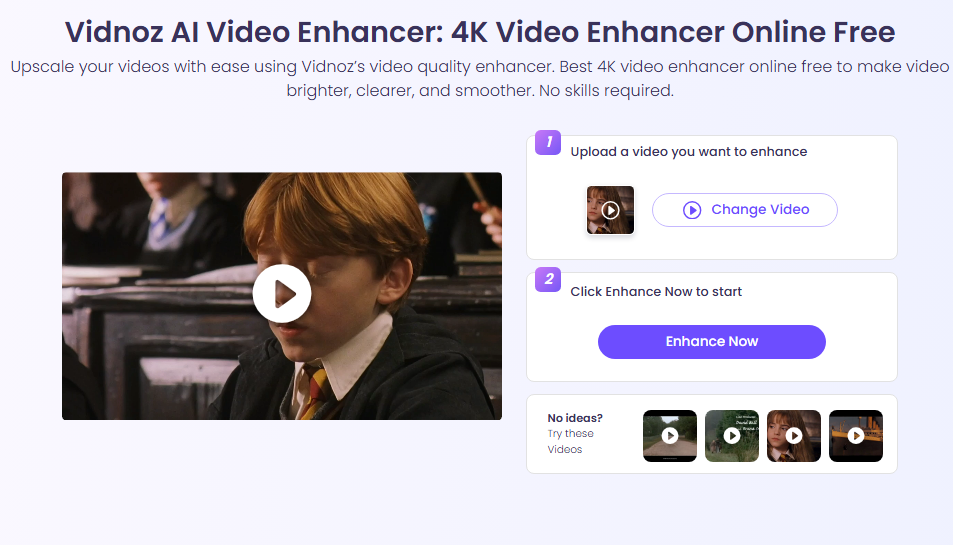
Step 2. Upload the video you want to repair. It supports M4V, MP4, MOV, WEBM. Let the AI process the video repair for you.
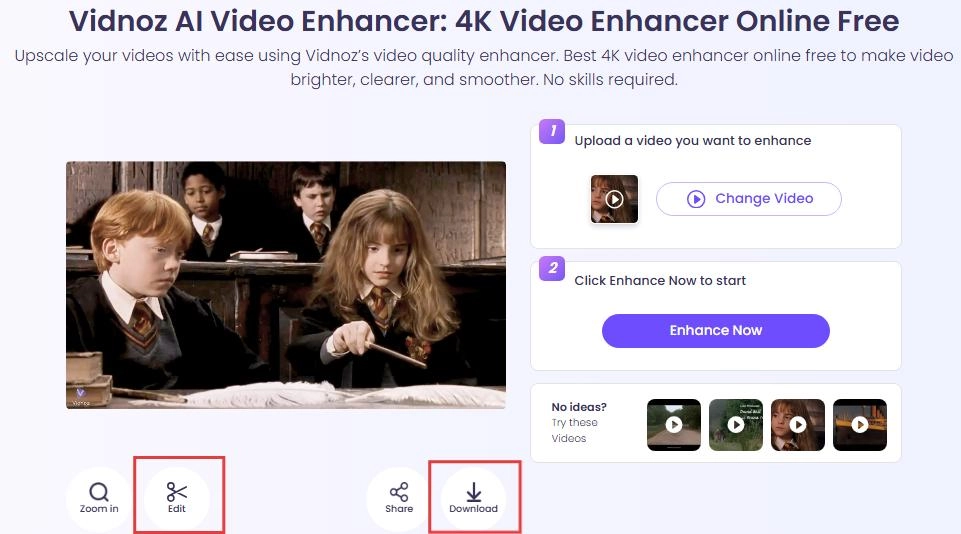
Step 3. Check the final repair video. If you are satisfied, download your enhanced file for free.
Pros and cons of using AI video repair tool:
Pros
- Fast and beginner-friendly
- No manual adjustments needed
- Supports bulk processing
Cons
- Limited control over individual adjustments
Also read: How to Fix Overexposed Video with Online Free AI Tools >>
3 Popular AI Video Enhancers to Repair Video to Next Level
As you can see, using AI tools to repair videos is incredibly simple (often done with just one click). And the results are stunning, intelligently completing details. But with so many AI tools on the market, how do you choose? Here are 3 tested popular online video repair tools with excellent reputations and performance. Let’s see them together.
1. Vidnoz AI Video Enhancer
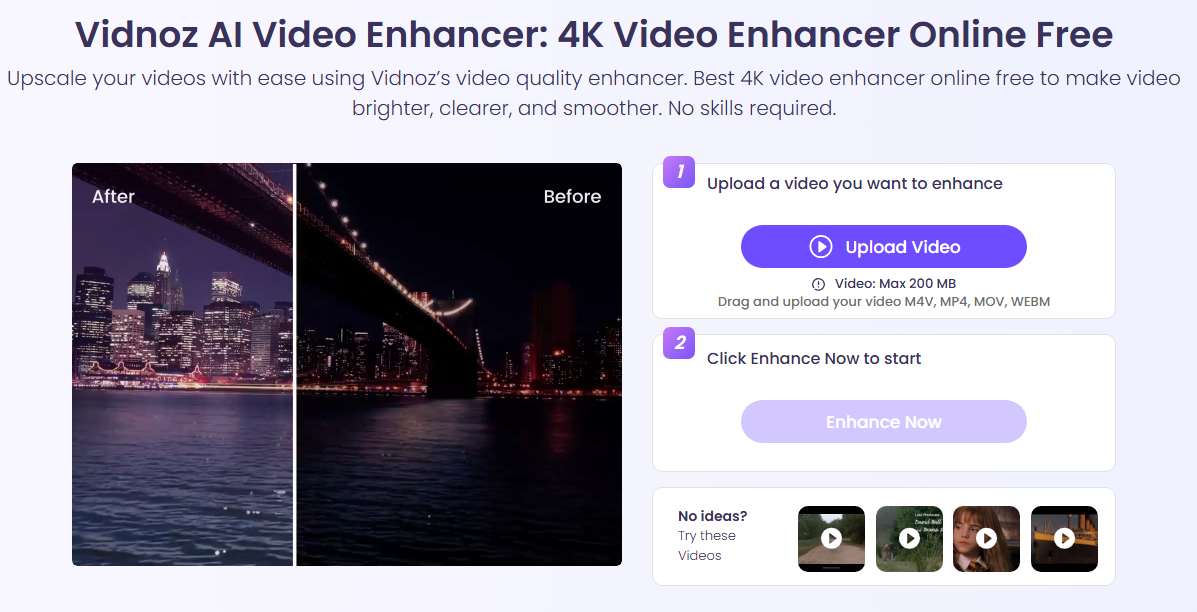
Looking for the best free online video repair tool? Vidnoz AI Video Enhancer is your ultimate video repair solution, transforming blurry, low-quality videos into 4K masterpieces. No cost, no skills required, just one-click repair.
Key Feature
- Free One-Click Video Repair: With just one click, Vidnoz AI Video Enhancer significantly fixes video clarity, brightness, color, and more. You can easily learn how to unblur a video.
- 4K Video Repair: Whether it's old memories or pixelated footage, Vidnoz can transform low-resolution videos into stunning 4K videos in one click.
- Auto-Brightness Adjustment: Intelligently adjusts the brightness of dark scenes to restore video details for clarity.
- Multiple Video Format Support: Supports a wide range of formats, ensuring you can enhance the quality of any video.
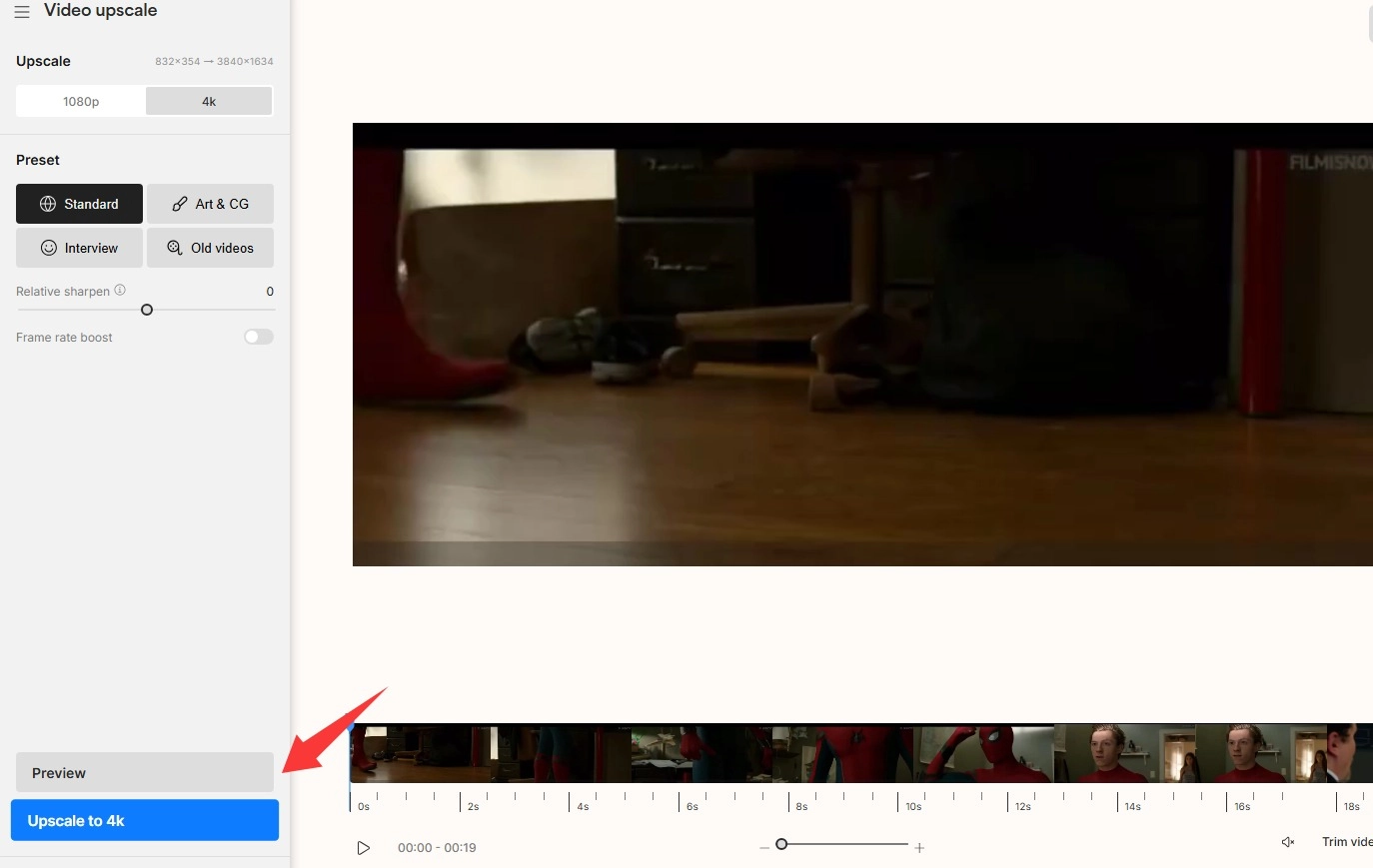
2. Topaz Video Auto Repair
As the industry benchmark in video repair online, Topaz video AI excels in overall video enhancement while preserving detail. It's perfect for professionals seeking the ultimate in video quality, film restoration enthusiasts, and more. It uses deep learning models to remove noise, intelligently upscale videos, and enhance motion clarity, restoring and presenting your videos flawlessly.
Pros:
- Unparalleled video quality
- Advanced controls for adjusting enhancements
- Support for RAW and ProRes formats
Cons:
- High system requirements
- Expensive for average users
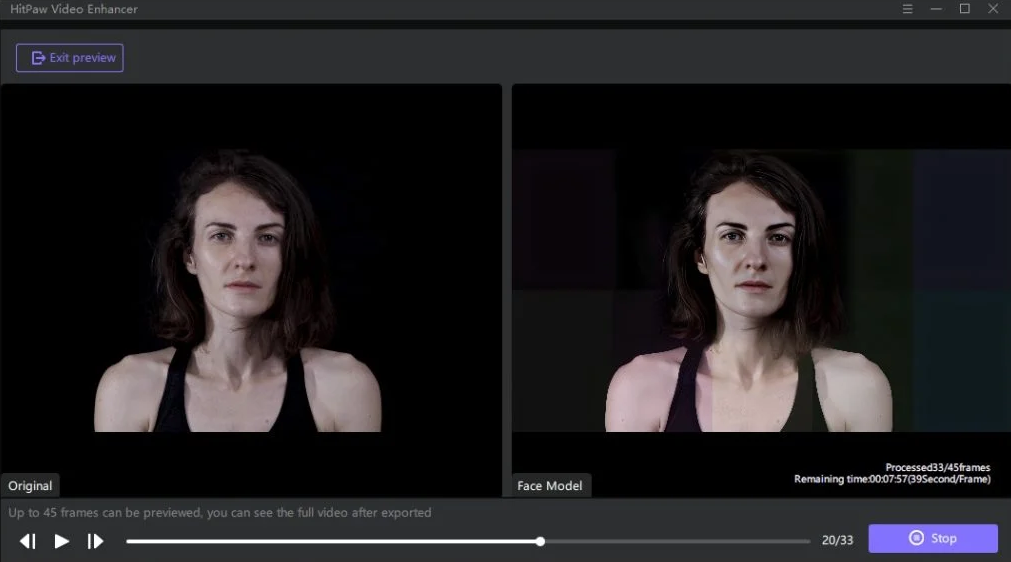
3. HitPaw Video Enhancer
HitPaw is a user-friendly video repair tool that offers a variety of AI models for different scenarios (such as general noise reduction, animation enhancement, and face optimization). The operation is simple: simply select a model and export, making it extremely user-friendly for beginners. It's ideal for beginners looking to achieve impressive results quickly.
Pros:
- Deblurring, noise repair, and facial detail enhancement
- User-friendly interface, suitable for beginners
- High success rate with low-resolution footage
- Fast processing time, quick upscaling to 4K/8K
Cons:
- Watermark in the free version
- Local installation requires a powerful GPU
Bonus: Make High Quality Videos from Images with AI Free
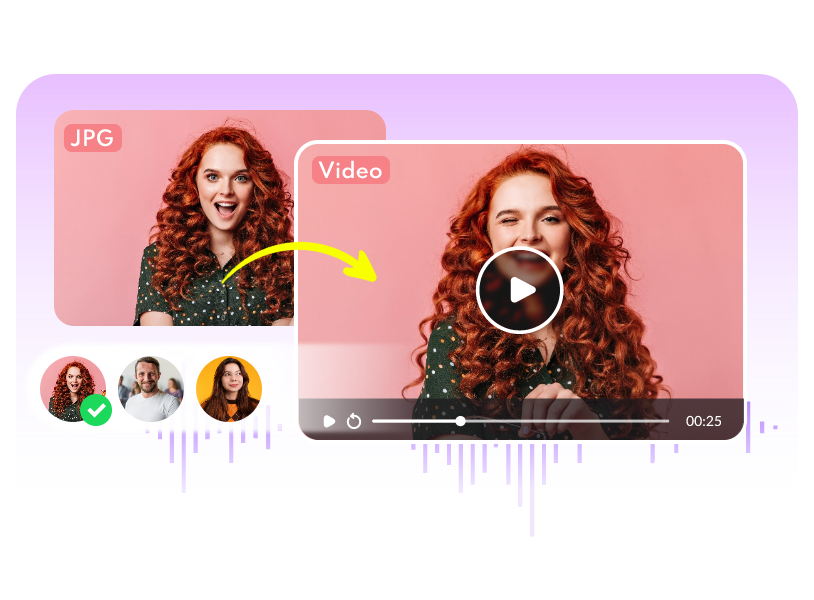
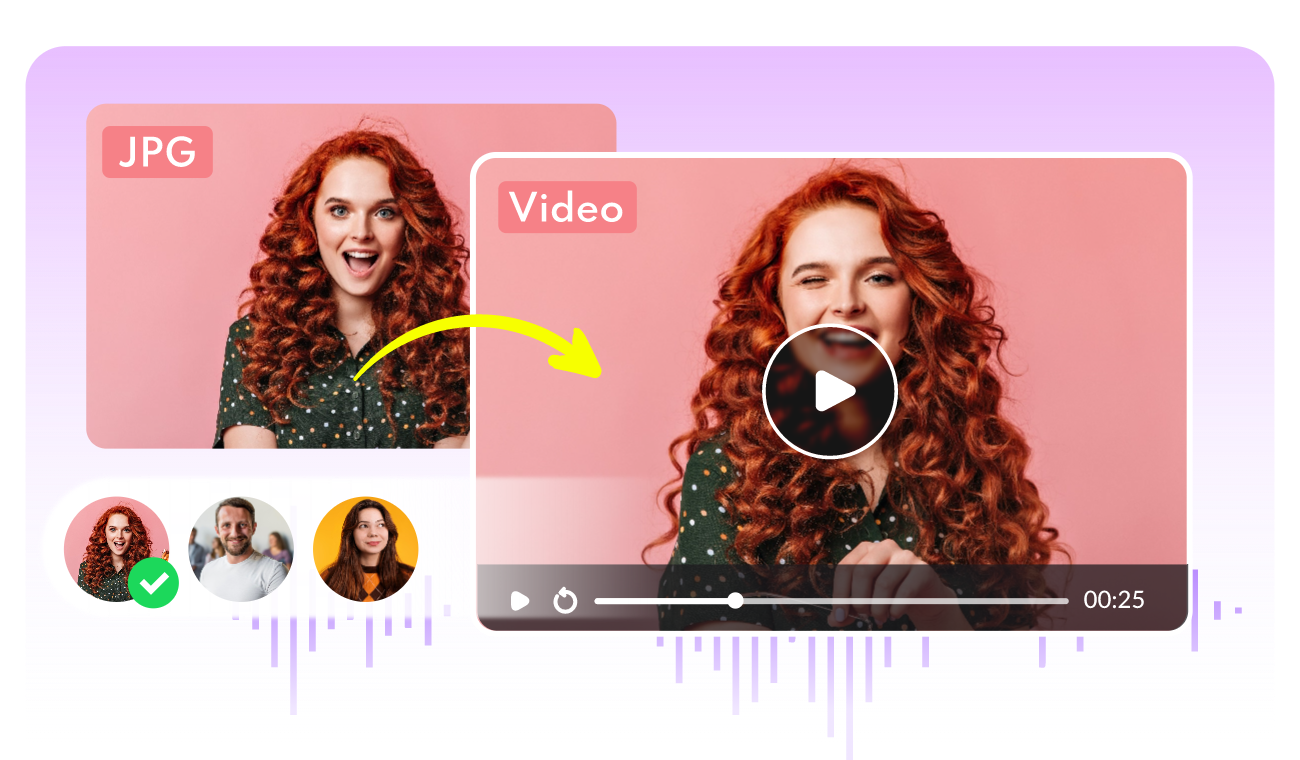
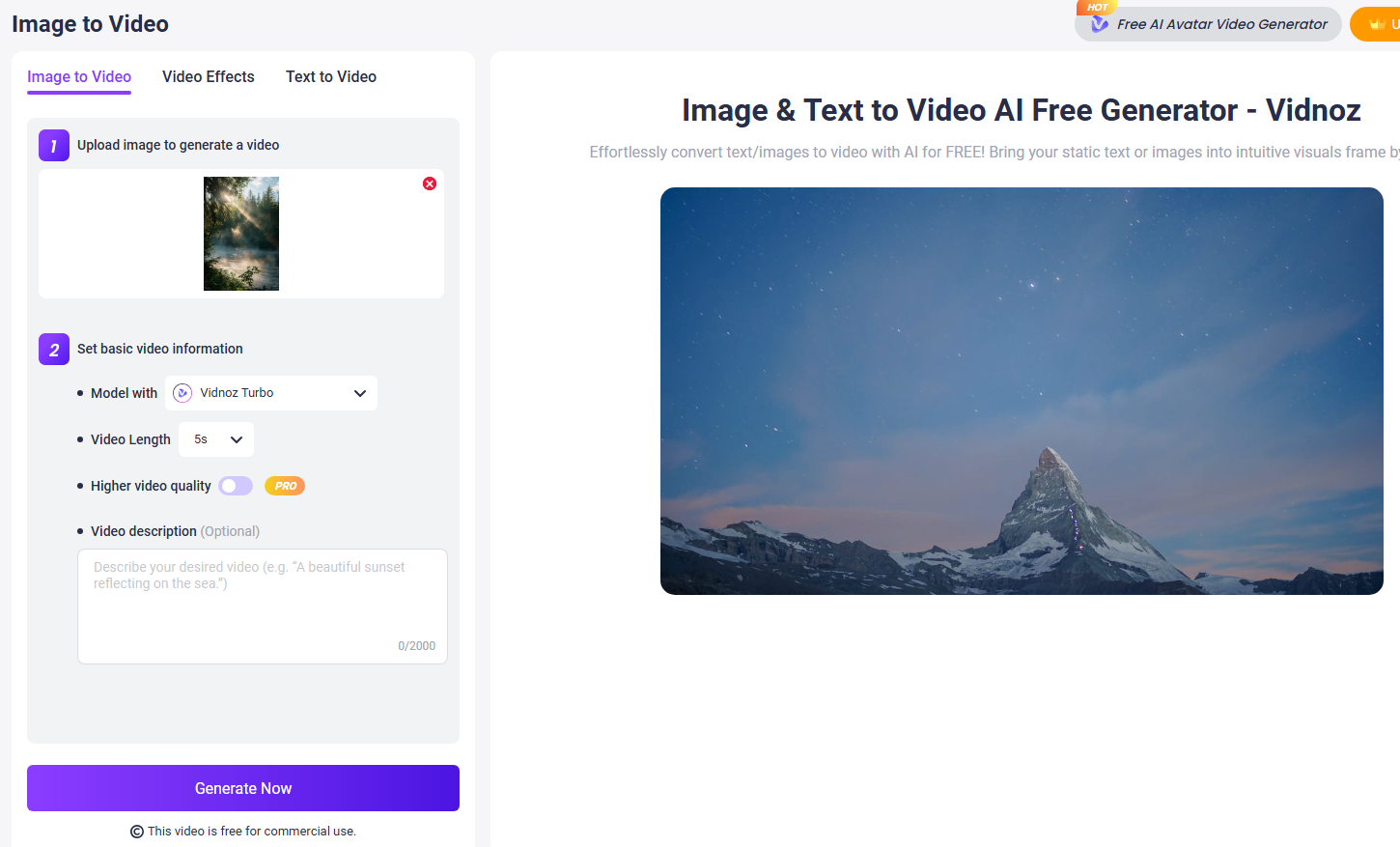
As long as you find a method that suits you, the problem of video repair can be easily solved. If you wondering how to make 4K video from pictures without repairing the video? Try Vidnoz AI image to video AI to easily generate high-quality videos from pictures in one click.
Convert Image to Video AI Online - Free
- Create a video from an image quickly for free.
- Use various AI models to turn photos into videos.
- Download and share the AI-generated video at no cost.
Convert Image to Video
- Just go to this AI image to video tool
- Upload your image
- Select the model and quality
- Add an optional video description
And this free AI video generator converts an image into a beautiful video fast and for free.
Conclusion
No matter what causes blurry, grainy, or pixelated video, you no longer have to endure it. Check out this tutorial and the best video repair tools to easily restore your precious videos. Experienced users can use Adobe Premiere Pro for professional manual repairs. But if you want fast, automated results with minimal effort, AI-powered video enhancers like HitPaw, Topaz, or Vidnoz AI Video Enhancer are great options. Now's the time to take action!