Using voice memos is now a popular method to capture thoughts, lectures, interviews, and meetings. They can remember all kinds of information without missing anything. However, those voice memos also possess several limitations, since they are hard to search, share, quote, or reuse. Therefore, transcribing a voice memo to text is necessary. By using a voice memo to text converter, you can transform those audio files into editable, searchable text. This guide will walk you through how to transcribe voice memos to text for free on different devices, including online, iPhone, and Android. Go on reading to learn the easiest methods and the most productive tools.
- On This Page
-
Why Transcribe Voice Memos to Text
-
Common Methods to Convert Voice Memos to Text
-
How to Transcribe Voice Memos to Text Free Online
How to transcribe voice memos to text online for free with Vidnoz Audio to Text:
-
How to Transcribe Voice Memos to Text Free on iPhone
-
How to Convert Voice Memos to Text Free on Android
Why Transcribe Voice Memos to Text
The voice memo to text conversion brings a variety of benefits and can streamline your workflow. Here are the core reasons to transcribe a voice memo to text:
Text versions of voice memos are easier to read, edit, and search than audio files. By transcribing voice memos to text, you don’t need to spend time replaying long recordings. And your notes are more accessible to others.
You can effortlessly sort, label, and copy transcribed voice memo texts into documents, which are easier to organize. A better file organization can extremely streamline your workflow.
Those voice memo to text converters, especially AI-powered ones, can automatically transcribe voice memos to text. You don’t need to manually type notes after meetings, interviews, lectures, etc. They extremely increase your productivity.
- Multiple Languages Transcription
Modern speech to text converters can recognize dozens of languages and transcribe. They are ideal for international users and multilingual teams.
Common Methods to Convert Voice Memos to Text
After knowing the importance of transcribing voice memos to text, let’s dive into the popular methods to convert voice memos to text now, including manual methods and AI-powered solutions:
- Manual Transcription: Typing out while listening, which is time-consuming, and accuracy cannot be guaranteed.
- Built-In Device Solutions: Using real-time transcript features, like built-in iPhone and Android devices, for real-time speech typing.
- AI-Powered Audio Transcriber: Uploading audio and generating text automatically.
In comparison, those automatic tools, like the AI voice memo to text converter and phone built-in dictators, are more convenient and faster to convert speech to text. In the following, we will introduce how to use these tools to transcribe your voice memo to text for free, step by step.
How to Transcribe Voice Memos to Text Free Online
To transcribe voice memos to text for free, this online Vidnoz Audio to Text tool is a top choice. Embraced with a pro AI algorithm, it makes voice to text transcription fast and accurate. Its easy-to-navigate UI lets all new users transcribe voice memos to text without any effort.
Transcribe Any Audio to Text with AI - Free
- Ultra-fast transcription for any audio at one click
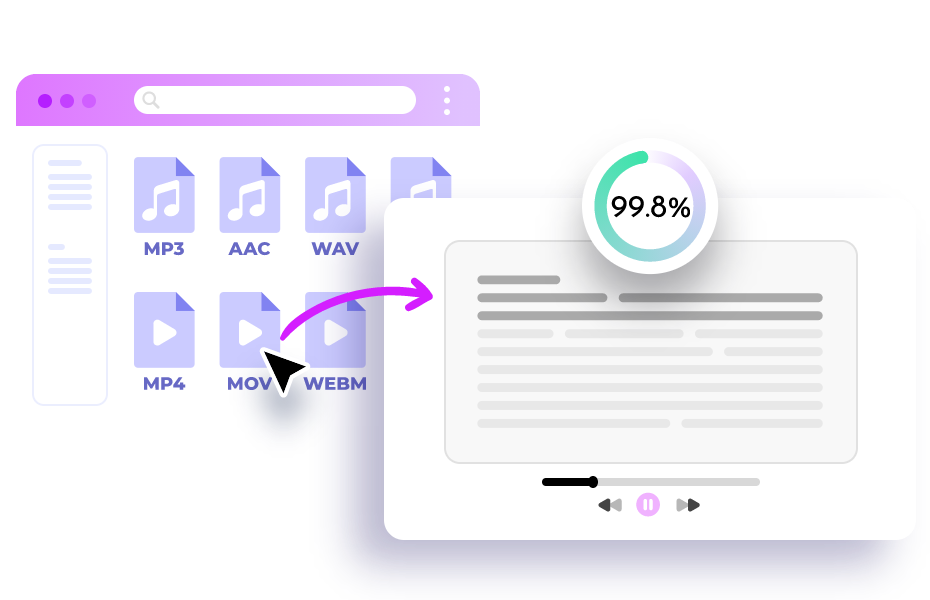
- 99.8% accuracy with advanced AI technology
- Supports 25+ different languages
Transcribe Audio to Text
See the detailed features of this voice memo to text free converter:
- Transcribe voice memos to text free online. Vdinoz Audio to Text allows you to transcribe voice memos to text for free without downloading any software or paying any cost.
- High-accuracy voice-to-text transcription with AI. Vidnoz Audio to Text is an AI-powered voice transcription tool. It will intelligently convert your voice memos to editable text with high accuracy.
- Support multiple languages and formats. It supports popular formats, like MP3, AAC, M4A, and WAV, and recognition of over 25 languages. It also offers flexible export options, like TXT, JSON, and SRT for different uses.
- Super-fast voice memo to text conversion in seconds. The whole audio-to-text transcription process is fast. Just upload your audio file, and it will transcribe it to text automatically in seconds, enhancing effectiveness and saving a lot of time.
How to transcribe voice memos to text online for free with Vidnoz Audio to Text:
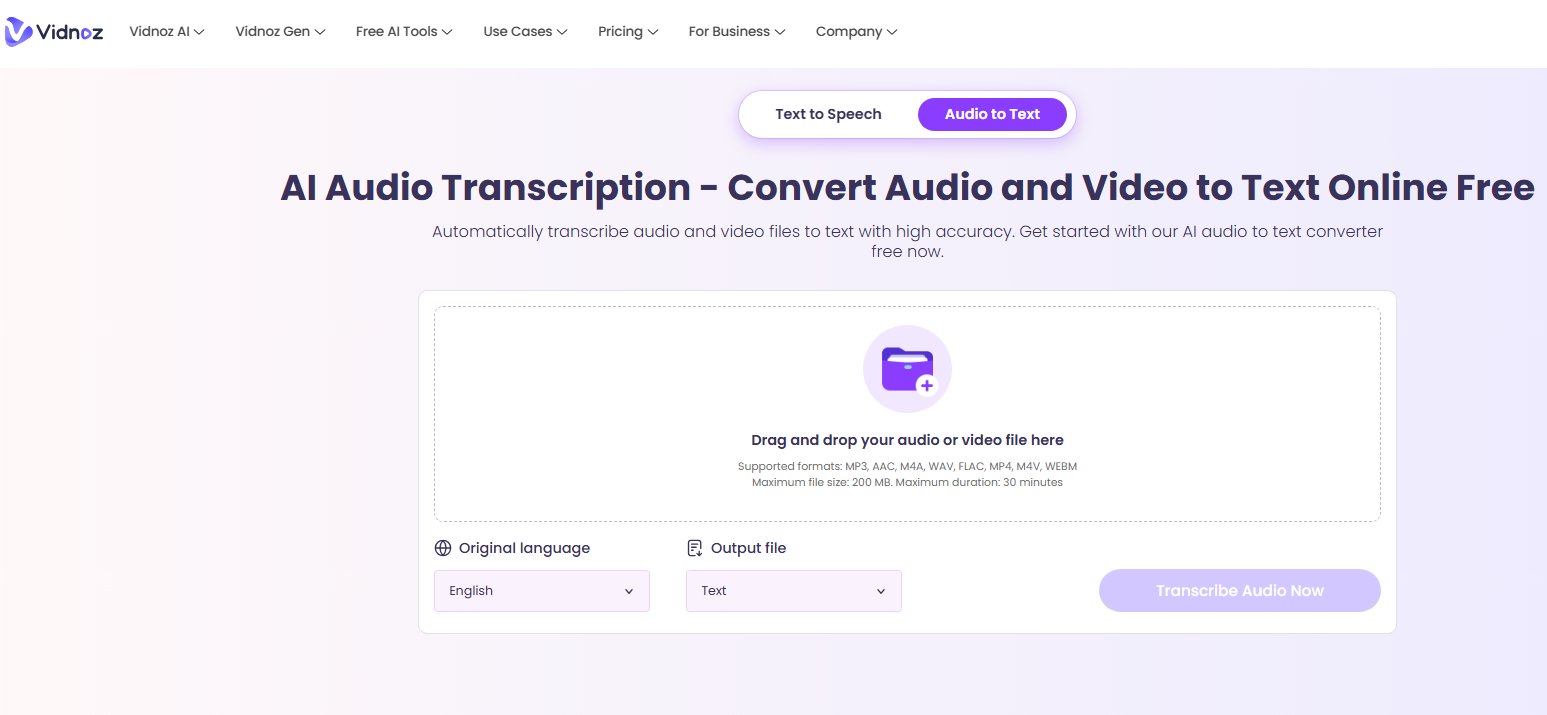
Step 1. Open the online Vidnoz Audio to Text tool. Upload your voice memo file to transcribe to text.
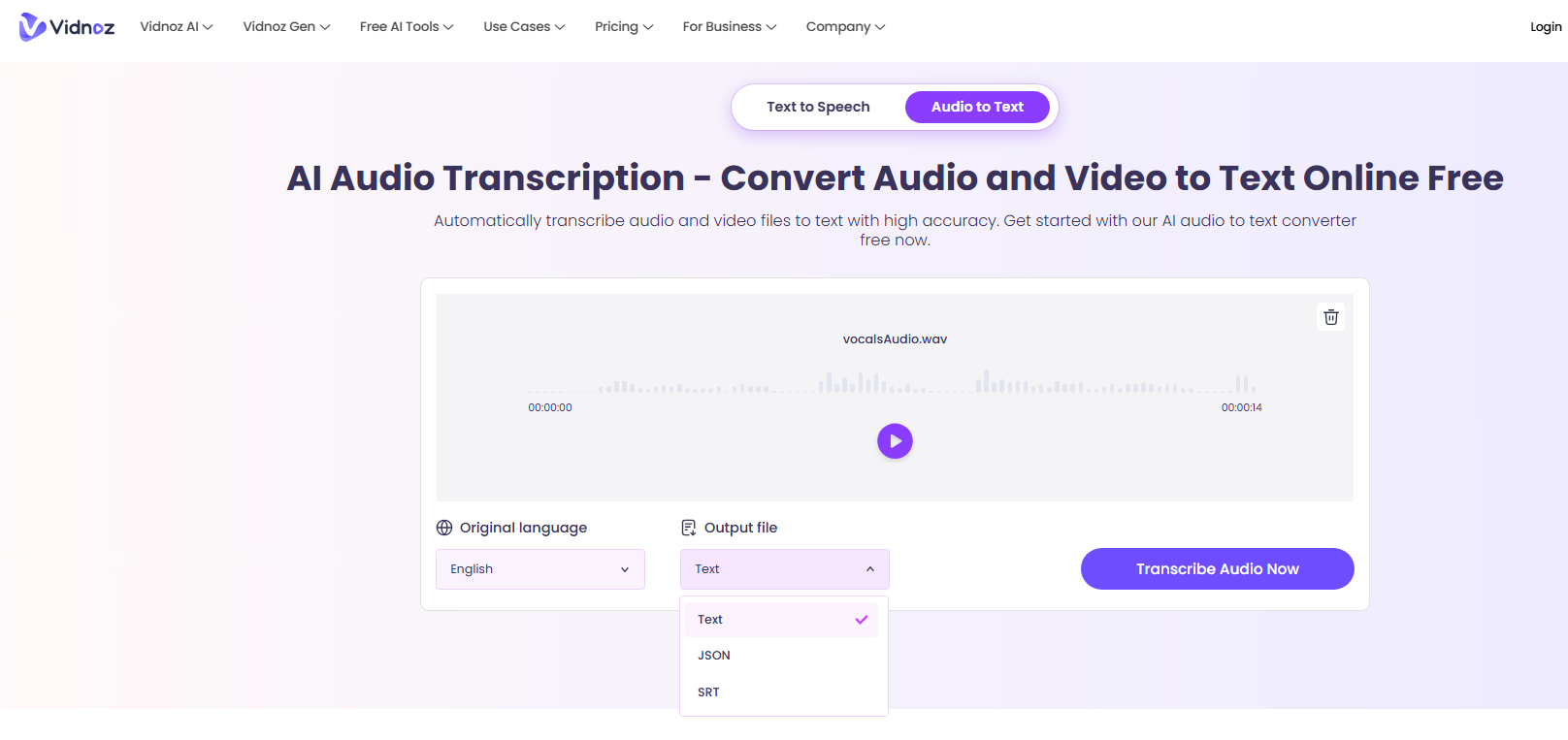
Step 2. Select the language of the original voice memo and choose the output format. Then press Transcribe Audio Now.
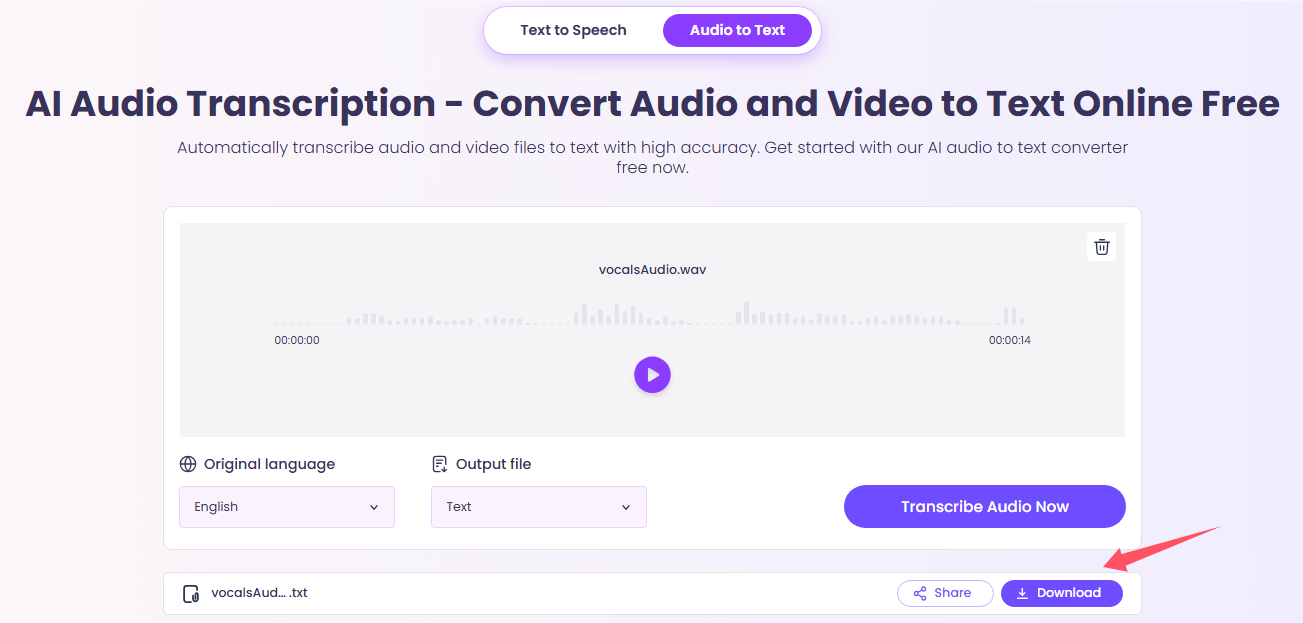
Step 3. Wait for seconds, then share or download the transcribed file.
How to Transcribe Voice Memos to Text Free on iPhone
iPhone provides default voice recording and real-time transcribing features in the Voice Memos App. Moreover, the built-in Notes App on iPhone also allows you to convert voice to text. Check how to transcribe voice memos on iPhone step by step.
On the Voice Memos App:
- Step 1. Open the Voice Memos App on your iPhone.
- Step 2. Choose the recording you want to transcribe or start a new recording. Tap the three more dots and choose View Transcript.
- Step 3. Copy and paste transcribed text into a document, Notes, or other apps.
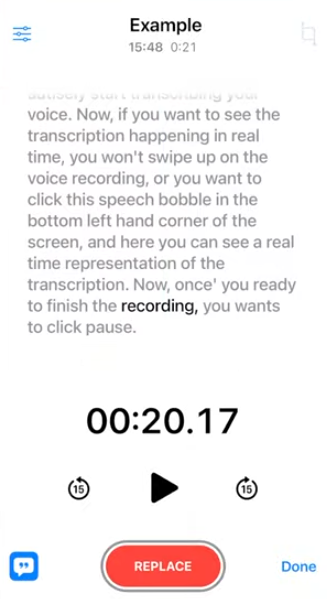

Use the Voice Memos App to record meetings, lectures, etc., to simplify the voice transcribe process.
On the Notes App:
- Step 1. Open the Notes App on your iPhone.
- Step 2. Record the audio or add an existing audio file.
- Step 3. Tap the transcript icon to transcribe it to text.
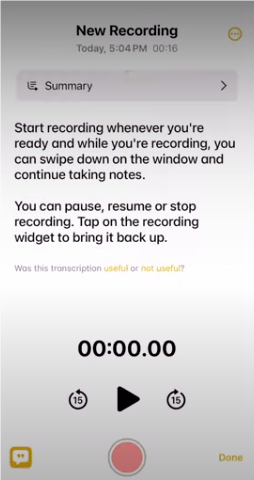
You can also use other voice memo to text transcriptions apps or online tools, like Vidnoz Audio to Text mentioned before, to transcribe voice memos on iPhone. Vidnoz also provides other helpful AI tools for audio editing, like an AI voice changer, AI text to speech, AI music generator, etc.
How to Convert Voice Memos to Text Free on Android
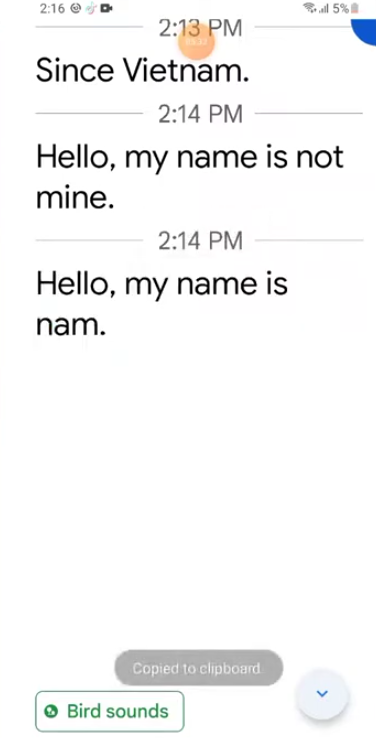
To transcribe real-time voice memos to text on your Android phone, you can give the Live Transcribe app a try. It is a dedicated voice transcription app explored by Google. It turns spoken words and sounds into real-time text on your screen.
Check how to convert voice memos to text with it step by step.
- Step 1. Install the Live Transcribe App on your phone. (Skip this step if you use a Google Pixel phone, since it’s already installed.)
- Step 2. Open the app and allow it to record audio. Go to Settings to select the language to transcribe.
- Step 3. Play or record a voice memo or conversation, and the words will appear in real time as text.
Conclusion
Transcribing voice memos to text with automatic tools can easily organize your voice notes and boost your productivity. We highly recommend you try those AI-powered voice memo to text converters, like Vidnoz Audio to Text, which is intelligent, easy to navigate, and free to use. As a powered AI tool collection, Vidnoz also offers you advanced tools for voice removal, voice cloning, and AI video and photo generation. Explore more useful AI features in it!
Transcribe Any Audio to Text with AI - Free
- Ultra-fast transcription for any audio at one click
- 99.8% accuracy with advanced AI technology
- Supports 25+ different languages
Transcribe Audio to Text






![[AI Mashup Maker] Use Mashup AI to Mashup Two Songs in 3 Steps](https://www.vidnoz.com/bimg/ai-mashup-maker.webp)
