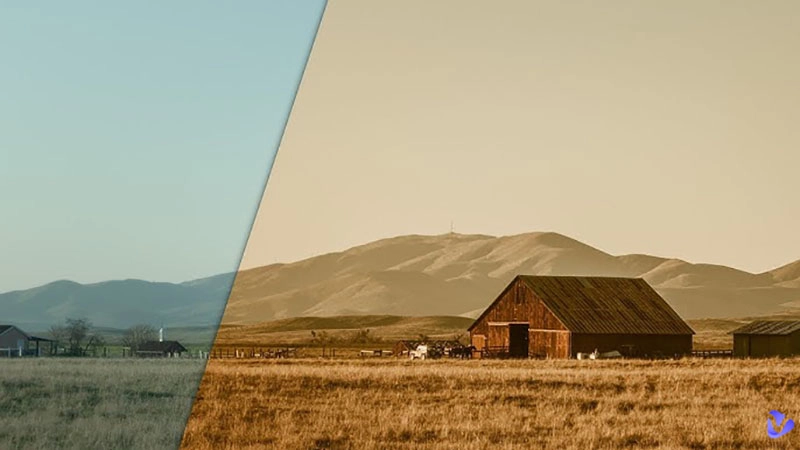
Of all the visual effects out there, the sepia filter is the one that can make your images memorable. It mimics the look of old photos, giving off a nostalgic feel with a warm and reddish-brown tone.
The sepia filter is surely the most popular effect in photography and filmmaking. One can also see the frequent use of sepia filters on social media. Want to add one to your images and videos? Just read on to find the 4 best methods to add a sepia filter effortlessly!
- On This Page
-
Part 1. What Is a Sepia Filter?
-
Part 2. Find Free Sepia Filter on TikTok
How to render images into a sepia filter on TikTok?
-
Part 3. Use Online AI Image Editor for Sepia Filter
How to render images into a sepia filter on Vidnoz AI?
-
Part 4. Make Sepia Filter Images with Your Default Mobile Camera App
How to render images into a sepia filter on iPhone/Android?
-
Part 5. Use Free Online AI Tools for Sepia Filter
How to render images into a sepia filter on Fotor?
Part 1. What Is a Sepia Filter?
A sepia filter is a digital tool that can add a reddish and brown tone to an image, creating a vintage or nostalgic aesthetic. Technically, it reduces the intensity of blue while increasing the intensity of yellow and red to create a warm and muted tone.
Sepia filters are usually associated with old photographs. Evoking a sense of history and nostalgia, sepia filters are used in various contexts, for instance, family portraits, landscape photography, and filmmaking.
Part 2. Find Free Sepia Filter on TikTok
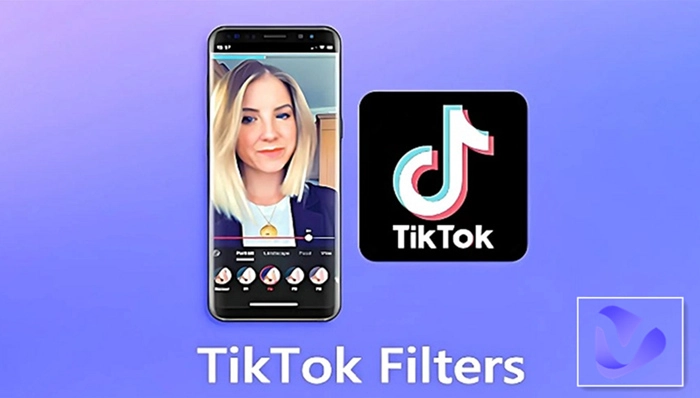
Want to add a sepia filter to your images and videos on mobile devices? TikTok is the best free sepia filter app available. You can easily enhance your images and videos with simple color adjustments or complex and interactive AI TikTok filter effects.
TikTok may not have a preset sepia filter to use. But it allows you to achieve a similar sepia hue with other effects, for instance, the vintage photo filter. You can add the filter to photos or videos and have a preview instantly.
How to render images into a sepia filter on TikTok?
Step 1. Launch the TikTok app. Tap on the Post+ at the bottom.
Step 2. Choose Filters from the side panel and select the vintage filter/sepia filter.
Step 3. Adjust the slider above the filter panel to adjust the strength and preview the filter effects.
Step 4. Tap somewhere to return to the camera screen. Now you can record with the vintage/sepia filter.

That’s how to apply the Sepia filter iPhone and Android, as long as you have the TikTok app. So what about other social media like sepia filter Instagram effects? That’s even simpler. As the best filter app for selfies and photos, Instagram has so many filters to choose from. You can use its Willow filter to achieve a vintage effect!
Fun Tip: Both TikTok and Instagram offer funny lip filter effects. You can easily create engaging and dynamic content within the app. Just go check them out.
Part 3. Use Online AI Image Editor for Sepia Filter
Now you know the simplest way to add a sepia filter iPhone and Android. So what about desktops? Check out Vidnoz AI Video Editor. You can not only add a sepia filter to your images and videos but also edit your media from all levels with it for free. Before looking into its strong features, let’s see how to apply a sepia filter in simple steps.
How to render images into a sepia filter on Vidnoz AI?
Step 1. Launch Vidnoz AI Video Editor. Sign in with your Google email.
Step 2. You will be redirected to the editing panel. Upload a photo or choose an image from the stock media to get started.
Step 3. Click on the filter icon next to the BG effect. Choose the Memory filter and add it to your image.
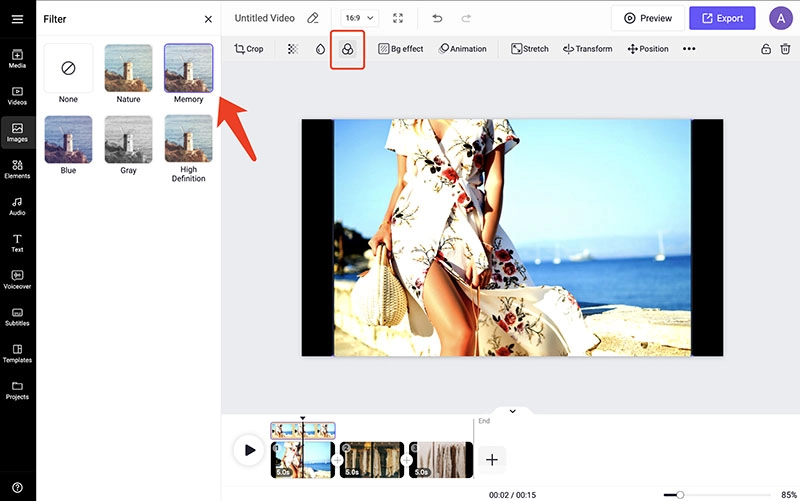
Step 4. Now you have a filtered image. You can animate the image, crop it, or make quick edits with the toolbar on top. Meanwhile, the icons on the left side allow you to further polish the image.
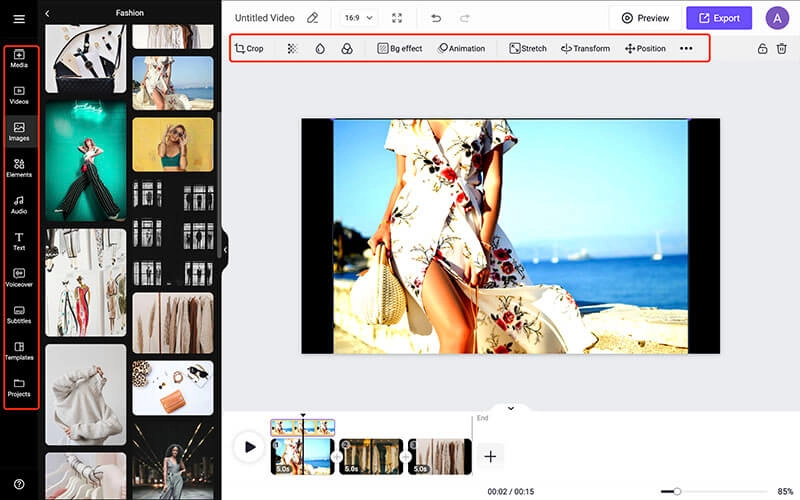
That’s how to add a sepia look to your image with Vidnoz AI. You can also use it as a vintage video filter because it works for videos as well. Vidnoz Online Editor is more than capable of adding filters. Let’s dive into its professional features now!
The core features of Vidnoz Online Editor
100% Free to Use: Vidnoz AI Video Editor is free to use. You don’t need to download or install software. Just sign in with an email address to enjoy excellent services at no cost!
Rich Editing Options: The versatile online editor can crop, cut, split, and rotate your images and videos. You can also add animated transitions and various effects to make a video shine.
Powerful AI Features: You can edit and create videos efficiently with AI tools. Its AI voiceover feature supports text to speech in various languages and AI voices. Just input scripts and you can convert them to natural-sounding voices instantly.
Extensive Media Assets: Vidnoz AI has a built-in rich media library that covers images, stickers, shapes, and many more elements. You can polish and enrich your video content the way you like.
Part 4. Make Sepia Filter Images with Your Default Mobile Camera App
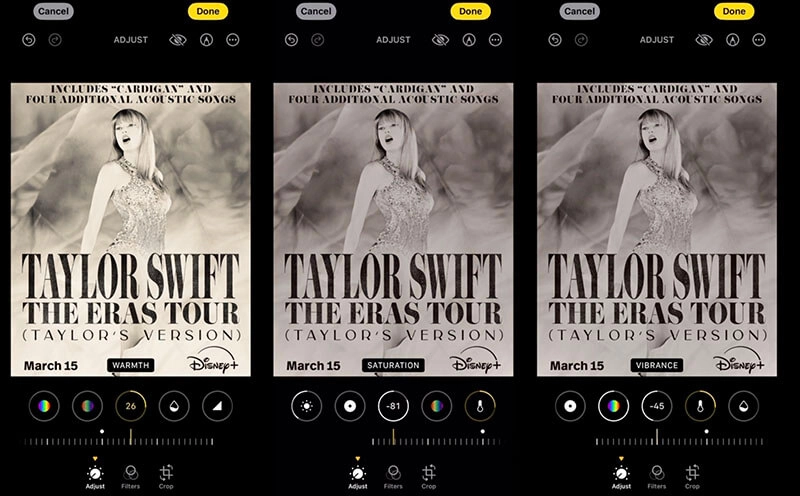
Do you know you can also add a sepia filter on your iOS and Android devices? However, neither device type has a preset sepia filter. You have to adjust intensity and saturation to create a sepia-like effect for your image.
The iOS’s Photo app allows you to make simple edits in various aspects. You will need to filter and combine various adjustments on image parameters to achieve the sepia look. To add a sepia filter Android, for instance, Samsung, you can use the filter features in the Camera app.
How to render images into a sepia filter on iPhone/Android?
Step 1. Add the Silvertone filter to your image. Make a screenshot and crop it without the border.
Step 2. Apply a Vivid Warm filter to the cropped image.
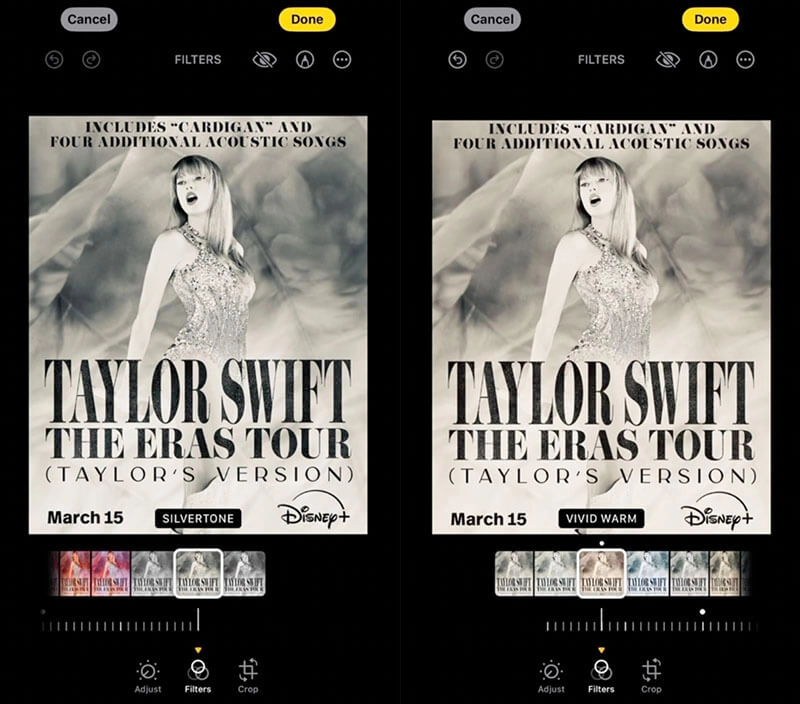
Step 3. Reduce the intensity to 20. Increase the warmth to about 26.
Step 4. Decrease the saturation to -81 and vibrance to -45.
Part 5. Use Free Online AI Tools for Sepia Filter
Today, you can also add a sepia filter to your images and videos online for free. Here, Fotor is the one to consider. The online photo editing platform is an all-in-one tool for easy editing and better design. It comes with a preset sepia filter that can be added to your image directly.
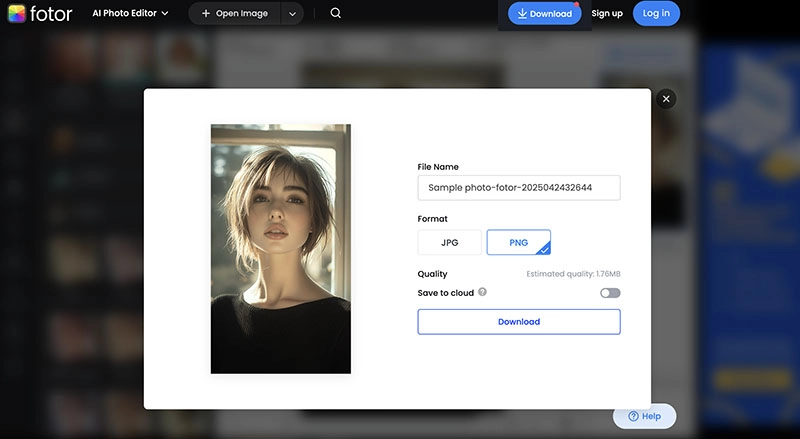
Simply upload your photo to the panel to create a retro image with the brown tint. The editor allows you to adjust the filter intensity to add the right amount of warm tone for vintage ambiance. You can download images in PNG and JPG formats or save them to the Cloud.
How to render images into a sepia filter on Fotor?
Step 1. Go to Add Sepia Filter to Photo Online.
Step 2. Upload the photo you want to add a sepia filter to.
Step 3. Choose AI Filters > Retro > Sepia Filter. Adjust the intensity with the slider.
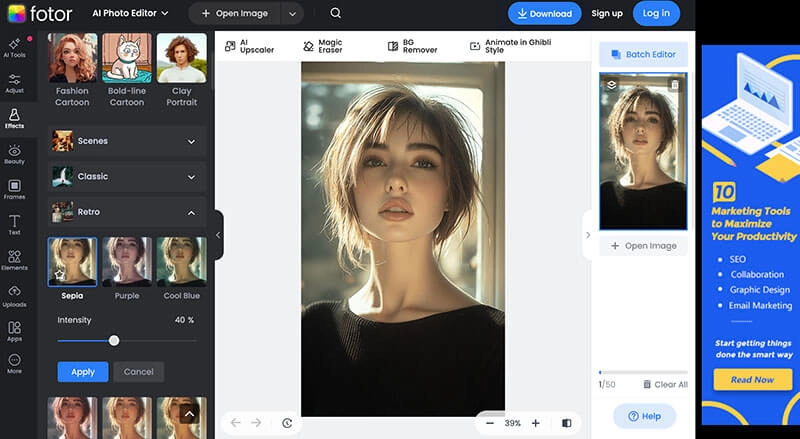
Step 4. You can add effects, text, etc., based on your needs. Export and download the image when you are done.
That’s it. Fotor supports a great collection of artistic filters. For instance, Van Gogh filters, Still Life, Oil Painting, and more. You can even see your aging look with its old filter. For those who want to experiment with more retro visuals, the app also has the 80s AI filter to bring you back to the fantastic golden age!
Conclusion
What is a sepia filter and how to add one to your images and videos? The blog has provided the 4 best free solutions that let you create a sepia look on mobile and desktop. Vidnoz Online Editor, with powerful and professional AI editing features, is a practical choice to consider. You can not only add a sepia filter but also edit and create videos with ease. Just try it for free now!

Vidnoz AI - Create Free Engaging AI Video with Talking Avatar
- Easily create professional AI videos with realistic avatars.
- Text-to-speech lip sync voices of different languages.
- 2800+ video templates for multiple scenarios.