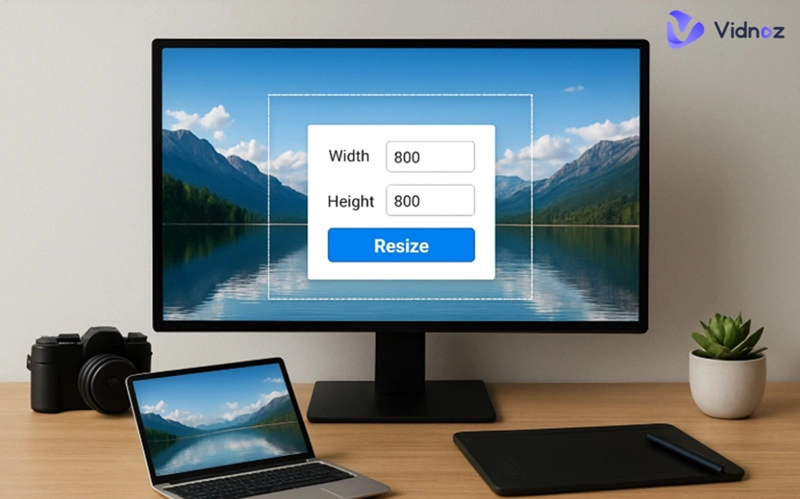
Resizing images can be challenging without reliable tools. Improper resizing often leads to stretched visuals, blurred details, mismatched formats, or even increased file sizes. So, the right solutions allow you to resize image without stretching, preserving the original aspect ratio and sharpness. These tools, which we have covered in this article, will allow you to scale down the size of images without losing any of the details and clarity. Whether you want to resize image to 100kb for faster uploads or just reduce its dimensions for web use, these methods will help you achieve perfect results.
- On This Page
-
Ways to Avoid Stretching When You Resize Images
-
Resize Image Without Stretching: Fotor
-
Resize Image Without Stretching: Desktop Default Tool
-
Resize Image Without Stretching: Simple Online Tool
-
Resize Image Without Stretching: Online Video and Image Editor
Here’s how to resize or crop your image step by step using Vidnoz’s editor:
Ways to Avoid Stretching When You Resize Images
When resizing pictures, users often face a range of issues that can negatively affect image quality and appearance. Below are five common problems to watch for when you try to resize image without stretching and maintain perfect proportions.
1. Stretching
This is one of the most common issues that occur when the aspect ratio isn’t maintained correctly. Stretching makes an image look distorted, unbalanced, and unprofessional. To avoid this, always use tools that automatically preserve the aspect ratio while resizing.
2. Watermark
Watermarks may render your pictures inappropriate for presentation to others, particularly in social networks or business applications. Choosing a Free image resizer with no watermark restrictions ensures your edited images look clean and ready for sharing.
3. Quality Loss
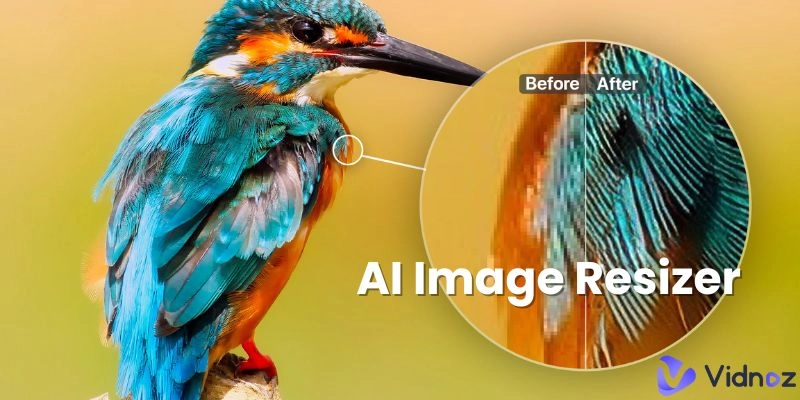
Poor resizing methods often lead to pixelation, blurriness, or faded colors. To resize image without losing quality, you need a tool that maintains sharpness and uses intelligent scaling to preserve every detail, even after reducing dimensions.
4. File Size Issues
Some tools may produce oversized files that slow down uploads, while others overly compress images, reducing clarity. Balanced compression keeps images both lightweight and high-quality for web or email use.
5. Format Mismatch
You should use an AI image resizer that helps automatically convert images into compatible formats while maintaining the right proportions. It ensures that every file opens correctly and displays as intended across devices.
By recognizing these issues and using reliable tools, users can resize image without stretching or losing quality.
Resize Image Without Stretching: Fotor
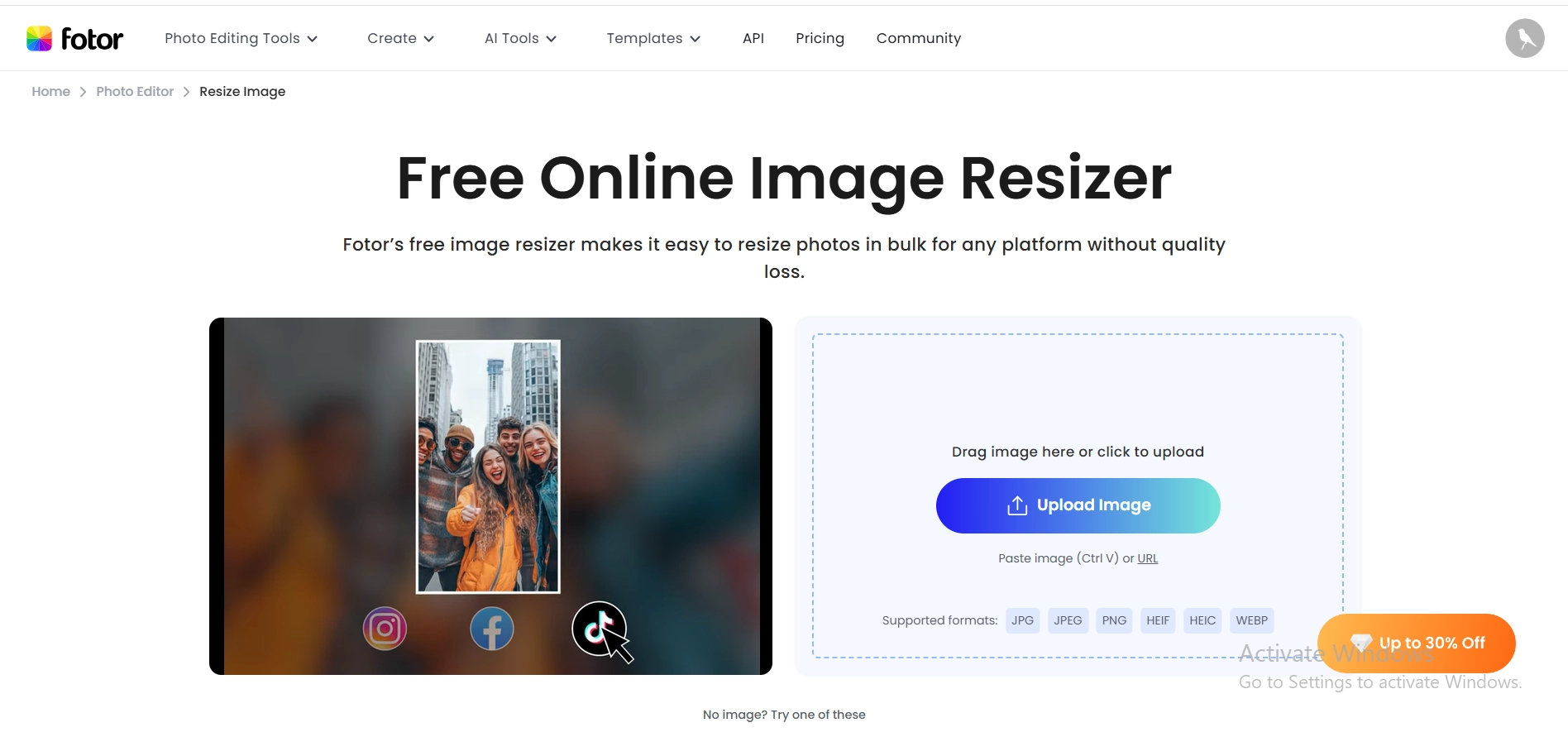
Fotor online image resizer is a software that is strong and simple to use, and can help users to resize image without stretching online. It enables one to scale the picture sizes with flexibility without compromising on its original aspect ratio, sharpness, and resolution. Regardless of the purpose of resizing the images for the website, social media, or personal needs, Fotor will make sure that no pixel is left behind. With its advanced features, you can adjust width, height, and pixels freely without distorting the picture or losing detail.
Core Features of Fotor
- Flexible Aspect Ratio Control: Fotor allows you to modify image dimensions precisely while keeping the correct proportions.
- High-Quality Output: The tool preserves the original image quality, preventing blur or pixelation during resizing.
- Pixel-Level Adjustment: Users can input exact dimensions or resize by percentage to achieve perfect results.
- AI-Powered Optimization: Acting like an intelligent image stretcher, Fotor’s AI automatically enhances edges, colors, and textures for smoother, clearer output.
- Batch Processing: Quickly resize multiple photos simultaneously while keeping consistent quality and aspect ratio.
Resize Image Without Stretching: Desktop Default Tool
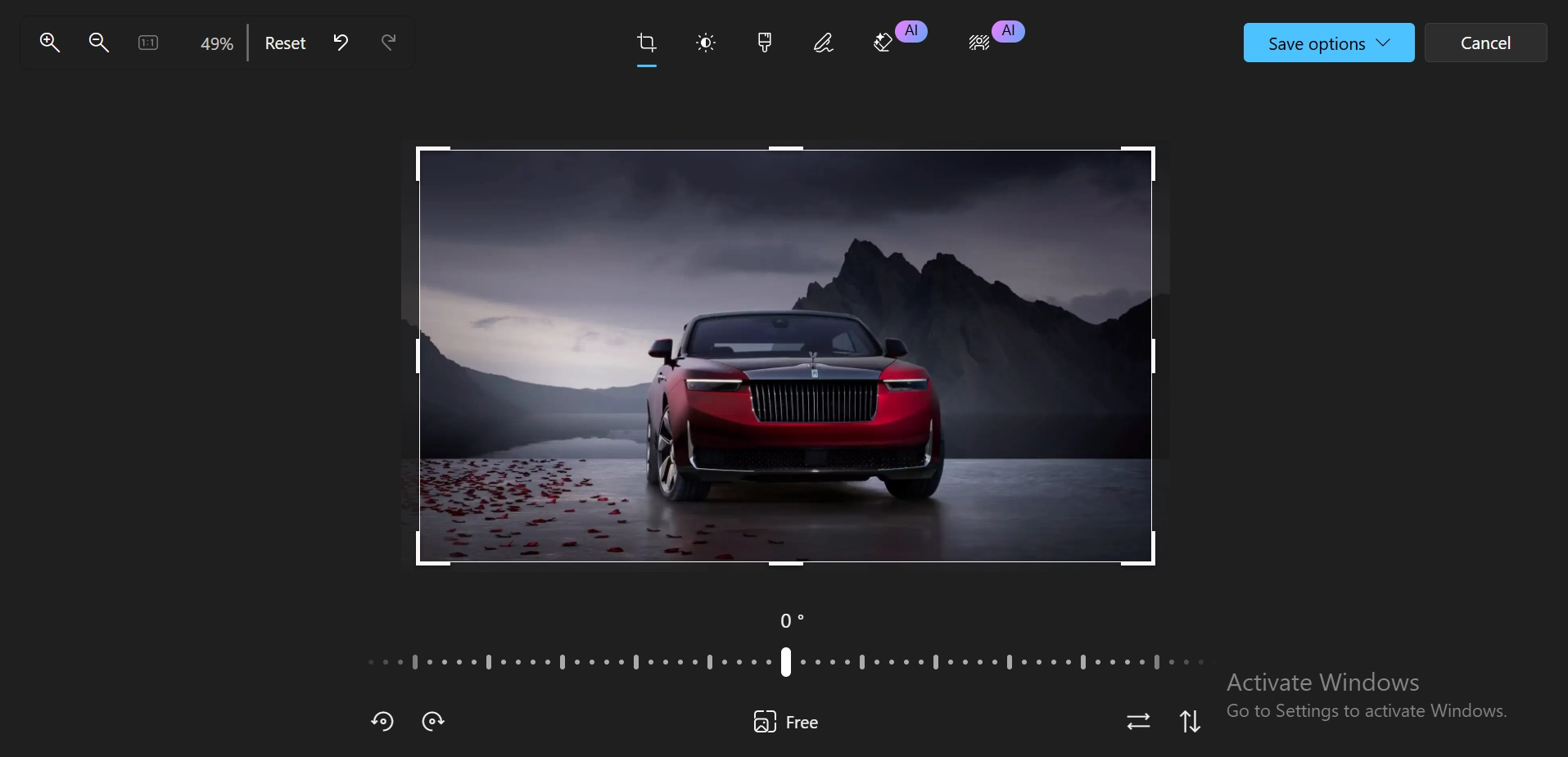
Windows users can easily resize photos without installing any third-party software. The built-in Photos app, also known as the Windows image viewer, includes a simple yet effective image resizer. It also enables users to resize image sizes and file sizes easily without distorting the original proportions. This makes it convenient for anyone who wants to resize image without stretching or losing quality.
Core Features of Windows Image Processor
- Quick Access and Easy Use: The Photos app is pre-installed on all Windows systems.
- Aspect Ratio Maintenance: The tool automatically keeps the correct proportions, preventing distortion during resizing.
- File Size Control: Users can conveniently resize image to 50kb or smaller for web uploads, emails, and documents.
- Format Compatibility: The Photos app supports common formats like JPEG, PNG, and BMP for easy saving and sharing.
- AI-Enhanced Editing: Paired with Microsoft’s AI photo editor tools, users can enhance brightness, contrast, and sharpness while resizing images efficiently.
Resize Image Without Stretching: Simple Online Tool
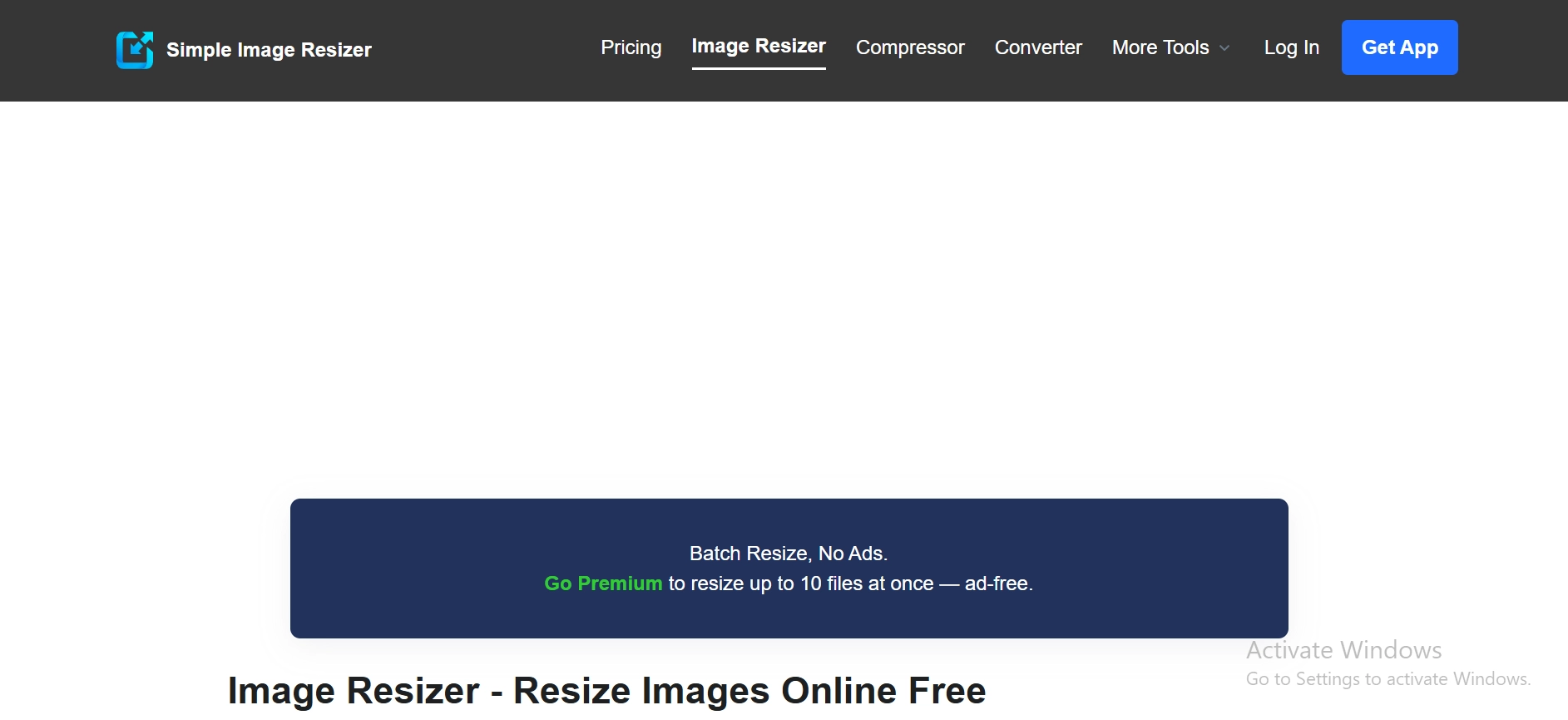
If you prefer a fast, no-installation option, Simple Image Resizer is an excellent choice. This free web-based tool allows users to easily resize image without stretching or compromising quality. It offers a straightforward interface where you can upload an image, choose dimensions or percentages, and download the resized version instantly. There’s no need for complex settings or design skills, just quick and precise resizing results.
Core Features of Simple Image Resizer
- User-Friendly Interface: The website makes resizing simple for everyone. You can drag and drop images and adjust sizes within seconds.
- High-Quality Output: It helps users resize image without losing quality, maintaining clear, sharp details even after compression.
- Flexible Resizing Options: You can resize by percentage or by specific pixel dimensions to meet various requirements.
- Multi-Format Support: Supports JPG, PNG, GIF, and BMP formats for versatile use.
- AI-Powered Enhancement: When paired with advanced AI photo editing software, Simple Image Resizer can further enhance image tone, brightness, and sharpness automatically.
Resize Image Without Stretching: Online Video and Image Editor
Vidnoz AI Video Editor is an all-in-one online solution for both video and image editing. In addition to making videos, this intelligent tool enables the user to resize image without stretching, correctly crop and produce high-quality images with an artificial intelligence-driven accuracy. It’s a browser-based platform, so there’s no need to download any software. Simply, open the site and start editing instantly.
Here’s how to resize or crop your image step by step using Vidnoz’s editor:
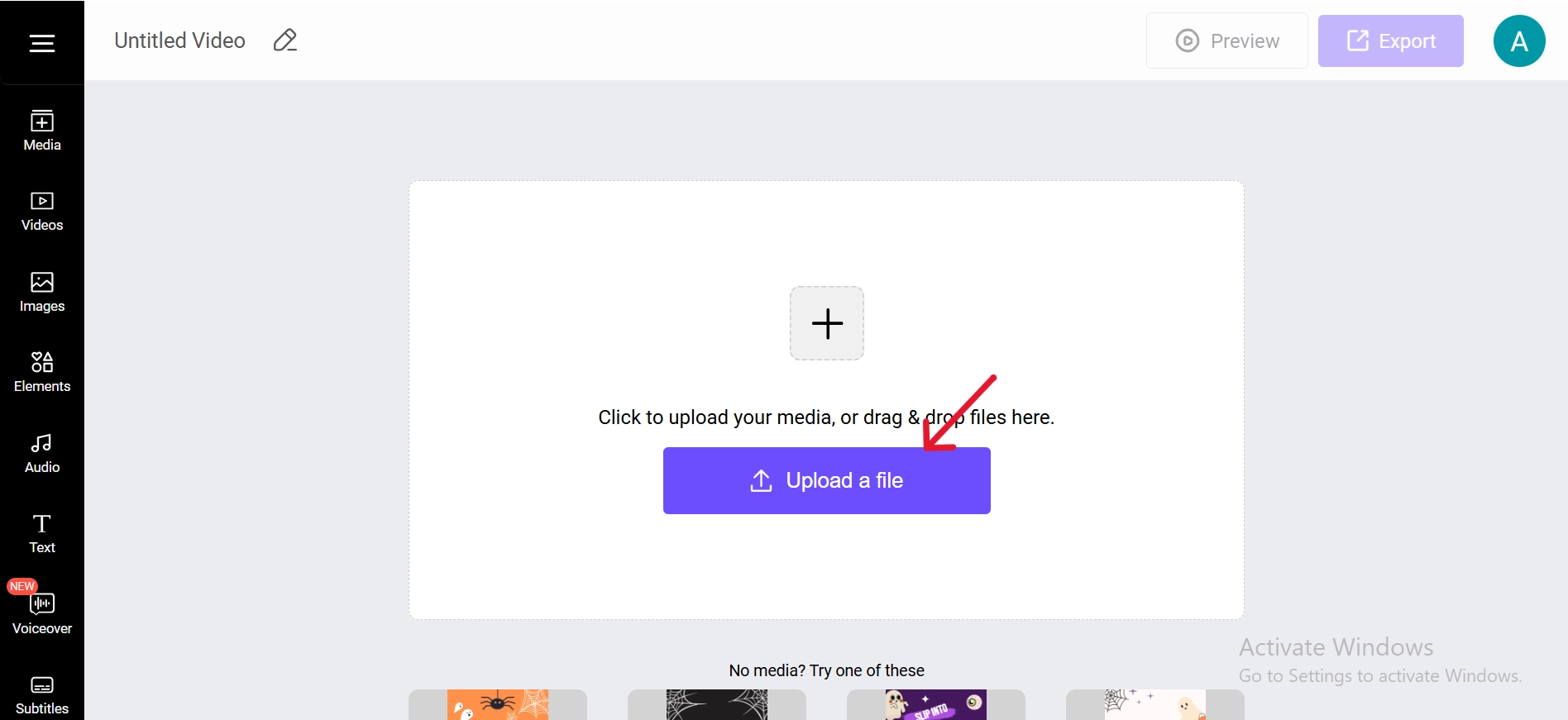
Step 1. Go to Vidnoz AI Video Editor and upload your image directly from your computer or device.
Step 2. Set your preferred dimensions or compress the image to Resize image to 100kb for faster web uploads while maintaining quality.
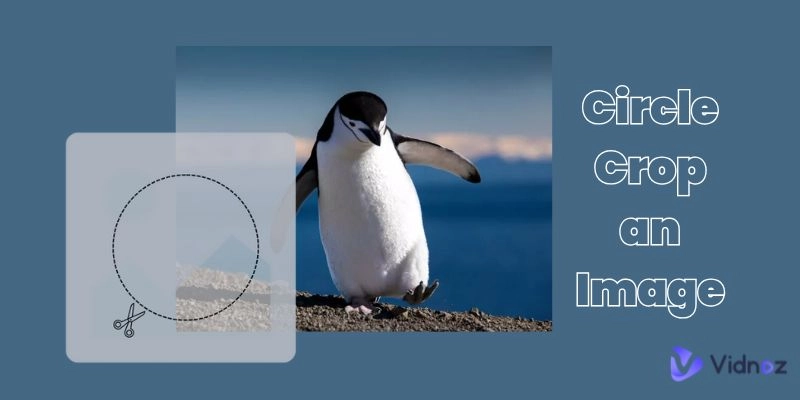
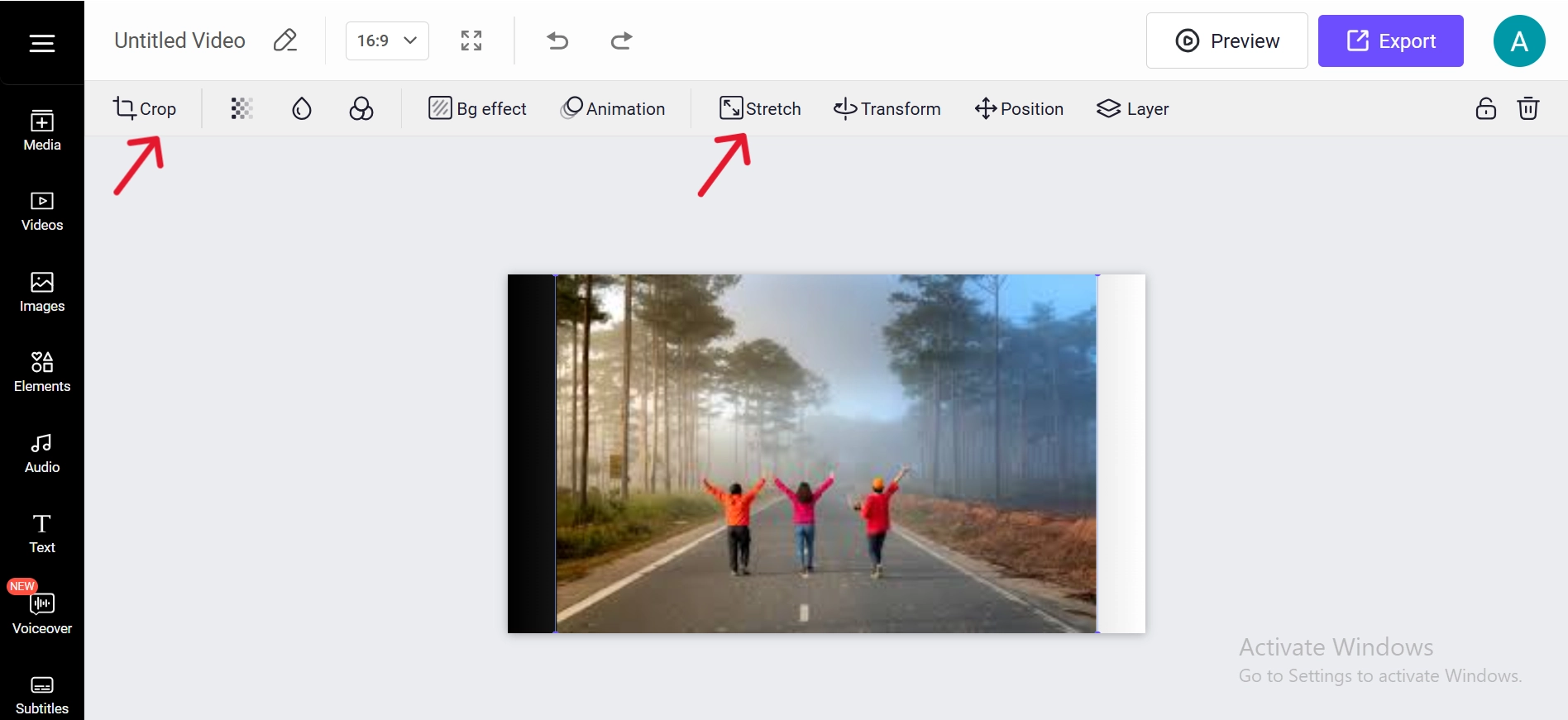
Step 3. Use the cropping feature to fine-tune your image layout. You can even circle crop an image to create clean, rounded profile photos, thumbnails, or social media icons.
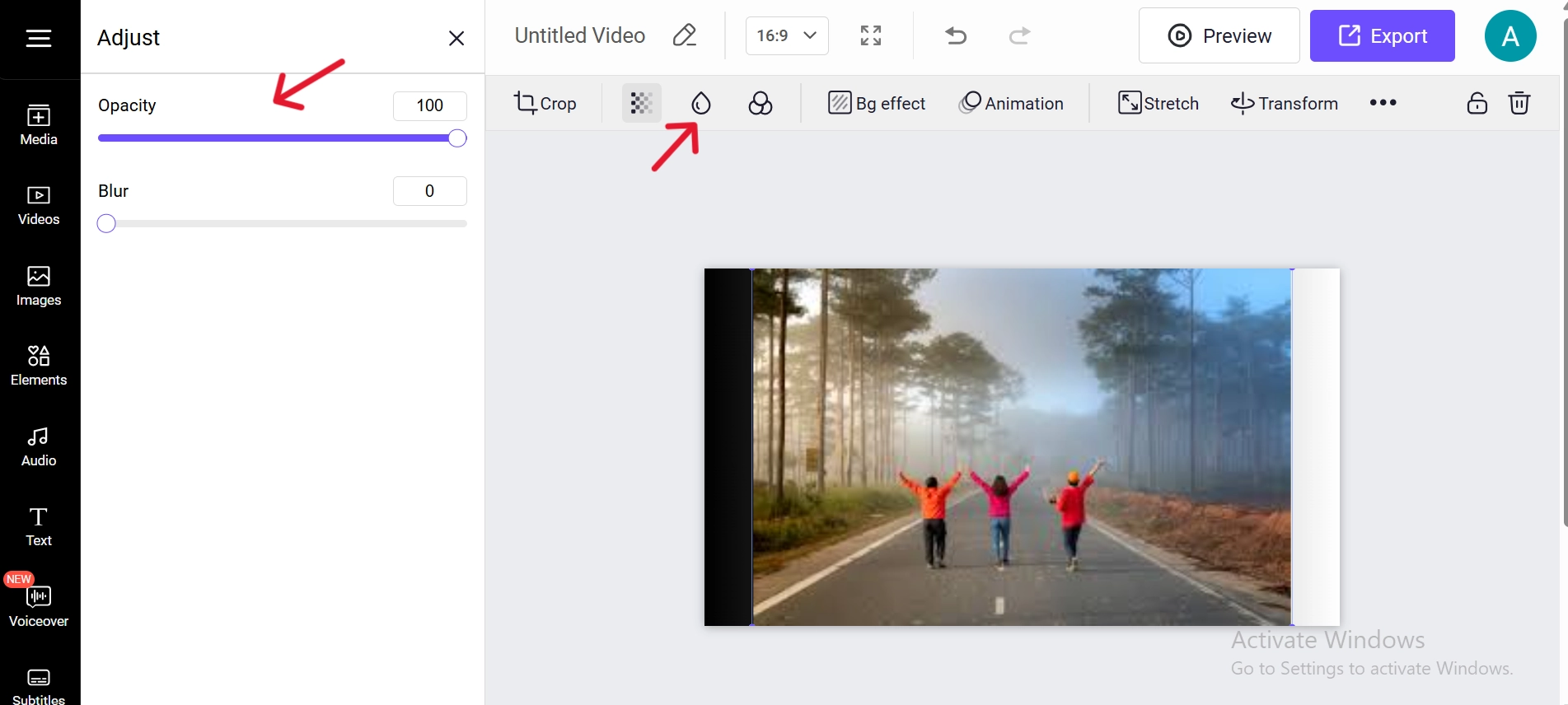
Step 4. Apply AI enhancements to adjust color balance, brightness, and sharpness automatically. These intelligent modifications maintain each downsized image in a clear, vibrant manner and shape.
Vidnoz’s AI-driven technology ensures resizing is quick, precise, and distortion-free. Whether for personal projects or professional graphics, its intuitive design makes it simple for anyone to create perfectly scaled, high-quality images online.
Conclusion
Basically, to resize image without stretching, choosing the right tool makes all the difference. With its AI-powered features and easy-to-use interface, Vidnoz Online Video Editor offers a reliable way to edit, crop, and resize images perfectly. Try Vidnoz today to create high-quality visuals effortlessly and professionally. You may also try Fotor, Windows' default tool, and Simple Image resizer as per your requirements!

Vidnoz AI - Create Free Engaging AI Video with Talking Avatar
- Easily create professional AI videos with realistic avatars.
- Text-to-speech lip sync voices of different languages.
- 2800+ video templates for multiple scenarios.