Want to circle crop an image without Photoshop headaches? You’re in the right spot.
Whether you're designing a profile pic, a presentation slide, or a slick-looking thumbnail, circle-cropped images just work. They draw attention, look clean, and instantly make your visuals stand out.
But here's the best part:
You don’t need any fancy tools or editing skills to circle crop an image like a pro. In this guide, you’ll learn why circle cropping matters, how to do it online for free, which tools are best, and how to take it further with AI-powered videos.
Let’s get into it.
- On This Page
-
Why Circle Crop Images Are More Catchy
-
Circle Crop Images Online vs. Photoshop
-
Top 3 Online Tools to Circle Crop an Image in One Click FREE
-
Take It Further: Circle Crop a Video With AI Talking Avatar
Easy Steps to Create a Circle Crop AI Video With Vidnoz AI
-
FAQ – Circle Crop an Image
Q: How to crop a picture into a circle in PowerPoint?
Q: How to circle crop in Canva?
Q: How to crop a video in a circle?
Why Circle Crop Images Are More Catchy
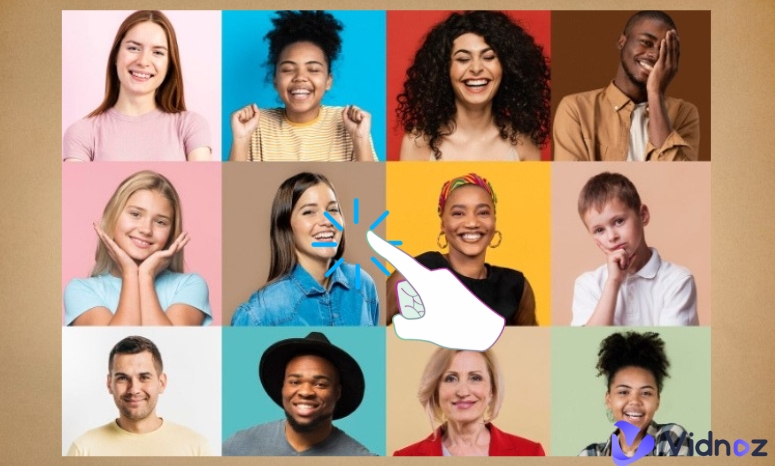
Here’s something that most people overlook, the shape of your image changes how people see it. And circle crops? They’re visual magnets. Here's why:
- Unique shape: Most images are squares or rectangles. A circle breaks the pattern and grabs attention.
- Eye-focus: The circular frame naturally centers your subject, pulling the viewer’s eye exactly where you want it.
- Feels more friendly: Rounded edges feel more human. That’s why social media profile photos are circular.
- Clean layout: No sharp corners, no visual clutter. Circles blend beautifully into any design.
In short, if you want your image to pop and feel personal, circle crop it.
Circle Crop Images Online vs. Photoshop
Let’s face it, not everyone knows how to circle crop an image using Photoshop (or wants to). So, which is better for cropping images into circles? Here’s a side-by-side look:
|
|
Circle Crop Images Online
|
Circle Crop in Photoshop
|
|
Creation Process
|
Upload → Select → Download
|
Open → Mask → Layer edits → Export
|
|
Ease of Use
|
Super beginner-friendly
|
Steep learning curve
|
|
Speed
|
10 seconds, no joke
|
Takes time if you’re not experienced
|
|
Output Quality
|
High quality for most use cases
|
Pixel-perfect, full control
|
If you want fast, clean results with zero stress, the smartest move is to circle crop images online using free, beginner-friendly tools. Especially if you’re not a designer.
For most people, it’s simply faster and more practical to circle crop images online than to wrestle with pro-level software.
Top 3 Online Tools to Circle Crop an Image in One Click FREE
Let’s skip the generic rundown. You’re here because you want to crop an image into a clean circle, fast. But not every circle profile picture maker works the same way. Some give you total creative freedom. Others do one thing ridiculously well.
Here are three tools that make it insanely easy to circle crop an image, each in their own way.
1. Canva Circle Crop

Canva isn’t just a circle cropper, it’s a full-on design platform. You’re not just dropping a photo into a circle. You’re building a design around it. Want to add text, crop an avatar, filters, shadows, or logos? You can do all of that in one place. But here’s the trade-off: it takes a few extra clicks to get what you want.
How to Use Canva to Circle Crop an Image:
Step 1. Log into Canva and start a blank canvas. Upload your image.
Step 2. Click “Elements,” search for “circle frame,” and drop it onto your canvas.
Step 3. Drag your image into the frame. It auto-crops to a circle.
Step 4. Adjust the position and size or add effects like brightness, contrast, or filters.
Step 5. Hit “Download” to save your final design.
Limitation: No transparent background unless you're on the Pro plan.
Best For: Designers, content marketers, and anyone building branded visuals.
2. Circle Crop

This tool does one thing and does it perfectly. This image cropper skips the fluff. No extras, no editing, just pure speed. Circle Crop is for people who want to upload an image, crop it into a circle, and move on with their day.
There’s no login. No interface to figure out. No fluff.
How to Use Circle Crop to Circle Crop an Image:
Step 1. Go to the site and upload your image.
Step 2. Adjust the crop by dragging the circle over your image.
Step 3. Click “Download.” Done.
Limitation: No editing tools, no design elements.
Best For: Quick jobs — profile pics, avatars, or when you need speed over features.
3. Fotor Circle Crop

Fotor lives in the sweet spot. Fotor is the kind of image cropper that gives you more control than Circle Crop, without overwhelming you like Canva sometimes can.
You can make face cutout a perfect circle in seconds, but you also get bonus tools like background remover, brightness adjustments, and text overlays.
Think of it as the "semi-pro" option, not too simple, not too overwhelming.
How to Use Fotor to Circle Crop an Image:
Step 1. Go to Fotor and click “Circle Crop Images Now.” Upload your image.
Step 2. Hit “Crop,” pick the circle shape, and adjust the position.
Step 3. Add optional edits like text or background removal.
Step 4. Download your finished image in PNG or JPG format.

Vidnoz AI - Create Free Engaging AI Video with Talking Avatar
- Easily create professional AI videos with realistic avatars.
- Text-to-speech lip sync voices of different languages.
- 2800+ video templates for multiple scenarios.
Limitation: Premium features are behind a paywall.
Best For: E-commerce sellers, bloggers, and small business owners who want a polished look without heavy tools.
Take It Further: Circle Crop a Video With AI Talking Avatar
Static images are great. However, if you truly want to stand out online, consider personal branding, landing pages, or product demos; circle-cropped talking avatar videos take it to the next level.
Picture this: A polished, on-brand video where an AI avatar delivers your message inside a clean circle frame. No filming. No editing. No hiring actors.

It grabs attention. Builds trust. And it works for:
- LinkedIn profiles
- Explainer videos
- Onboarding messages
- Customer support FAQs
- And even sales outreach
Now here’s the fun part:
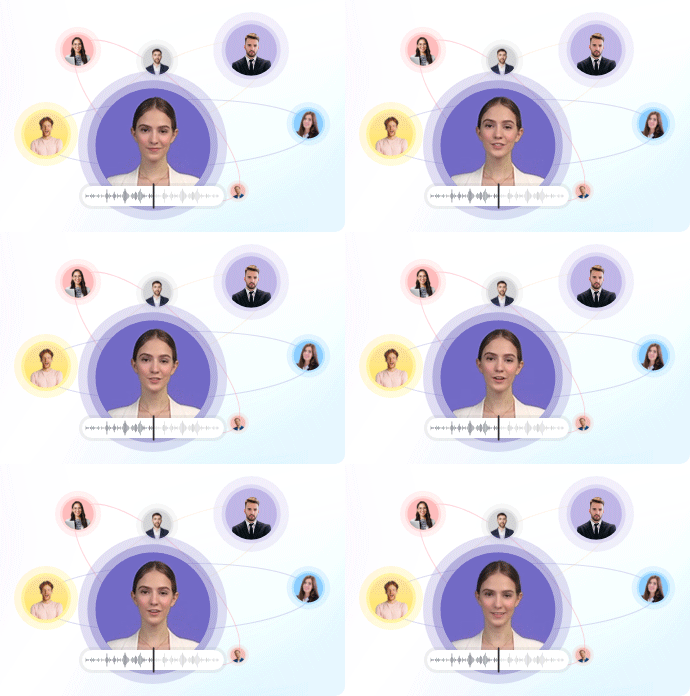
You don’t need a camera. You don’t even need to show your face. With Vidnoz AI powerful AI talking avatar cropper, you can generate a circle-cropped business avatar video in just a few clicks.
Let’s walk through it.
Create Your AI Talking Avatar - FREE
- 1900+ realistic AI avatars of different races
- Vivid lip-syncing AI voices & gestures
- Support 140+ languages with multiple accents
Easy Steps to Create a Circle Crop AI Video With Vidnoz AI
Step 1. Go to Vidnoz website and create an account.
Step 2. Choose your desired video template.
Step 3. Edit the video with a circle crop talking avatar and AI voiceovers.
Step 4. Preview the video and download the video.
- No login required
- Fast, professional results
- Tons of style choices
- No weird filters or blurry faces
If you want pro-level circle videos or profile pics fast, an AI video cropper like Vidnoz makes it effortless.
FAQ – Circle Crop an Image
Q: How to crop a picture into a circle in PowerPoint?
Click the image → go to Picture Format → Crop → Crop to Shape → Select Oval. Hold Shift to make it a perfect circle.
Q: How to circle crop in Canva?
Drag your photo into a “circle frame” found under Elements. It auto-crops to a circle. Adjust inside the frame as needed.
Q: How to crop a video in a circle?
Use Vidnoz AI. Upload a headshot, generate a circle-framed talking avatar, and download it — no editing required.
The Bottom Line
Knowing how to circle crop an image isn’t just a design trend, it’s a visual upgrade anyone can use. It’s a simple way to stand out, whether you're building a brand, sharing content, or just trying to look more polished online.
Whether you want speed, simplicity, or design flexibility, these tools make it easy to circle crop images online without breaking a sweat.
But if you really want to level up? Use Vidnoz AI to create a circle-cropped talking avatar video that stops the scroll and gets your message across, fast.
Try it now. It’s free. No login needed.