Our world has not been the same post-pandemic. There has been a serious shift in how we work and how we learn. Now, students and trainers prefer online lectures to physical classes. Launched in 2014, Google Classroom is one of the most dependable and popular tools for online education/meetings. It has refined how we work together and how students and instructors interact.
You can make the learning process even more engaging and entertaining by adding videos to your Google Classroom sessions. In this article, we will demonstrate how to add a video to Google Classroom in four simple steps.
- On This Page
-
Why Videos Matter in Google Classroom?
-
Method 1: Add a Video from Google Drive
-
Method 2: Upload a Video from Your Computer
-
Method 3: Add a Video to Google Classroom Using a Link
-
Method 4: Add a Video Directly from YouTube
-
Bonus Tip: Create Videos Easily with Vidnoz AI
How to Make a Video for Google Classroom Using Vidnoz AI?
-
FAQs about How to Add A Video to Google Classroom
Why Videos Matter in Google Classroom?
Videos serve a very important role in Google Classroom by increasing student motivation and enhancing learning outcomes. They offer various advantages, such as enhanced motivation and greater comprehension of the subject. Videos also enable teachers to encourage active learning. With a short tutorial or recorded lecture, videos make learning more engaging and interactive and bring the materials to life.
Google Classroom allows you to add videos to the learning system. You can embed videos into assignments, announcements, and classwork with a single click.

Let's see how to upload video in Google Classroom faster to make your lesson appealing and engaging.
Method 1: Add a Video from Google Drive
Here is the first step on how to add a video on Google Classroom quickly. To start with, you should know that Google Classroom accepts MP4, AVI, or MOV as video formats. Therefore, make sure to record a video in these formats, particularly MP4, and then proceed with the following steps.
Step 1: First, open Google Classroom and click the Classwork tab.
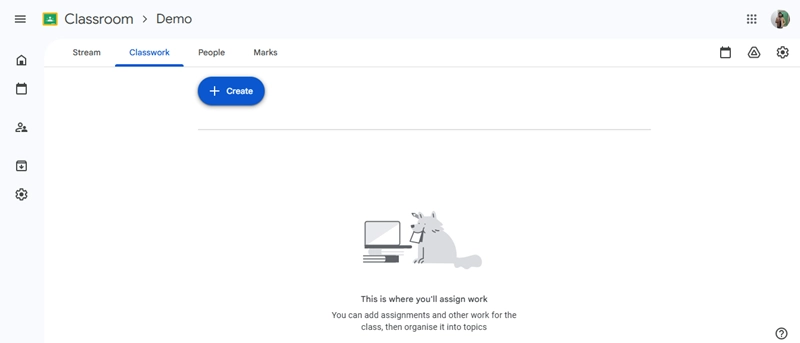
Step 2: There, you will see the "Create" button, click on it, and select "Material".
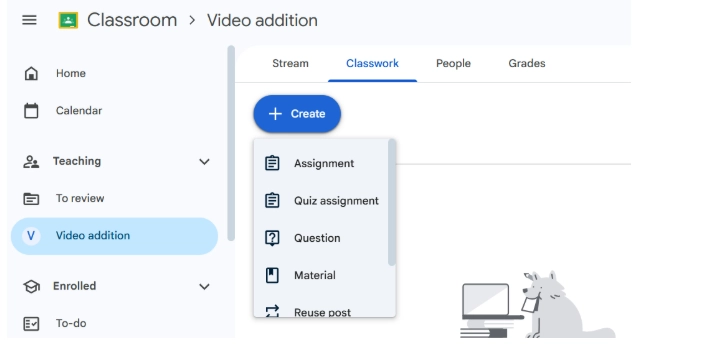
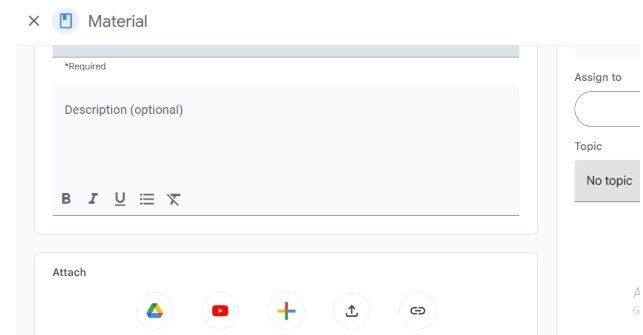
Step 3: Once you have opened the "Material window", you will see various icons: "Google Drive, YouTube, Create, and a paper clip icon". Here, you will click on the "Google Drive" icon.
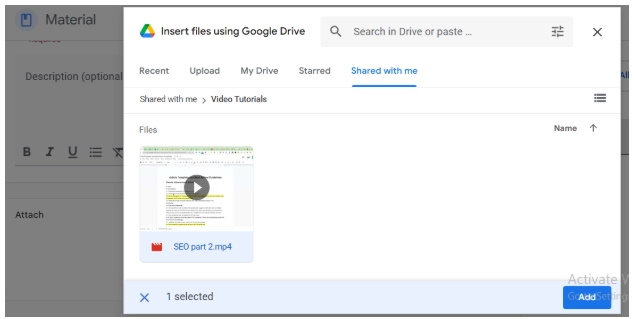
Step 4: Once you open the Google Drive window, you can browse and click on the chosen video that you want to attach.
Step 5: Lastly, title the "Topic" of your video, and then click on "Post" to publish it for your class.

This is like 1-2-3 and done. Using this simple method, you can upload videos to Google Classroom. You can create videos using advanced AI voice cloning and upload in your class.
Method 2: Upload a Video from Your Computer
This method is almost similar to the first one, but here is a small twist. Here is how to add a video on Google Classroom directly from your computer.
Step 1: First, click on the “Classwork” tab in Google Classroom, and then click on the “Create” icon.
Step 2: Here, you will select the “Material” tab and click on it.
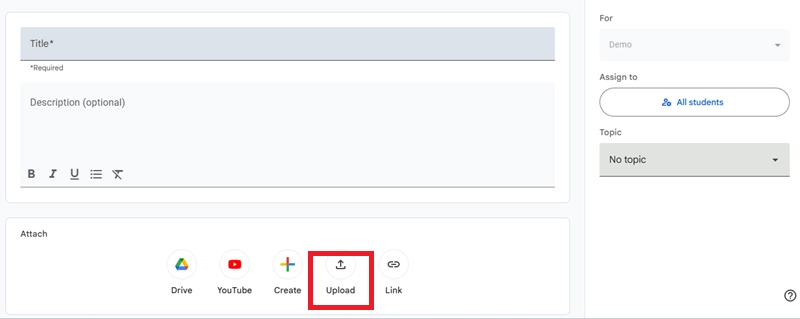
Step 3: After opening the “Material” window, click on the “Upload” icon to directly add a video from your computer.
Step 4: Now, after choosing the video of your choice, give the topic name, or save it as a draft or post it to share with the class, similar to method 1.
If you are still not sure where to find an interactive video that matches the tone of your class, you can use text to video AI by Vidnoz to make any video you want using AI.
Method 3: Add a Video to Google Classroom Using a Link
This method is suitable for guest educators, IT support, or anyone using shared devices or slow connections. Here is how to add a video in Google Classroom using a link.
Step 1: Just as Similar to the above methods, go to the Classwork window in Google Classroom and click on Create.
Step 2: After clicking on the Create tab, open the Material window.
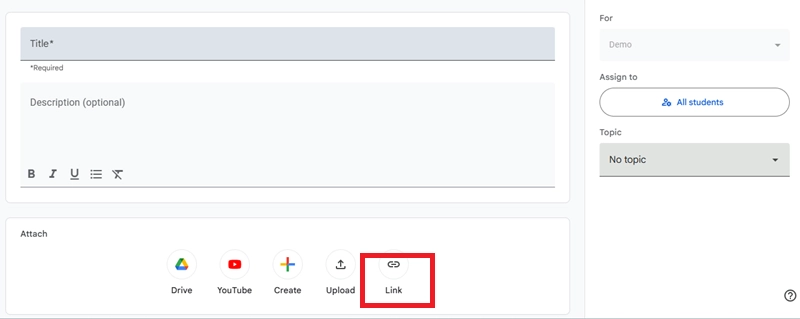
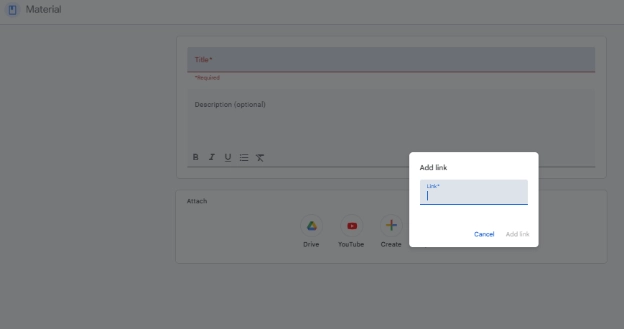
Step 3: Here, you will click the “paper clip icon” to directly add the link to your video that you have already recorded on YouTube or some other platform.
Step 4: After pasting the video link, give it a name and post to share it with your class.
Method 4: Add a Video Directly from YouTube
This method is great for people who like to get things done in no time. Adding a link to an already uploaded video saves you time from uploading it yourself. This is how to add a video to Google Classroom directly from YouTube.
Step 1: Similar to the above steps, go to the Classwork window and then click on Create.
Step 2: Now, hit the Material button and open the window.
Step 3: Here, you will see the YouTube icon, click on it, and search for the YouTube video that you want to add, or directly paste the YouTube link.
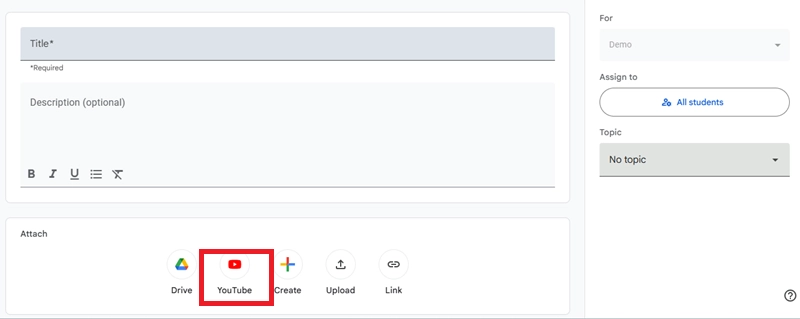
Step 4: Now, click on the Add video button, name it under the Topic tab, and share it directly to your class.
Bonus Tip: Create Videos Easily with Vidnoz AI
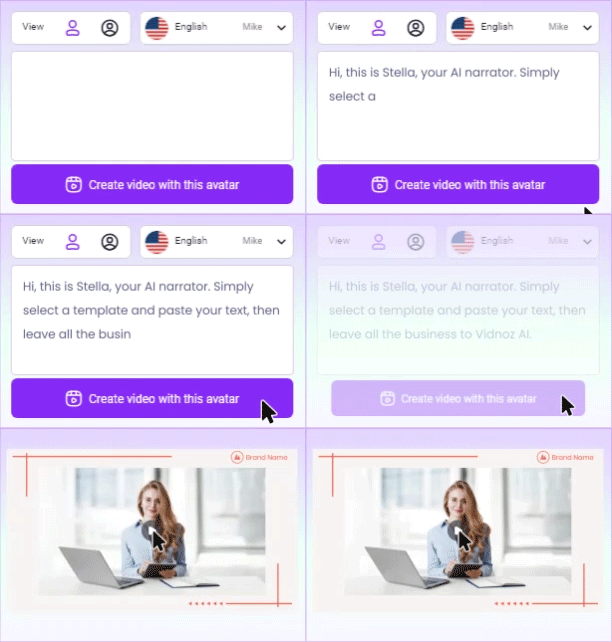
Are you looking for a tech-friendly tool to make videos of your choice? Vidnoz AI would be the best option for you. It allows you to start creating engaging and interactive classroom content in minutes with no editing skills. Here are the key features of Vidnoz AI.
Vidnoz AI - Create Free Engaging AI Video with Talking Avatar
- Easily create professional AI videos with realistic avatars.
- Text-to-speech lip sync voices of different languages.
- 2800+ video templates for multiple scenarios.
Key Feature
- AI Avatar Narrators for Videos: Vidnoz AI offers you a special feature to add an AI Avatar as a narrator. These Avatars help you give a human touch to your content and make even the most complex topic simple by improving student engagement.
- Text-to-Speech and Script Generation: If you don't have time to record audio, you can just type your script, and Vidnoz AI will convert your text to speech, using Vidnoz text to speech. It can also offer auto-script generation based on your topic and save you time.
- Customizable Templates for All Scenarios: Vidnoz AI also offers customizable video templates for all scenarios, including tutorials, lectures, and messages. These templates help you make the video directly to your desired requirements instead of making it from scratch.
- Multiple Languages and Different Accents: Another interesting feature of this video maker is that it can let you make videos in different languages and accents. You can choose any language and accent of your choice to convey your message.
- Voice Cloning Capability: Moreover, you can use Vidnoz for AI voice cloning. By this, you can change the tone and pitch of your voice in the sound that your students trust. It will add credibility and authenticity to your content.
How to Make a Video for Google Classroom Using Vidnoz AI?
All the above-mentioned features can help you boost class engagement. Here is how to make a video in Google Classroom using Vidnoz AI.
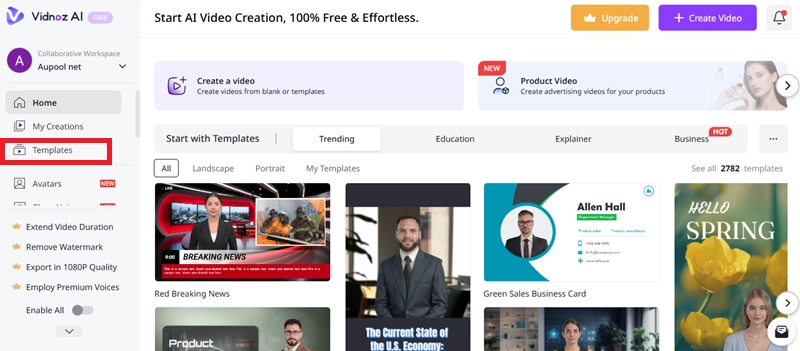
Step 1: First, go to the official website of Vidnoz and sign in using your Google account. Now, go to the Template library, filter Education, and choose the desired template.
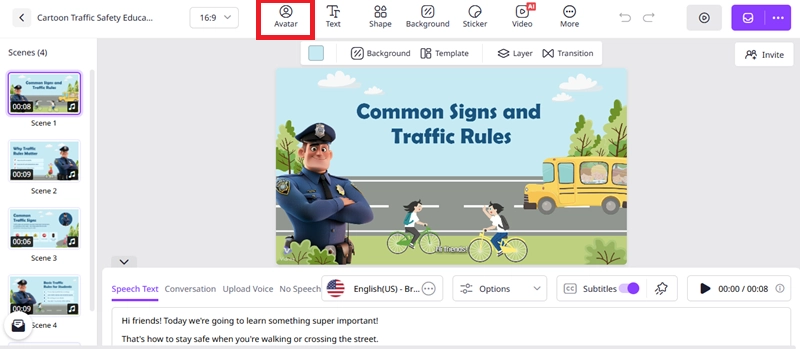
Step 2: After that, pick the Avatar and enter your script and upload your voice. You can use Vidnoz talking head, too, to make an Avatar.
Step 3: After making the video, preview it and click on the Generate icon to get a final video in a few minutes.
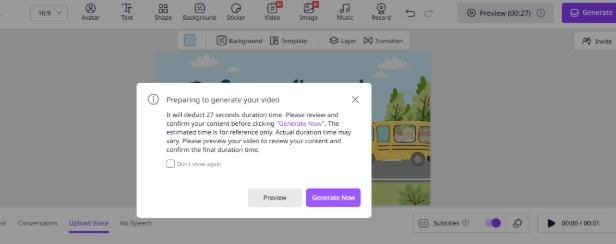
Vidnoz opens a world of opportunities for instructors, as they can now turn any boring topic into an engaging video using a free AI video generator.
FAQs about How to Add A Video to Google Classroom
Can students see any video I upload to Google Classroom?
Yes, students can see any video that you upload to Google Classroom, but only if you post it in the classroom and not save it as a draft.
What video formats does Google Classroom support?
Google Classroom supports formats like MOV.MPEG4, .MP4, and .AVI. But for the best quality, MP4 is preferable.
Can I schedule a video post in Google Classroom?
Yes, you can schedule a video post in Google Classroom by simply clicking the “schedule” button after the “Post” icon.
What is the maximum video file size I can upload to Google Classroom?
There is no specific limit on the size of your file. You can upload a video to Google Classroom in any desired size. The file size you can upload depends on your Google Drive storage.
Can I add subtitles to my videos before uploading?
Yes, you can add subtitles to your videos before uploading them to Google Classroom. For this, you can use Vidnoz AI editor to add customized subtitles.
Final Thoughts
Video lectures play an important role in improving your learning or teaching outcomes. They help increase student engagement and help them learn the topic quickly. If you are still wondering how to add a video to Google Classroom, just follow the steps outlined in the article above. You can upload videos to Google Classroom in four different ways, including from Google Drive, Computer, YouTube, or by directly pasting the link to the video.
And if you want to make your videos from scratch, give a try to Vidnoz AI. It’s a game-changer that allows you to make a great impression.
Turn Text into Video with AI - FREE
Generate high-quality videos from PDFs, PPTs, and URLs in one step!