Whomever you are, a teacher, a student, a parent, or any part of the education, there are chances for you to notice the growing use of online classes like Google Classroom in K-12 and higher education. We know that E-learning is new to us, but we are also aware that visuals remain essential in learning, regardless of the environment.
The same is for Google Classroom. Image materials for Google Classroom should never be neglected. Educators, stay tuned, explore what Google Classroom images and videos can bring and how you can use them.
- On This Page
-
Google Classroom Image: Where Can It Be Used
-
Google Classroom Pictures for Theme: Where to Download
Postermywall – Animated Google Classroom Banner Images
Canva- Edit & Customize Your Google Classroom Banner Images
Freepik – Google Classroom Pictures with Consistent Style Series
-
How to Upload and Customize Google Classroom Banner Images?
-
How to Upload a Picture to a Google Classroom Assignment?
-
Next-Level Visual Spice: Add Your Talking Photo Video to Google Classroom
How to Make Your Talking Photo?
Google Classroom Image: Where Can It Be Used
Without paying any extra effort, you can naturally notice Google Classroom pictures everywhere. These visuals enhance engagement, improve comprehension, send encouragement to your students, and thus, bring colors and spices to your class. They play diverse roles in Google Classroom:
- Class theme/banner: branding and mood setting.
- Assignment: reference material, illustrations, visual prompts, visual quizzes, etc.
- Instructions: step-by-step tutorials with screenshots.
- Profile: improve the connection between you and your students when no face-to-face communication.
- Announcements: infographics, etc.
Google Classroom Pictures for Theme: Where to Download
Though teachers now know how essential visuals are, there are problems in their way. Limited design experience, time-consuming designing, and many factors are stopping them from making great visuals for their classes, especially the Google Classroom banner images.
Don’t worry; you have workarounds. This part collects a bunch of places to download or generate Google Classroom pictures for themes without effort. Check it out.
Postermywall – Animated Google Classroom Banner Images
Postermywall will be a wise choice to get Google Classroom images for banner design. It provides a huge stock of templates that all allow further editing and customization. Plus, what makes it more special is that it features the animated Google Classroom picture for themes, which is very visually appealing.
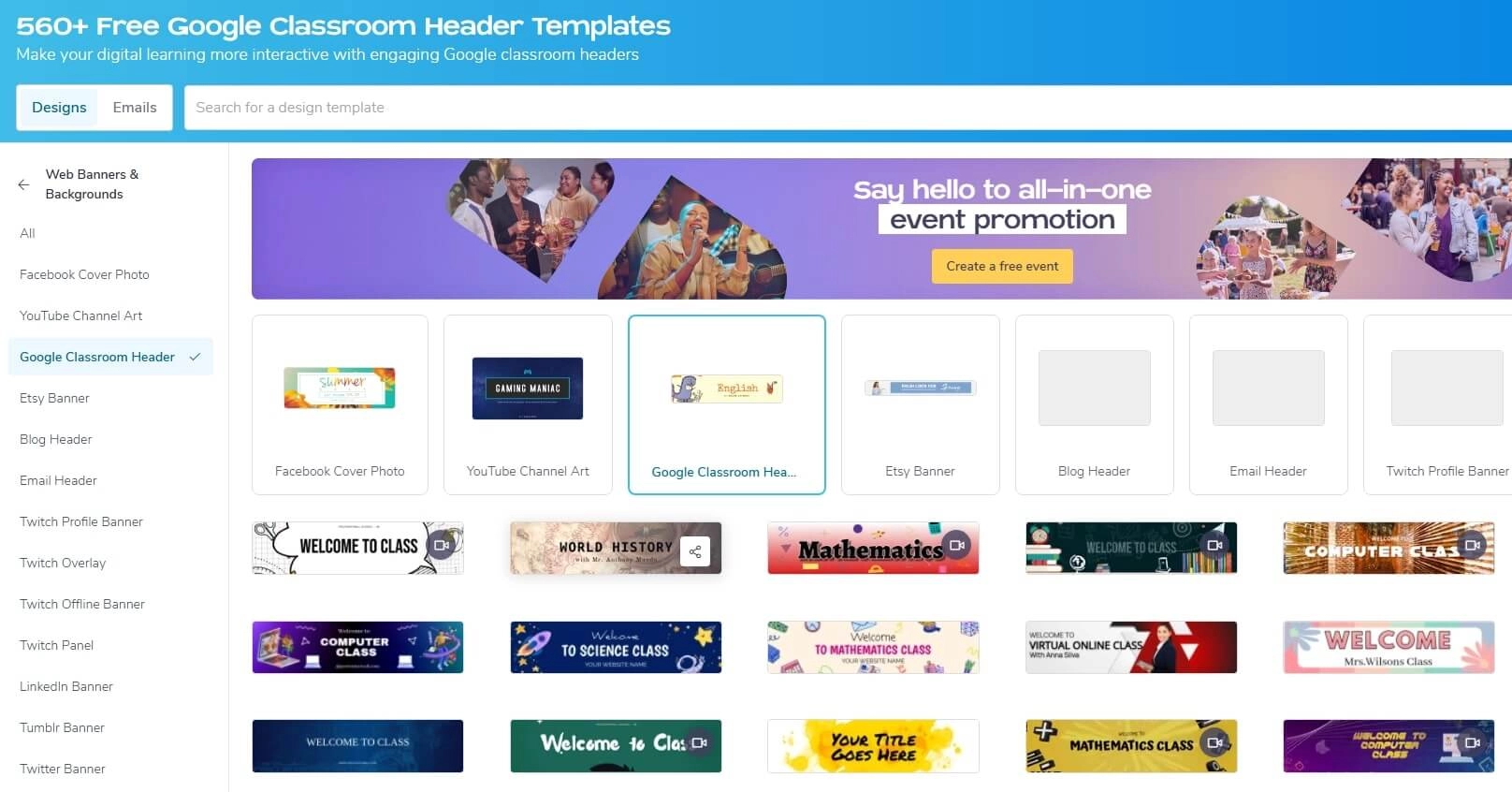
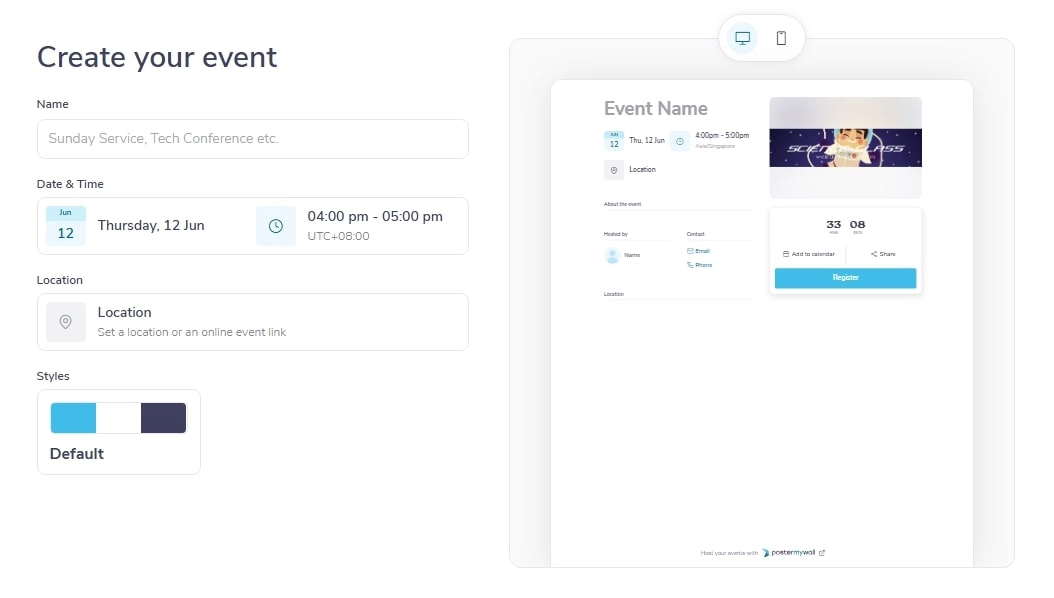
Besides, it prepares some useful features for Google Classroom association; for instance, it allows promoting an event using the chosen templates. You can customize the date & time, set location, and also choose Brand Kits for styles.
Benefits:
- Various templates of Google Classroom images for different grades, courses, and occasions.
- Well-designed animated Google Classroom banners.
- Support making further edits to the templates, like changing Google Classroom banner size, adding text, background, layout, etc.
- Google Classroom association features.
Drawbacks:
- No types or categories based on subjects, making it hard to search and filter.
Canva- Edit & Customize Your Google Classroom Banner Images
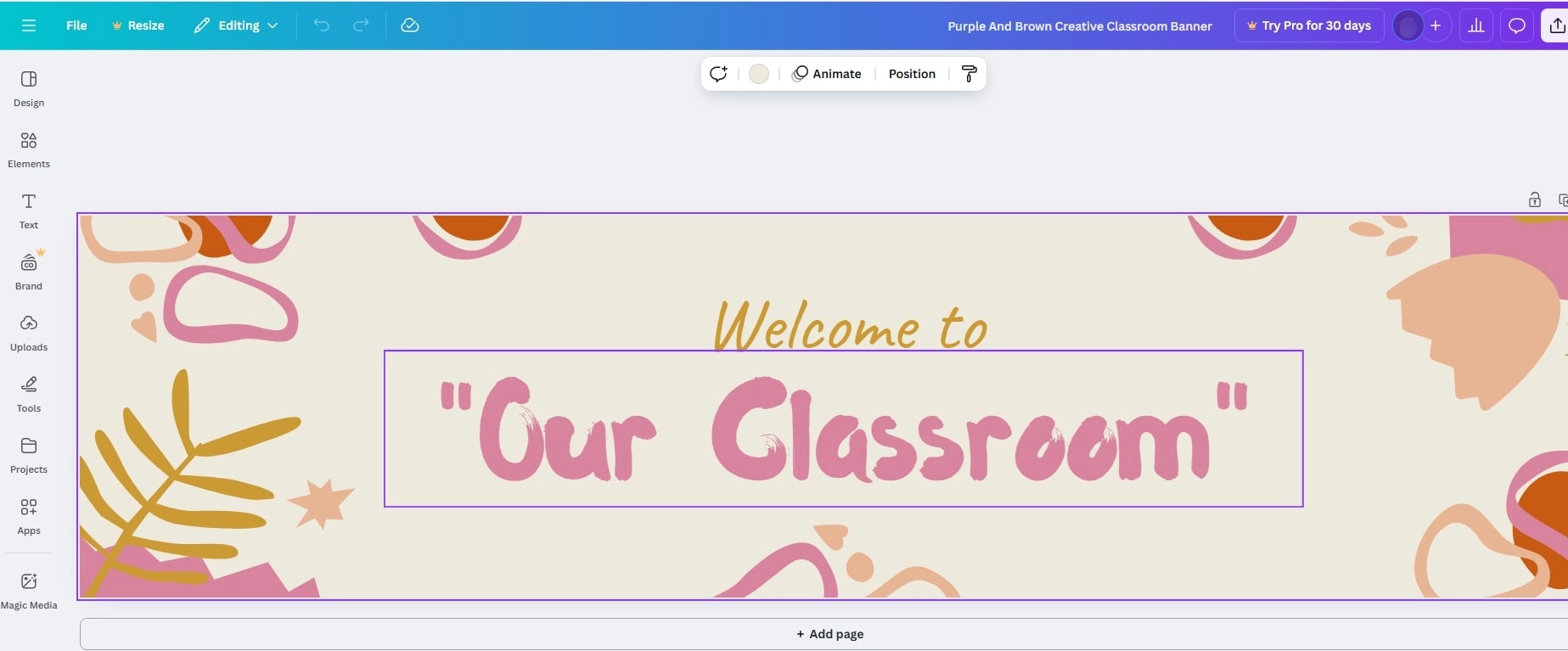
Canva is popular for its enriched graphic design resources and creative editing tools, from which you can also find proper Google Classroom pictures. When picking your template, you can preview the design details like color (with RGB color codes), fonts, and size.
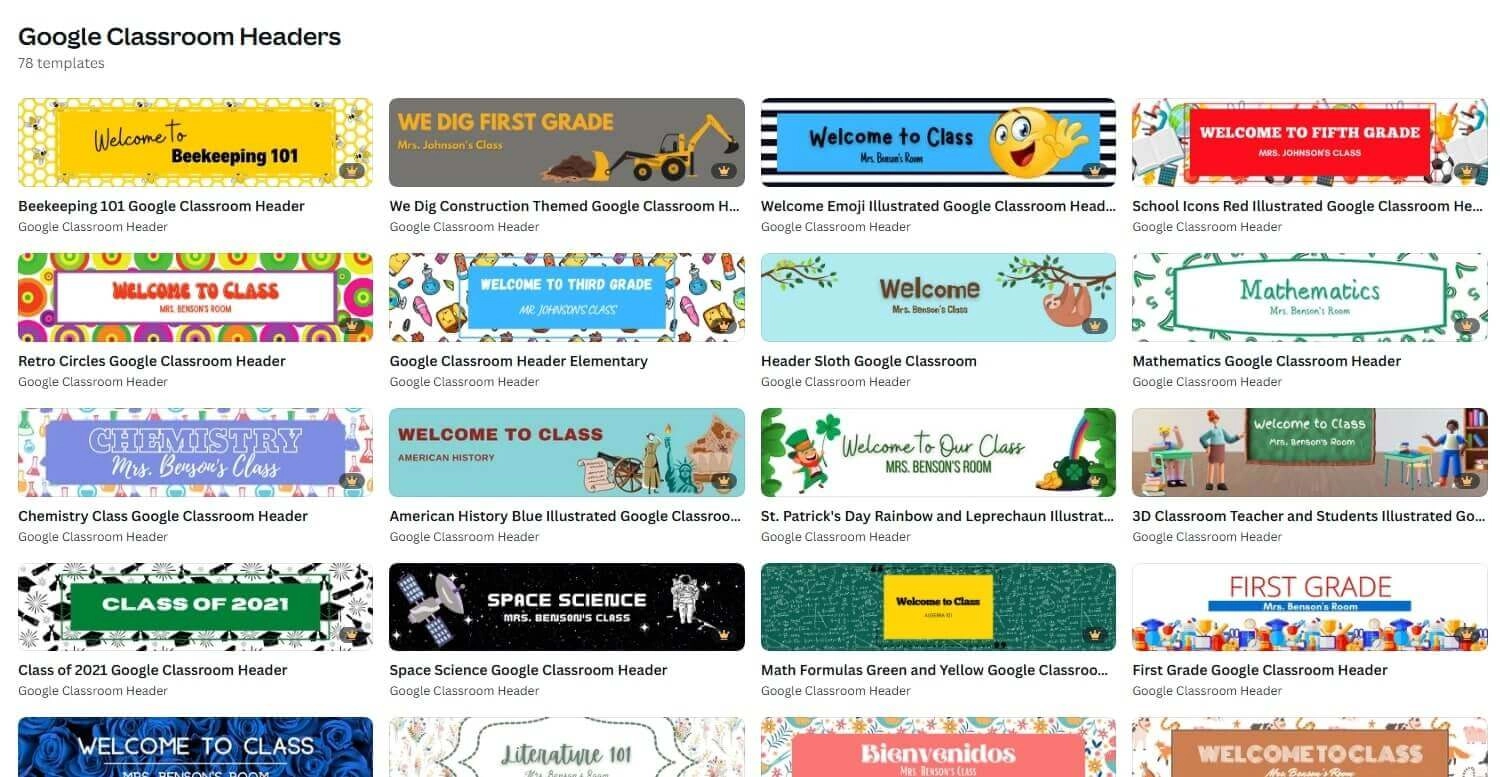
What makes it outstanding is the handy and enriched editing toolkit. It allows you to add diverse visuals like shapes, stickers, graphics, etc. If you like, you may also add animations to the elements to animate a picture.
Benefits:
- Useful and convenient editing tools.
- Abundant Google Classroom pictures for themes of different subjects.
Drawbacks:
- Exclusive Google Classroom images are all locked behind the pay wall, but you can find other free templates with more general designs.
Freepik – Google Classroom Pictures with Consistent Style Series
If you want templates not only of Google Classroom banner images but also for your assignment or other picture designs, Freepik would be an ideal go-to place. It lists templates with various layouts for different occasions/needs. E.g., in addition to Google Classroom banners, it also provides templates of vertical covers, trifold brochures, square labels, etc.
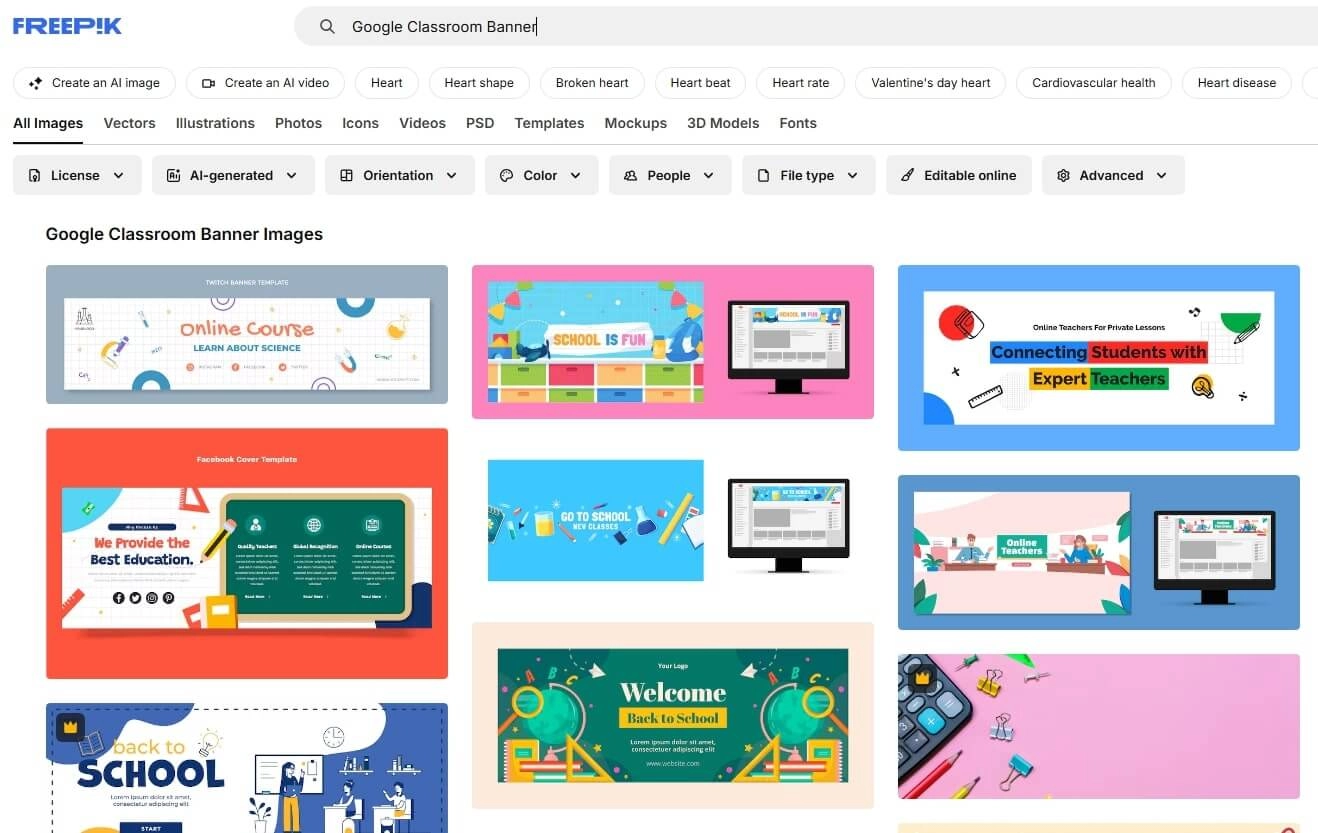
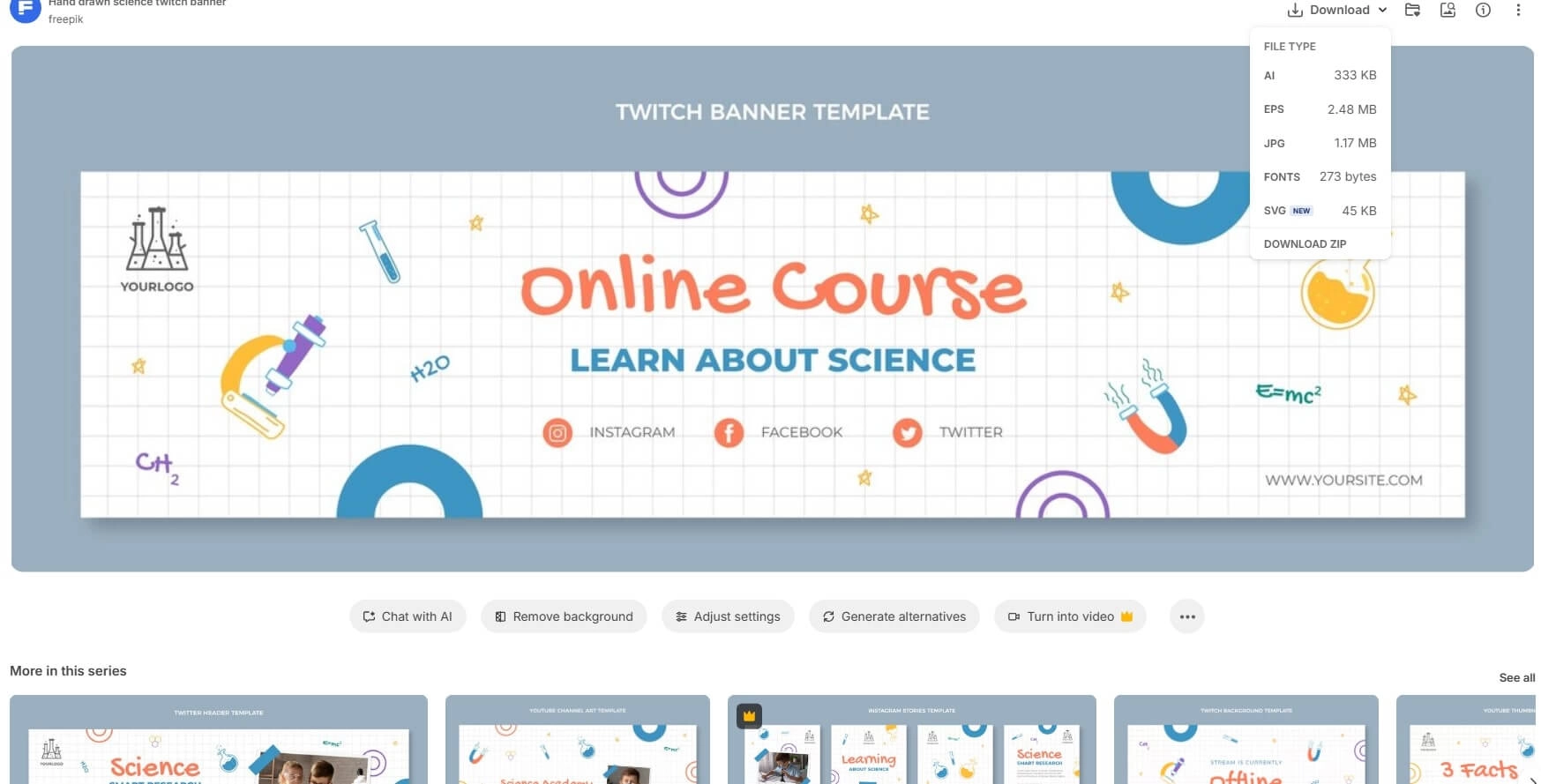
What’s more, as a professional audiovisual design platform, it provides multiple types of Google Classroom photo files, AI, EPS, JPG, SVG, and also FONTS. You may download according to your specific needs.
Benefits:
- Google Classroom banner free templates.
- Well-designed Google Classroom images.
- Series templates for different uses.
- Support converting an image to video with AI.
- Provide several types of files for different needs.
Drawbacks:
- Some of the templates are paid to unlock.
How to Upload and Customize Google Classroom Banner Images?
Have you ever picked and downloaded your Google Classroom pictures for the banner? With the picture prepared, you can now upload it to your class. Follow the steps below to get it done.
Step 1. Go to your Google Classroom. Find the banner, click Customize > Upload photo.
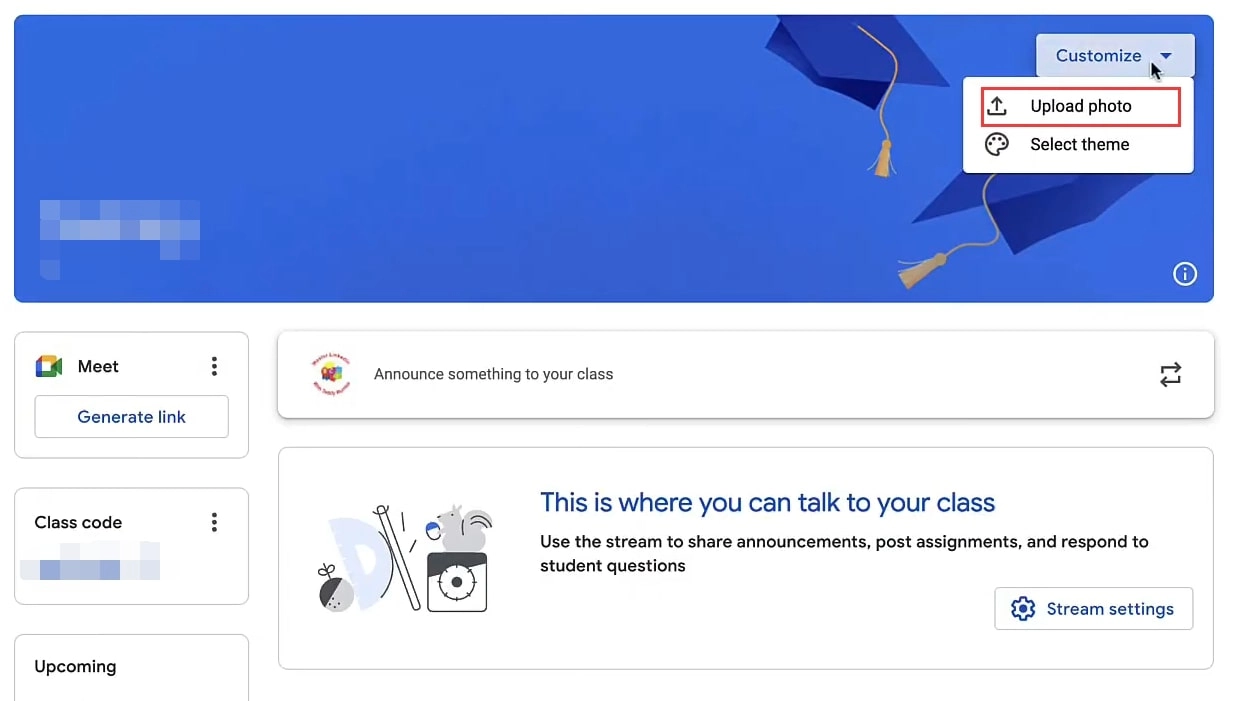
Step 2. Click Select a photo from your computer > navigate to the directory/place where you have downloaded or stored the Google Classroom picture for themes.
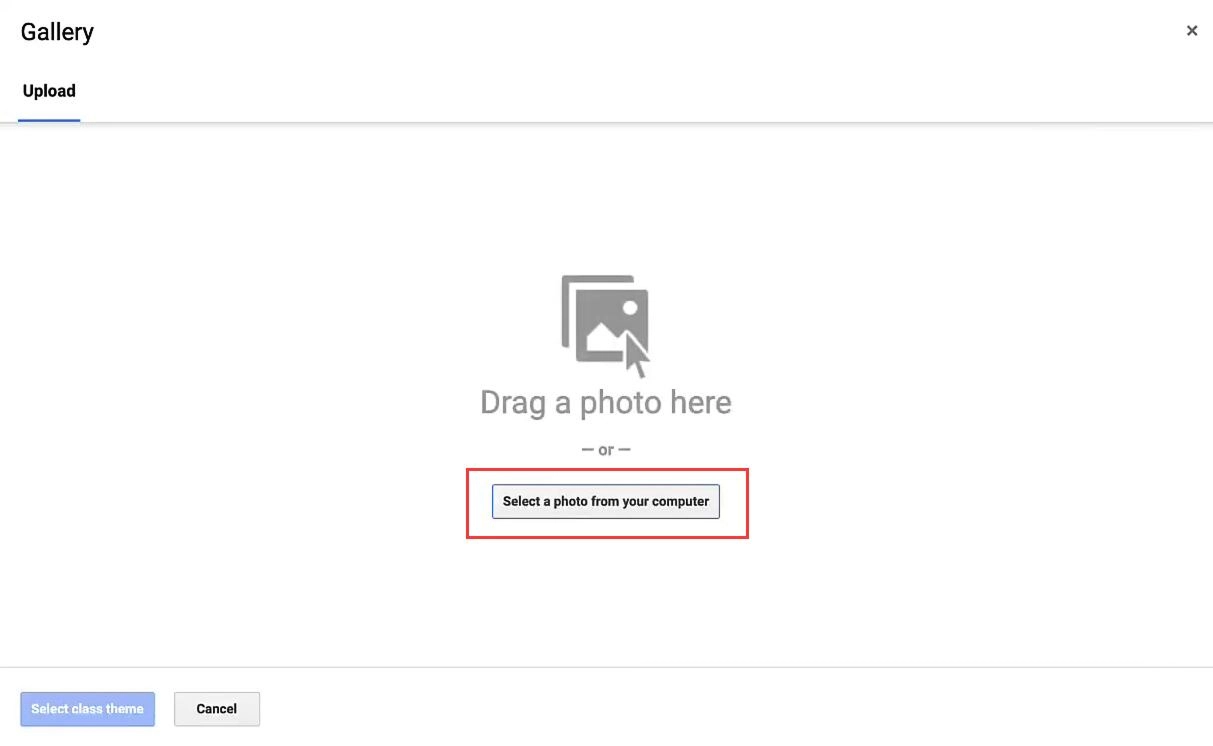
Step 3. Adjust the size to make sure it looks good. Next, click Select class theme. And then, your picture will be set to the theme properly.
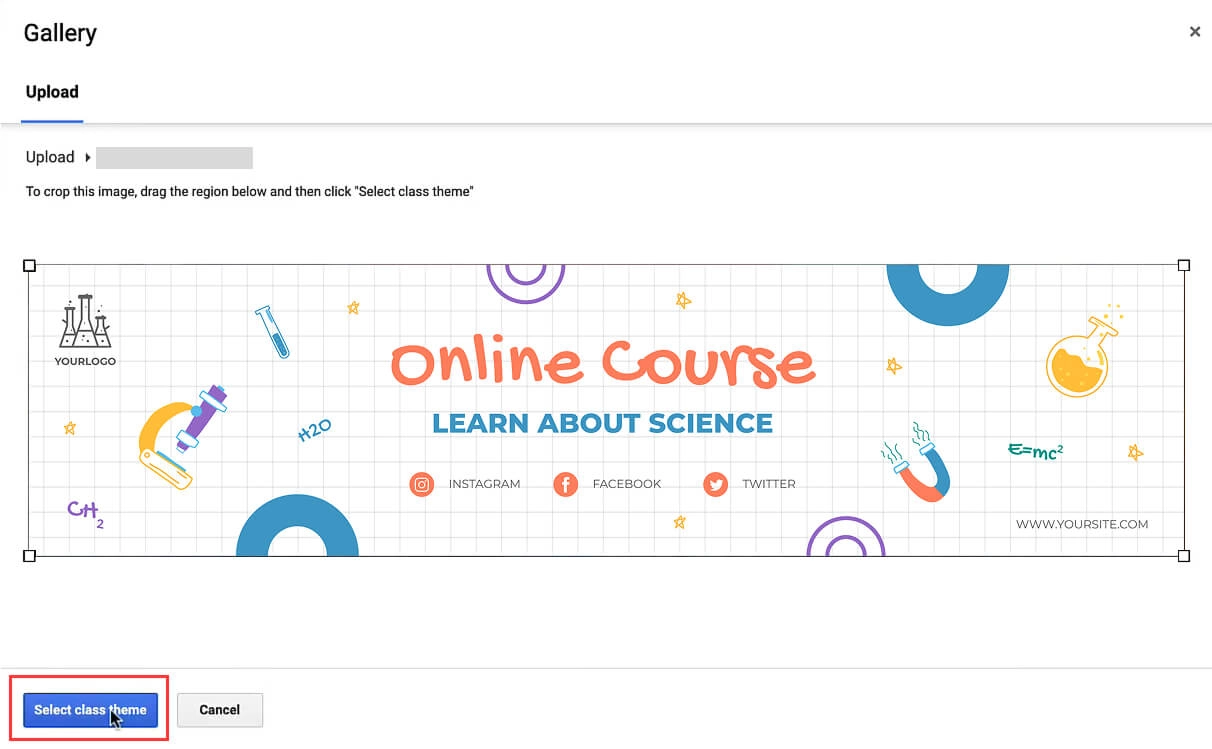
The Google Classroom image size is about 1000:250, so make sure to create, download, or generate a picture in a similar size to fix it in the frame.
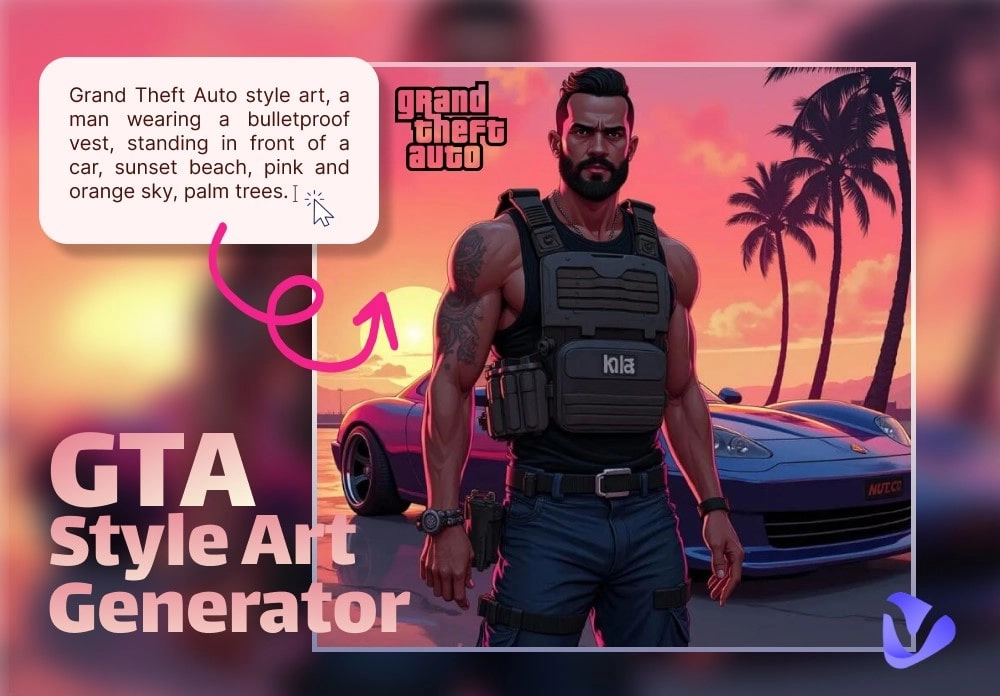
Yes, apart from downloading the existing theme pictures, you can generate a personalized one using AI image generators. For example, the Vidnoz AI Image generator would be an ideal option for its high-quality image processing.
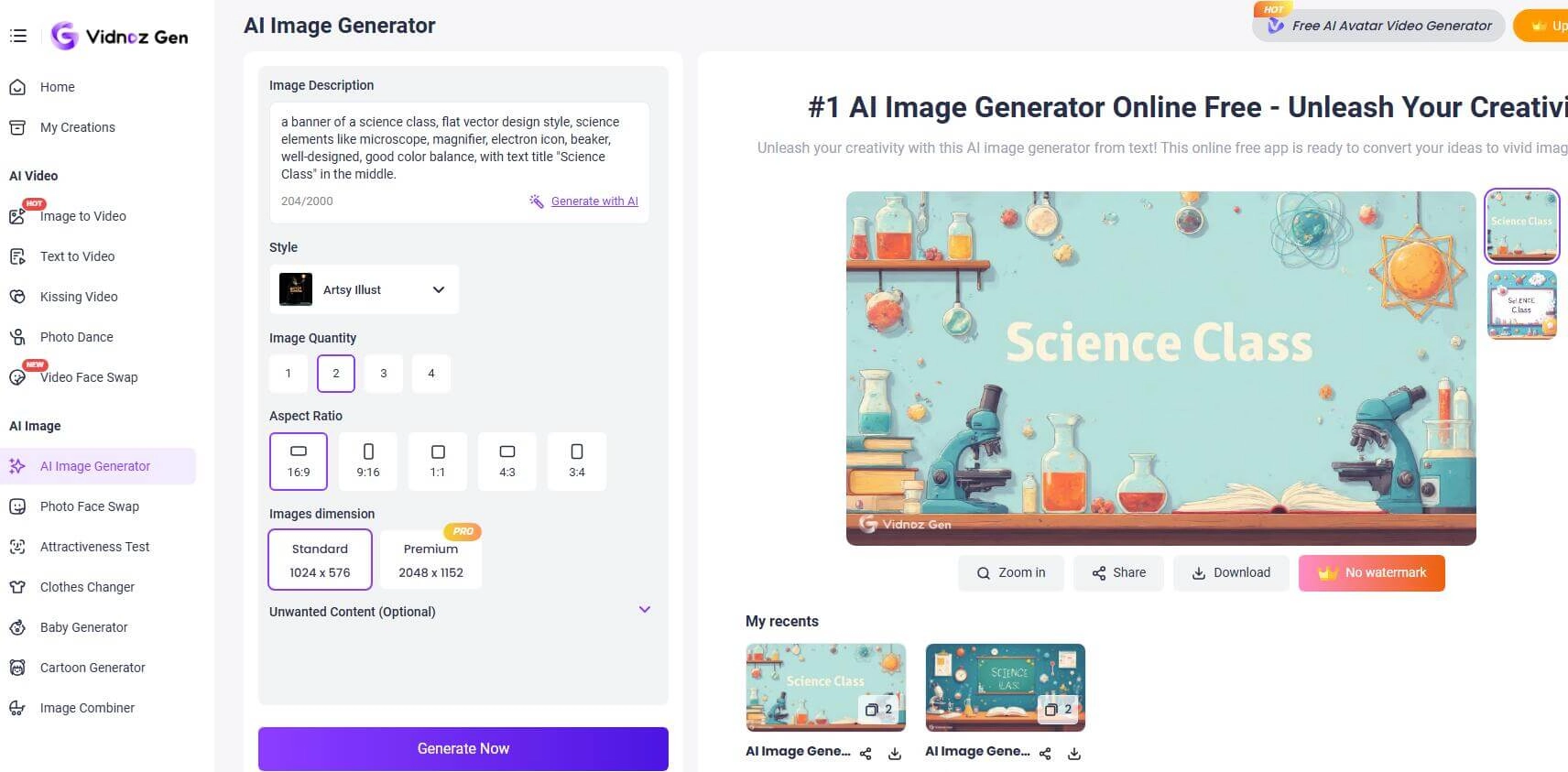
All you need to do is describe the content you want, like subject, elements, and text title; next, choose a proper style and aspect ratios, click Generate, and it will cover all for you.
How to Upload a Picture to a Google Classroom Assignment?
As aforementioned, images are not only useful on banners, but they also help teachers connect and engage students in assignments, tutorials, announcements, etc. For example, you may upload visual materials to assist students in comprehending the assignments, which will be very helpful.
Then, how to upload a picture to a Google Classroom assignment? Check the easy steps below.
Step 1. Go to your Google Classroom > find Classwork > click Create > choose Assignment, or any other types/forms of assignment you like, material, quizzes, etc.
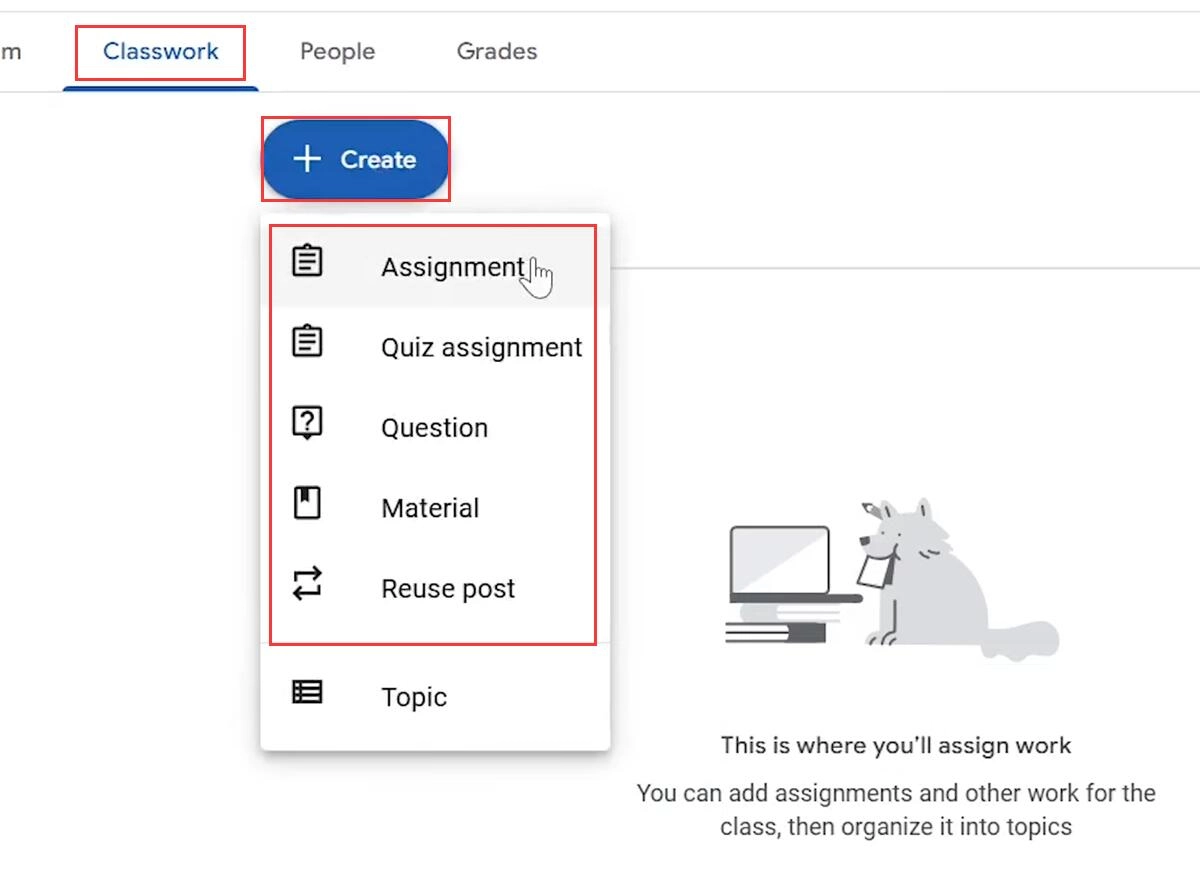
Step 2. After customizing the Title, Description, find Attach, and choose Upload. You may upload from your local drive or Google Drive.
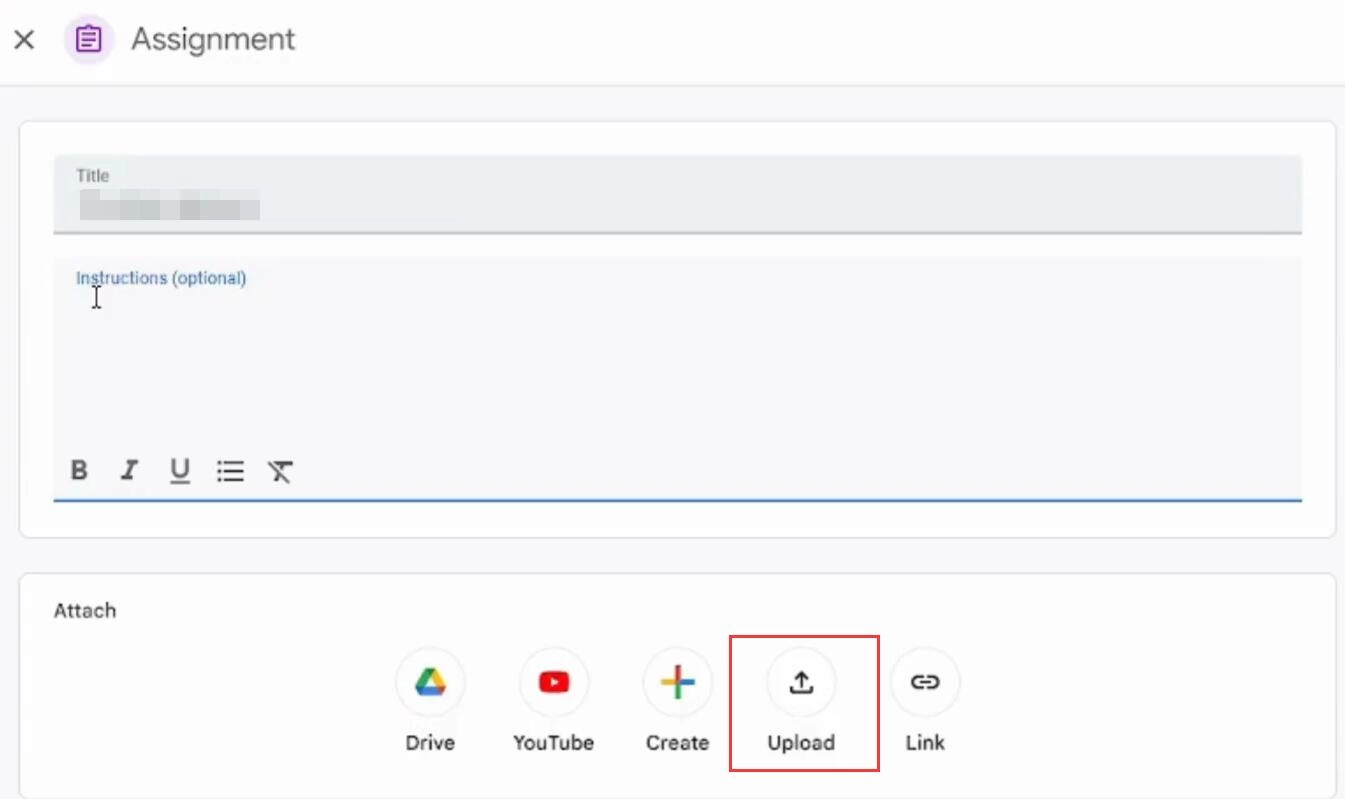
Step 3. Navigate to the picture you want, and click Open.
Apart from photos, you might also attach a video, a YouTube video, or any links that you want your students to check. So, if you are wondering “How to upload a video to Google Classroom assignment?”, the process is similar.
Next-Level Visual Spice: Add Your Talking Photo Video to Google Classroom
As you know, image visuals can grab attention and improve engagement. Will it be even better if you add videos? The answer is undoubtedly yes! Try adding a video with your face and voice to enhance interactivity and strengthen your connection!
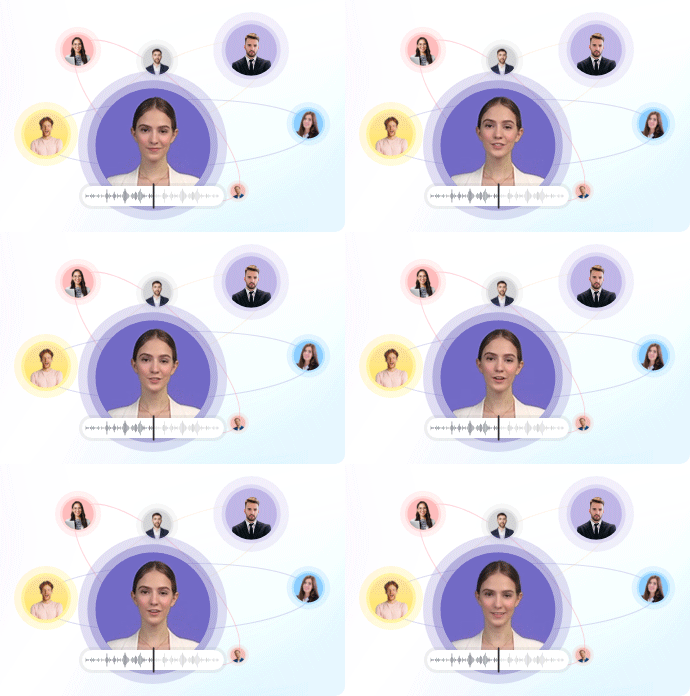
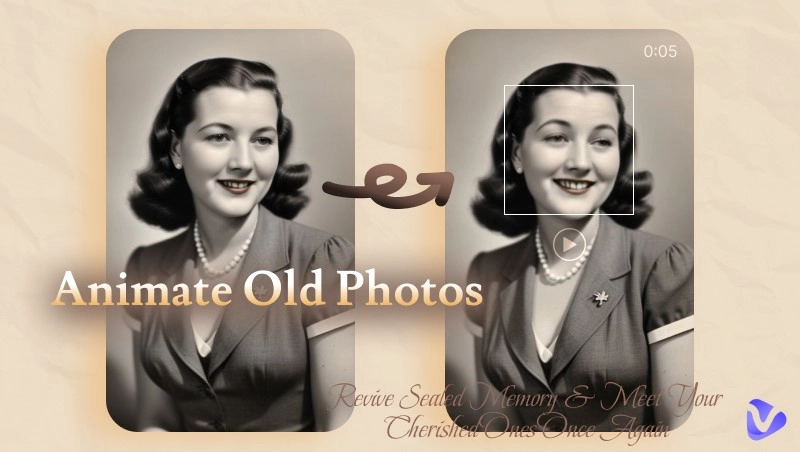
Vidnoz Talking Photo will be the optimal tool to turn your photo into a video with realistic voiceovers, explanations, and character narrations. With this tool, you don’t have to film the video in person; just upload your photo and input the words like sincere encouragement or explanations, and you will get your video.
Create Your AI Talking Avatar - FREE
- 1900+ realistic AI avatars of different races
- Vivid lip-syncing AI voices & gestures
- Support 140+ languages with multiple accents
Key Feature
- Upload yourself to make your photo talk with natural facial expressions and muscle movement.
- Diverse avatars in different styles like animation, anime, cartoon, and real person.
- Hyper-real voiceovers with lifelike tones, accents, and intonations, in various languages and emotions.
- 1 click to convert images to videos for free based on lip sync AI tech and TTS tech.
How to Make Your Talking Photo?
Step 1. Access The Tool
Sign up first.
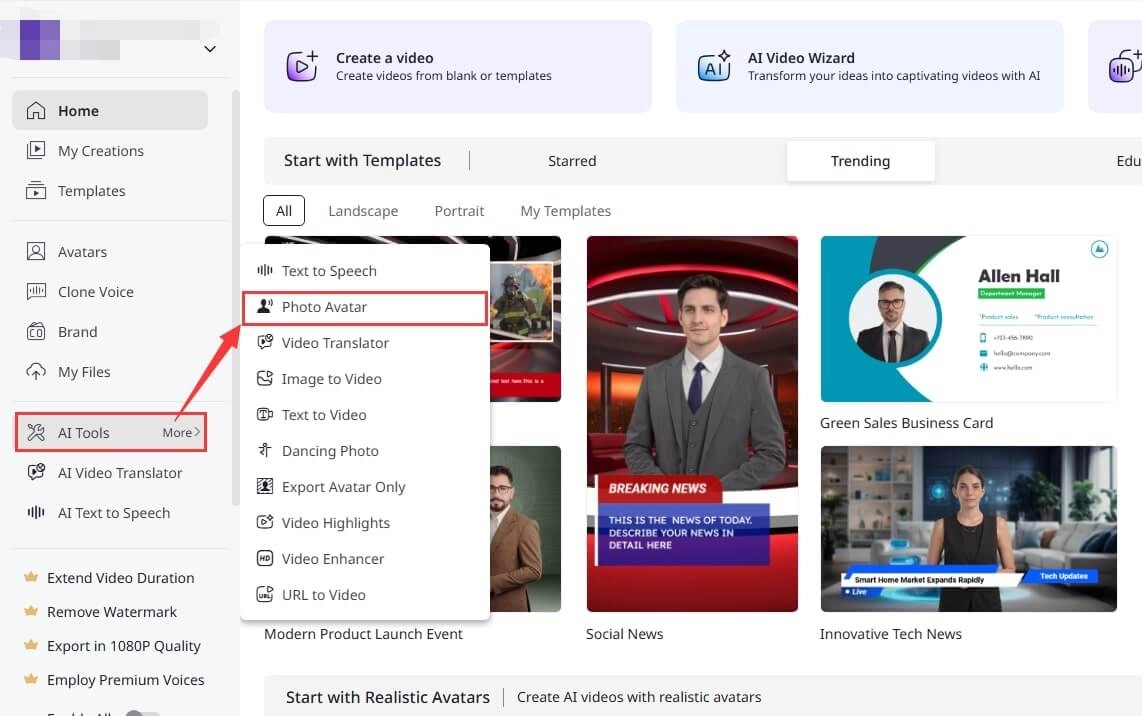
You will get a free cloud space to process and keep your creations. Then go to AI Tools > Photo Avatar.
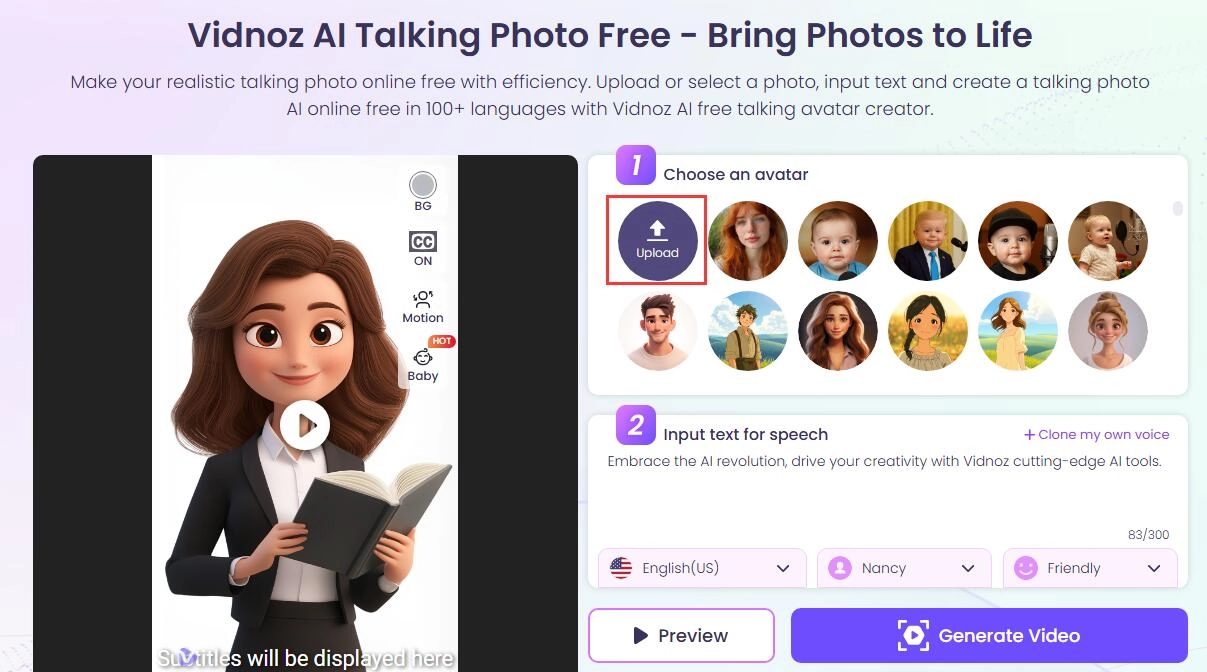
Step 2. Upload Photo
Choose a teacher avatar in cartoon or any style to make it funny, or more sincerely, upload your selfie or picture.
Step 3. Customize & Generate
Input the words you want to say, choose a proper voice, language, and emotion, and then click Generate Video.
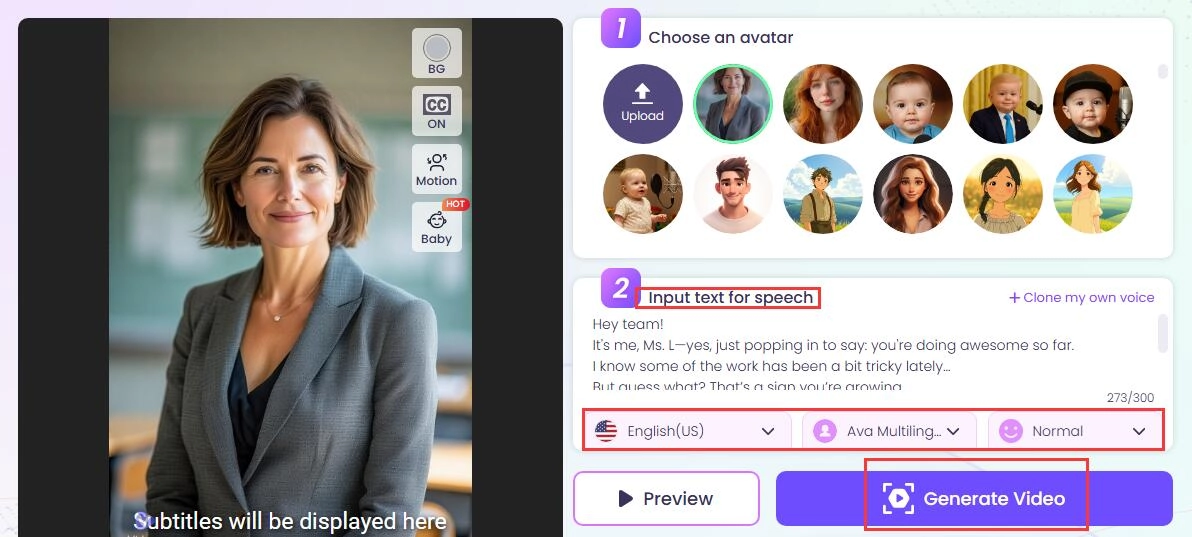
In a moment, you will get your talking photo for Google Classroom. Just upload it to your Google Classroom material, announcement, or assignment as an encouragement following the above tutorial.
Except for education, this tool enriches fun as well. You may use it to make a talking dog video without any difficulties.
The Bottom Line
Now you know how essential the Google Classroom images are, how they can help students engage, comprehend, and move forward, and how you can use pictures and videos in your online course. To bring your class visuals to the next level, don’t forget to try this talking free ai video generator!