Everyone wants to capture the perfect photo for cherished memories or professional projects. Yet, perfection isn’t always possible. Unwanted elements often sneak in. It could be a distracting watermark, a random person in the background, or an unflattering shadow that ruins the composition.
Fortunately, with today’s AI-powered editing tools, you can easily erase parts of image files for perfection. So, how to erase part of a picture without advanced editing skills? This guide will show you the simplest methods to achieve flawless results online, instantly, and for free!
- On This Page
-
Real-Life Cases Where You May Erase Parts of Images
-
Free AI Image Remover to Erase Parts of Images at Once
How to Erase Part of a Picture?
-
How to Erase Background from an Image?
-
How to Remove Parts of Background from Image
-
FAQs on How to Erase Part of an Image?
1. How to erase part of an image in Canva?
2. How to erase part of an image in Photoshop?
3. How to ease parts of an image on iPhone?
-
Traditional Image Erasing Tools Vs. Vidnoz AI Image Remover
Real-Life Cases Where You May Erase Parts of Images
Imperfections can blemish a stunning image, that’s why everyone wants to erase parts of image. Below are some real-life examples where you might want to delete part of image files.
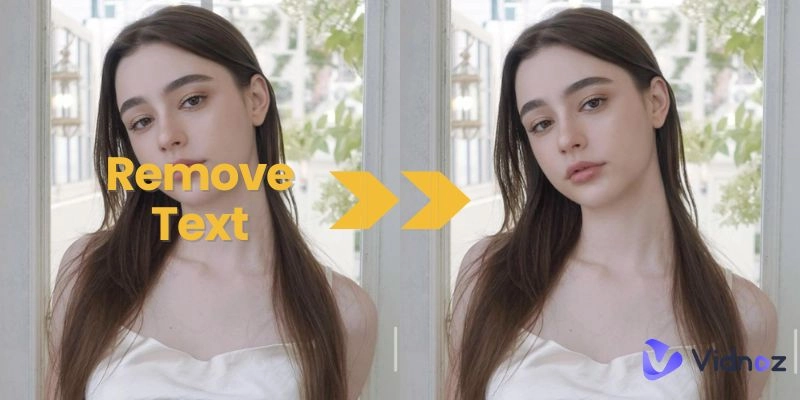
- Clean up a photo: Watermarks, text, or logos can distract from the main subject. E-commerce sellers often erase parts of image to make product photos look professional and appealing on platforms like Amazon or Etsy.
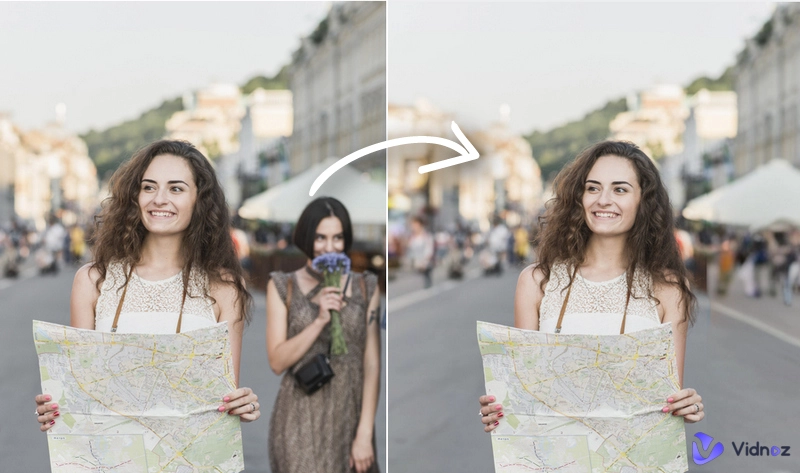
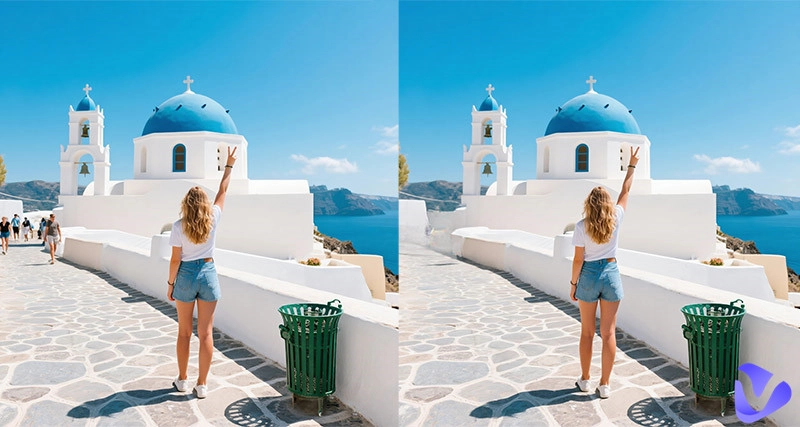
- Remove undesired people: Sometimes, strangers or photobombers can ruin a perfect shot. By removing parts of images, you can keep the focus on your intended subjects only, perfect for travel shots or social media feeds.
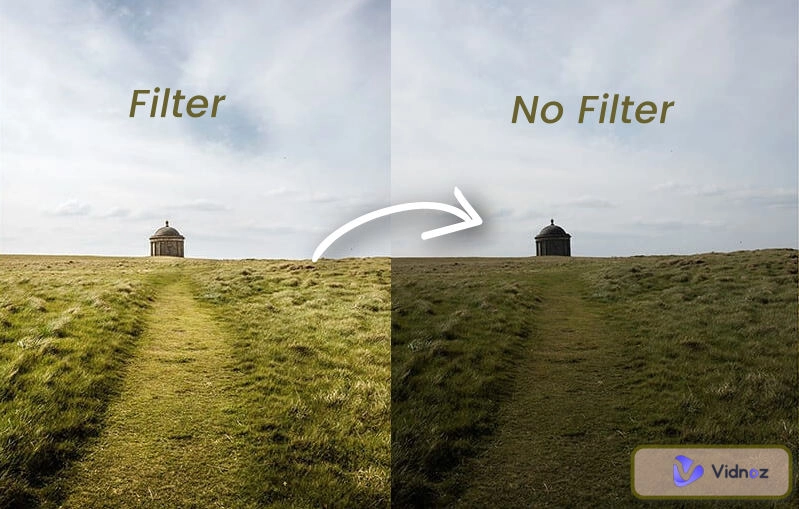
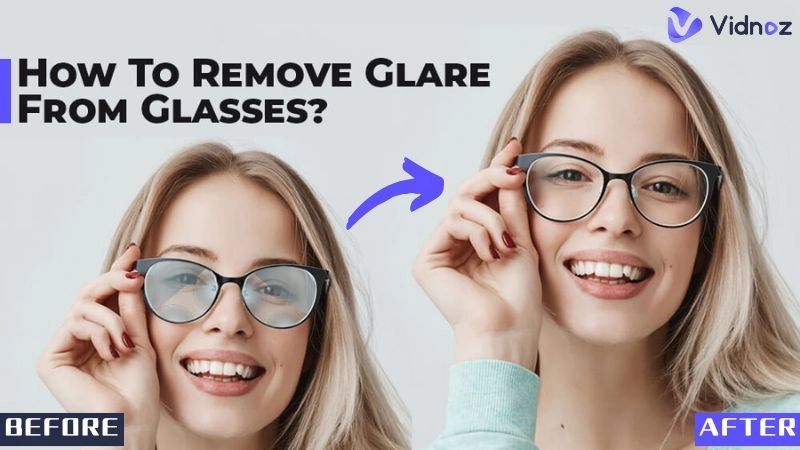
- Fix photography flaws: Shadows, reflections, or lens spots can easily damage a great composition. Photographers often use AI tools or editing software to remove parts of images. This can enhance the overall visuals and aesthetics.
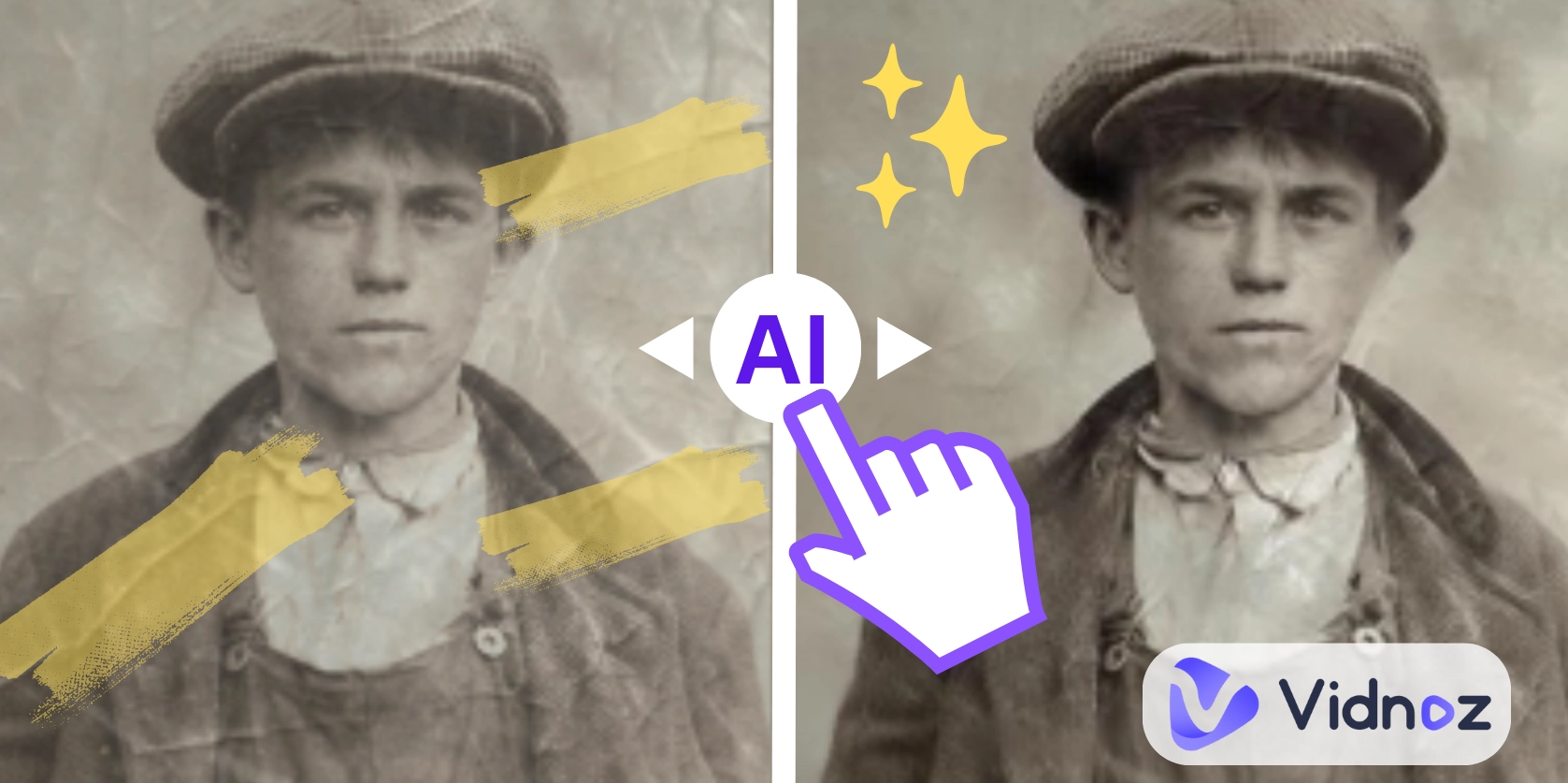
- Restore old photos: Old photos often have scratches, stains, or tears that reduce quality. But worry not; AI tools let you erase parts of image to easily restore and preserve cherished memories.
Free AI Image Remover to Erase Parts of Images at Once
When it comes to efficiently erasing parts of image, Vidnoz AI Image Remover is a top choice. Powered by advanced AI, this web tool allows users to remove objects, people, text, watermarks, stamps, and logos for free! Unlike traditional editors that require professional skills, Vidnoz is easy to use and can produce natural results in one click!
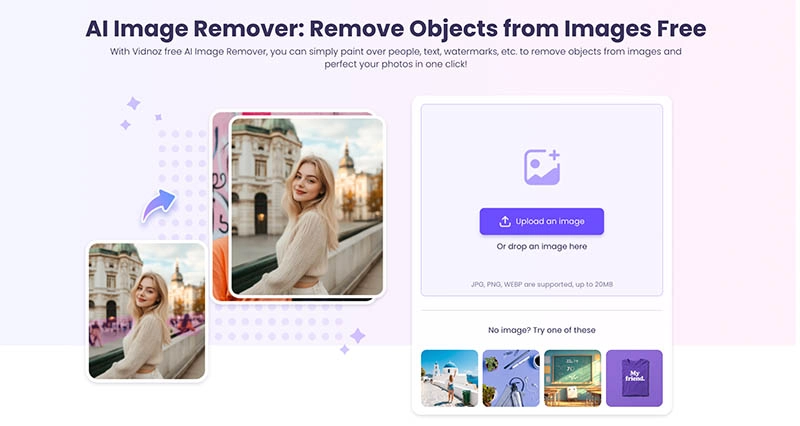
Gain More from Vidnoz AI Image Remover:
- Latest content-aware AI: How to erase part of an image easily? The cutting-edge AI is the No.1 choice!. It intelligently analyses the image's context and seamlessly fills in erased areas with matching pixels, textures, and colors to create visuals that look 100% perfect.
- Full capability of erasing anything: Whether it's semi-transparent logos, unwanted text, complex objects, or even intricate patterns, Vidnoz AI is the best help. The tool can simply handle a wide range of elements. Just upload the image, and it will manage the rest.
- Accurate detection and removal: Powered by AI algorithms, it can identify and isolate unwanted parts with super high accuracy. You can easily remove parts of image files without affecting other areas or leaving traces.
- Lightning-Fast process: While Photoshop can manage sophisticated graphic design, it can take a long time for beginners to remove parts of image. But on Vidnoz, the process can be completed in mere seconds with a simple click/brush.
- Original quality export: After you erase part of image online with Vidnoz AI, you can download the result with high resolution, vibrant colors, and fine details. No compressions guaranteed!
How to Erase Part of a Picture?
As you can see, Vidnoz AI Image Remover is an excellent tool to remove parts of image free and fast! Let’s witness its magic power now! Here’s how to remove parts of images with it hassle free.
Step 1. Visit Vidnoz AI Image Remover.
Step 2. Upload an image. Select the brush and adjust the brush size with the slider. For text, just click on the text detection icon to remove it.
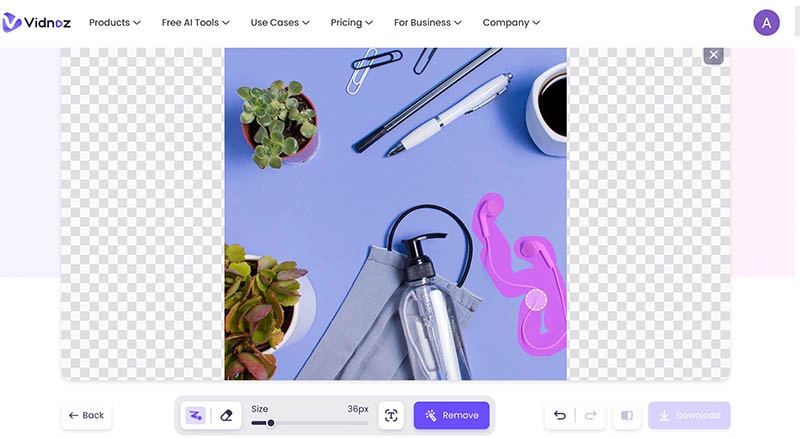
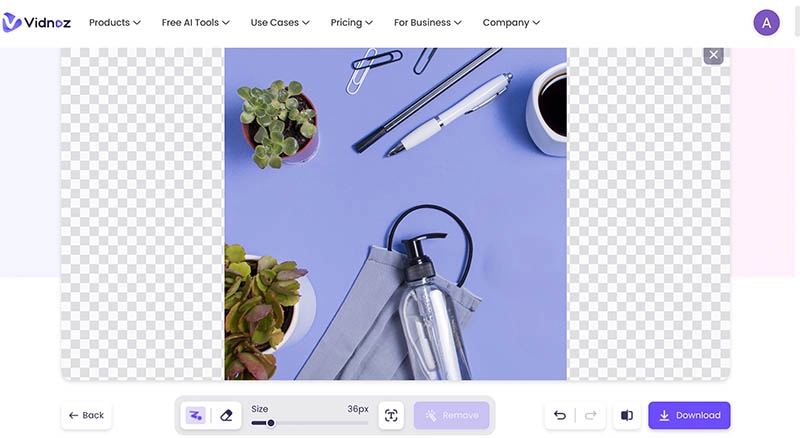
Step 3. Click on the Remove button to erase parts of the image. Download the cleared image for free after it’s done.
How to Erase Background from an Image?
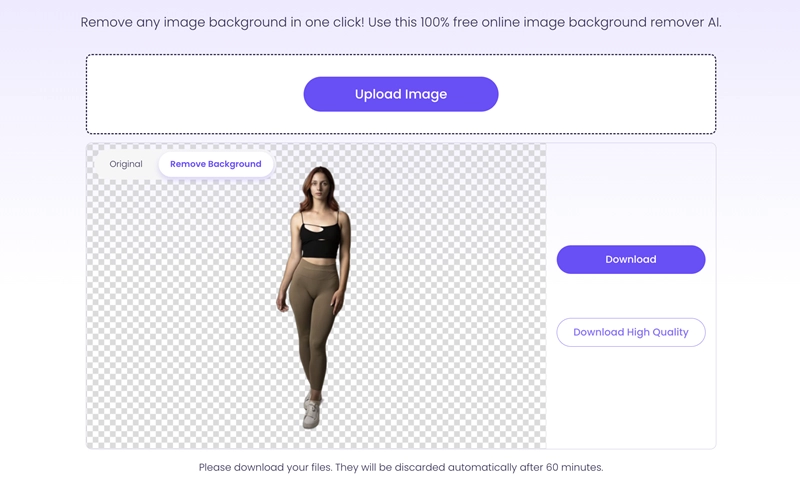
Now you know how to erase parts of image files. So what about the background? Fear not. Introduced by the same platform, Vidnoz AI Image Background Remover is another handy tool that can generate transparent images in seconds. The sophisticated AI can smartly detect and remove backgrounds from photos of people, animals, objects, or anything. You can export high-quality PNG files without signing up for free!
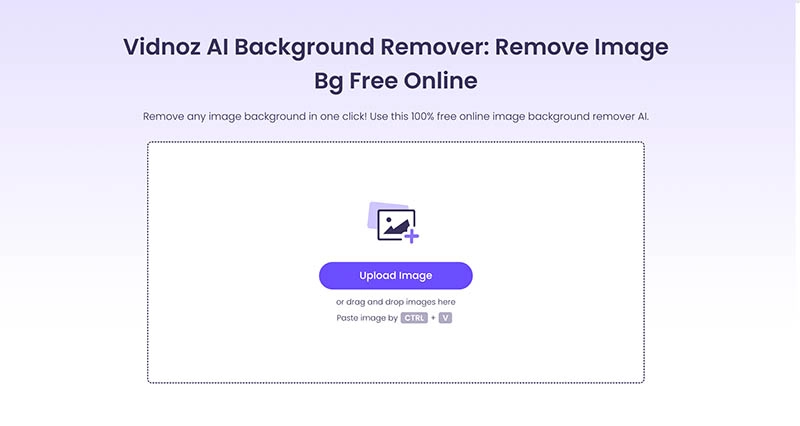
Highlighted features:
- 100% free to use. It lets you remove image backgrounds accurately and export transparent PNGs at no cost.
- Advanced AI to deliver high-resolution results. Preserve sharp details and colors with no blur or compression.
- Process images within seconds. Support unlimited uploads for quick background removals.
How to Remove Parts of Background from Image
Step 1. Head to Vidnoz AI Image Background Remover. Sign in if you want to download a high-resolution image.
Step 2. Upload an image you want to remove the background from.
Step 3. Click on the Download button to save the image for free.
FAQs on How to Erase Part of an Image?
How to erase parts of image files? Vidnoz AI offers 2 great smart tools that let you remove unwanted elements and backgrounds for free. Yet, today, the solutions are way more than you imagine. Here are some popular methods that truly work!
1. How to erase part of an image in Canva?
Step 1: Upload your image to a new design in Canva.
Step 2: Click "Edit image" and select "Magic Eraser" from Magic Studio.
Step 3: Brush over the unwanted area and adjust the size for precision. Apply changes and download the file.
2. How to erase part of an image in Photoshop?
Step 1: Open your image in Photoshop. Choose the Eraser tool (press E) from the left-hand toolbar.
Step 2: In the tool options bar, adjust the Brush Size, Hardness, and Opacity. This lets you control how much of the image is erased with each stroke.
Step 3: Drag the cursor over the unwanted area to erase it smoothly. For more precision, you can zoom in or use a smaller brush size to target fine details.
3. How to ease parts of an image on iPhone?
Step 1: Open the Photos app and select the photo you want to edit, then tap Edit.
Step 2: Tap the Cleanup tool (Eraser icon) at the bottom of the screen. Then tap the unwanted objects to remove them instantly.
Step 3: For manual edits, zoom in and brush over the area you want to erase. Tap Done to save your changes.
Also Read: How to Erase Someone from a Photo on iPhone >>
Traditional Image Erasing Tools Vs. Vidnoz AI Image Remover
Traditional tools and modern AI, which one is better at erasing parts of image files? Here’s a brief comparison.
|
Feature
|
Traditional Tools
|
Vidnoz AI Image Remover
|
|
Quality Preservation
|
Often causes blurry results if you are not an expert.
|
No quality loss, preserves original details
|
|
Accuracy
|
Manual selection leads to imprecise results
|
Accurate AI detection for seamless removal
|
|
Speed
|
Time-consuming with multiple steps
|
Lightning-fast, one-click process
|
|
Ease of Use
|
Require skills and software installation
|
Free online tool, no skills needed
|
|
Background Filling
|
Leave unnatural gaps or mismatches
|
Content-aware AI for natural rendering
|
The Bottom Line
How to erase parts of image files? Now you have the most powerful AI tools at hand, plus bonus methods for simple edits on Canva, Photoshop and iPhone. Whether you want to remove undesired people, fix flaws, or backgrounds, Vidnoz AI is the best option that simplifies the task with intelligent technologies. Head to Vidnoz AI and enjoy easy edits with professional quality every time for free now!

Vidnoz AI - Create Free Engaging AI Video with Talking Avatar
- Easily create professional AI videos with realistic avatars.
- Text-to-speech lip sync voices of different languages.
- 2800+ video templates for multiple scenarios.