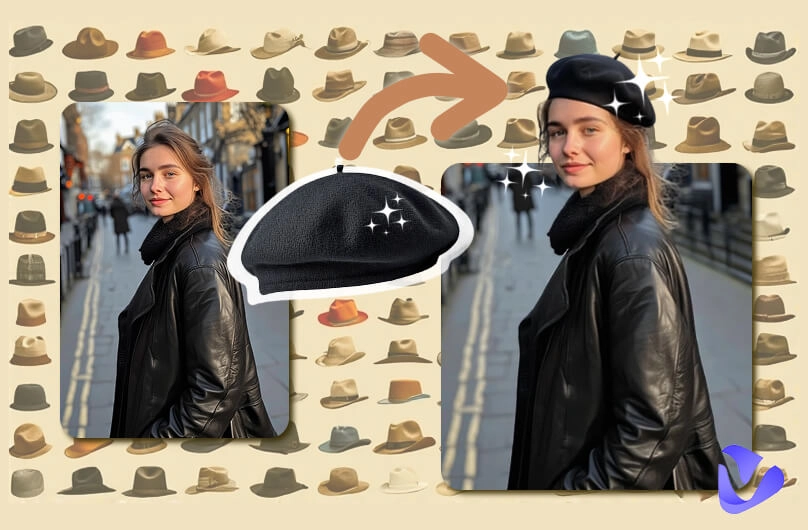
Ever thought of adding an accessory or piece to your selfie and enhance the outfit? “What if I had put on a baseball cap? It will work perfectly with my street-wear look.” Though the picture is taken, you always want to make it perfect before posting on your IG.
For instance, no one will deny that hats can elevate your whole look and bring out your vibe. Then, how to add a hat to your selfies? Look no further, try using correct AI tools to add hat to photo, and it will take your look to the next level.
- On This Page
-
What Kind of Hats Can You Utilize
-
Fotor: Draw & Describe to Add Hat to Photo Seamlessly
-
LightX: Virtual Hat Try on in Various Styles
-
Vondy: Add Hat to Picture with Customizable Prompts
-
AIEASE: Add Hat to Photo with Auto or Brush
-
Pixlr: Add Hat to Photo with Generative Fill
-
Which Hat Suits You Best? Add Hat to Photo & Test
How to Test Which Hat Suits You Most?
What Kind of Hats Can You Utilize
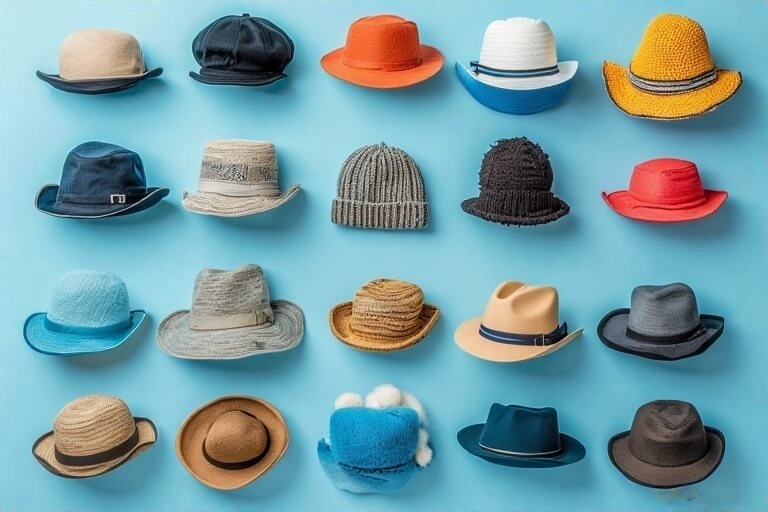
Adding a hat to your photo isn’t just about covering your head; it’s for attitude, balance, and a final touch to your look. So, no rush! Just take a look at the hat types and their best-match styles first.
| Hat Type |
Description |
Style Pairing |
| Baseball Cap |
Casual, sporty |
Street-wear, Hip-Hop, laid-back, athleisure |
| Beanie |
Knit, cozy, warm, casual |
Winter, oversized sweaters, or soft/warm textures |
| Beret |
French style, relaxed, contemporary street |
Feminine style, artsy, elegant |
| Bucket Hat |
Soft downward brim, sun protection, laid-back |
Hip-hop, low-key, relaxed style |
| Fedora |
Structured, firm, versatile |
Bohemian style, from casual to formal |
| Cowboy Hat |
Western fashion, wide-brimmed |
Outdoor, festival |
| Newsboy Cap |
Rounded cap, short and stiff brim |
Classic, street, vintage, working class |
| Top Hat |
Tall, flat-crowned, formal |
Formal wear, steampunk, costume looks |
Apart from these, you have way more choices: Cloche hat, Deerstalker hat, Floppy hat, etc. Each brings a different vibe. No matter what you want, the apps to add hat to pictures can cover you. Ready? Move forward for detailed information!
Fotor: Draw & Describe to Add Hat to Photo Seamlessly
Yes, of course, you can add Christmas hat to photo without actually buying one. Fotor can help level up your Christmas selfies with a seamless and cute Christmas hat. All you need to do is choose the region or draw a round region and wait for it to process. The hat color will perfectly match your picture vibe and balance.
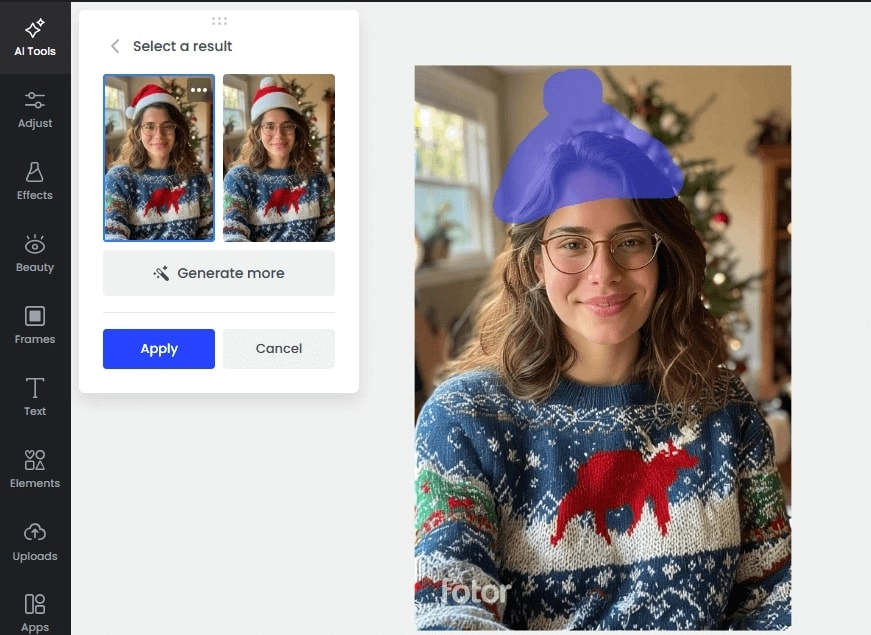
If you want, you may also add smile to photo to brighten your selfie.
Key Feature
- Add a hat to a photo seamlessly with matching coloring, lighting, and texture details.
- Generate 2 versions for you to choose.
- Provide a brush and quick select feature to choose the target region.
- Allow batch editing in adding hats to pictures.
Drawbacks:
- Ads on the user interface. You have to upgrade to remove them.
- Free trial times are not sufficient.
Price:
Daily twice free trial.
Yearly:
- Fotor Pro US$2.66/mo
- Fotor Pro+ US$5.24/mo
Monthly:
- Fotor Pro US$7.19/mo
- Fotor Pro+ US$13.99/mo
How to Add Hats to Photos with a Brush?
Step 1. Start Fotor, log in to your account. Then, head over to AI Replace.
Step 2. Upload your selfie, and use the Brush feature to select the hat region.
Step 3. Enter the description of the hat you want, and click Generate to add hat to photo.
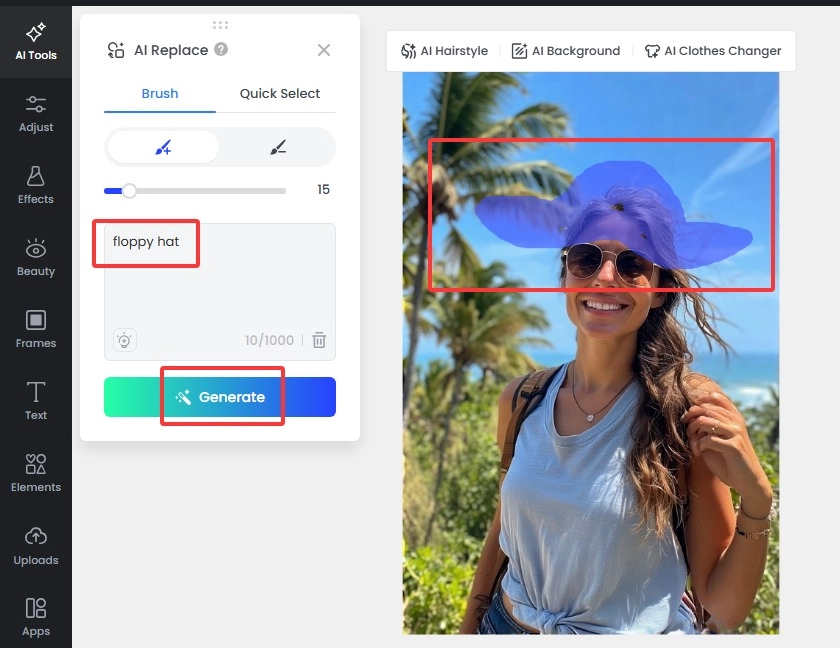
The process is much easier than adding face to a video; just try and have fun.
LightX: Virtual Hat Try on in Various Styles
If you don’t have any idea about what hat to put on in your picture, then choose LightX to help you. This app provides a well-trained AI Portrait feature that comes with various suits/costumes with different hats; plus, you will love the well-designed frame outlays, professional coloring, natural lighting, and the variety.
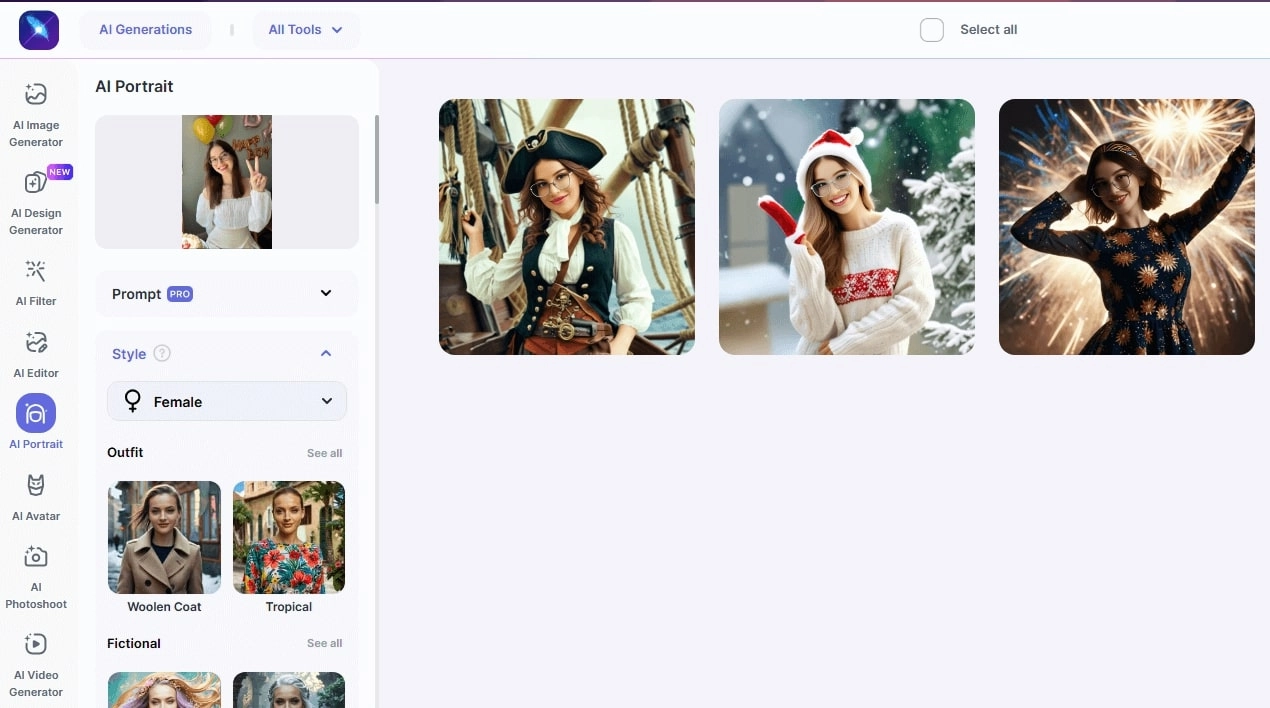
Key Feature
- Provide costumes in different scenarios for virtual hat try on.
- Well-designed details like lighting, coloring, layout, etc.
- Various hats in costumes, like pirate hats, warrior helmets, Christmas hats, cloche hats, etc.
- Provide diverse hats and costumes for female and male users. Male users can also add suit to photo and get a professional headshot.
Drawbacks:
- The text prompt feature is locked in free accounts.
- Generate only 1 version.
Price:
Daily 5 free credits.
Yearly: US$3.33/mo
Monthly: US$5.99/mo
500 AI credits: $4.99
How to Add Hats to Photos & Get a Well-Designed Portrait?
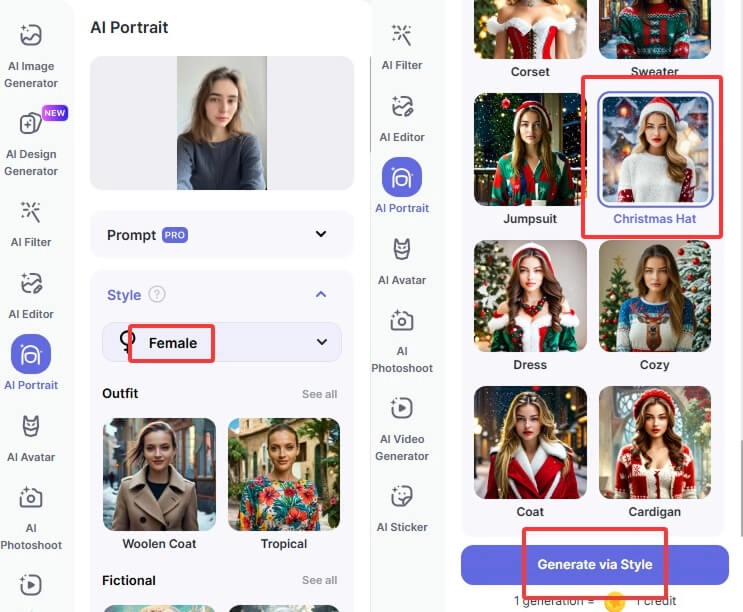
Step 1. Go to LightX’s user dashboard > find AI Portrait.
Step 2. Upload your selfie or picture > choose Female in Style.
Step 3. Choose a style, like Pirate in Warrior, Vintage in New Year, and Christmas Hat. Click Generate via Style.
Vondy: Add Hat to Picture with Customizable Prompts
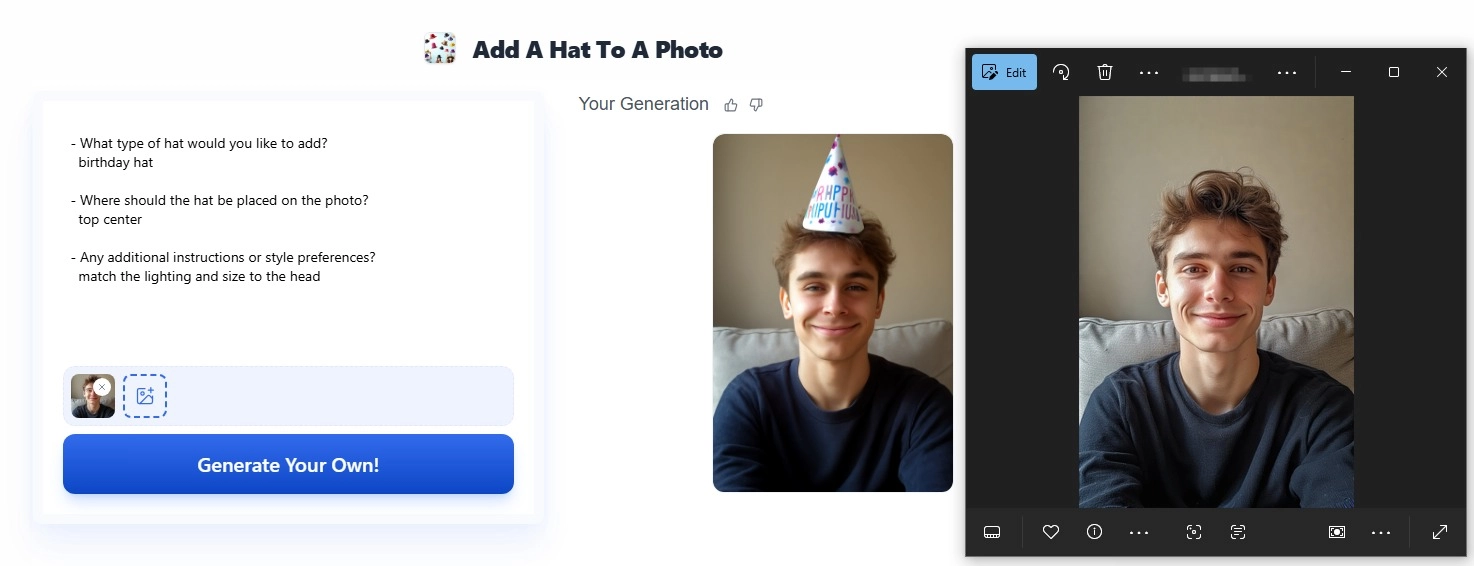
Choose Vondy to add hats to photos if you prefer customizing or adding some details while adding hats. This app allows giving detailed descriptions through Q & A. For example, you may personalize your hat’s size, color, texture, and where it sits. The generated hat looks quite natural due to the matched lighting and coloring.
Key Feature
- Give preset questions to help you customize your hat.
- Allow adding more than 1 hat to the photo.
- Give text descriptions to customize the hat’s details.
- Provide prompt hints and ideas to add hat to pictures; e.g., you can add birthday hat to photo and see how it looks.
Drawbacks:
- Generate only 1 photo in 1 go.
- Downloading requires upgrading to the Pro plan.
- The pose, face, and other details cannot be kept intact, which may cause subtle differences.
Price:
5 daily free tries.
Pro: US$9/mo 10,000 credits/mo
Max: US$39/mo 50,000 credits/mo
How to Add a Hat to a Photo with Text Description?
Step 1. Head over to Vondy.
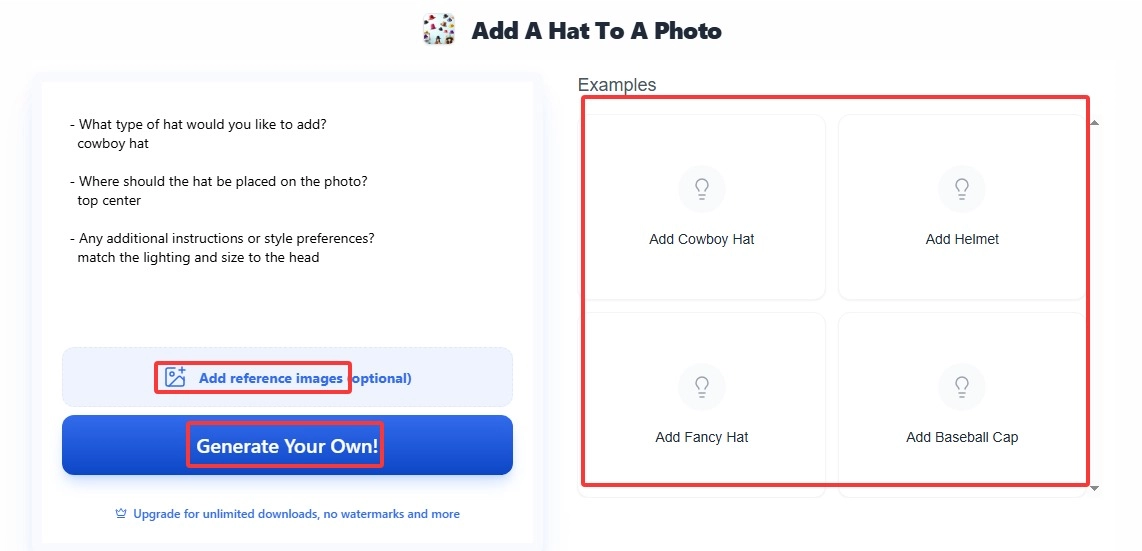
Step 2. Upload the reference image, choose a hat type from the Examples, or describe your choice.
Step 3. Add details or preferences, and click Generate Your Own to check the virtual hat try on effect.
AIEASE: Add Hat to Photo with Auto or Brush
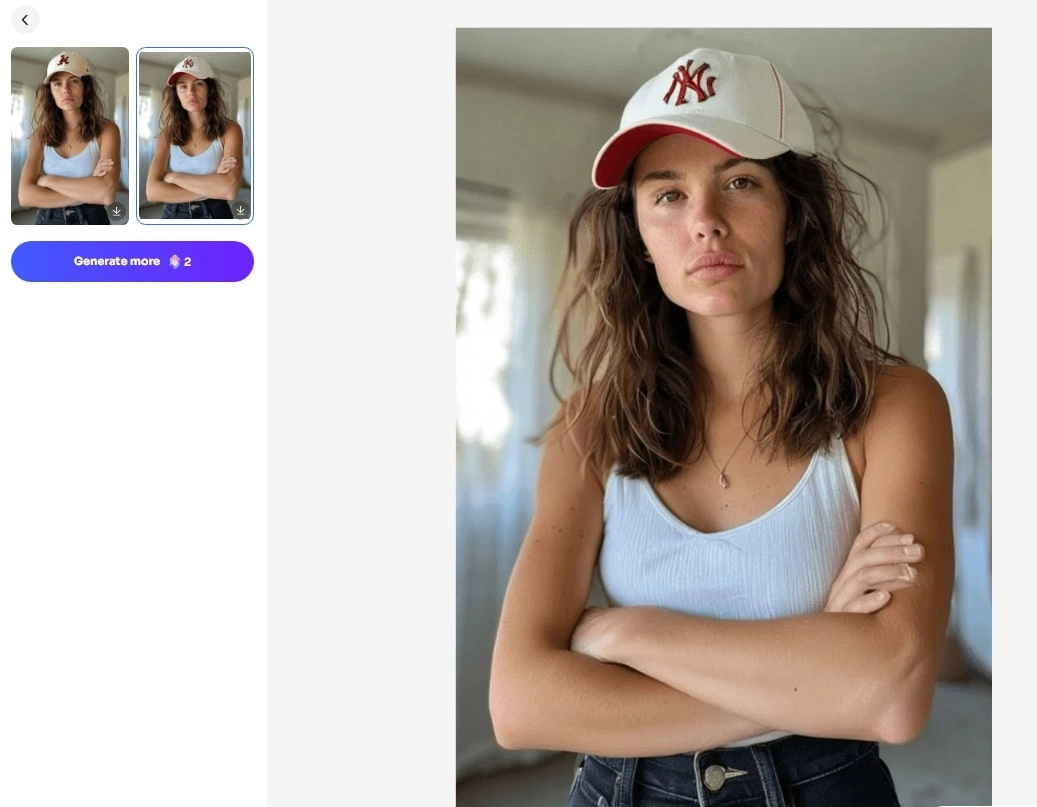
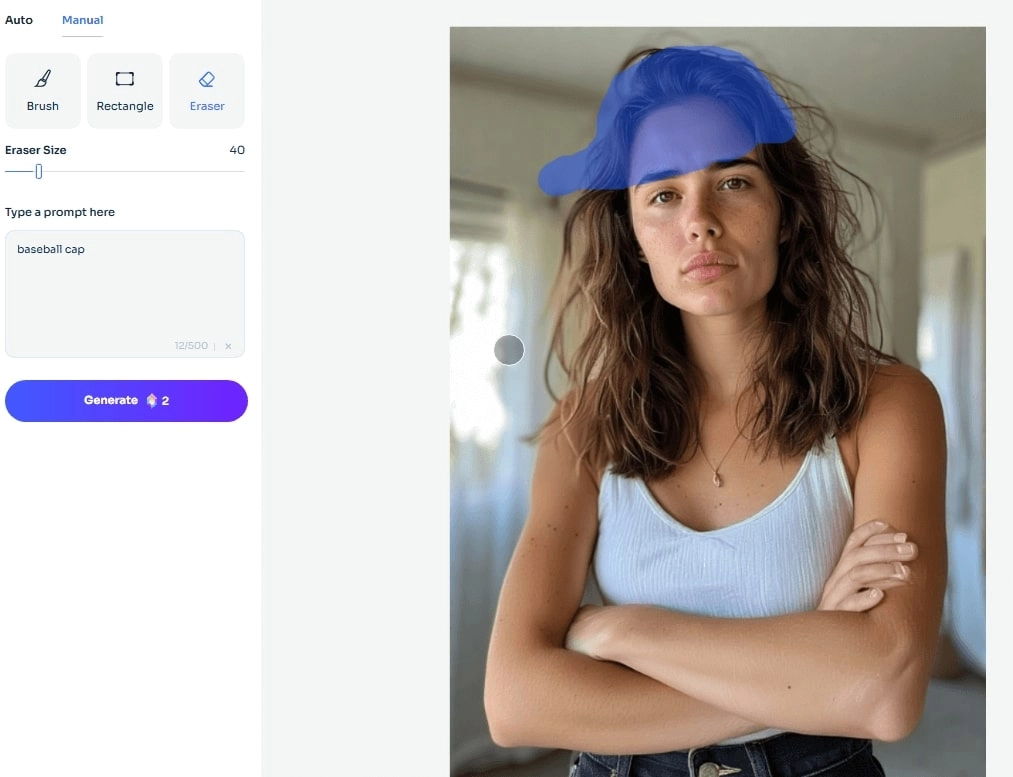
AIEASE is always pro in editing photos. This web-based app provides an AI Replacer feature, with which users can use a brush, a rectangle, and an eraser to select the place where they want to add a hat. You can also customize the hat type, color, and brand. For instance, you may get an MLB New York Yankee-style hat.
Key Feature
- Draw the region and add descriptions to add hat to photo online free.
- Come with other AI photo editing tools like AI Hair Changer, AI Filters, etc. You might wear the funny dread filter to change hairstyles and colors.
Drawbacks:
Similarly, the result face will slightly change.
Price:
Daily 5 free credits.
Pro Monthly: US$9.99/mo
Pro Annually: US$59.99/yr
How to Add a Hat to Picture Using AIEASE?
Step 1. Go to AIEASE > find AI Replacer.
Step 2. Upload the picture you want to add hats to > brush out the region of the hat > describe the hat you want.
Step 3. Click Generate.
Pixlr: Add Hat to Photo with Generative Fill
Pixlr will also be helpful if you are familiar with photo editing, like HDR, focus, bokeh, glitch, etc. Using this online tool, you can not only add hat to photo, but also add glitch to photo, adjust the picture's white balance, brightness, saturation, and more to elevate the picture.
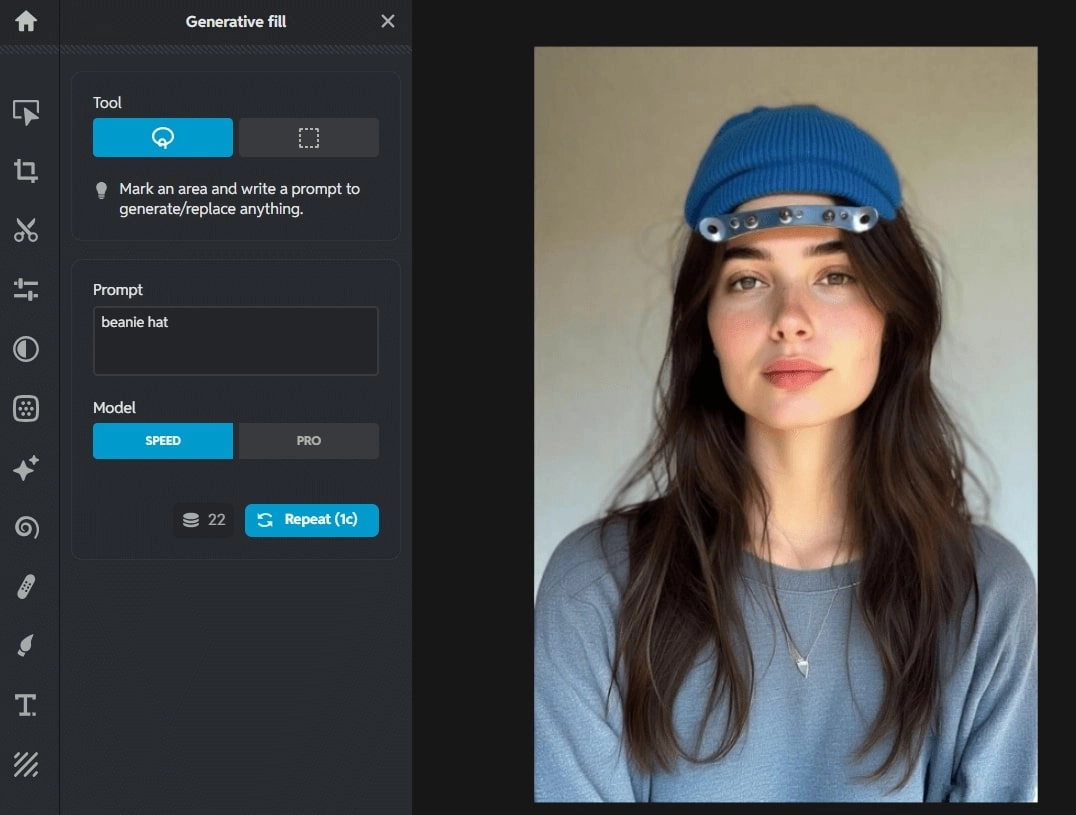
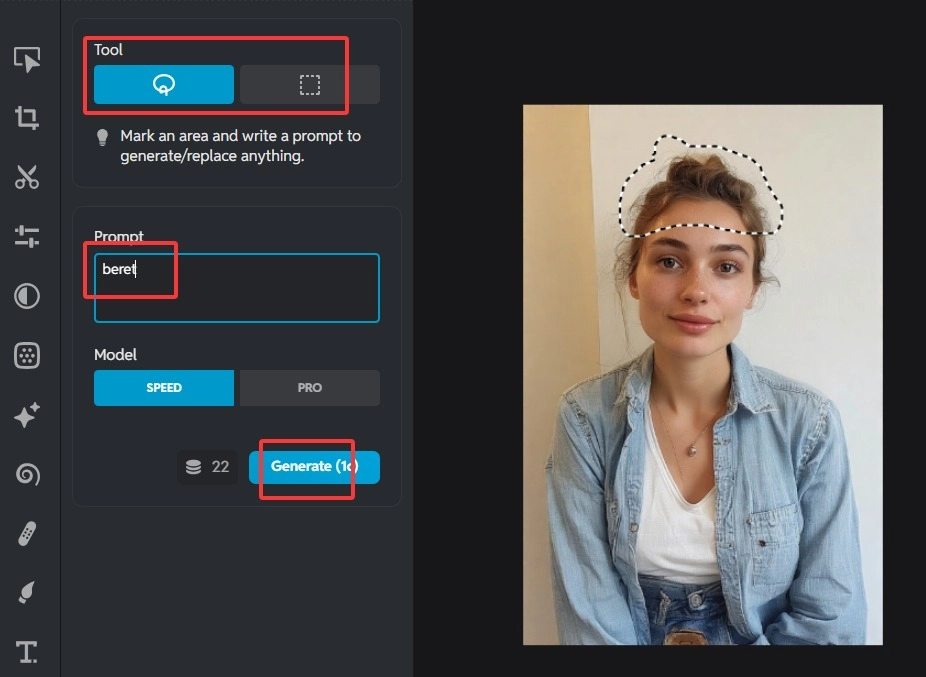
Different from other apps, it provides a lasso for target region selection, which might not be that handy compared to brushes. But you will love the free trials it provides. In this case, you can make several versions until satisfied.
Key Feature
- Add hats to pictures with a lasso and text prompt.
- The free credits are more sufficient than other tools.
- Useful photo editing tools like Remove Objects, Super Scale, Remove Noise, etc. You can remove glasses and other accessories from photo to keep it simple and clean.
Drawbacks:
- Sometimes the hat does not exactly appear at the place you circled.
Price:
- AI Credits:
- 200 US$3.99
- 500 US$6.99
- 1000 US$9.99
- 2000 US$16.99
- 5000 US$30.99
*GST9%
How to Add a Hat to a Photo with Generative Fill?
Step 1. Start Pixlr > drag your selfie into the operate panel.
Step 2. Click the AI Tools on the sidebar > choose Generative Fill.
Step 3. Use the lasso tool to circle the place you want a hat to appear > input the hat type > click Generate.
Which Hat Suits You Best? Add Hat to Photo & Test
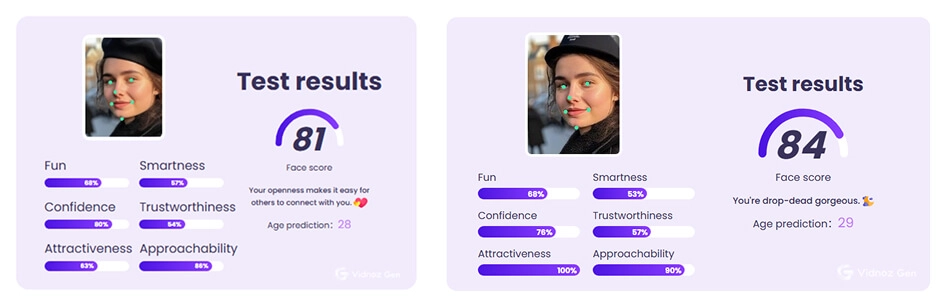
So, have you decided which kind of hat suits you most? Or, still hesitating between beret and beanie? Well, an objective test is what you need. Just upload your picture to an attractiveness test AI tool, and let’s find out which hat type can bring out your vibe and charm.
Don’t miss the comprehensive AI Attractiveness Test tool provided by Vidnoz, which helps analyze your charm from Fun, Smartness, Confidence, and more. With the aid of this app, you can find which hat type was made for you.
How to Test Which Hat Suits You Most?
Step 1. Navigate to Vidnoz Gen, find Attractiveness Test under AI Images. Upload your selfie with a hat added on, for instance, the picture of you wearing a beret.
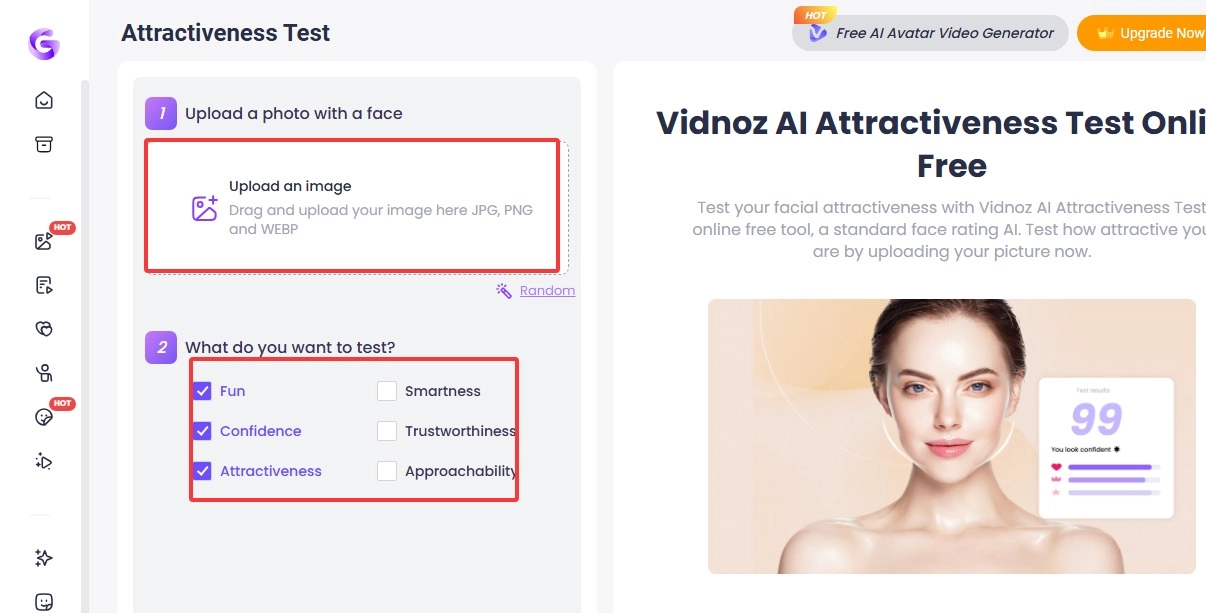
Step 2. Select the aspects you want to test, e.g., Trustworthiness, Approachability, etc. Click Generate Now.
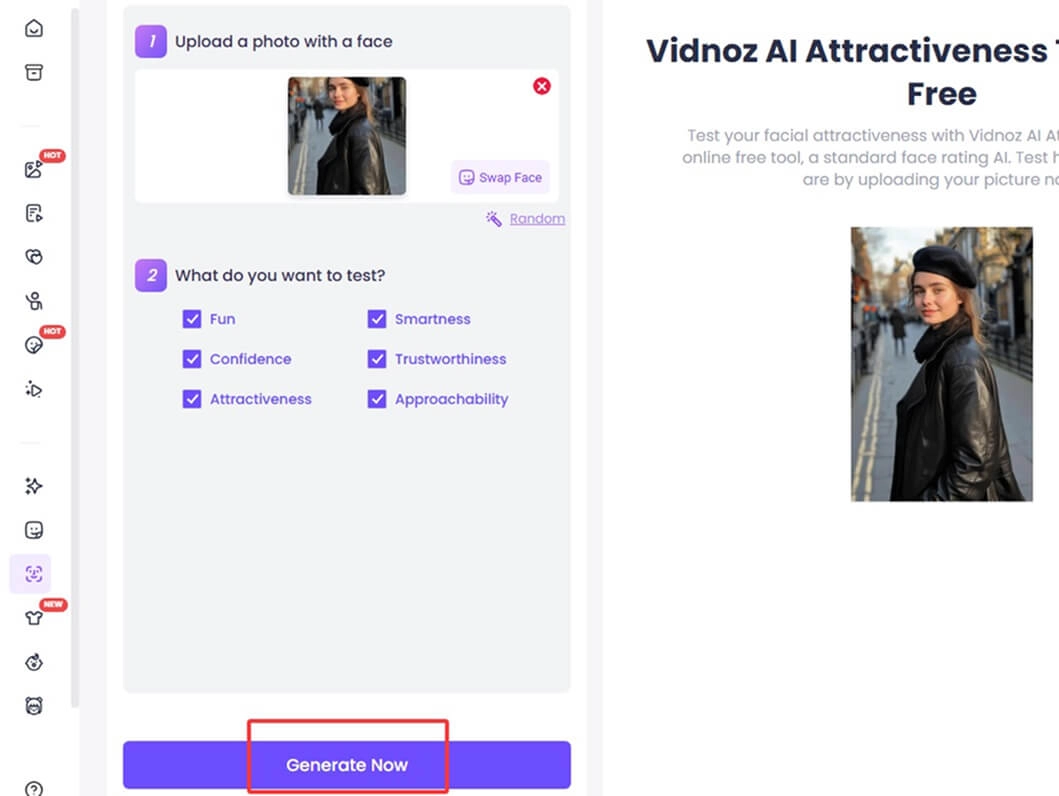
Step 3. Check the test result. You may also upload a picture with another kind of hat added on, e.g., the bucket hat. Then, see which one’s score is higher.
The Bottom Line
If you have never tried to add hat to photo, then this post might be of some help to you; and you should definitely give it a try. Be it from a beret, baseball cap, cloche hat, or bucket hat, any of them can work well with your outfit and bring another layer of glamour to your whole look.
Don’t hesitate, add a hat to a photo or a selfie, and see how your outfit becomes complete and put-together!