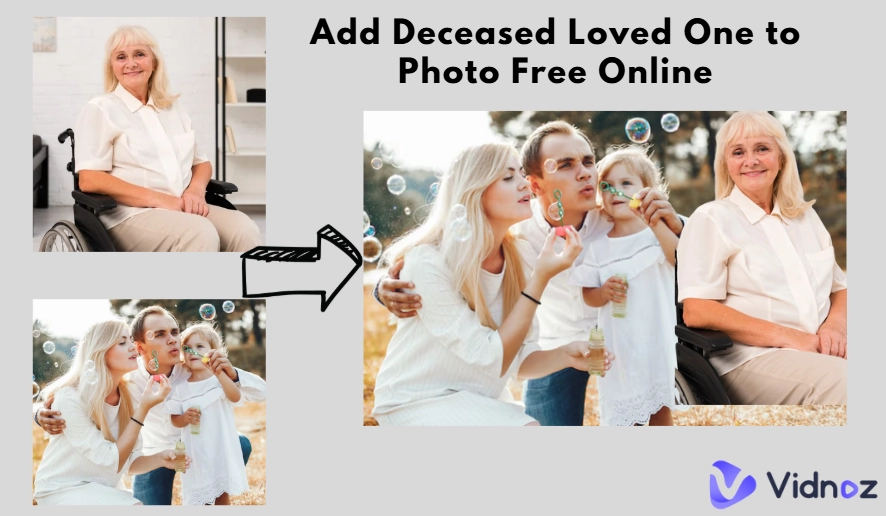
Even though our loved ones will leave us at some point in our lives, preserving their memories in photos can extend their presence, especially in family photos. Using an AI tool to add deceased loved ones to photo free could ensure that they continue to exist within our lives, even at our most precious and treasured moments. Wouldn't it be better to make your deceased loved one in the photos with simple steps?
In this article, we’ll talk about 4 online image generators to add the deceased loved one to photos and videos free online, making it seem that they never left us. There is bonus content within the blog for those who would like to go further to preserve the memory of their loved one!
- On This Page
-
Why Add Deceased Loved One to Photo?
-
How to Add a Deceased Loved One to a Photo Free Online?
-
4 Online Tools to Easily Add Deceased Loved One to Photo for Free
1. Add Loved One to Photo: Place a Missing Person to a Photo in Clicks
2. Pokecut: Naturally Cut out and Add the Deceased Loved Person into a New Photo
3. YouCam Perfect: Seamlessly Overlay the Beloved Dead to an Image
4. Vondy: Automatically Add People to Photo with Prompts
-
More AI Tools to Revive the Passed Person Online
1. Make the Dead Loved One Talk in an AI Video
2. Create Portraits of Dead Loved Ones with an AI Memorial Photo Generator
Why Add Deceased Loved One to Photo?
Sometimes those whom we thought we’d spend more time with could abruptly leave our lives. Advanced AI technologies make it possible for users to easily take a group photo with their beloved ones who have already passed away. With the AI tools, people can easily be together with their dead family or friends with simple clicks. By automatically analyzing the facial and body features from the entered images, the AI will smoothly add the deceased one to the target family photos, adding more funny memories for the alive people.
How to Add a Deceased Loved One to a Photo Free Online?
Are you interested in adding a deceased loved one to a photo for free using online tools? Follow the steps below to add deceased loved ones to photo free online.
Step 1. Remove image background of the deceased one
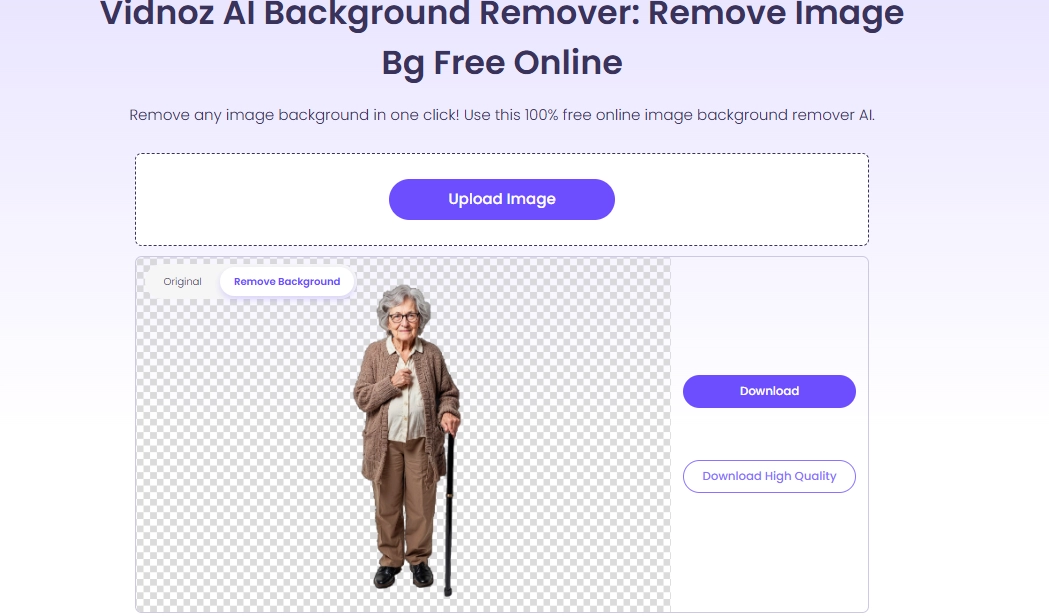
Get an image that features the deceased individual and upload it onto Vidnoz AI background remover. Use the background remover to remove the background within the image. This work will allow you to seamlessly add the transparent image of the deceased one onto other images.
Step 2. Upload both photos to Cnava
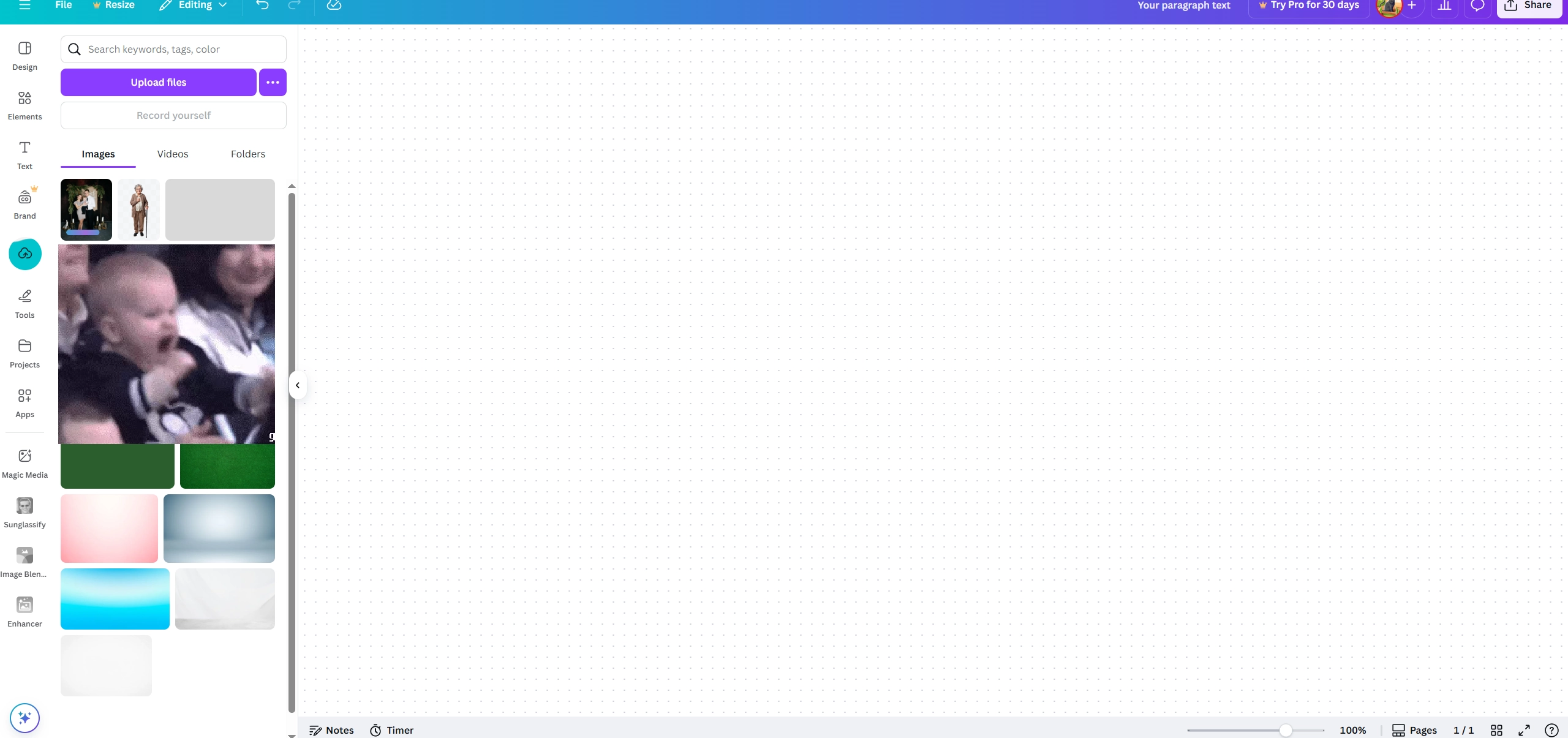
The second part of the process requires Canva. Open up a template and upload the two photos onto the online image editor. The photos are the image which you wish to add the person into and their personal photo that had its background removed.
Step 3. Add the decease one to the target photo
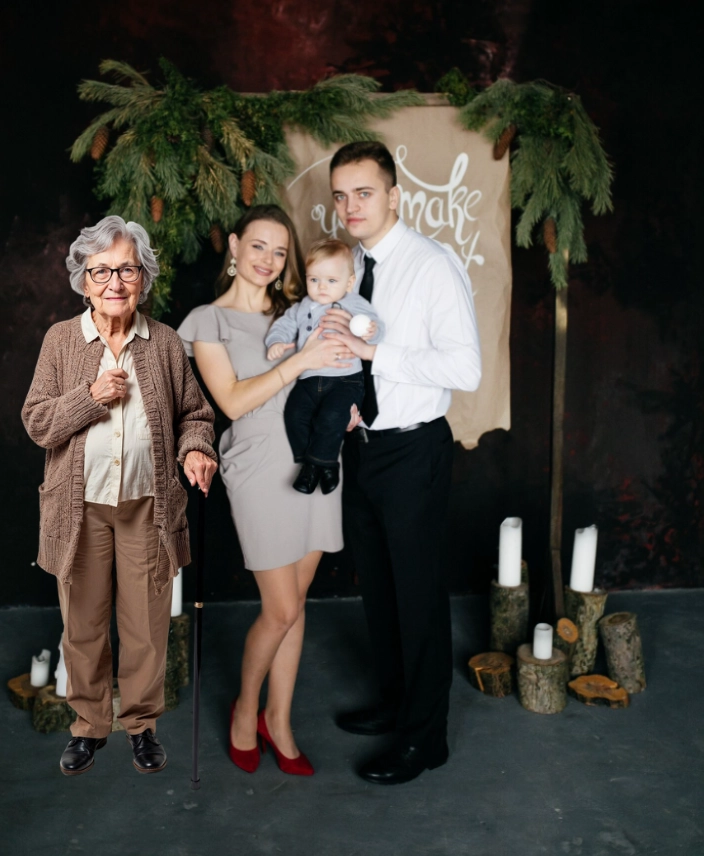
Drag the main photo onto the screen and simply add the deceased individual's photograph onto it. Afterwards, slightly adjust it to make sure that it fits the image in both context and positioning.
Vidnoz AI - Create Free Engaging AI Video with Talking Avatar
- Easily create professional AI videos with realistic avatars.
- Text-to-speech lip sync voices of different languages.
- 2800+ video templates for multiple scenarios.
4 Online Tools to Easily Add Deceased Loved One to Photo for Free
There are multiple options online to add your deceased loved one to a photo. Don't know which is most practical? Read on, here are 4 of the best online tools to add deceased loved ones to photo free online.
1. Add Loved One to Photo: Place a Missing Person to a Photo in Clicks
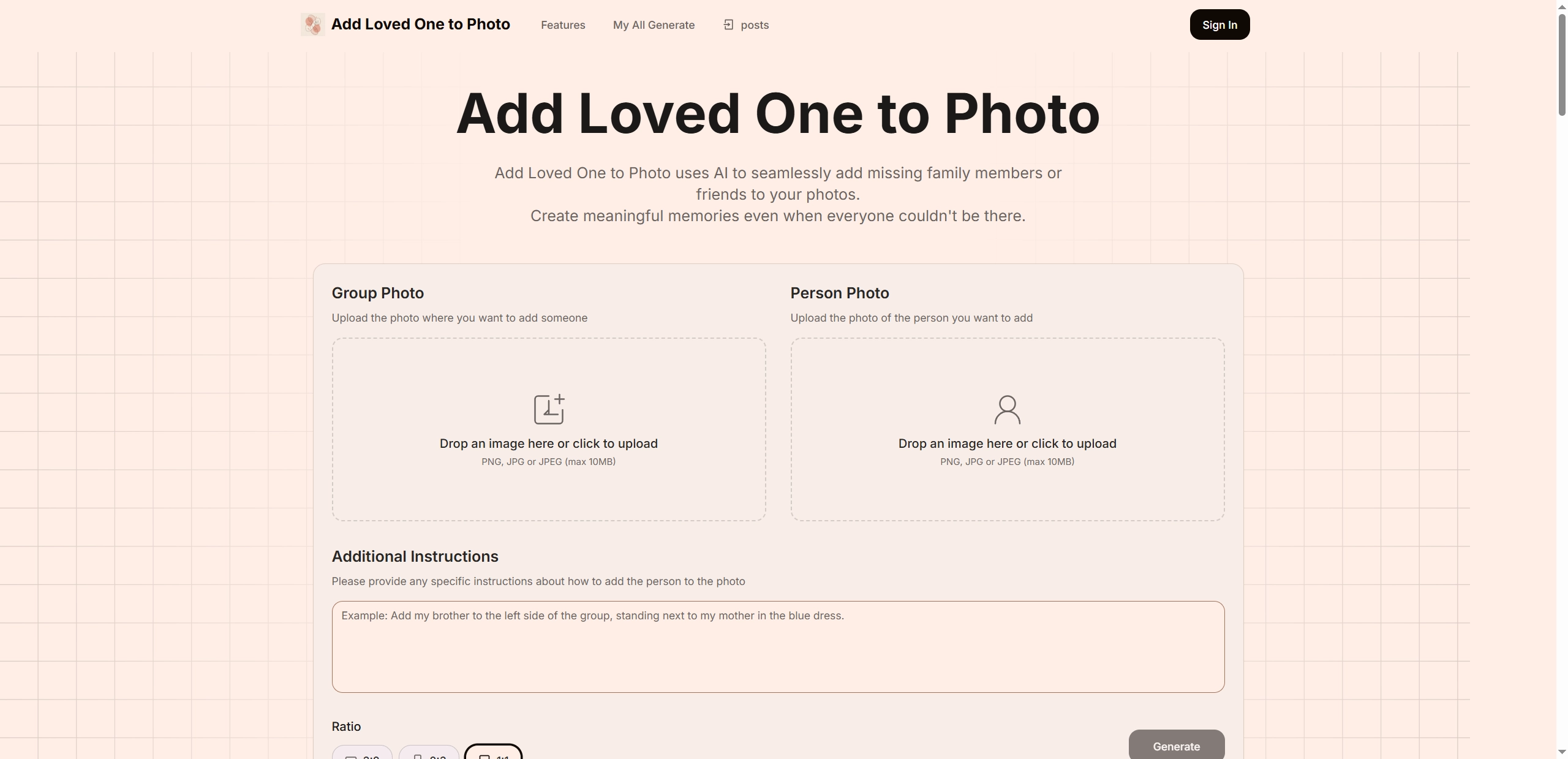
Built just for this exact purpose, Add Loved One to Photo allows you to add those who are deceased into images with surprising ease. The online add deceased loved one to photo free app can create meaningful memories even though those that should have been there couldn't attend in reality. The users are free to add more members onto the images by instructing the AI to proceed with the member adding. There are 3 ratios available for users to pick from 3:2, 2:3 and 1:1.
Key Feature
- Easy to use with the add deceased loved one to photo AI.
- 3 image ratios available for choosing.
- No manual editing required as the AI will do the heavy work.
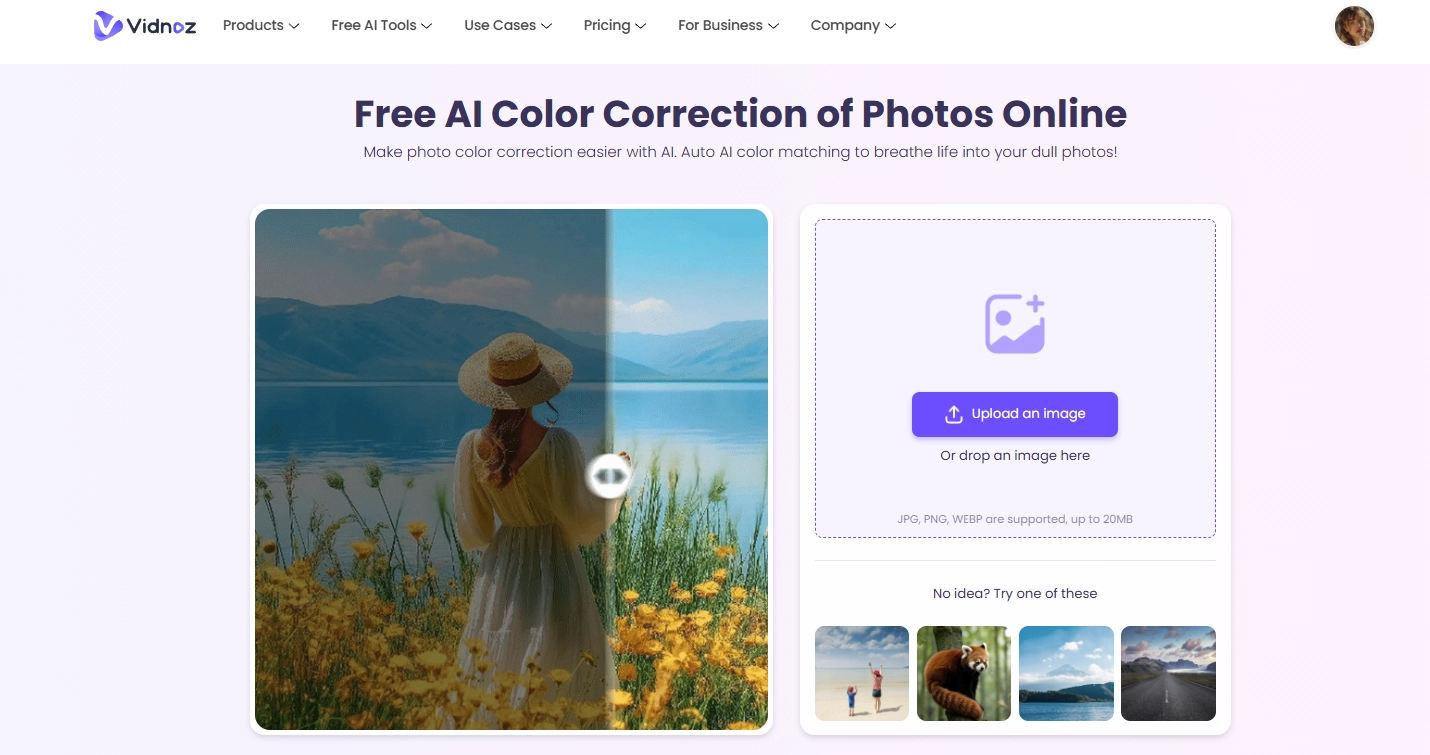
>> Do you want to recolor the old images of your deceased loved one? Click here for free AI color correction.
2. Pokecut: Naturally Cut out and Add the Deceased Loved Person into a New Photo
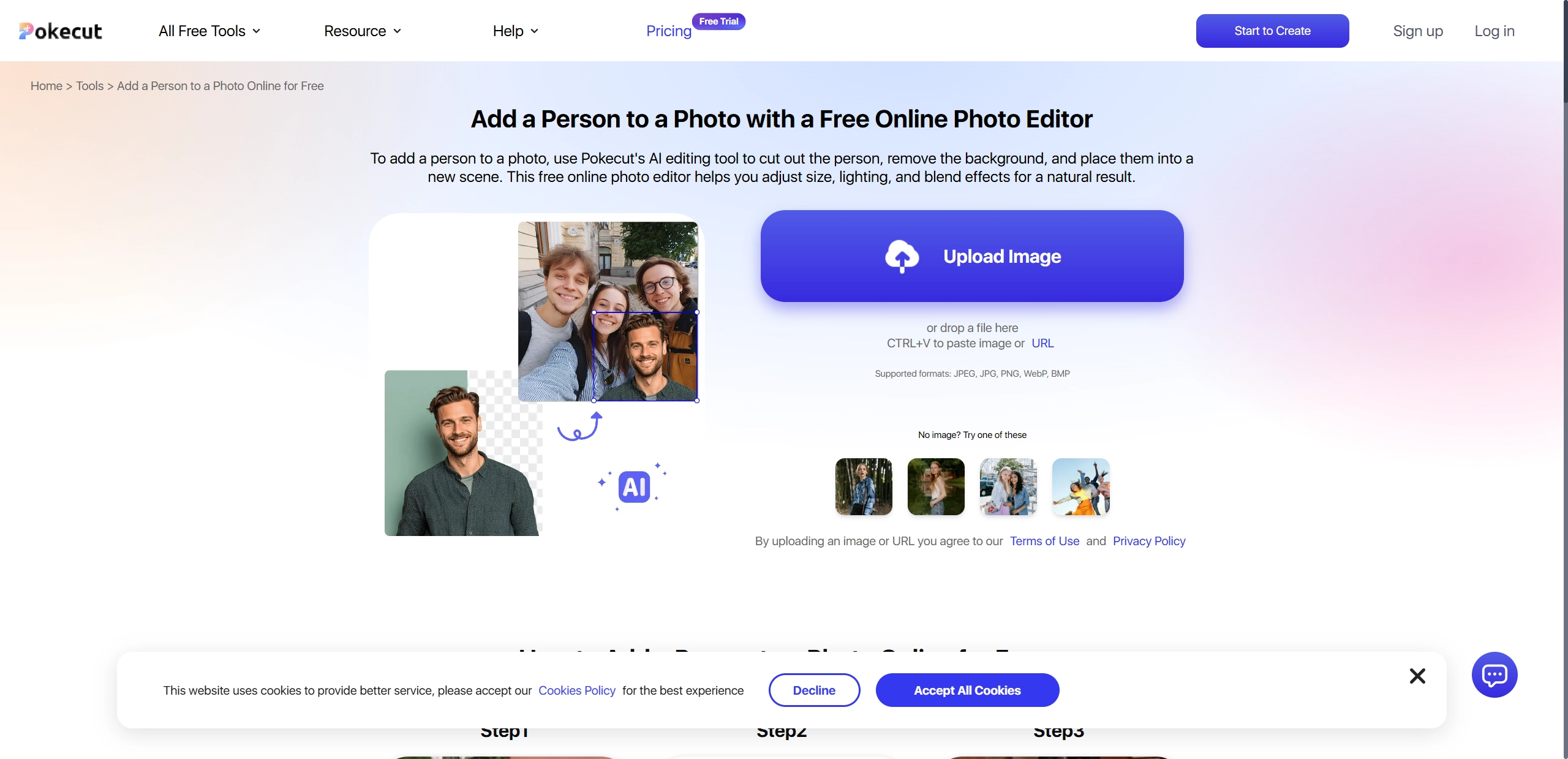
Are you looking for an AI tool that can add deceased loved one to photo free without entering lines of prompts? Pokecut is completely work for image editing where the user needs to do absolutely nothing! Just upload the images and let the AI photo editor do the work for you! It will automatically analyze the two images, remove the background and add the deceased person into the target photo with surprising accuracy. Size, lighting and blending can be adjusted by the users later on to refine the new AI generated images.
Key Feature
- Complete automation to add a deceased one to a photo.
- Several image examples are provided for creation.
- Users can adjust size, lighting and blend to refine the result images.
3. YouCam Perfect: Seamlessly Overlay the Beloved Dead to an Image
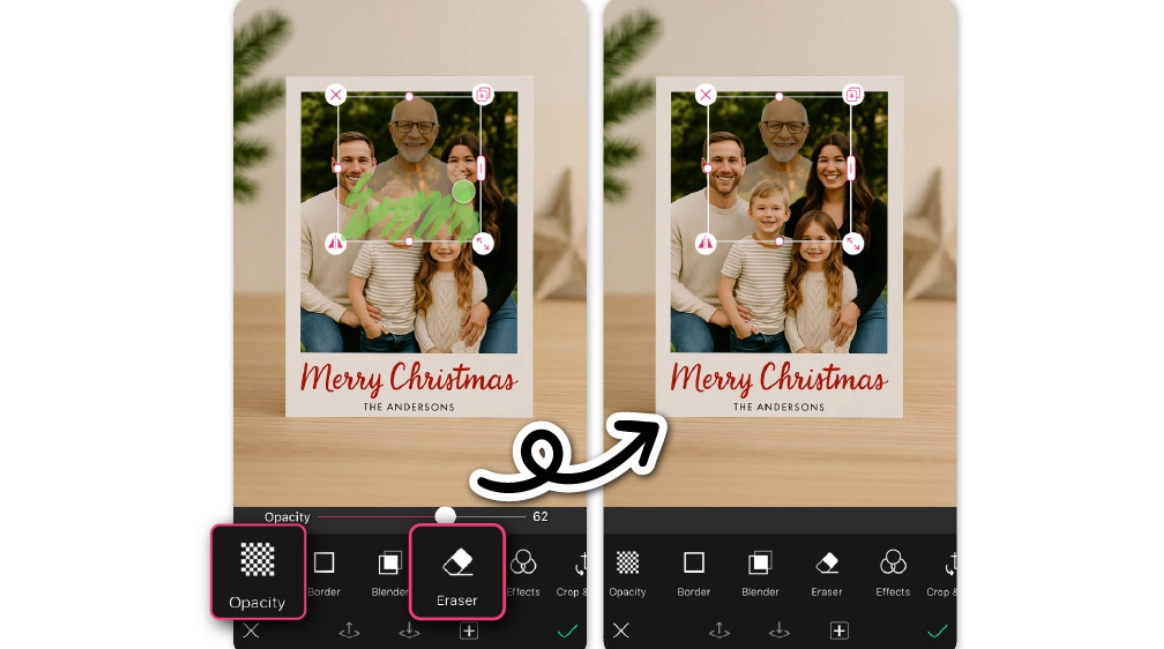
YouCam Perfect is quite different to the rest as it uses simple tools to get the job done. Instead of cutting and pasting raw images onto the target photo, this add deceased loved one to photo free app will seamlessly blend the individual in. This will also give off a faded vibe that can act as an indication that the person is no longer with us. All it takes are a few simple steps and anyone can add their deceased loved ones into the photo free online.
Key Feature
- Seamless images within seconds.
- Free to use with additional AI tools for image editing.
- High customization with functions like cutout, opacity and eraser.
4. Vondy: Automatically Add People to Photo with Prompts
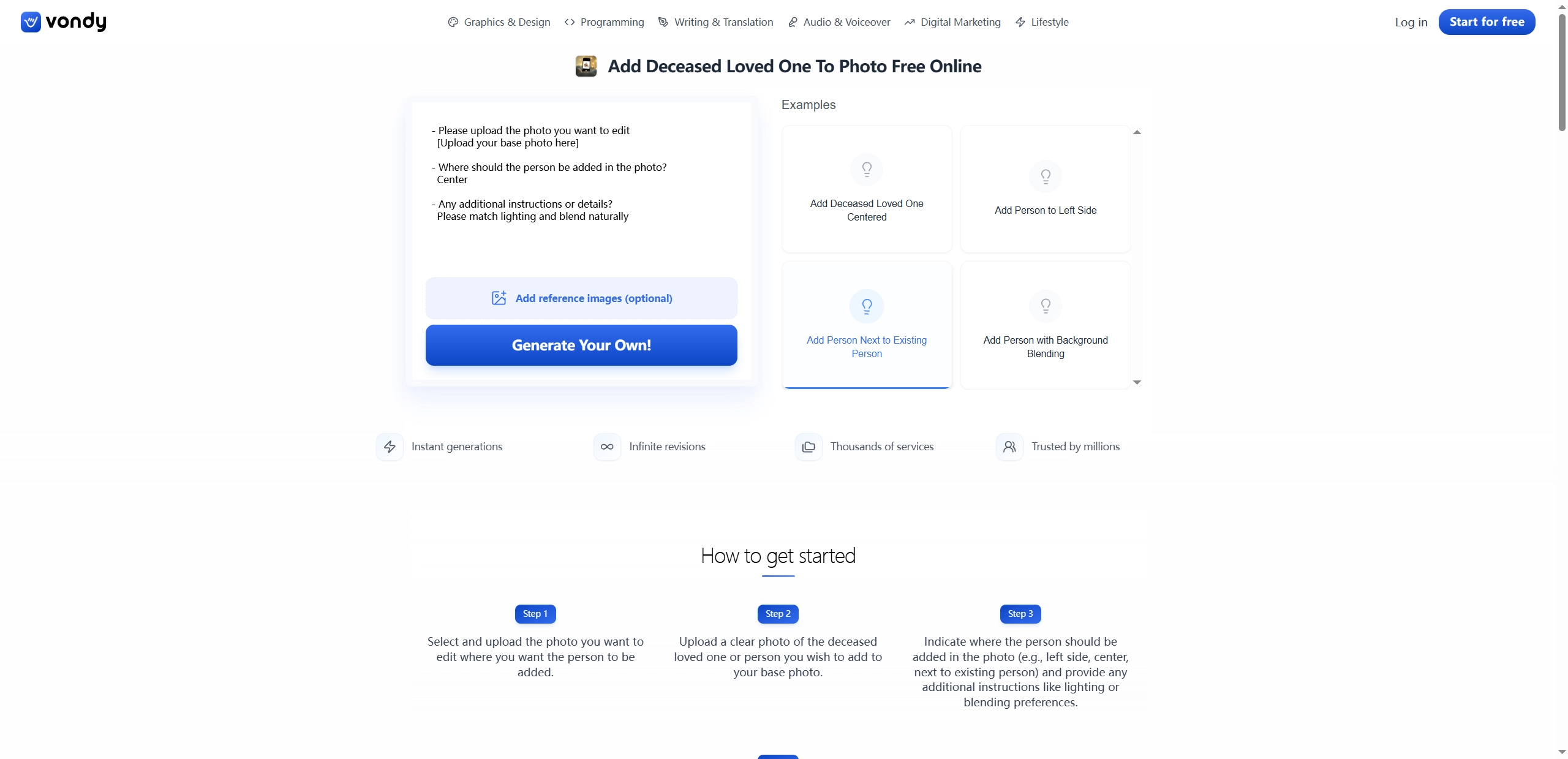
Vondy is built to run completely through AI prompts and is completely void of complex tools. As a user-friendly AI image generator, it allows users to simply upload the photographs as reference material and answer the questions asked by the AI to customize the result. Once the AI has sufficient information, it will easily edit the referenced images and create the high-quality outputs according to the prompts.
Key Feature
- Runs completely based on AI prompts.
- Unlimited image result revisions.
- Quick process to add a deceased one to a photo.
More AI Tools to Revive the Passed Person Online
Sometimes, just adding a deceased loved one to a photo for free isn’t enough, especially when you want to make one talk as if he is still alive in the world. In such situations it might be better to do something more meaningful and impactful. Here are 2 additional AI tools that help to revive the deceased one online.
1. Make the Dead Loved One Talk in an AI Video

Videos can convey emotions better than stable images! Imagine a video where your deceased loved one speaks out to you! Wouldn’t that just be the best thing ever. Creating such a treasured media would have taken more effort, often making it a hard work. However, AI video generators such as Vidnoz AI can cut the effort in half with the powerful AI algorithms, allowing you to create something special without the gritty work.
> Avatar Lite: Vidnoz Avatar lite can analyze the facial features from the video of your deceased loved one and create a realistic 3D model of them. The AI 3D model would be animated in a video, ensuring that every action and lip movement is synced perfectly.
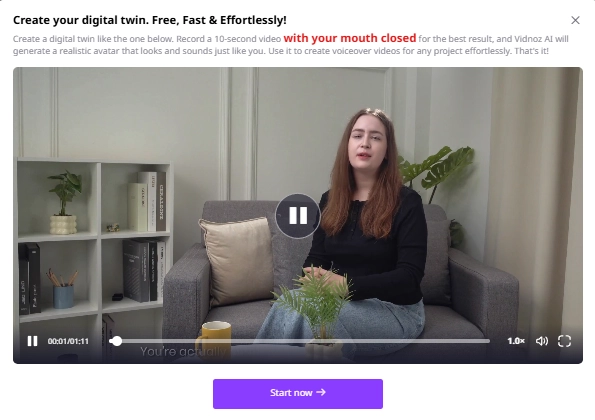
> Photo Avatar: Additionally, Vidnoz AI can animate photos of the deceased one, allowing them to speak out naturally. The difference between this and Avatar Lite is that this is 2D whereas the latter is 3D. You can swap them out based on your preference.
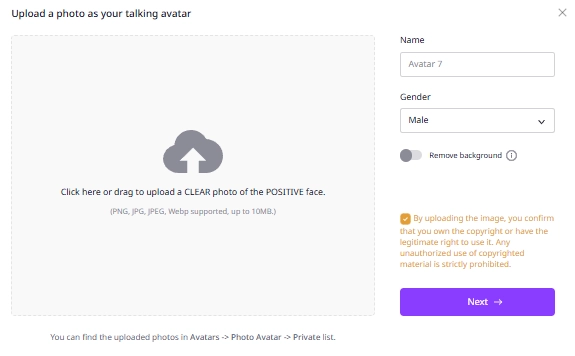

To completely restore the voice of a deceased person, you can try the AI voice clone online for free.
2. Create Portraits of Dead Loved Ones with an AI Memorial Photo Generator
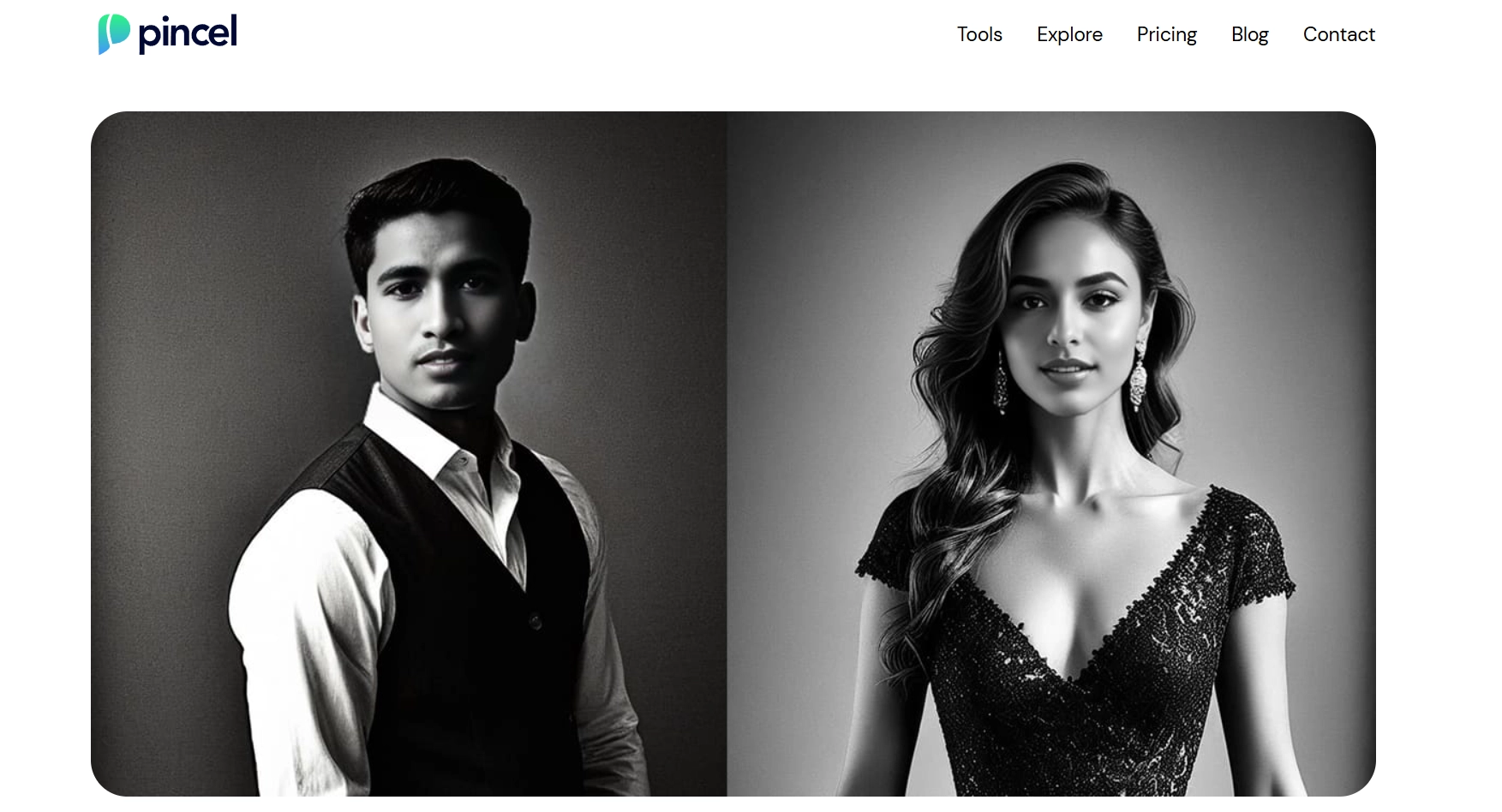
Pincel creates the most fabulous AI portraits that looked like they came out of a professional studio. The platform supports almost every major portrait style followed by professionals allowing you to get the perfect portrait for the deceased loved ones. Pincel is made for regular everyday users, and its workflow is simple - requiring just a few clicks along with some prompts for extra guidance.
Conclusion
With the practical online photo editors, adding deceased ones to photo free is easier than ever. Simply upload the both images, then add the deceased loved one to photo AI tools will analyze the images and automatically blend the photos in seconds. Besides, if you want to further revive your deceased loved one online, the Vidnoz AI video generator and Pincel AI portrait can be helpful for you. Let’s have a try!
Vidnoz AI - Create Free Engaging AI Video with Talking Avatar
- Easily create professional AI videos with realistic avatars.
- Text-to-speech lip sync voices of different languages.
- 2800+ video templates for multiple scenarios.




![3 Best Online Tools to Animate Family Photo Easily 2026 [with How-To]](https://www.vidnoz.com/bimg/animate-family-photo.webp)