Have you ever been deeply attracted by the voiceover of a video? Whether it is a magnetic advertising narration or a vivid voice of an animated character, engaging voice over is often the soul of a video. Adding professional dubbing to your video can make your story better told.
How can you easily add a voiceover to your video? A voice over video maker can do you a big favor. This article lists the 3 best video maker with voice over tools to make your video storytelling more vivid.
- On This Page
-
What Is a Voice Over Video Maker?
-
Why Use a Video Maker with Voice Over?
-
How to Make a Video with Voice Over Step by Step
-
Top 3 Video Editor with AI Voice Over in 2026 | Free & Paid
-
Top Tips for Adding Voice Over to Video
What Is a Voice Over Video Maker?
A voice over video maker is a tool or platform that allows you to overlay recorded speech onto your video, or use AI-generated voices. Whether you use your own voice, AI narration, or text to speech, these tools make it easy to create high-quality voiceovers to match your video content. No matter you are making a YouTube tutorial, an advertisement or an online course, adding a suitable voiceover can make your video memorable.
Why Use a Video Maker with Voice Over?
Why do you need a video maker with text to speech? What benefits can a video maker with voice over bring to you? The reasons can be attributed to the following points:
Boost Engagement and Clarity
A voice over helps convey your message clearly and emotionally. It adds depth to the visuals, guiding your viewers through the story and keeping them hooked.
Save Time with Automation
Video editor with AI voice over makes it possible to skip expensive recording sessions. Just type in your script, choose a voice, and the platform does the rest.
Reach Global Audiences
Need to localize your video for different countries? Many voice over video makers support multilingual voiceovers, helping your message resonate in 100+ languages with native-like fluency.
Professional Touch for Any Niche
From solo YouTubers to corporate trainers, anyone can use voiceovers to polish their video content and sound more credible and professional.
How to Make a Video with Voice Over Step by Step
How to simplify the video making process with voice over? The best video presentation maker with voice over free tool – Vidnoz AI can help you a lot. This free AI video generator with voice over makes creating a video easier than ever. Here's a simple workflow:
Step 1. Choose a Tool and Sign Up
Go to Vidnoz AI website, click Create Free Video Now, and sign up with the provided options.
Step 2. Create or Upload a Video
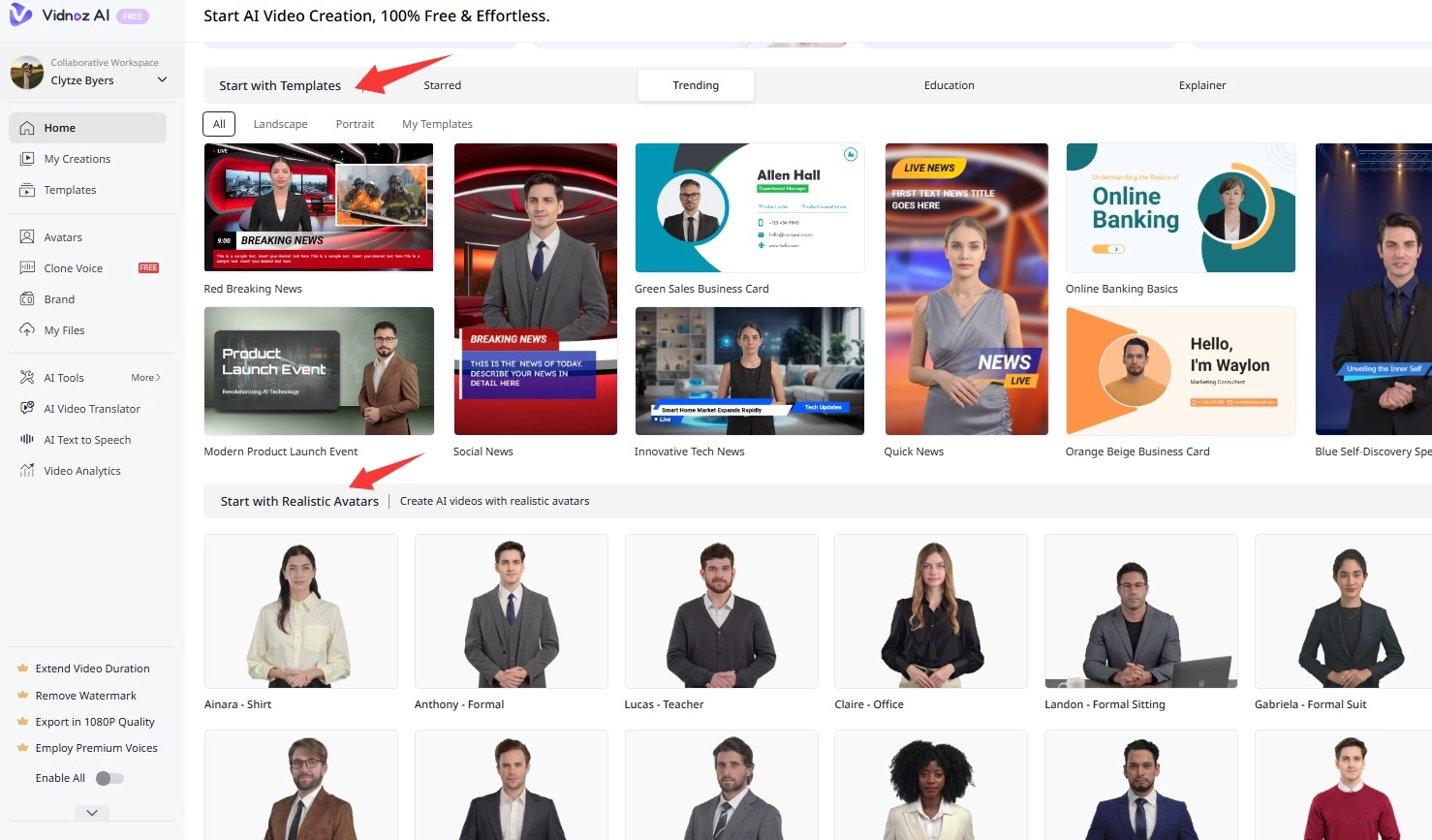
Upload and start with your raw video footage or create a new video with Vidnoz AI. You can choose from 2800+ video templates, or select an AI talking avatar with lip sync.
Step 3. Write or Record Your Script
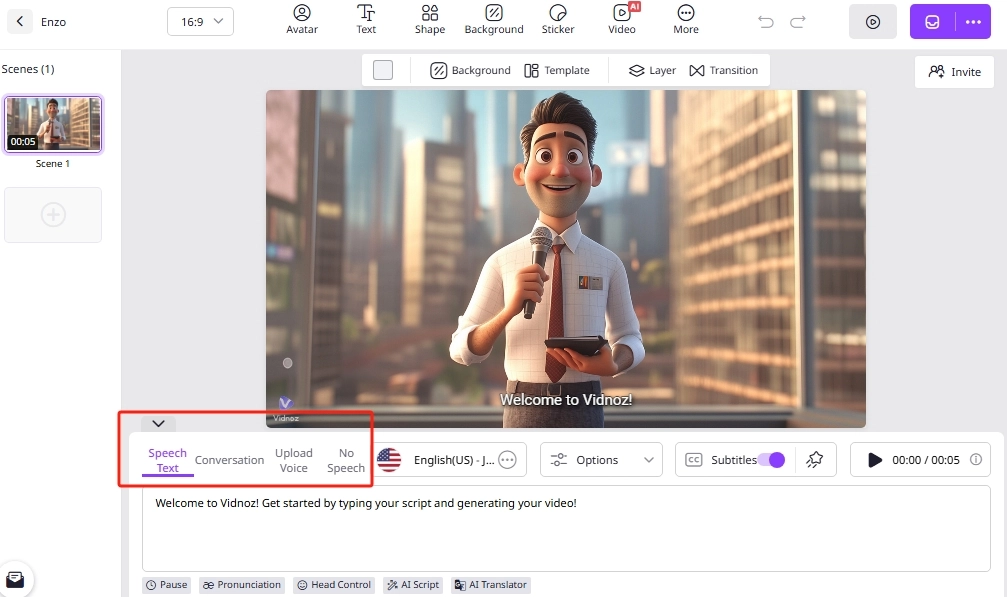
Write a script that matches your visuals. Keep it conversational, informative, and to the point. Then choose a suitable voice and language for text to speech of your video audio.
Step 4. Sync and Edit
Adjust the audio timing to match the visuals. Vidnoz allows you to trim clips, adjust volume, add subtitles and transitions.
Step 5. Export and Share
Once you're satisfied, export the video with voice over in your desired resolution and format—ready to post, publish, or present.
Top 3 Video Editor with AI Voice Over in 2026 | Free & Paid
Based on the different needs of users like you, here are 3 standout voice over video makers that make creating voiceover videos a breeze.
1. Vidnoz AI
Price: Free
Vidnoz offers a powerful AI voice over video maker that supports 1800+ voices in 140+ languages. You can add voice over to videos fast and for free with this free AI video generator. Just simply type in your text, select a voice style (professional, casual, friendly), and generate studio-quality narration in seconds.

Vidnoz AI - Create Free Engaging AI Video with Talking Avatar
- Easily create professional AI videos with realistic avatars.
- Text-to-speech lip sync voices of different languages.
- 2800+ video templates for multiple scenarios.
Pros
- Video presentation maker with voice over free online
- Add AI voice over, text to speech, or translate video instantly
- Video maker with text to speech in 140+ languages for global access
- Provide realistic talking avatars to narrate your video audio with AI lip sync
- It allows you to add sticker, music, subtitles, images, etc. to your video
Cons
- No alignment editing of video and audio
- Some voices require advanced subscription
Best for: Marketing videos, presentations, YouTube creators, global campaigns
2. Pictory
Price: Starts at $19 per month, billed annually.
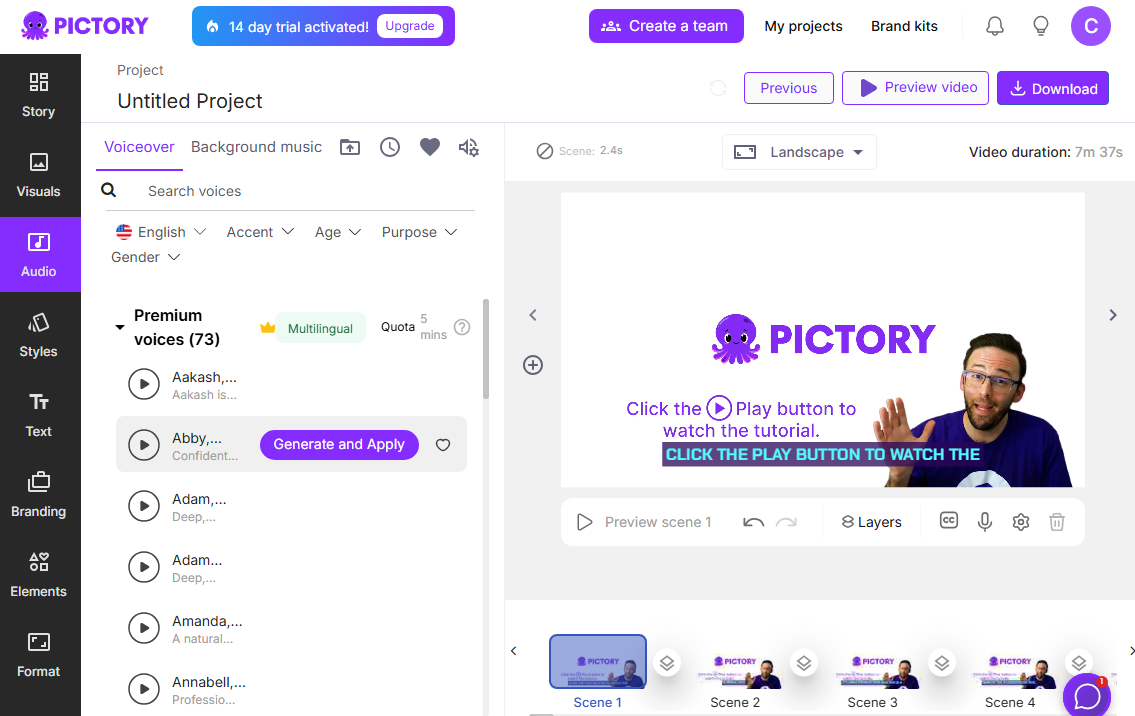
Pictory video editor with AI voice over turns blog posts or scripts into full videos with voiceovers, making it ideal for repurposing written content. It even selects relevant stock footage and syncs it with your narration. You can add professional voiceover clips or celebrity voice AI to your videos in just a few clicks, either AI-generated or recorded voice.
Pros
- Provides a user-friendly interface
- Male and female voices with multiple accents
- You can record your own voice to personalize your content
- Allows add voiceover to a single scene, or automatically sync to the entire video
Cons
- Unlimited standard voices only in 7 languages
- Sometimes the audio and video are out of sync
Best for: Bloggers, course creators, digital marketers
3. Animaker Voice
Price: Free, starting at $25 per month.
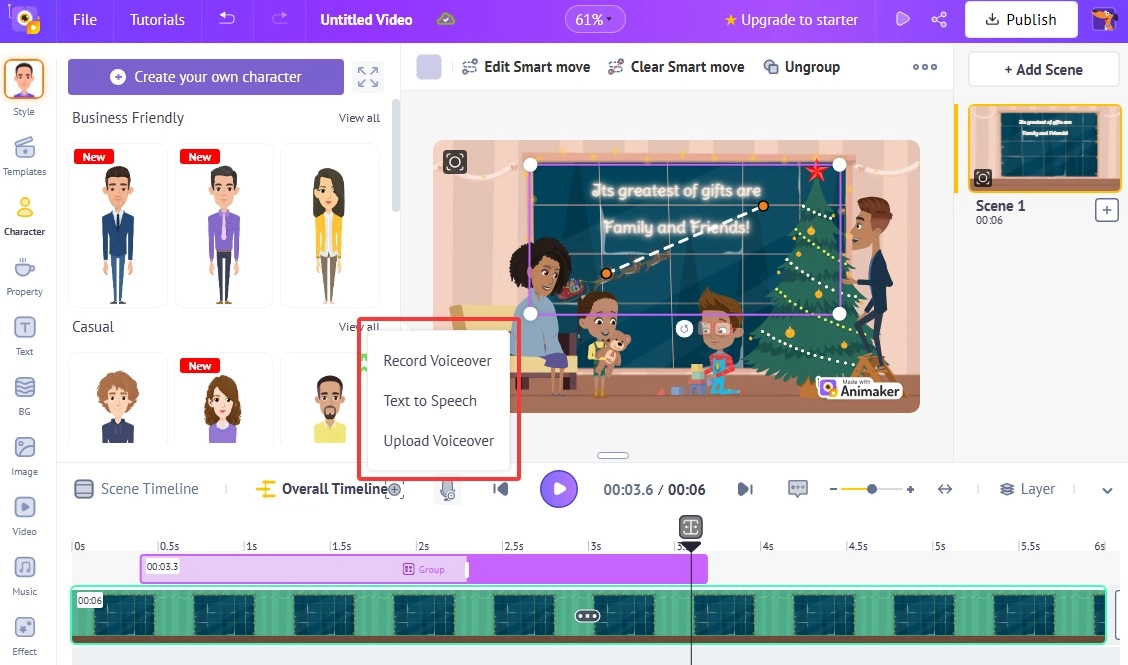
As another free voice over video maker, this all-in-one animated video platform includes a built-in voice cloning and text-to-speech feature. Choose from different tones like “cheerful” or “authoritative” and sync them with animations.
Pros
- Free voice over video editor online to make animation video
- Provide a wide voice library for text to speech
- Create video with animated text to speech avatar
- Easily edit any part of video at will
Cons
- Watermark in the free version
Best for: Explainer videos, educational content, startups
Top Tips for Adding Voice Over to Video
How to make your video with voice over higher quality? You can refer to the following practical and creative tips to add appeal to your video.
Focus on the Script
- Don’t wing it—structure matters.
- Write your voice over script based on your visuals.
- Keep it conversational, clear, and concise.
- Use short sentences and natural pauses for better flow.
Match Voice to Tone
Choose a voice that fits your video’s mood (e.g., friendly for tutorials, serious for documentaries).
Keep the Pace Natural
- Don’t rush. Leave pauses where necessary.
- Speak as if you’re talking to one person, not a crowd.
Use Background Music (Optional)
- Add subtle background music for atmosphere.
- Keep it low so it doesn’t compete with your voice.
Conclusion
A good voice over video maker can help you quickly add professional voiceovers to your videos, making your story be told better. Whether you are teaching, making commercials, or telling stories, the right voiceover can make your message stick.
With tools like Vidnoz AI, you can have professional voiceover effects without a recording studio. So, act quickly - write a script, choose your voiceover, and watch your video come to life before your eyes.