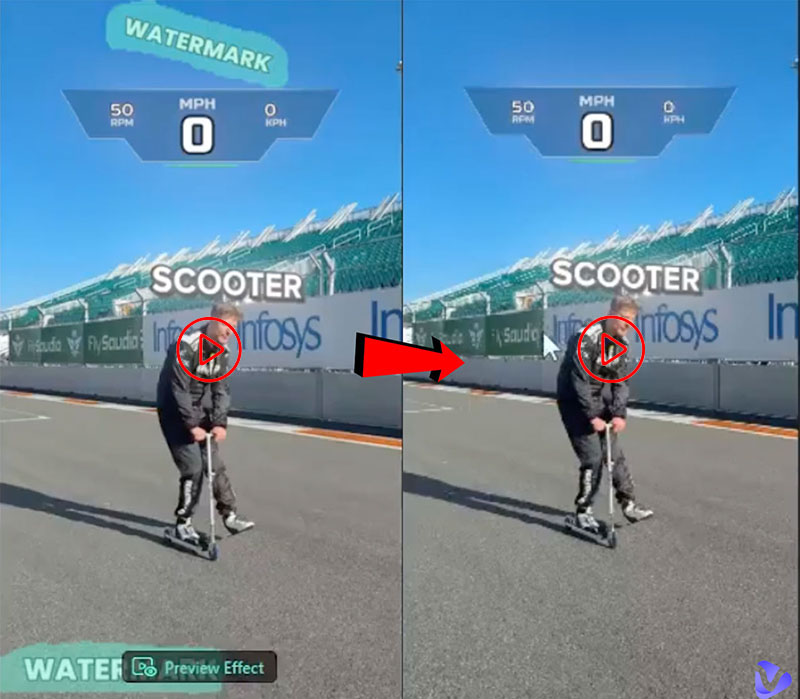
Watermarks indicate ownership and copyright, which mostly suggest the branding elements in photos and videos. However, they can be rather annoying, which destroys the overall viewing experience and makes the content look unprofessional. Many creators face this issue in Wondershare Filmora, as the free version adds its own watermark on export. For some videos, moving watermarks are also quite challenging to remove, compared to static ones. So, how to remove moving watermark in Filmora? What about the ones on export? This article provides methods and step-by-step guides. You can also find online video generators that can produce videos without watermarks!
- On This Page
-
How to Remove Moving Watermark in Wondershare Filmora
-
How to Remove Filmora Watermark Online with watermarkremover.io
-
How to Remove Watermark on Filmora Free with EzRemove
-
Online AI Video Generator without Watermark
Vidnoz AI Video Generator (for Long or Short Videos)
Vidnoz AI Image to Video Generator (for Short Videos)
Vidnoz AI Music Video Generator
How to Remove Moving Watermark in Wondershare Filmora
Wondershare Filmora offers a powerful AI Object Remover designed to track and erase moving or animated watermarks frame by frame. This feature intelligently analyzes the selected area and reconstructs the background automatically. However, it’s important to note that the AI Object Remover is available to paid users. So you will need to upgrade to Filmora 13 or later to access the feature.
For those using the free version, there’s also a limitation: every exported video automatically includes Filmora’s own watermark. This means that even if your original content is clean, the free version will always leave a mark. So, yes. Upgrading seems to be the only solution if you want to remove watermark on Filmora.
Now let’s see how to remove moving watermark in Filmora step by step.
Step 1: Purchase and activate the paid version of Wondershare Filmora, then update the software to the latest version (Filmora 13+).
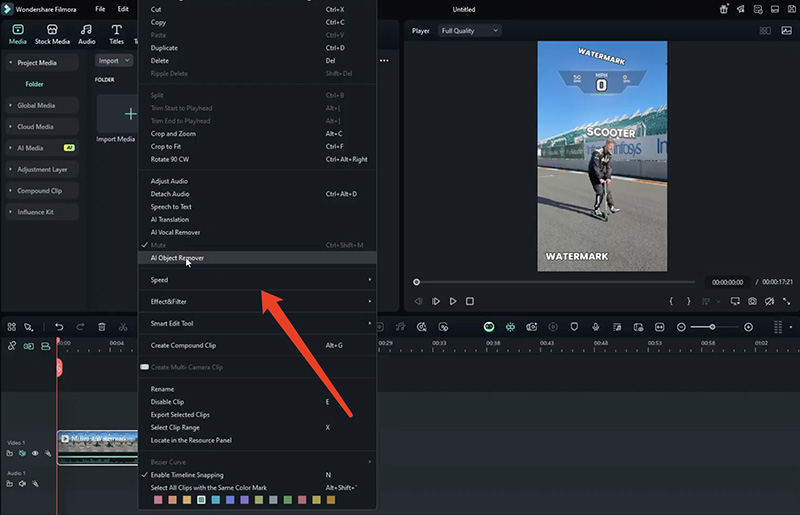
Step 2: Import your video into the media library and drag the clip onto the timeline. Right-click the clip on the timeline and select AI Object Remover from the menu.
Step 3: Use the brush tool to paint over the moving watermark, adjusting the brush size as needed. Don’t worry about making a perfect selection; the AI will automatically analyze and refine the area.
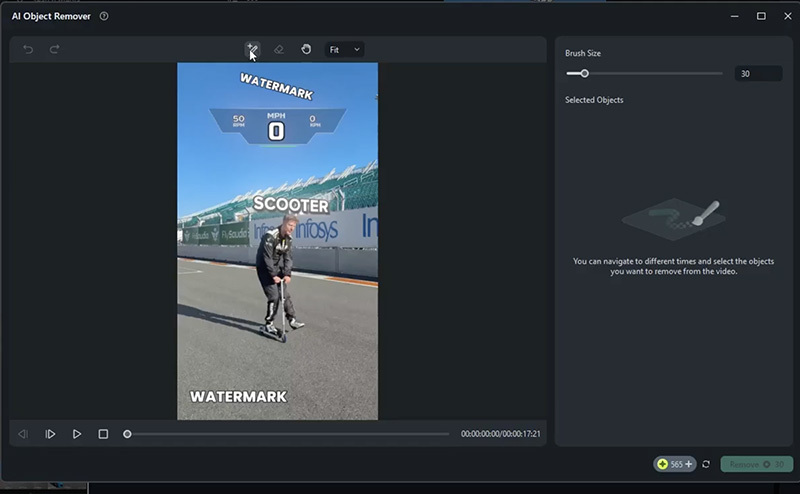
Step 4: Click Preview Effect and allow the AI to process the watermark removal. You can save the clip once you are happy with it.
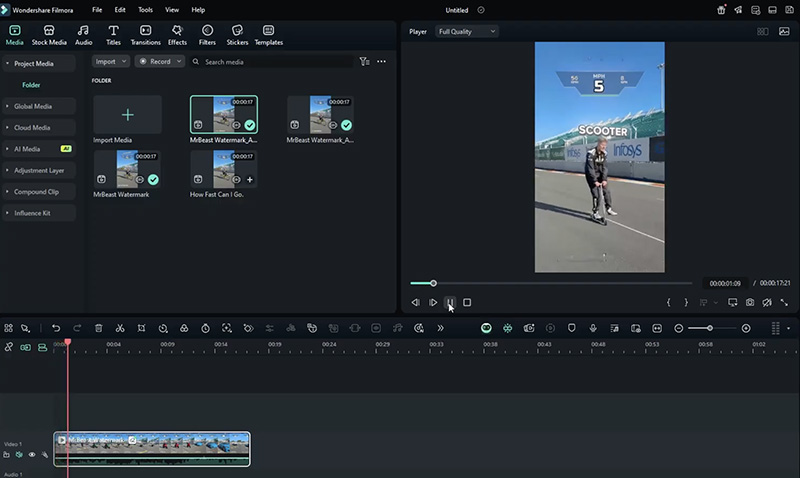
That’s how to remove watermark from Filmora Wondershare. You can also apply blur or cover the moving watermark with text, shapes, or stickers for a quick fix. Today, many creators still prefer editing with the free version of Filmora to avoid subscriptions. Hence, we will introduce the best Filmora watermark remover options in the next part. Just read on.
How to Remove Filmora Watermark Online with watermarkremover.io
How to remove moving watermark in Filmora? The previous parts have illustrated specific steps. But if you are looking for a free option, try watermarkremover.io. The browser-based tool can automatically detect logos, text, timestamps, or overlays, including those added by Filmora, and remove them perfectly.
Supporting MP4, MOV, and WebM formats, the watermarkremover.io guarantees instant processing and quality preservation. No signup is required, which is rather convenient for quick one-off fixes. But there are limitations based on its free tier, as it supports a maximum 2-minute video duration only.
Now let’s see how to remove Filmora watermark with it easily.
Step 1: Head to watermarkremover.io. Upload your video with Filmora watermarks.
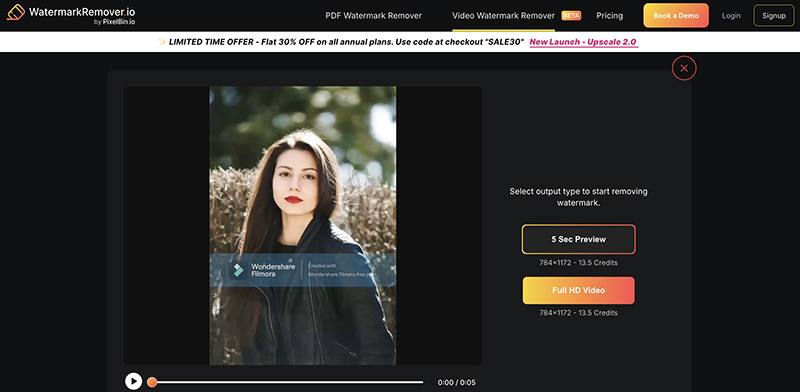
Step 2: The AI analyzes and removes the watermark automatically in seconds.
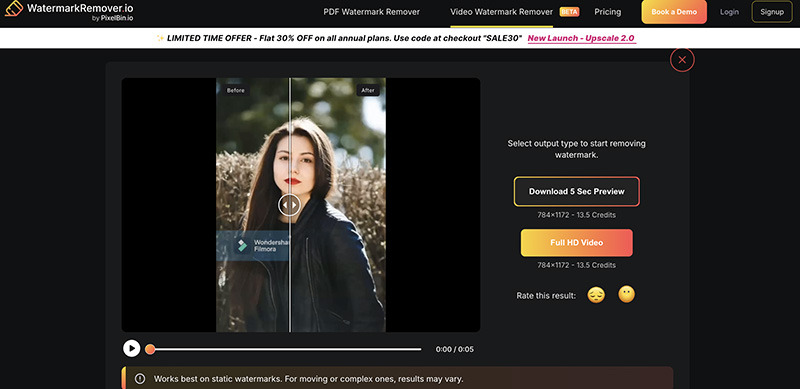
Step 3: Preview the result and download the clean video instantly.
The process is quite similar to how to remove moving watermark in Filmora. Even though it takes a bit longer, the export is pretty good.
How to Remove Watermark on Filmora Free with EzRemove
How to remove Wondershare Filmora X watermark? EzRemove is another strong option. Enabled by advanced AI detection and tracking capabilities, the free tool can remove watermark from video and reconstruct the background for a cleaner output.
It supports up to 5-minute videos, 500MB file size, and 4K resolution. You can export videos with HD quality and original audio. Similarly, there is no need to sign up for processing and downloads. But the daily limits could cap your usage.
Here’s how to remove moving watermark in Filmora with it.
Step 1: Go to this watermark remover and upload your video via drag-and-drop.
Step 2: Use the brush tool to highlight the watermark area. The AI detects edges and tracks motion automatically.
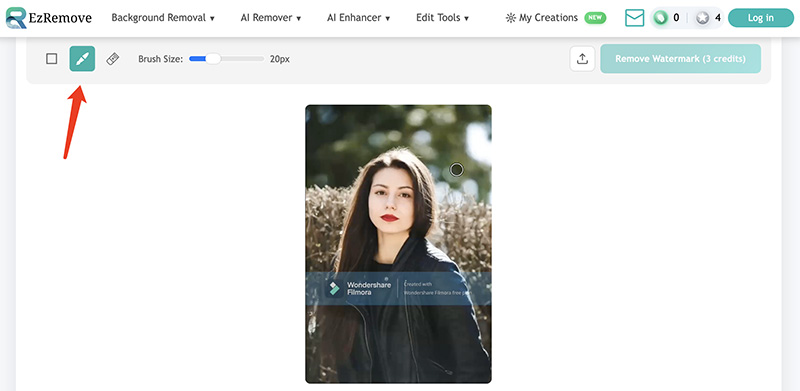
Step 3: Let the AI process the video, preview the seamless result, and download the watermark-free file.
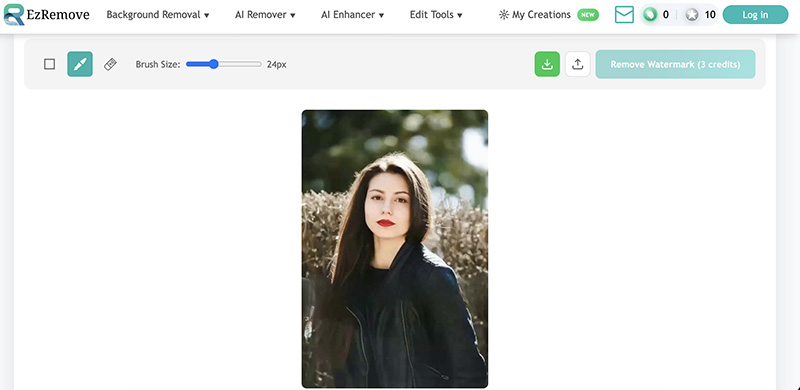
If you want to know how to remove moving watermark in Filmora using EzRemove, unfortunately, the tool can’t seem to help. It works for static watermarks only.
Online AI Video Generator without Watermark
The previous sections have introduced how to remove moving watermark in Filmora with the 3 best tools. But if you want to skip watermark issues altogether, it’s better to switch to a platform that can generate videos without watermarks or branding overlays.
Here, Vidnoz AI is strongly recommended. Compared to Filmora, this online AI video generator is far superior in various aspects. You don’t have to install software or anything, because it runs entirely in your browser. Moreover, it provides a vast library of AI tools for every project type and delivers quick automated results with professional quality. Now let’s check them out one by one!

Vidnoz AI - Create Free Engaging AI Video with Talking Avatar
- Easily create professional AI videos with realistic avatars.
- Text-to-speech lip sync voices of different languages.
- 2800+ video templates for multiple scenarios.
Vidnoz AI Video Generator (for Long or Short Videos)
Vidnoz AI Video Generator is the featured product on this platform, which allows you to create engaging videos quickly and easily online. It offers over 1,900 realistic AI avatars that are drawn from real people, presenting natural expressions, gestures, and perfect lip-sync in videos.
You also get access to 2,000+ lifelike AI voices in 140+ languages. What makes it stand out is its 2,800+ customizable templates, which can help you kickstart projects for any topic! Best of all, you can edit everything seamlessly within the intuitive online interface, such as transitions, effects, music, text, backgrounds, and animations!
Vidnoz AI Image to Video Generator (for Short Videos)
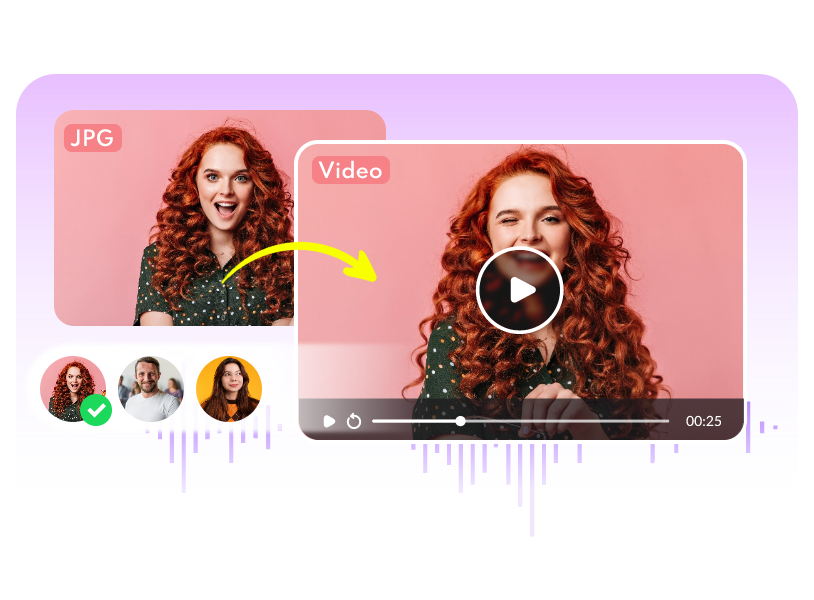
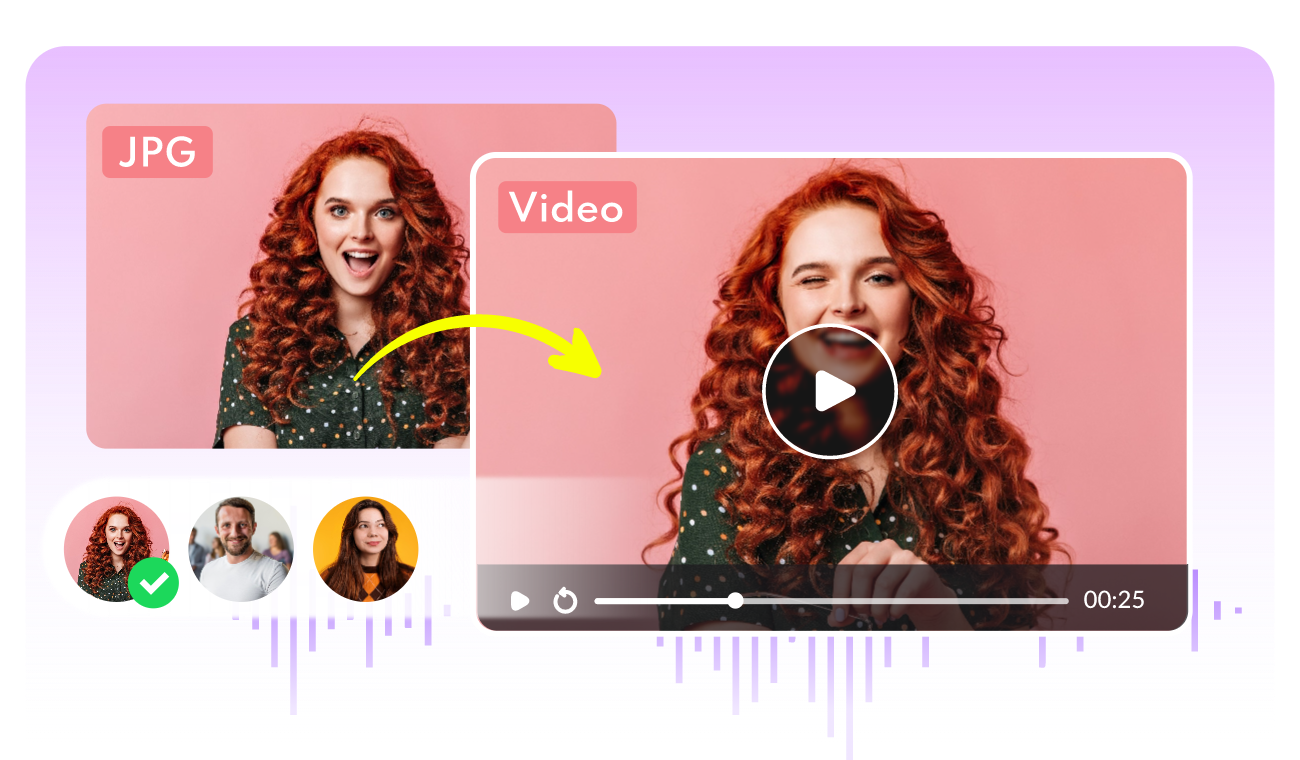
Vidnoz AI Image to Video Generator is capable of transforming static images into captivating short videos automatically for free. Simply upload any photo, add an optional text prompt for guidance, and the AI animates it with smooth, natural motion. Supporting 10+ popular AI video models like Vidnoz Turbo, Kling AI, Google Veo, etc., the video generator can deliver outstanding output for various needs.
Convert Image to Video AI Online - Free
- Create a video from an image quickly for free.
- Use various AI models to turn photos into videos.
- Download and share the AI-generated video at no cost.
Convert Image to Video
Meanwhile, you can enjoy massive video effects and trendy styles, including oil painting, watercolor, Pixar-style, and more for instant polishing. There are also viral video effects like microwave filter, confetti blow, etc., for quick social media clips. It’s your go-to choice to generate short videos in HD quality with rich customization.
Vidnoz AI Music Video Generator
Vidnoz AI Music Video Generator is another strong AI tool you need to check out. Powered by advanced AI, it can turn your audio tracks into stunning, epic music videos in minutes. Just upload your song (MP3, WAV, etc., up to 50MB), choose a style (EDM, Rock, Pop, and more) or an artist reference to get started instantly.
Vidnoz Free AI Music Generator
Free to generate & download for commercial use!
- 100+ combinations of musical styles, moods and themes
- Turn your texts into songs and music videos
- AI to create an original song with your lyrics
Create Music with AI
Vidnoz’s creations are quick and professional-grade. Its powerful AI will analyze rhythm, mood, and beats to auto-generate synchronized visuals. You can produce music videos with dynamic effects, transitions, and cinematic scenes that match the music perfectly. The generated music video is free for commercial use.
Conclusion
How to remove a moving watermark in Filmora? Now you have three practical methods to handle the moving and static marks. However, if you want to avoid watermark issues altogether, Vidnoz AI is your best alternative. Whether you are creating long-form videos, social media clips, or even music videos, the platform offers powerful, user-friendly tools that can satisfy your needs. Each feature delivers professional-quality results with minimal effort. Try it and start creating flawless videos hassle-free from now on!