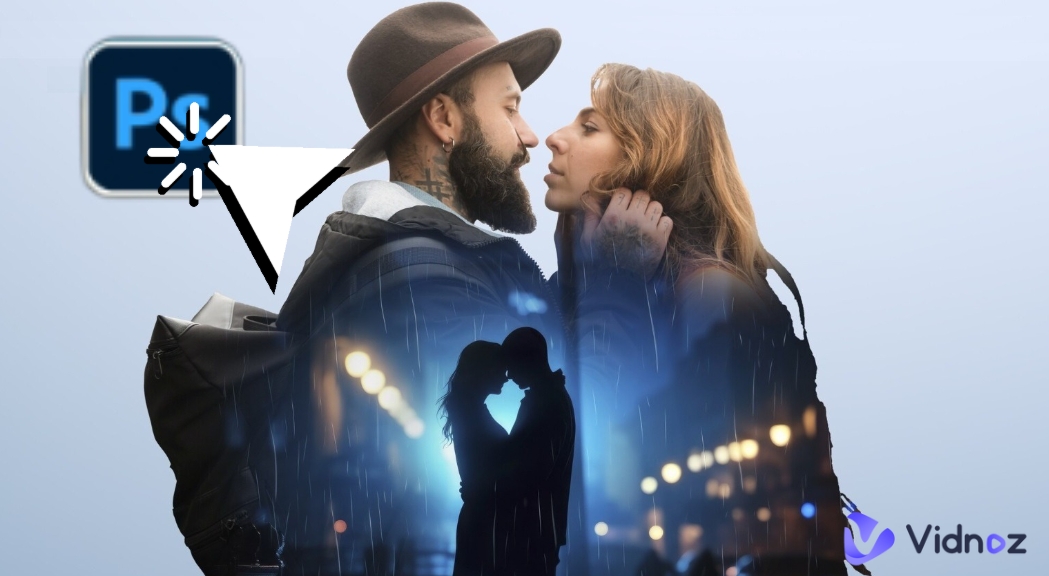
Grasping the skill of blending photos in Photoshop is helpful since you can combine images effortlessly with the powerful image editor. If you wish to mix family photos, do creative designs, or edit pictures of your product, knowing how to merge photos in Photoshop can help you achieve your goal easily and professionally.
Photoshop provides functions to layer and change pictures for the perfect image combination in a professional manner. And with AI tools available today, it can be much easier to do so without much effort. Following this guide, you will get the detailed guidance on how to merge two photos in Photoshop and several AI alternatives that can assist you.
- On This Page
-
How to Merge Photos in Photoshop by Yourself
Things to Note Before Merging Photos with Photoshop
How to Merge Two Photos in Photoshop
-
How to Merge Photos in Photoshop with a Much Easier Method - 4 AI Alternatives to Try
1. Vidnoz AI Image Combiner: Combine Photos to Generate a New Eye-Catching Image
2. MyEdit: Blend Images for a Fresh and Creative Look
3. AnimeGenius: Combine Animal Images to Generate an AI Hybrid Animal
4. Simplified: Easily Blend Multiple Images into One
-
Result Examples of How to Merge Photos in Photoshop
-
Extra Tip: Create a Stunning AI Video with Images Free Online
How to Merge Photos in Photoshop by Yourself
Merging photos in Photoshop is a good method for those who intend to edit images manually. With this powerful photo editing software, users can merge two or more photos for creative art creation.
There are some reasons for people to merge photos in Photoshop easily:
★ Blend images manually for creative art projects.
★ Improve image quality with better colors and lighting.
★ Create unique designs for posters or ads.
★ Make product photos more straightforward by merging shots.
Vidnoz AI - Create Free Engaging AI Video with Talking Avatar
- Easily create professional AI videos with realistic avatars.
- Text-to-speech lip sync voices of different languages.
- 2800+ video templates for multiple scenarios.
Things to Note Before Merging Photos with Photoshop
Before you start learning how to merge photos in Photoshop, it's vital to check a few details to get the best results. Combining images the right way makes them look natural and professional.
Here are some key things to pay attention to:
➤ Match perspectives – Ensure all photos are in the same angle and viewpoint.
➤ Check lighting – The target photos should have similar brightness and shadow effects.
➤ Use high-quality images – Blurry or low-resolution photos may cause the failure of blending images.
➤ Align colors – Adjust tones so the merged image looks much more smooth.
➤ Crop properly – Remove unnecessary parts before merging for better alignment.
➤ Organize layers – Keep track of edits with transparent layers in Photoshop.
How to Merge Two Photos in Photoshop
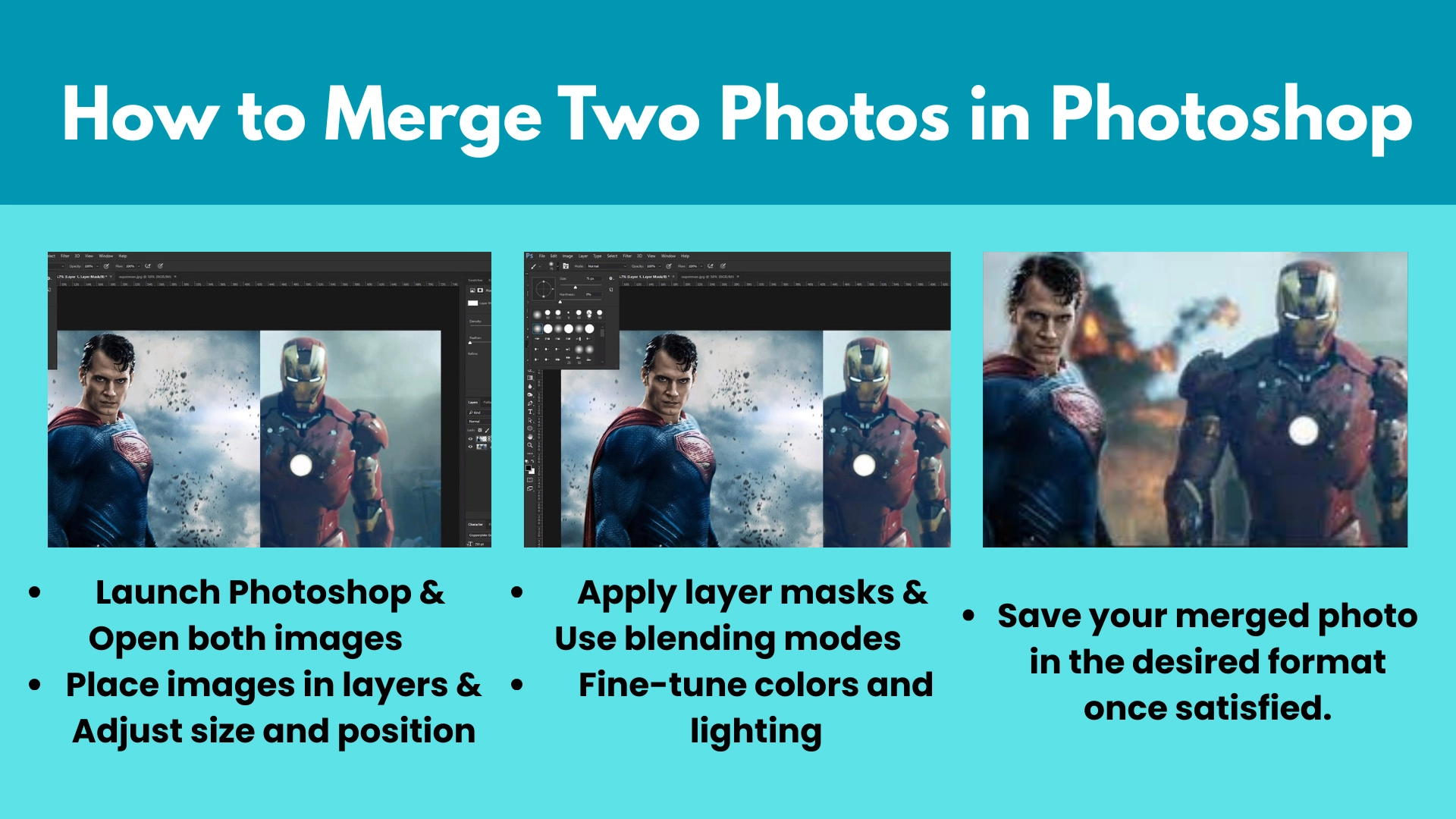
How to merge two photos in Photoshop? Follow these steps to make it effortlessly:
Step 1. Launch Photoshop and load the two photos you want to merge.
Step 2. Drag one image onto one another to create separate layers.
Step 3. Use the Move Tool and Transform (Ctrl+T) to align the images correctly.
Step 4. Add a mask to the top layer, then use a soft brush to blend the edges smoothly.
Step 5. Experiment with different options for a natural look.
Step 6. Adjust brightness, contrast, and color tones for a seamless merge.
Step 7. Save the merged photo in the desired format once satisfied.
How to Merge Photos in Photoshop with a Much Easier Method - 4 AI Alternatives to Try
If learning how to merge photos in Photoshop is too complicated for you, there are some AI tools that can simplify the process and meet your needs. The following AI alternatives can automatically blend images without manual adjustments.
1. Vidnoz AI Image Combiner: Combine Photos to Generate a New Eye-Catching Image
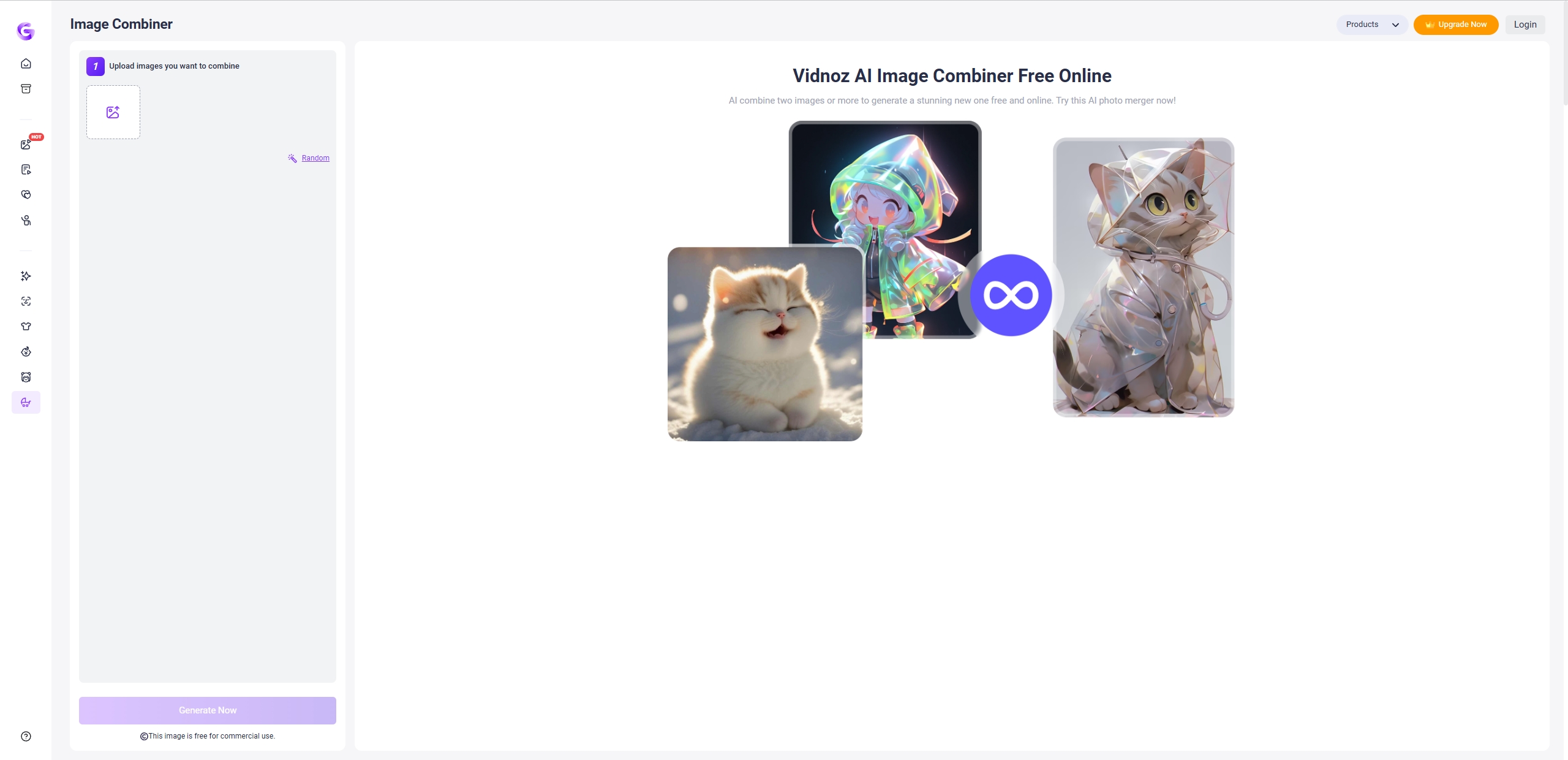
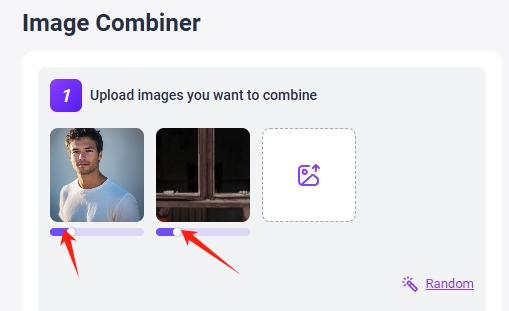
When you are struggling on mastering the method on how to merge two photos in Photoshop, Vidnoz AI Image Combiner can be a standout option for you. Working with a well-trained AI model, it ensures the users to make the image combining results natural. Users can create a new visually appealing image with just a few clicks without any professional editing skills. One of the most obvious appeals of the tool is Practicality. As a reliable AI image editor, it provides diverse image editing tools without any payment.
Key Feature
- Upload and combine photos instantly.
- Suitable for both newcomers and pros.
- No compulsory costs or subscriptions.
- Generate smooth and natural-looking images.
How to Merge Two Photos with Vidnoz AI Image Combiner
Step 1. Go to Vidnoz AI Image Combiner, select two or more photos to merge.
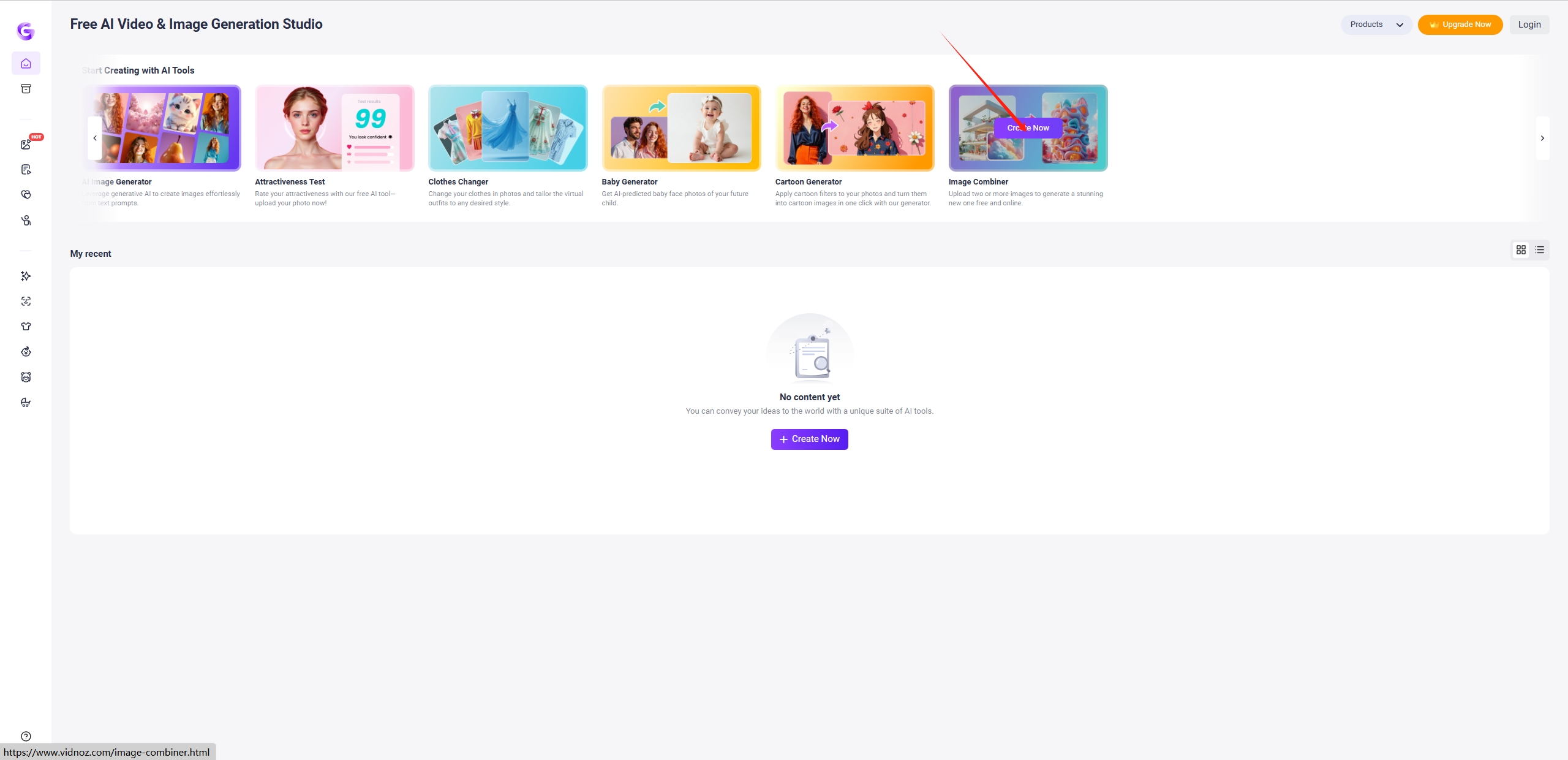
Step 2. Fine-tune blending options if needed.
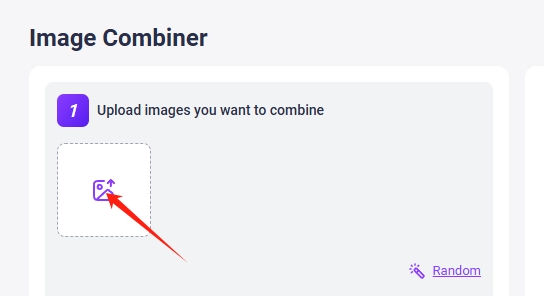
Step 3. Click “Combine Image Now” to let AI process the image combination. Save your new image instantly when you’re satisfied with the result.
Vidnoz AI - Create Free Engaging AI Video with Talking Avatar
- Easily create professional AI videos with realistic avatars.
- Text-to-speech lip sync voices of different languages.
- 2800+ video templates for multiple scenarios.
2. MyEdit: Blend Images for a Fresh and Creative Look
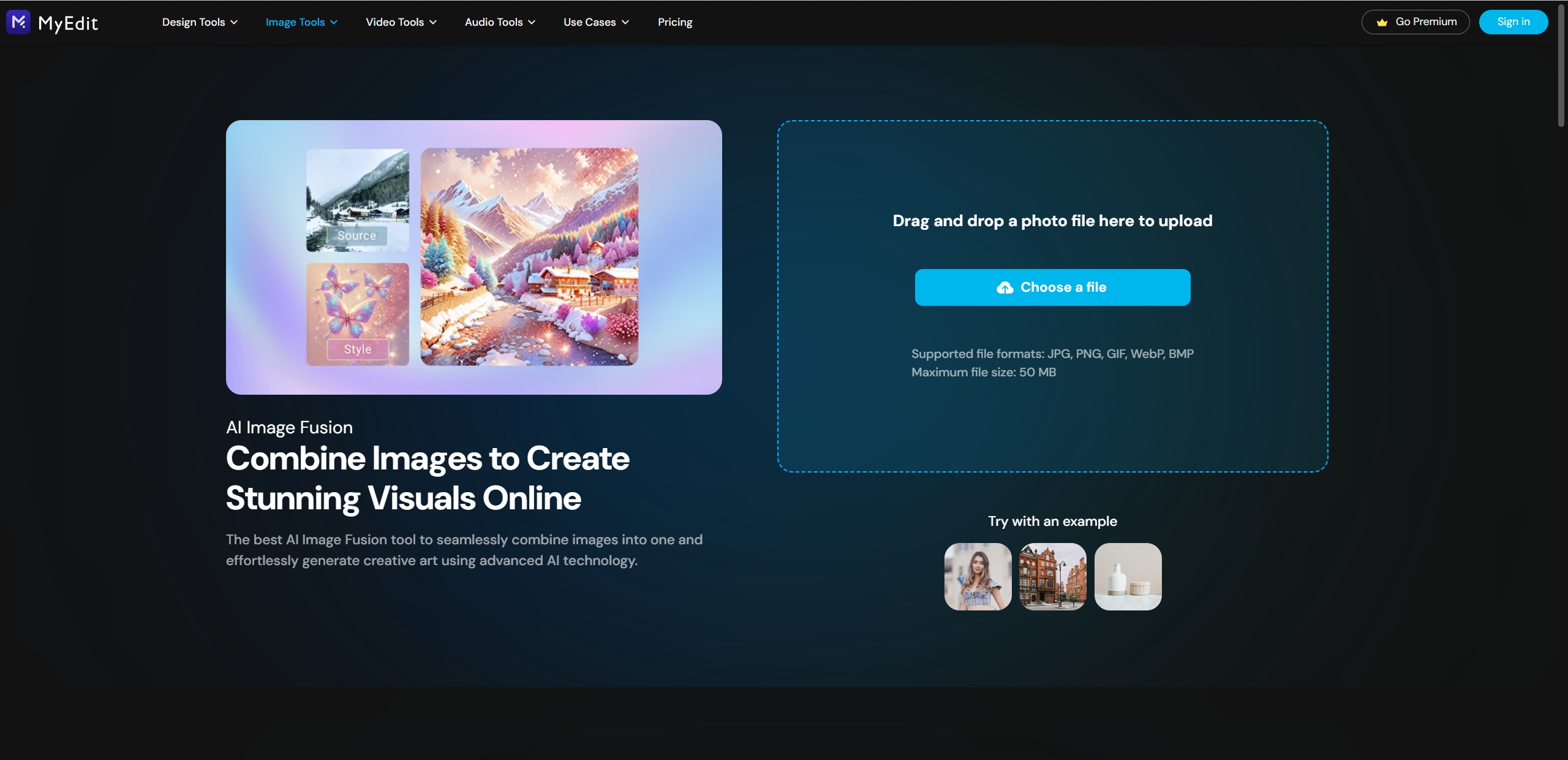
MyEdit is an innovative AI photo combine editor designed to help users blend images effortlessly. Compared with learning how to merge photos in Photoshop, asking this tool for help can save people from time and energy with the easy AI image combination. It blends images smoothly by modifying textures, colors, and shapes, making each blended picture appear natural and professional. Whether for design, marketing or funny art projects, MyEdit makes image merging simple and effective.
Key Feature
- AI merges images seamlessly for a polished look.
- Modify the fusion style to suit different needs.
- Images are merged in a short time.
3. AnimeGenius: Combine Animal Images to Generate an AI Hybrid Animal
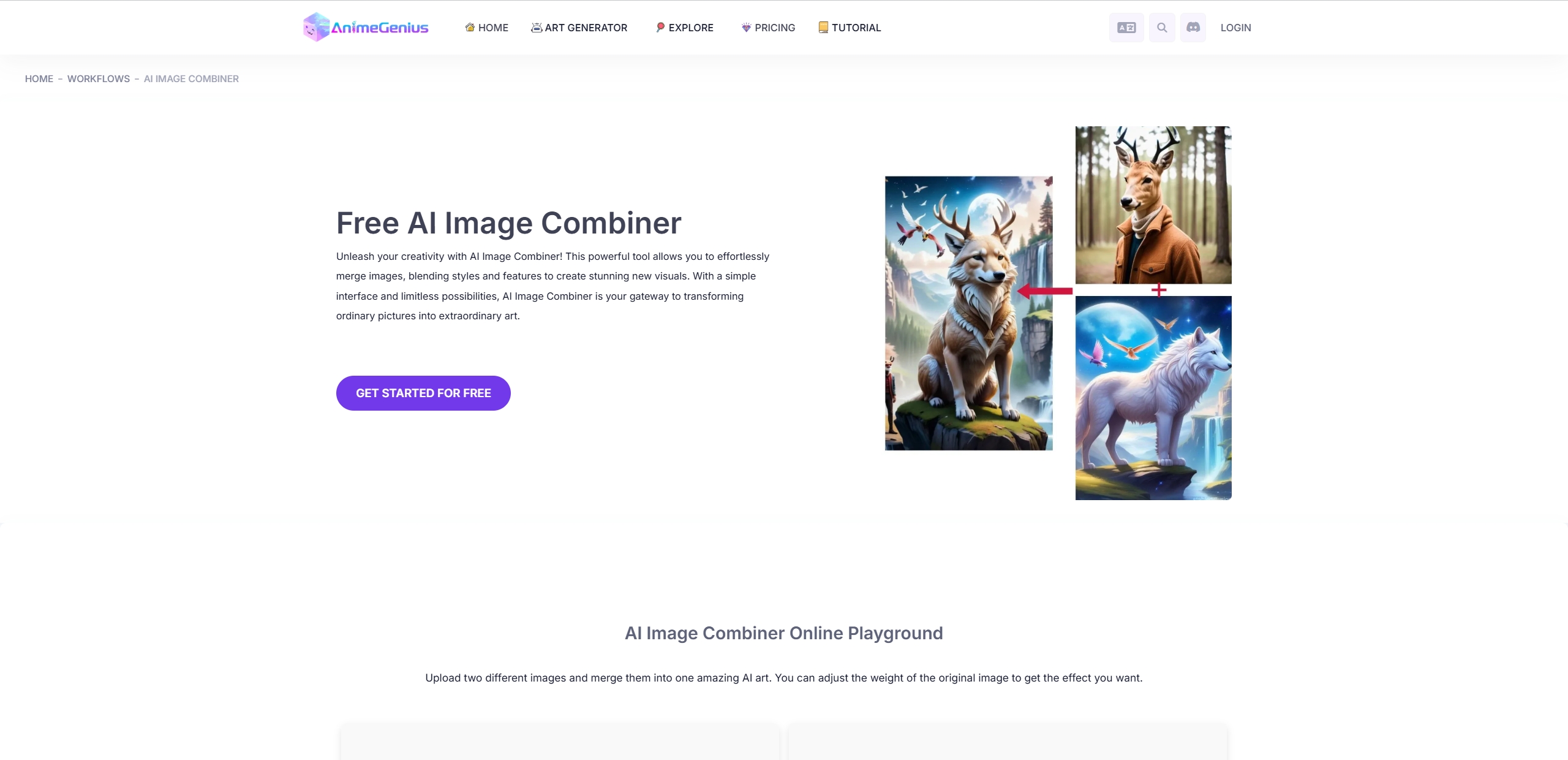
AnimeGenius is one of the users’ go-to AI assistants that lets them merge animal images effortlessly. Unlike the tricky and complicated process on how to merge photos on Photoshop, this AI animal hybrid generator shares a funny way for users to integrate animal traits into a hybrid in seconds. Users can create strange creatures by combining diverse animal images with a few clicks. However, using this tool requires credits for image processing.
Key Feature
- Specially work for blending animal images.
- Adjust blending settings for different styles.
- Need to pay for the credits for image editing.
4. Simplified: Easily Blend Multiple Images into One
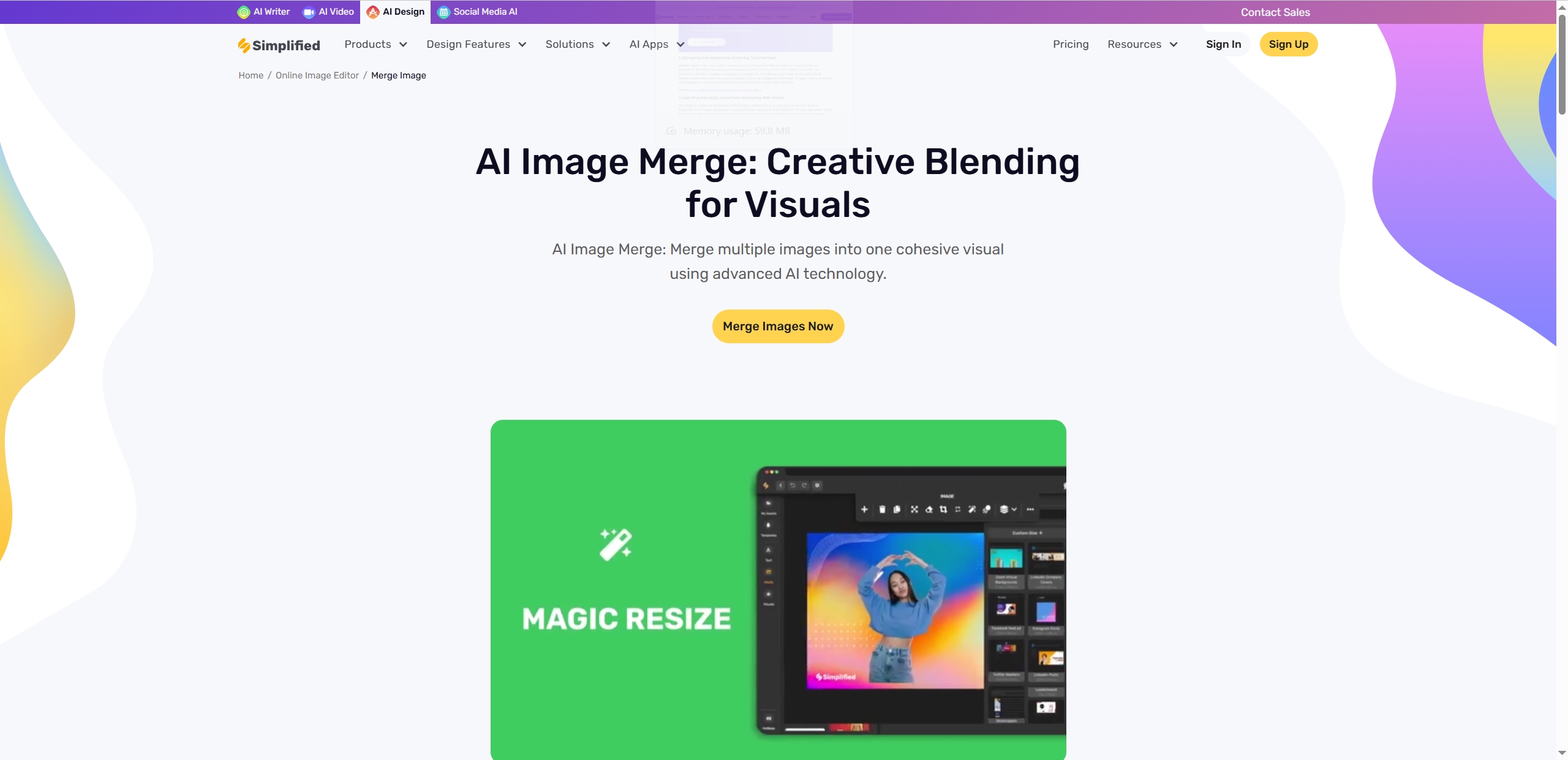
How to merge 2 photos in Photoshop? If you don’t want to learn the complex process. Don’t be worried, Simplified can be helpful, which is known as an AI tool designed for quickly and effortlessly combining multiple images into one. Whether you are a professional photographer or an amateur art designer, this practical AI image editor can work great with its advanced AI algorithm.
Key Feature
- Compatible for diverse image formats.
- Clean and bright operating interface.
- Friendly for beginners to edit photos.
- Produce clean and professional-looking visuals.
Result Examples of How to Merge Photos in Photoshop
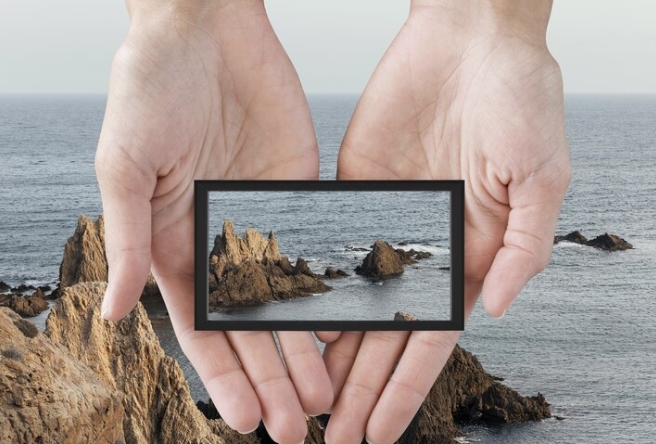
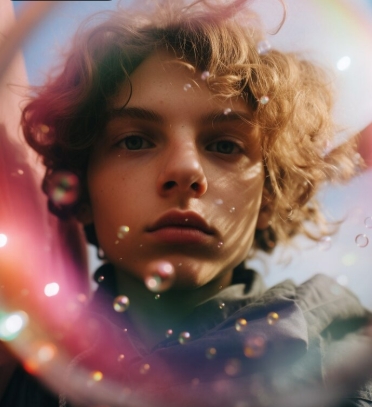
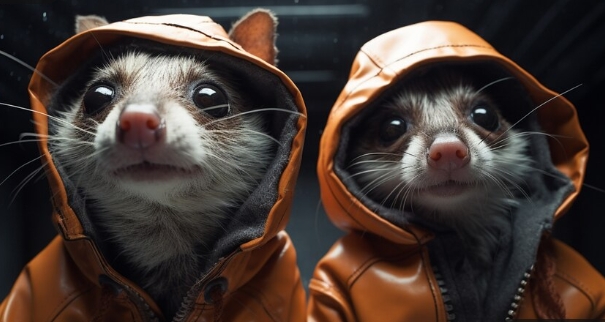
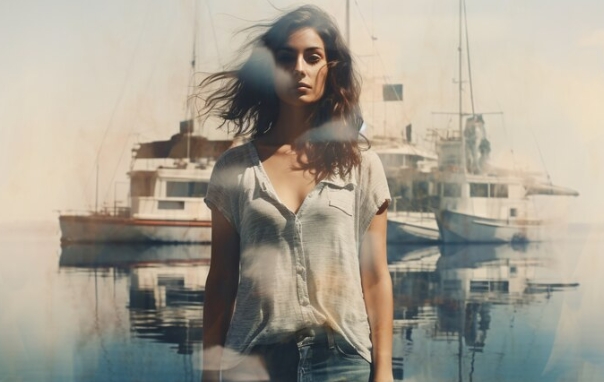
Now that you know how merging photos in Photoshop works, let’s look at some examples of results.
Extra Tip: Create a Stunning AI Video with Images Free Online
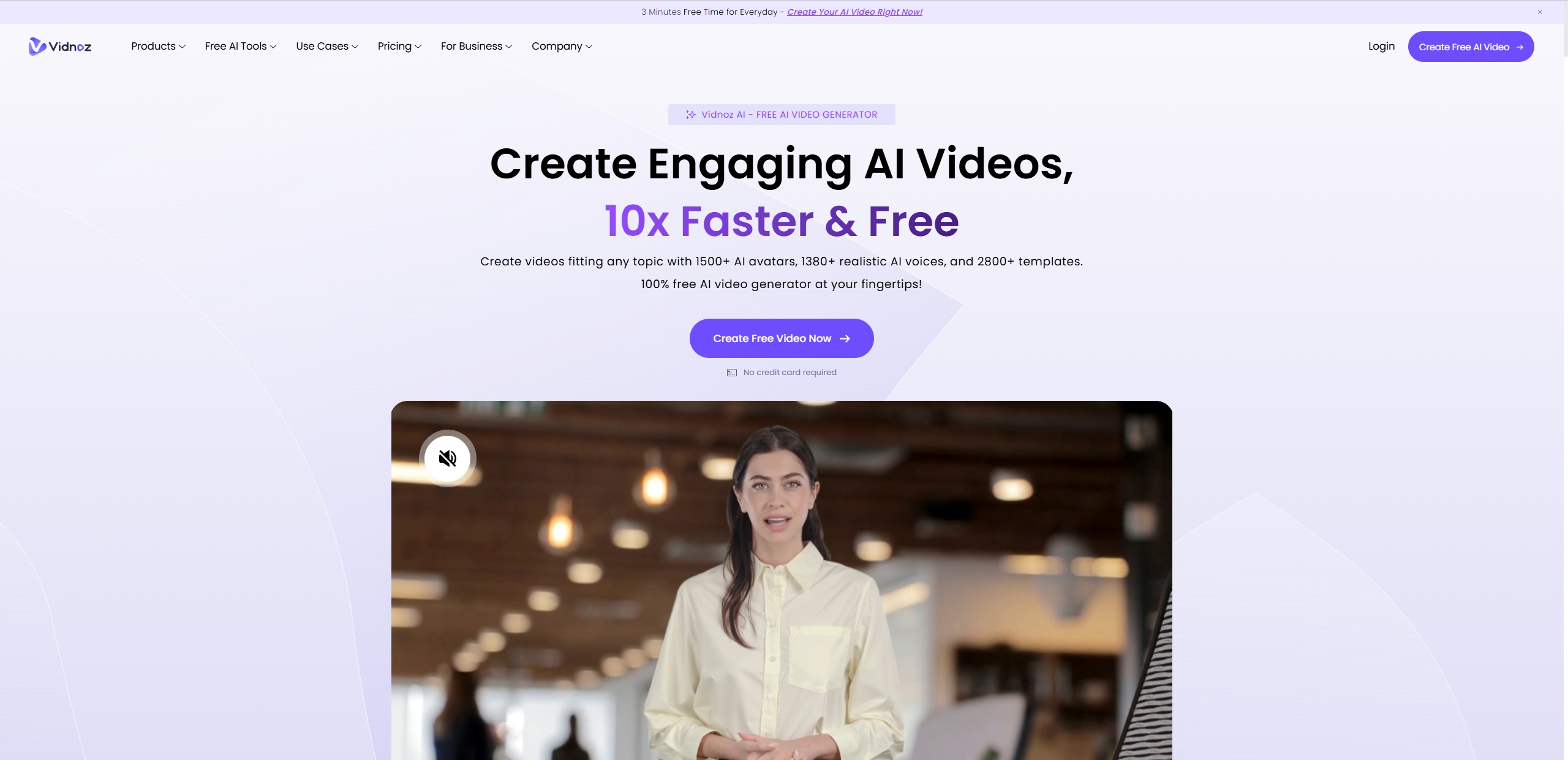
If you're looking for a simple way to turn images into engaging videos, Vidnoz free AI video generator is a great option. This tool enables one to easily make videos of AI nature with diverse natural AI avatars, AI voices and video templates. No matter if you tend to create an educational video or one in another theme, Vidnoz AI can meet your requirement with multiple functions.
Key Feature
- A wide range of realistic AI avatars, AI voices and video templates.
- Support to make two persons dial;ogue in the video.
- Various functions to customize an ideal video.
- Built-in AI script generator to create attractive scripts.
- Other AI tools are available for free, such as AI Dance Photo and AI Attractiveness Test.
Follow the Steps Below to Generate Your Own AI Video for Free
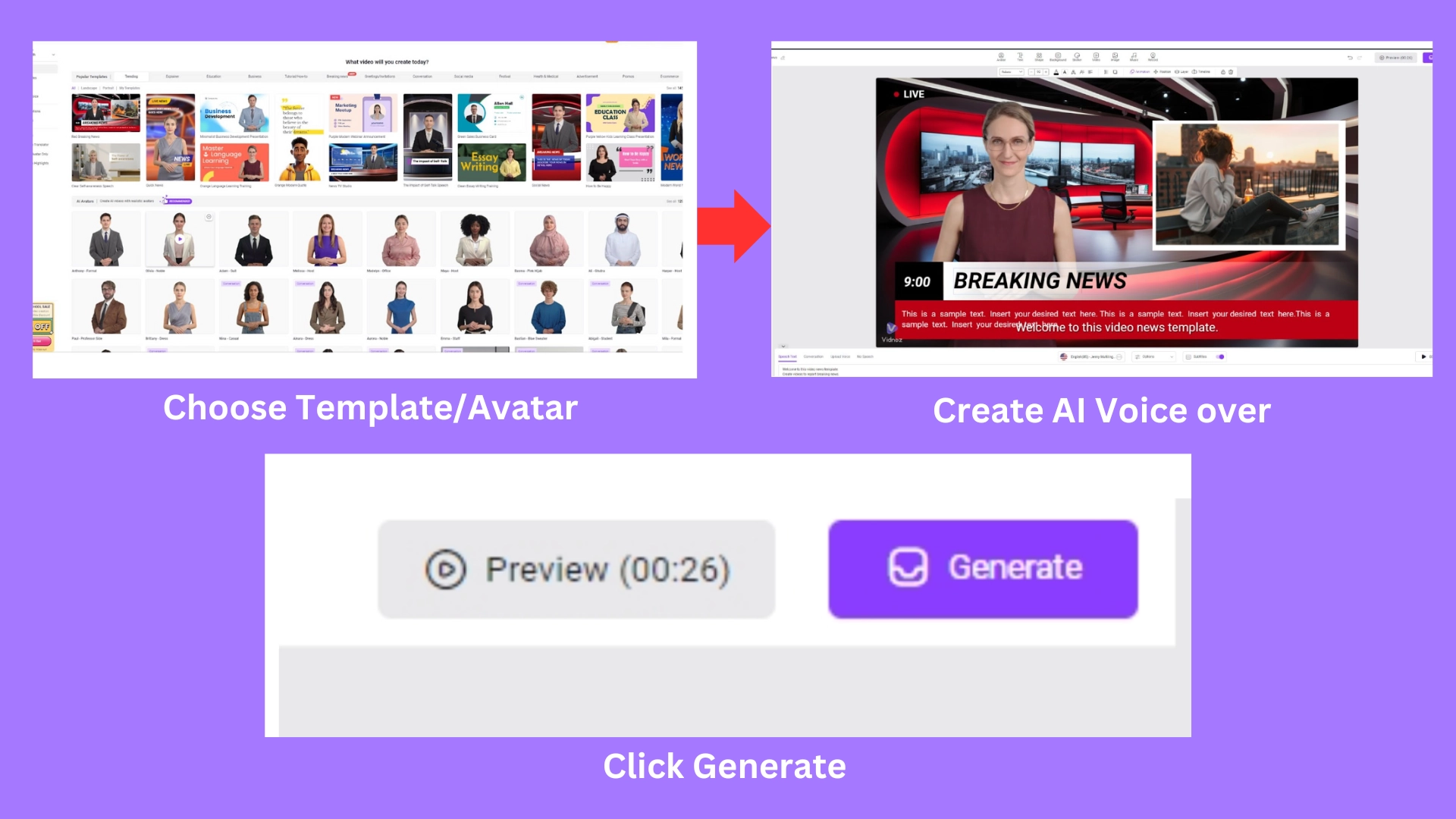
Step 1. Go to Vidnoz AI Video Generator, and select a video template you like. You can also make a customized video by yourself.
Step 2. In the new window, adjust settings, effects, and other details of the new AI video.
Step 3. When everything is down, click the “Generate” button to create your video.
The Bottom Line
Learning how to merge photos in Photoshop can help you create stunning images for work or personal projects. However, the steps to merge photos manually with Photoshop can be somehow difficult-to-follow for the beginners, that’s why AI alternatives are required. So we also introduced some AI solutions for users to make the process easier like Vidnoz AI Image Combiner, MyEdit and AnimeGenius. Choose the best option for your needs and start enhancing your photos today!
Vidnoz AI - Create Free Engaging AI Video with Talking Avatar
- Easily create professional AI videos with realistic avatars.
- Text-to-speech lip sync voices of different languages.
- 2800+ video templates for multiple scenarios.




![12 Best CapCut Alternatives to Create Stunning Videos [Latest Updated]](https://www.vidnoz.com/bimg/capcut-alternatives.webp)