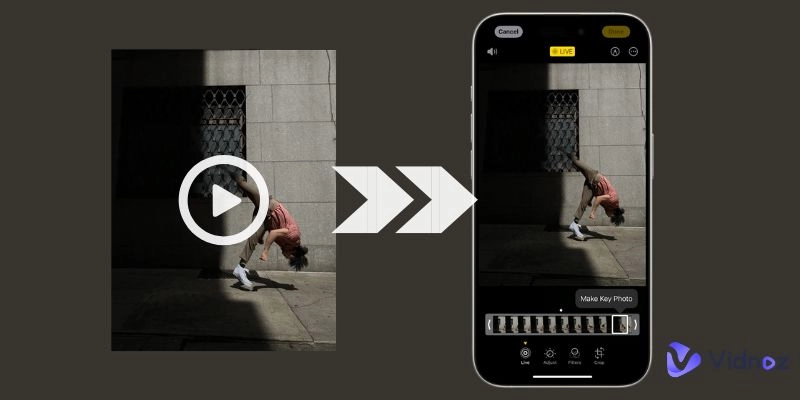
Live Photos are a mix of videos and images. They not only capture the picture but also the moments surrounding before or after the image. It also brings the still moments to life and helps in reliving the memories of the moments when the photos were being captured. If you know the significance of live photos and looking for how to make a video to a live photo, then you are in the right corner.
In this content, we will discuss how to make a video a live photo by using simple tools and following steps. Also covers how to convert still images into Live videos.
- On This Page
-
-
What Are Live Photos and Why Are They So Popular?
-
How to Shoot a Live Photo on iPhone and Android?
Shoot Live Photos on iPhone
Shoot Live Photos on Android
-
Steps of Making a Video into a Live Photo on iPhone [Also for Android]
Step 1: Download the Right App to Make a Video Live Photo
Step 2: Select a Video From Your Gallery.
Step 3: Trim & Edit to Meet Live Photo Length Limits.
Step 4: Add Effects (Filters, Speed Adjustments, Text).
Step 5: Choose Playback Style (Loop, Bounce, Normal).
Step 6: Save & Export as a Live Photo.
-
Can You Convert a Still Photo into a Live Photo?
-
Bonus Sharing: Differences Between Live Photos, GIFs, and Videos
What Are Live Photos and Why Are They So Popular?
Live photo is a feature mainly present in Apple cameras. It records both visual and audio effects for 1.5 seconds before or after the image is taken. Instead of just capturing a single frame, it seizes the memory and experience associated with the image.
It has become increasingly popular, especially among iPhone users, because of its emotional appeal. It captures moments that a single frame fails to catch. The growing interest in how to make a live photo from a video shows that users love revisiting their memories. Many users now use live photos instead of videos and photos to preserve their memories.
How to Shoot a Live Photo on iPhone and Android?
Before learning how to make a video a live photo, it’s essential to understand how to shoot Live Photos on smartphones. While iPhones have built-in support, Android users require alternative methods to enjoy similar effects.
Shoot Live Photos on iPhone
Step 1. Open the Camera app: Open the Camera app on your Apple device by clicking the Camera icon.
Step 2. Click on the Live Photo Icon: Click on the Live Photo icon (a circle with rings) at the top right of the screen. Once you are done, 'Live' will appear on the camera screen.
Step 3. Capture the Live Photo: Hold the phone steady and tap the shutter button. The phone will automatically record 1.5 seconds before and after the shot. The Live photo will be automatically saved, and you can review it.

Shoot Live Photos on Android
If you have shifted from Apple to Android or are simply an Android user looking to learn how to capture live photos on your device, there is no built-in feature like Apple devices. However, you can still capture live photos using third-party software, such as Live Photo and Pixly.
Steps of Making a Video into a Live Photo on iPhone [Also for Android]
iPhone and Android don't have the feature to convert videos into live photos. If you are looking for how to make a video a live photo on iPhone and Android, many apps are now available to help you capture moments associated with a frame.
Step 1: Download the Right App to Make a Video Live Photo
⭐️ intoLive (Best for iPhone Users)

One of the best apps to make a video a live photo is IntoLive. It not only helps to develop live photos but also offers many features:
Key Feature
- Easily edit the uploaded videos and make any photo live.
- Customization option by offering different effects and animations.
- Option to add background music.
- You can easily save high-quality results and share them on your social media.
⭐️ VideoToLive (Best for Both iPhone & Android Users)

Another way on how to make a video a live photo is VideoToLive. Unlike intoLive, it works best for both iPhone and Android users.
Key Feature
- Easy to use and requires no coding.
- Compatible with both Android and iPhone.
- You can convert single or multiple videos into live photos.
Step 2: Select a Video From Your Gallery.
Once you have downloaded the app that works best for you, open it on your device. Click on videos, and a notification will pop up asking whether you allow access to your gallery for this app. Click on 'Allow'. Select the video you want to make a live photo of.

Vidnoz AI - Create Free Engaging AI Video with Talking Avatar
- Easily create professional AI videos with realistic avatars.
- Text-to-speech lip sync voices of different languages.
- 2800+ video templates for multiple scenarios.
Step 3: Trim & Edit to Meet Live Photo Length Limits.
Trim the video according to the app's length limits. If you are using the free version, you can convert a video of 3 seconds, and for paid versions, you can select videos up to 30 seconds.

Image from videoproc.com
Step 4: Add Effects (Filters, Speed Adjustments, Text).
The app offers more features, such as customization of filters, speed, and text.
Step 5: Choose Playback Style (Loop, Bounce, Normal).
Once you have customized the video, you can choose the format of the live photo by choosing between loop, bounce, or normal.
Step 6: Save & Export as a Live Photo.
Once done, generate the video to live photo and save it to your gallery or share it on your social media.
Can You Convert a Still Photo into a Live Photo?
Now, we are sure you have learned how to make a video a live photo, but what about converting a still photo into a live photo? Yes, it is possible! If you want to convert a still photo into a live photo, then Vidnoz AI is here to assist you. This AI tool helps you to convert still photos into live videos quickly online. Here are some simple steps to convert still photos into live photos using Vidnoz:
Step 1. Visit Vidnoz Website
Visit Vidnoz AI website and create your account, and go to Vidnoz Image to Video generator.

Step 2. Upload the Image
Upload the image you want to convert into a live photo by clicking on 'Upload an image.'
Step 3. Generate the Video and Save
Once the image is uploaded to the software, click 'Generate Video.' The live photo will be created in a few seconds. Once it is generated, save it and share it on social media!
Bonus Sharing: Differences Between Live Photos, GIFs, and Videos
Some people may wonder: What's the real difference between Live Photos, GIFs, and Videos? Honestly, at first glance, all three capture motion in some form. However, each format has distinct characteristics that affect how and where it's used. To clear up the confusion, we have broken down these three based on key attributes, including description, typical length, presence of sound, file size, and best use cases.
|
Feature
|
Live Photos
|
GIFs
|
Videos
|
|
Description
|
Image with visuals and audio 1.5 seconds before or after the image is taken
|
It is a looping sequence of pictures without any audio
|
It is a standard recording of the frames with audio effects
|
|
Length
|
1.5 seconds
|
1 to 10 seconds
|
Seconds to hours
|
|
Sound
|
Present
|
Absent
|
Present
|
|
File Size
|
Small to Medium
|
Small
|
Medium to Large
|
|
Best Users Case
|
Memories and wallpapers
|
Mainly for memes and reactions during chatting
|
Vlogs, tutorials, cinematic content
|
|
Platform Support
|
iPhone has an inbuilt feature, but Android users can also access it using third-party apps
|
All platforms
|
All platforms
|
Conclusion
Now you know how to make a video a live photo with third-party tools such as intoLive and VideotoLive. If you want to take this feature further by converting still images into live ones, then Vidnoz AI is here to assist. With the Vidnoz Image to Video generator, you can convert still photos into live ones with a few steps. This app also helps to add animation and sounds to avatar photos. Start transforming your media today, and let your memories move!
Vidnoz AI - Create Free Engaging AI Video with Talking Avatar
- Easily create professional AI videos with realistic avatars.
- Text-to-speech lip sync voices of different languages.
- 2800+ video templates for multiple scenarios.





![Top 3 Tools to Extract Subtitles from Video Online Free [Step-by-Step Guide]](https://www.vidnoz.com/bimg/extract-subtitles-from-video-online-free.webp)

![12 Best CapCut Alternatives to Create Stunning Videos [Latest Updated]](https://www.vidnoz.com/bimg/capcut-alternatives.webp)