Sometimes a single image isn't enough to communicate what you want, whether it is a detail you want to highlight or the emotions you are trying to express. That is when image annotation tools become useful. They let you add notes, highlight key areas, and make your photos more informative.

Most smartphones and computers already offer simple built-in tools for quick markup. But if you want more control, customization, or advanced features, there are plenty of third-party apps that take image annotation to the next level. In this article, we will explore the free tools available, what they can do, and how to choose the best option to annotate images.
- On This Page
-
What is Image Annotation?
-
Different Image Annotation Tools Online
Markup Hero Image Annotation
-
Annotate a Picture on Your Mac
How to use Preview to annotate an image on a Mac
-
Annotate a Photo on Your PC
How to annotate an image using Snipping Tool
How to annotate a photo in the Photos app on PC
-
Annotate Images on Your Phone
-
Bonus: Vidnoz Video Annotation Tool
What is Image Annotation?
Image annotation is the process of adding information directly onto an image to explain, highlight, or clarify something within it. It makes an image easier to understand.
The most common ways to annotate an image include:
- Text notes or captions
- Arrows or shapes
- Highlights
- Labels, stickers, or tags
- Drawings or sketches
Annotated images can be used in many situations. For example, marking up screenshots for work, labeling parts of a photo for a project, giving visual feedback, or simply pointing out something important to friends or on social media.
Different Image Annotation Tools Online
If you annotate images frequently, downloading third-party apps on your computer can be useful for batch edits or offline work. But if you are only editing a few photos and want real-time collaboration, online image annotation tools are the better choice.
Fotor Image Annotation
Fotor is an all-in-one design platform known for its large collection of photo and video assets and its easy-to-use editing tools for all skill levels. It offers professional-quality features that let you enhance or transform your images, including built-in markup tools for adding text, shapes, and highlights.
Annotating images in Fotor is straightforward and user-friendly, and it even supports batch editing if you need to mark up multiple photos at once. It is an ideal tool for personal shots and projects.
Step 1. Go to Fotor Image Editor and upload a picture you would like to mark up.
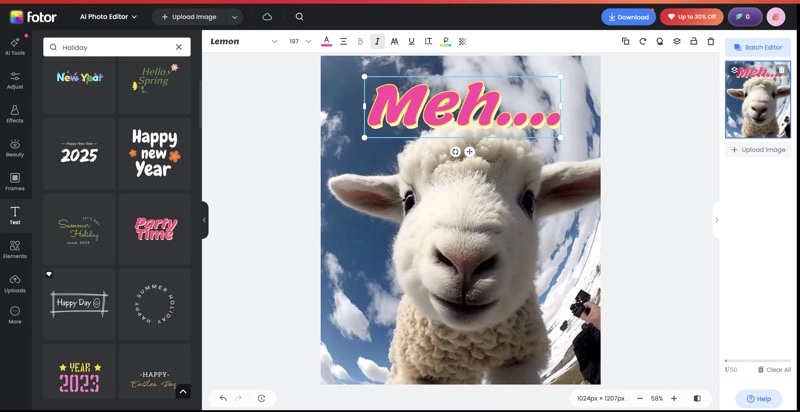
Step 2. Browse the tools in the side panel, especially the Elements and Text sections, to find the annotation options you need.
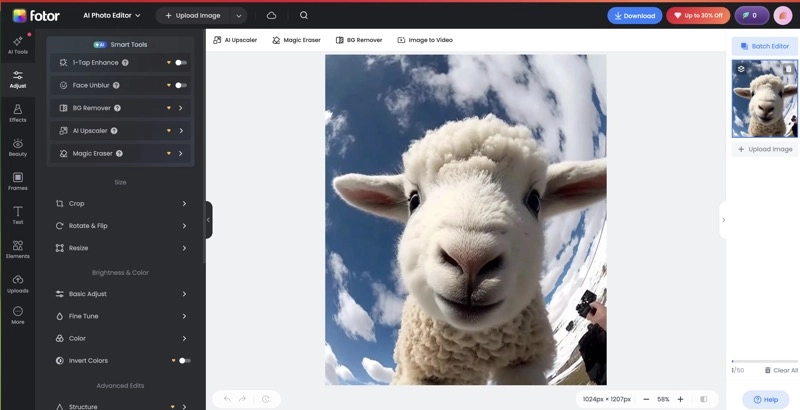
Step 3. Add your annotations to express your messages and emotions more clearly.
Markup Hero Image Annotation
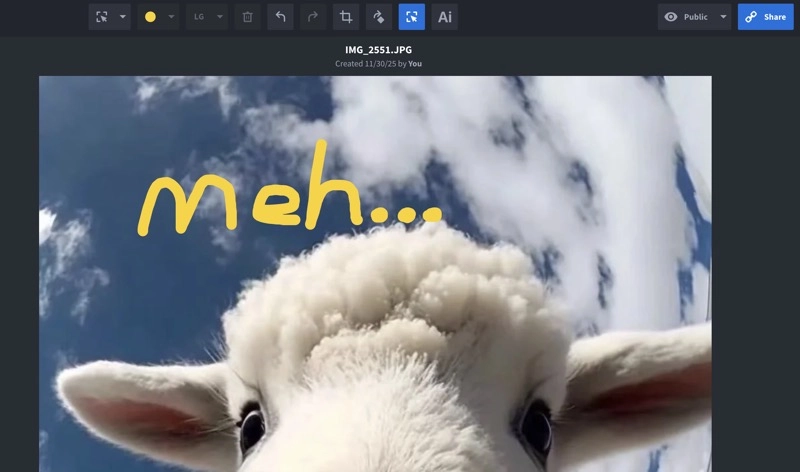
Markup Hero is another excellent web-based image annotation tool worth trying. It offers a clean interface that makes it easy to add text, shapes, arrows, drawings, and even additional images to help you communicate your message more effectively. One standout feature is its markup history, which lets you revisit and edit your previous annotations at any time. You can also generate a shareable link instantly, making it ideal for collaboration, team reviews, and remote work.
Step 1. Go to the Markup Hero image annotation webpage.
Step 2. Upload the image you want to annotate, or paste an image link.
Step 3. Click the Markup tool icon to open the dropdown menu.
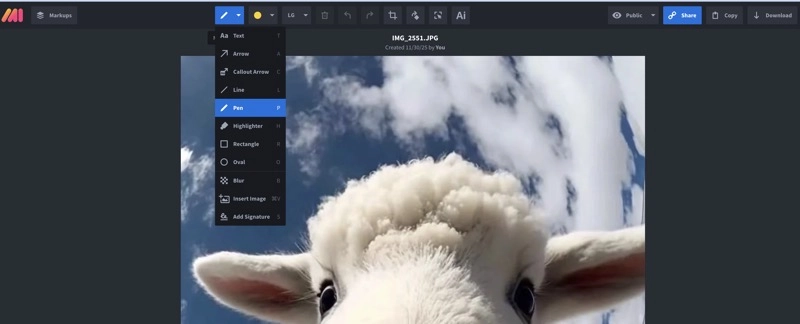
Step 4. Choose the element you want to add, such as text, shapes, or arrows, and apply it to your image.
For simple image annotations, your computer’s built-in tools are often all you need. Both Windows and macOS include free, easy-to-use features that let you add text, draw basic shapes, or point out details you want to highlight. The following steps will guide you through annotating an image on your Mac or PC.
Also Read: Remove Watermark from Video Online Without Blur with AI Free>>
Annotate a Picture on Your Mac
The Preview app is the default tool on Mac for viewing, editing, and annotating images and PDFs. It lets you add text, shapes, arrows, highlights, and signatures, and you can easily export your files in different formats. It is a simple yet powerful tool for everyday image markups.
How to use Preview to annotate an image on a Mac
Step 1. Double-click on the image you want to annotate to open it in the Preview app.
Step 2. Once your image is open, click the "Show Markup Toolbar" button in the Preview window if it doesn't show up. This icon looks like a pen inside a circle. The toolbar will appear at the top of the window.
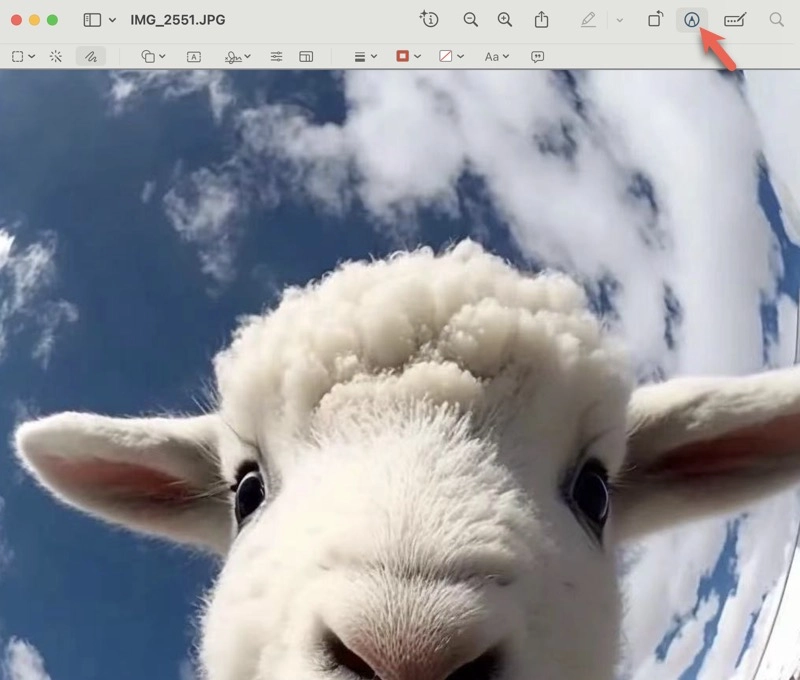
Step 3. Use the tools in the markup toolbar to add text, draw shapes, or insert shapes. You can customize the color, size, and style of each annotation to make your edits clear.
Step 4. After finishing your annotations, go to File > Export in the Apple menu bar if you want to save a copy in a different format to keep your edits.
Also Read: How to Remove Objects from Video Online Free>>
Annotate a Photo on Your PC
The primary built-in image annotation tool on Windows is the Snipping Tool. It lets you capture screenshots and mark them up immediately using pens, highlighters, shapes, and more.
How to annotate an image using Snipping Tool
Step 1. Press Windows key + Shift + S to open the snipping tool overlay.
Step 2. Open an image you want to edit and capture it. The snapshot will be copied to your clipboard and opened in the Snipping Tool window.
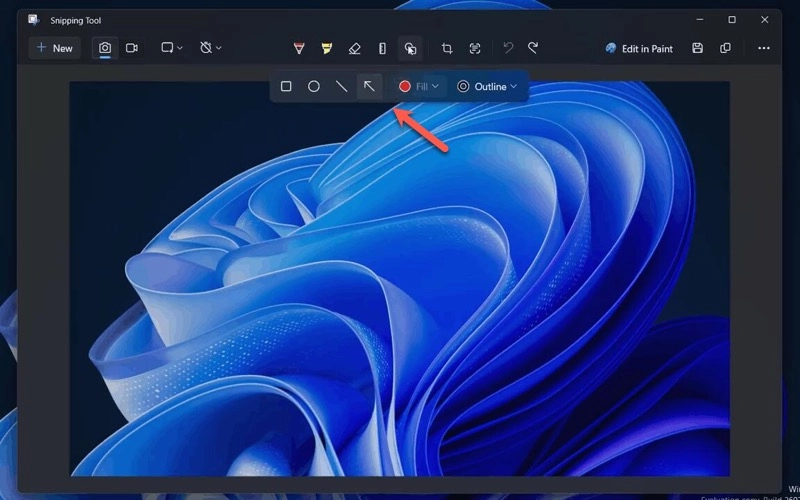
Step3. Use the Pen or Highlighter to draw or write on the image. You can also add shapes or emojis by selecting the Shapes button.
For existing images, Windows users can also add simple annotations in the Photos app, which opens photos by default. The annotation options are limited, but the Draw feature works well for quick edits.
How to annotate a photo in the Photos app on PC
Step 1. Double-click the image you want to annotate, and it will open automatically in the Photos app.
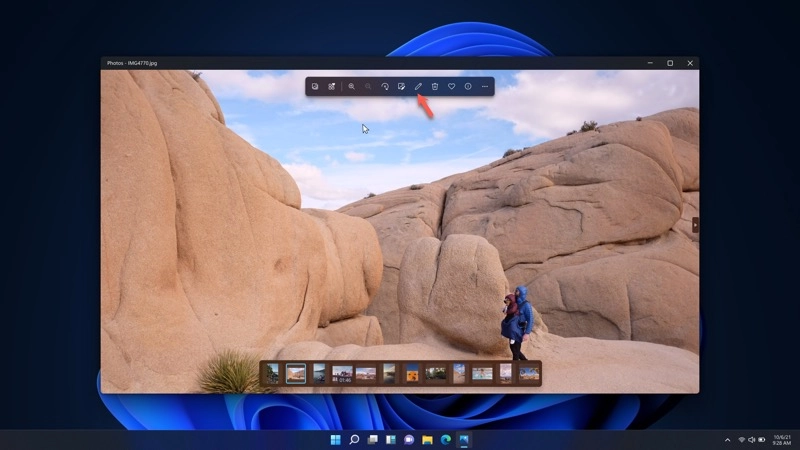
Step 2. Look for the toolbar at the top of the window.
Step 3. Click the pen icon (Draw) to start annotating your image.
Annotate Images on Your Phone
Most modern smartphones include built-in tools that let you quickly edit and mark up photos. The exact steps vary depending on your phone’s brand and model, but you can usually find the markup tools within the photo editing options.
To annotate photos on an iPhone, in the Photos app, open the photo, tap Edit, then tap the Markup button. From there, you can draw, add text, insert shapes, and more.
To annotate photos on an Android phone, open the image in the Gallery app, tap the Edit icon, and then select the drawing pen or similar drawing icon. This lets you draw, highlight, or add simple notes to your photo.
Also Read: Make Photo Move with AI Free: Online Photo Animator>>
Bonus: Vidnoz Video Annotation Tool
If you want to post short clips on social media or create quick, dynamic tutorials, Vidnoz AI free video generator is a great tool to help you create video content. It offers AI-powered templates and editing tools that let you generate engaging and professional-looking videos. It is a free built-in annotation feature that can easily add text, captions, stickers, shapes, highlights, and more to catch the audience's attention and enhance your message.
Vidnoz AI also offers image editing tools like an AI background remover and an AI object remover to help you enhance your photos.
Step 1. Open the Vidnoz AI Video Generator.
Step 2. Start a new video project or choose one of the available templates.
Step 3. Use the toolbar to select an annotation option such as text, stickers, or shapes.
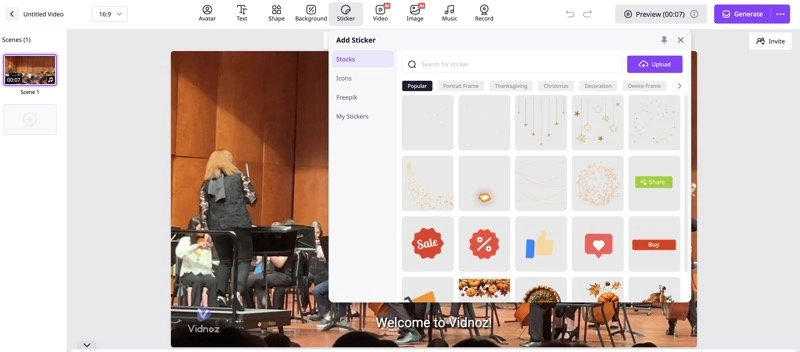
Step 4. When you complete editing, click Generate to create your new annotated video.
Final Words
There are many tools available for image annotations. Windows, Mac, and most smartphones all include built-in options that are perfect for quick edits, simple notes, and basic highlighting. They are convenient for fast, straightforward markups without anything else.
Image annotation online tools give you more flexibility and let you edit images anytime, anywhere. Fotor is ideal for personal use, offering professional-level editing and batch annotation, while Markup Hero is great for teamwork thanks to its shareable links. These platforms also provide decorative shapes, stickers, and more advanced markup styles.
And if you need a free tool for annotating videos, Vidnoz AI is a great option you don't want to miss.

Vidnoz AI - Create Free Engaging AI Video with Talking Avatar
- Easily create professional AI videos with realistic avatars.
- Text-to-speech lip sync voices of different languages.
- 2800+ video templates for multiple scenarios.